This guide follows NVIDIA's nvidia-smi documentation and NVIDIA's RTX 50 Series laptop specifications, read on 26 November 2026, and credits Notebookcheck for its reporting on the NVIDIA Control Panel readout.
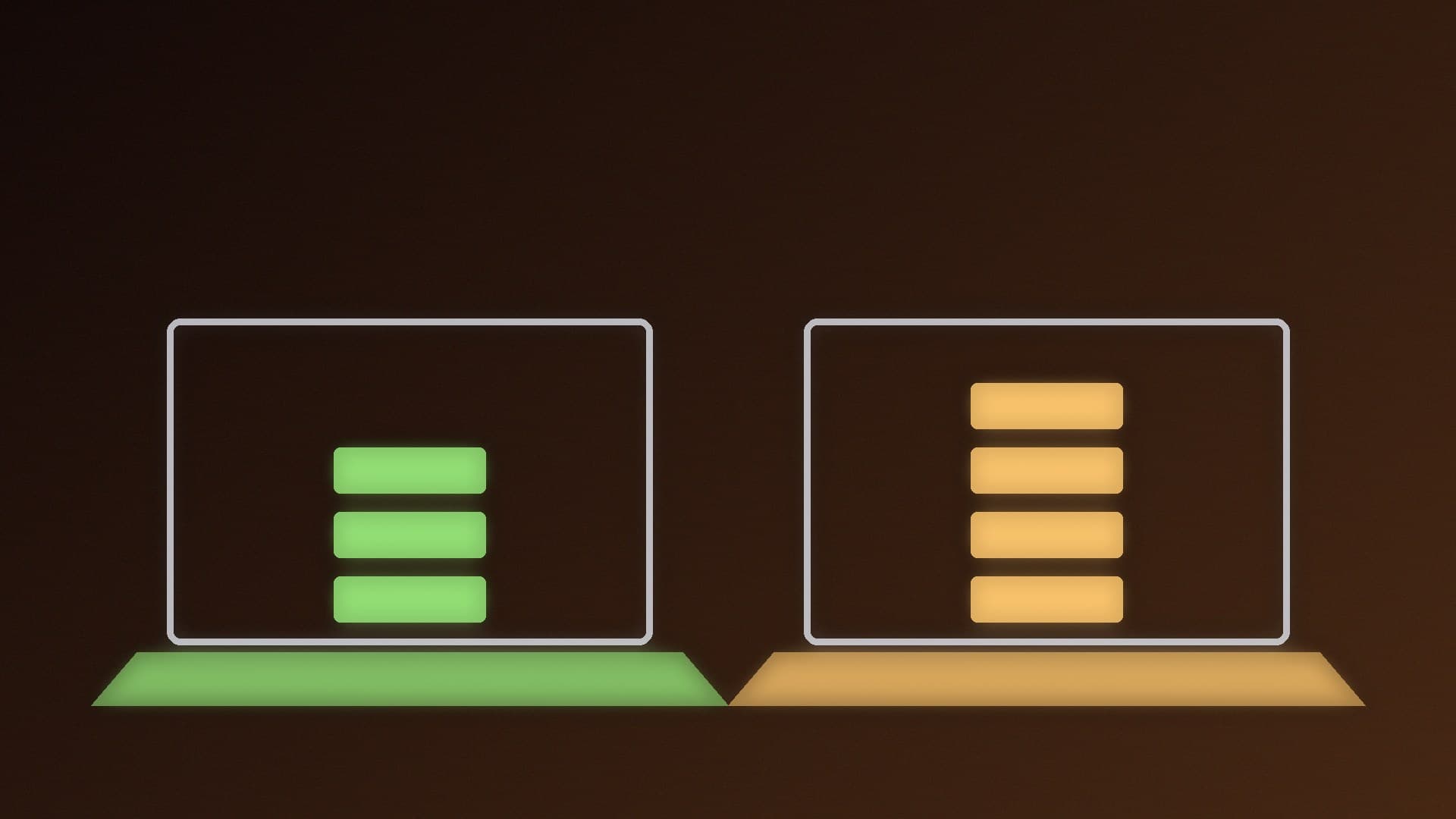
The same NVIDIA laptop graphics chip can run at very different power levels depending on the laptop. NVIDIA's own specification page lists a GPU subsystem power range of 95-150W for the GeForce RTX 5090 Laptop GPU, 80-150W for the RTX 5080 Laptop GPU and 60-115W for the RTX 5070 Ti Laptop GPU, and the laptop maker decides where in that range its design sits. For gaming, that affects frame rates. For local AI, it affects how quickly the graphics chip can work through image generation, video generation and long prompts, which keep the GPU busy for minutes at a time.
Here's how to find the figure for a laptop you already own, and what to check before you buy one.
Before you buy: check the specification sheet
NVIDIA's RTX 50 laptop page lists only the range for each chip, not the figure for any particular laptop. Look for the graphics power on the laptop maker's own specification page for the exact model and configuration. Makers use different names for it, such as maximum graphics power, total graphics power (TGP) or GPU power. If two laptops have the same graphics chip, the one with the higher figure has more headroom for long AI jobs, assuming its cooling can keep up.
Don't rely on the graphics chip name alone. NVIDIA lists 16GB as the standard memory configuration for the RTX 5080 Laptop GPU across its whole power range, so two laptops with that chip can have the same memory but run at different power levels. For how much memory you need, see our VRAM guide.
Method 1: NVIDIA Control Panel
Right-click an empty part of the desktop and open NVIDIA Control Panel. If it isn't in the menu, search for it from the Start menu.
Click System Information in the bottom-left corner of the window.
Select your GeForce laptop GPU and look for Maximum Graphics Power in the details list.
Notebookcheck reported in 2021 that NVIDIA briefly removed this readout from a release driver for some RTX 30 Series laptops and restored it with GeForce Hotfix Driver 461.51. If you don't see it, update to a recent NVIDIA driver and check again. If it still isn't there, use the laptop maker's specification page or Method 2.
Method 2: nvidia-smi
nvidia-smi is NVIDIA's command-line monitoring and management tool, and NVIDIA's documentation says it supports 64-bit Windows as well as Linux. If Windows doesn't recognise the command, check that the NVIDIA driver is installed.
Open Terminal (or Command Prompt).
Type nvidia-smi -q -d POWER and press Enter.
Look at the power limit fields. NVIDIA's documentation describes them as follows:
Current Power Limit: the limit the power management is enforcing now.
Default Power Limit: the default ceiling.
Min Power Limit and Max Power Limit: the lowest and highest values the limit can be set to.
Power Draw: what the graphics chip is drawing now.
NVIDIA's documentation says only very limited information is provided for most GeForce devices, so some fields may show as not available on a GeForce laptop. If they do, use Method 1 instead.
To see how the power behaves during real work, run nvidia-smi -q -d POWER -l 5 while an AI job is running. The -l option repeats the report at the interval you set in seconds; press Ctrl + C to stop. If the power draw stays well below the limit, the cooling or the laptop's power mode may be holding the GPU back.
Getting the most from your laptop's GPU power
Plug the laptop in for long AI jobs, then run the nvidia-smi check above to see what limit the GPU is actually getting. If the laptop maker's control app has performance modes, check its manual to see whether they change graphics power, and compare the readings in each mode.
Desktop users can lower the power limit with nvidia-smi to cut heat and noise, as our guide to setting a GPU power limit with nvidia-smi explains. NVIDIA's documentation says changing the limit works only on supported devices and needs administrator rights, so it may not be possible on a laptop.
If you're still choosing hardware, our best laptops for local AI guide and laptop vs desktop for local AI comparison cover the bigger decisions.
Our verdict
To find your laptop GPU's power level, open NVIDIA Control Panel, click System Information and look for Maximum Graphics Power, or run nvidia-smi -q -d POWER in Terminal. Before buying, check the laptop maker's specification for the exact model, because NVIDIA's own figures are only a range and the maker's setting affects how fast local AI runs.