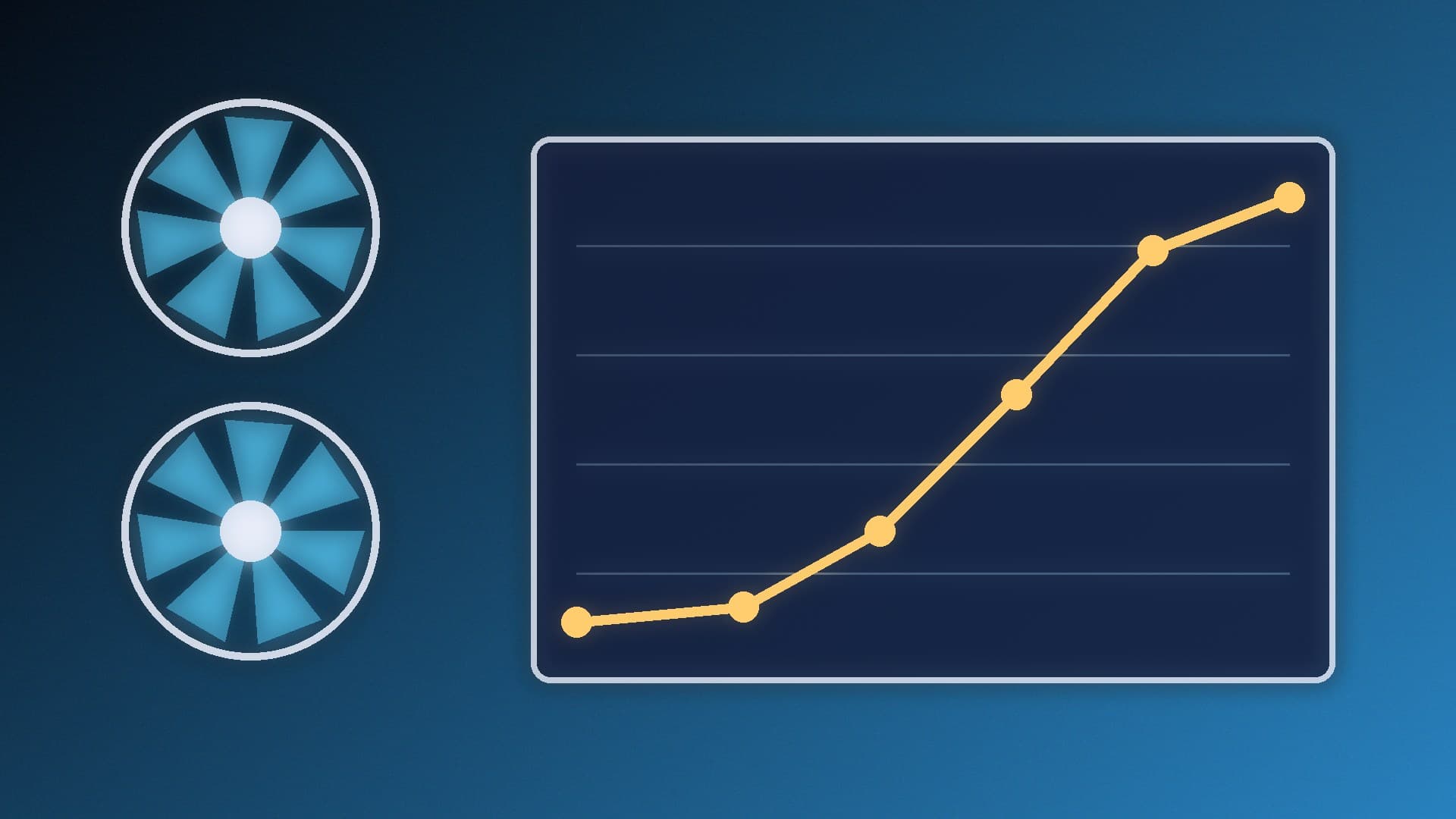
Most PCs end up with fan control spread across two or three places: the motherboard BIOS for case and CPU fans, the graphics driver for the GPU, and sometimes a separate app for an AIO cooler. FanControl, a free Windows app by developer Rémi Mercier (Rem0o), pulls them into one window, so your case fans can react to GPU temperature as well as CPU temperature.
If you want to compare it with other tools first, see our best free fan control software. For the basics of what a fan curve is, read how to set fan curves.
What FanControl can and can't do
FanControl runs on Windows 10 and Windows 11. It's free to use, but it isn't open source: the project page says the program's own source code is closed. Its sensor and hardware back end is the open-source LibreHardwareMonitor project, which we cover in how to use LibreHardwareMonitor, and NVIDIA and AMD graphics cards are handled through their own driver interfaces.
The main features listed by the developer are:
A guided setup on first launch
Multiple saved profiles
Temperature sources from the CPU, GPU, motherboard, drives and more
Several fan curve types, including a custom graph editor
Mixing curves or sensors together (maximum, minimum or average)
Fine tuning with step up/down, start %, stop %, response time and hysteresis
A plugin system for extra hardware
Two limits are worth knowing before you start. First, it mostly doesn't work on laptops: the FAQ says laptop fans usually aren't exposed in the way desktop motherboard headers are, so the app will install but may find no fans unless a plugin supports your model. Second, hardware support depends largely on LibreHardwareMonitor, so if a header or controller isn't detected, that's where support has to come from.
Step 1: Set your BIOS fans to a fixed speed
The developer's advice is to avoid any "smart" fan control in the BIOS, because the BIOS and FanControl will otherwise fight over the same fans. Setting a fixed default speed, such as 50%, works well for most people. While you're there, check whether each header is in PWM (4-pin) or DC (3-pin) mode; the FAQ notes one may work better than the other depending on your fans.
Step 2: Install FanControl
You can download a portable ZIP or an installer from the official GitHub releases page, then run FanControl.exe. It's also available through package managers:
WinGet: winget install Rem0o.FanControl
Scoop: scoop bucket add extras, then scoop install fancontrol
Chocolatey: choco install fancontrol
If you previously used an old version, update it. From V238 onwards FanControl ships with a PawnIO build of LibreHardwareMonitor instead of the older WinRing0 driver, which Windows Defender now flags as a trojan. The developer says updating to V238 or later is the fix if sensors stop appearing for that reason. Recent builds are also signed, which should reduce antivirus false positives.
Step 3: Pair and calibrate each fan
On first launch the setup assistant walks you through detecting your hardware. Each fan appears as a "control" card. Pair each control with its speed sensor, either manually or with the pairing utility, so the app knows which RPM reading belongs to which header.
Then run calibration. According to the documentation, this finds each fan's start point, stop point and minimum and maximum speeds, and builds a graph of how much power gives what RPM. Calibration is required if you want curves to target RPM rather than percentage, and the newer "avoid points" setting lets you mark a speed that rattles or drones so the fan never sits there.
Step 4: Create your fan curves
Curves are created separately from controls, then assigned to a control from its "curve" drop-down. The documented types include:
Linear: scales between a minimum and maximum speed across a temperature range.
Graph: a custom curve; left-click to add a point, right-click to remove one.
Mix: combines existing curves using Max, Min, Average, Sum or Subtract.
Trigger: holds an idle speed until a load temperature is reached, then holds a load speed until it drops back to idle.
Flat: a fixed percentage.
Sync: copies another control's output, with an optional offset.
Auto: looks for the lowest speed that holds a target load temperature, best suited to steady loads.
A practical starting point for a gaming PC is a Mix curve for the case fans: one curve driven by CPU temperature, one by GPU temperature, combined with Max. The case fans then respond to whichever component is working hardest. FanControl's own site describes curve mixing as the missing feature that started the whole project.
Step 5: Stop the fans hunting
If fans keep ramping up and down, use the tuning options rather than flattening the curve. Hysteresis sets the minimum temperature change before speed changes, response time sets the minimum delay, and step up/down limits how fast speed can change. The Time Average custom sensor can also smooth a spiky CPU reading before it reaches a curve.
GPU fans: the special cases
Graphics cards behave differently. The documentation says modern NVIDIA RTX cards have a 30% minimum and can't be set to 0 RPM manually; FanControl releases control when the curve reaches 0% so the card's own zero-RPM mode can take over. Build a GPU curve with its 0% point at or below the card's zero-RPM temperature, then step up to 30%.
On AMD cards, FanControl uses the same ADLX interface as AMD Software: Adrenalin Edition. Controlling the fan from FanControl resets Adrenalin's tuning settings to default, so if you've overclocked or undervolted in Adrenalin, consider leaving GPU fan control there and only reading GPU temperature in FanControl.
Step 6: Start it with Windows
Turn on the start-with-Windows option so your curves apply after every boot. Newer versions can also start as a service at boot, without a user session. If you later remove FanControl, untick that option or delete the "Fan Control" task in Task Scheduler, otherwise your BIOS fixed speed becomes the only control left.
Our verdict
FanControl is one of the most flexible free ways to control a desktop PC's fans, mainly because it can link case fans to GPU and CPU temperatures together through Mix curves. Set your BIOS fans to a fixed speed first, calibrate every fan, and be careful with GPU fan control on AMD cards because it resets Adrenalin tuning. It isn't a good fit for laptops, and if a fan header isn't detected, the fix depends on LibreHardwareMonitor support or a plugin.