You don't need to install MSI Afterburner or another overlay just to see how a game is running. Steam's in-game overlay includes a performance monitor that shows frame rate, CPU and GPU load, video memory and system RAM in a corner of the screen. It's also one of the few free overlays that separates generated frames from real ones when DLSS or FSR frame generation is on.
Forge PC hasn't tested it with every game and graphics card. This guide is based on Valve's official FAQ, which explains what each number means, and Tom's Hardware's walkthrough of the settings by Les Pounder. Valve says its FAQ covers the full set of metrics on Windows, and some aren't yet supported on other operating systems.
How to turn it on
Make sure Steam is up to date (it updates automatically when you open it).
In the Steam client, open Steam > Settings.
Select In Game.
Find the Performance Monitor settings and choose where to show it, for example the top-left corner.
Pick a detail level. Higher levels add more rows, such as CPU and GPU details and the FPS graph.
Adjust the text size and background opacity if the overlay is hard to read; Tom's Hardware found the default text tricky to read at first.
Close Settings and launch a game. The monitor appears in your chosen corner. Make sure the Steam overlay is enabled for the game.
Reading the FPS line
If frame generation is off, you'll see a single FPS figure followed by ↓Min and ↑Max values. If it's on, Valve says you'll see a DLSS, FSR or frame-gen figure first, which includes generated frames, then the actual game FPS with its own ↓Min and ↑Max.
That matters because, as Valve explains, generated frames make motion look smoother but don't process your input, network updates or game logic, so they can't reduce input latency. The real game FPS tells you how responsive the game is. Valve also notes it's normal for games to switch frame generation off in menus and cut-scenes. For more background, see our frame generation explainer.
Spotting stutter with ↓Min
FPS is averaged over one-second intervals, which can hide a single long frame that you feel as a hitch. Valve calls this micro stutter. The ↓Min number shows what your frame rate would have been that second if every frame were as slow as the worst one. If ↓Min turns red, Valve considers it a meaningful drop: less than half the average.
The FPS graph
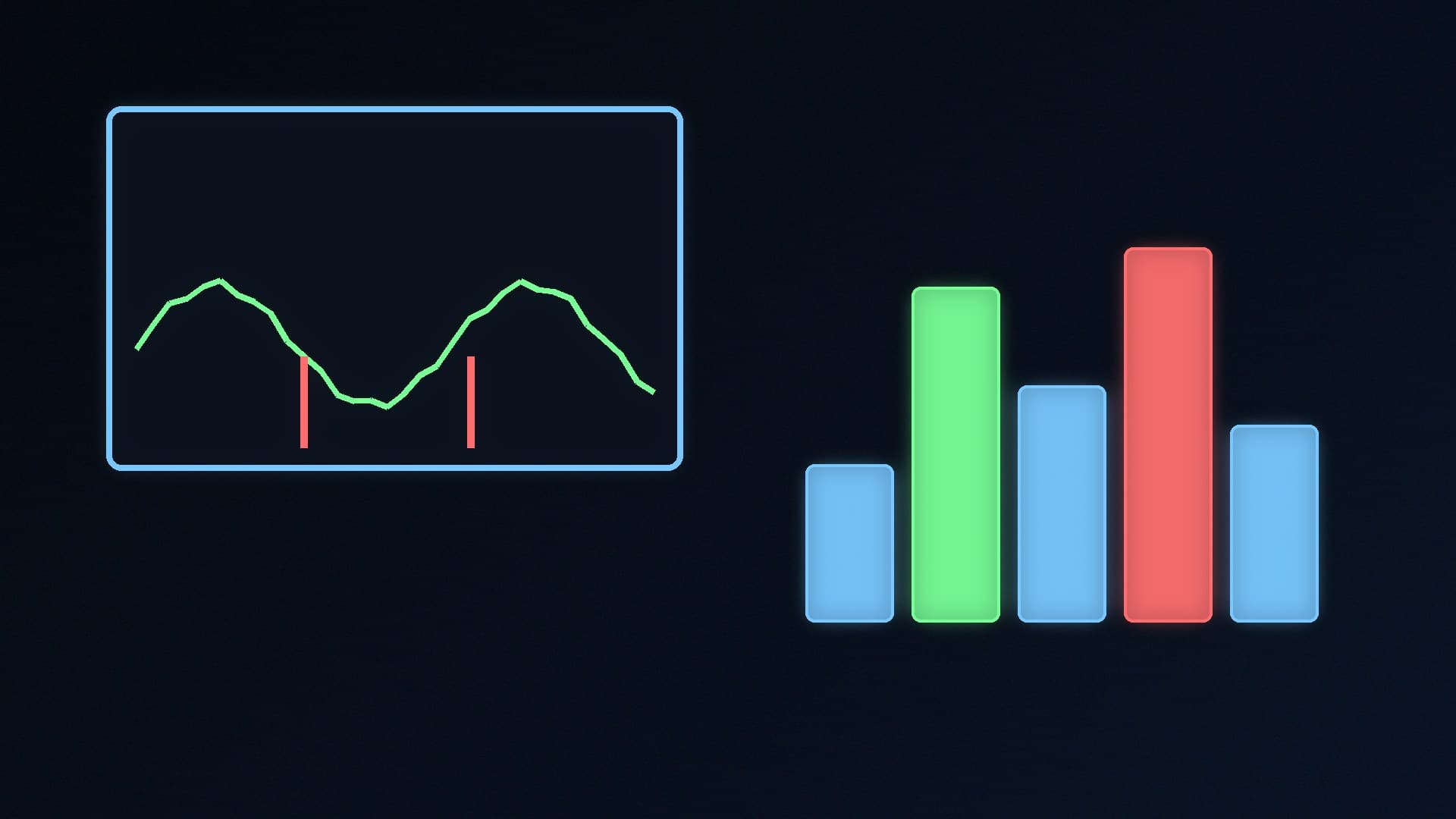
At higher detail levels, the monitor draws a graph of the one-second average FPS over a 90-second window in green, with any red ↓Min drops plotted in red. The small numbers beside it show the graph's scale, which adjusts over time. Valve says an occasional red spike when loading levels or entering menus is common. What you want during normal play is a steady green line with no sustained red dips. If you see frequent red, our guide to fixing stuttering in PC games is the next step.
CPU numbers
The CPU line looks like CPU 25% / ↑119%. Valve uses Windows' "% Processor Utility" metric, the same one Task Manager uses, which scales work against the processor's base clock. That means:
The first number is the average across all cores. It's often low simply because games can't use every core on a many-core CPU.
The ↑ number is the single busiest core. It can go over 100% when the CPU boosts above its base clock.
If the busiest core is pinned high while the GPU isn't fully used, the CPU may be holding back your frame rate. You can optionally add a per-core bar graph, plus clock speeds (average and highest core) in GHz.
GPU numbers
Valve's GPU utilisation figure is the most-used engine on any GPU in the system, using Windows performance counters and, on some vendors' cards, the vendor's own API if it reports higher. Valve says it's designed so that 100% means the game is limited by the graphics card at your current settings. Near 100% in a demanding game is normal; your options are lowering settings or resolution, or upgrading.
On supported cards you'll also see GPU temperature, which Valve says is the hottest sensor it can read.
VRAM: watch for red
The memory figure looks like 6.8/16 GB: dedicated plus shared video memory used, out of the card's total dedicated memory. If the first number is bigger than the second, it turns red, meaning you've run out of dedicated VRAM and data is spilling into slower system RAM. Valve suggests closing other apps that use GPU memory; if it's the game itself, lower texture quality or resolution. Our guide to checking VRAM usage goes deeper, and how much VRAM you need helps if you're shopping.
RAM
The last line shows system memory used out of the total. Valve explains that if you run out, Windows swaps data to the much slower drive, causing a big drop in performance. If you're close to the limit, close other apps or consider more RAM; see how much RAM you need for gaming.
When you need more
Steam's monitor is part of the Steam in-game overlay, so it's for games you run through Steam, and Valve's FAQ doesn't describe any way to log results. For logging, per-sensor temperatures or games outside Steam, use the tools in our HWiNFO and Afterburner guide.
Our verdict
Turn on Steam's performance monitor in Steam > Settings > In Game and pick a detail level. Watch the real game FPS rather than the frame-gen figure, treat a red ↓Min as stutter, check whether the busiest CPU core or the GPU is maxed out, and lower settings if VRAM turns red. It's free, built in and easy to read. Forge PC hasn't tested every game; the explanations come from Valve's official FAQ and Tom's Hardware's walkthrough.