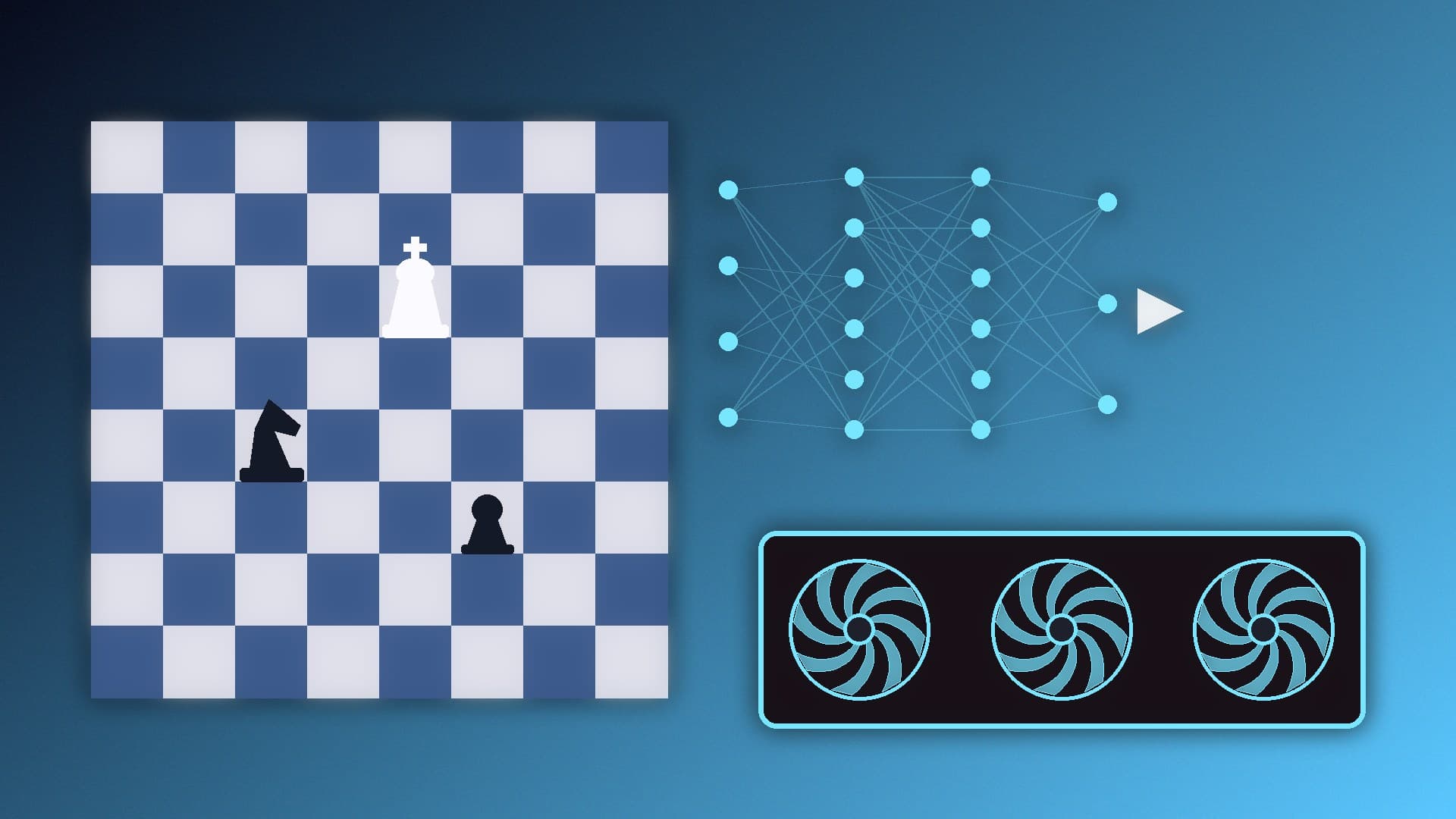
Leela Chess Zero, or Lc0, is serious AI software that runs on hardware many gamers already own. It's a free, open-source chess engine that plays using a neural network which learned the game through self-play, and unlike traditional engines it runs best on a graphics card. This guide walks through picking the right Lc0 build for your GPU, choosing a network that fits your VRAM, adding it to a chess GUI and fixing the most common problems, using the Lc0 project's own documentation.
What you need
Lc0 comes in two parts, and you need both:
The engine (lc0.exe on Windows), which searches the position.
A neural network file (the "net"), which tells the engine which moves look good. The project is blunt about this: Lc0 is only as good as the network it uses.
The Windows download already includes a default network, so you can start straight away and swap it later. You'll also want a chess GUI, because Lc0, like most engines, is a command-line program that talks to a GUI over the UCI protocol.
On hardware, the Lc0 project says the engine runs best with a powerful GPU, unlike traditional engines that run on the CPU. It supports NVIDIA cards through CUDA, AMD and Intel GPUs through an ONNX DirectML build on Windows, Apple Silicon and Intel Macs, and CPU-only machines. The download page says ARM-based Windows and Linux computers aren't currently supported.
Step 1: Download the right build for your graphics card
At the time of writing (28 November 2026), the latest stable version listed on the Lc0 download page is v0.32.1. A v0.33.0 release candidate (v0.33.0-rc0) appeared on GitHub on 5 September 2026 as a pre-release, so stick with the stable build unless you like testing. The Windows packages are split by hardware:
Your hardware | Lc0 Windows build | Notes from the Lc0 download page |
|---|
NVIDIA RTX 20, 30 or 40 series | CUDA 12 version | Listed for RTX 20xx, 30xx and 40xx (2018+) GPUs |
NVIDIA GTX 650 to GTX 16 series | CUDNN version | Listed for 2014-2018 GPUs |
AMD or Intel graphics | ONNX-DML version | Needs directml.dll, which can't be bundled for licensing reasons; the included README explains how to get it |
No usable GPU, modern CPU | DNNL BLAS version | For modern CPUs (2009+) |
Older CPU | OpenBLAS version | For older CPUs |
The download page doesn't list RTX 50-series cards yet. Our suggestion is to try the CUDA 12 build first on an RTX 50 card, as it's the newest NVIDIA package in the v0.32.1 release, and to ask on the Lc0 Discord if it won't start. The release also includes "nodll" versions of the NVIDIA packages, which are far smaller downloads (31.4MB rather than 555MB for CUDA 12) because, as the name suggests, they don't bundle the DLL libraries. Our suggestion is to grab the full package unless you know you already have the right CUDA libraries installed. If you're not sure what's on your system, see how to check your CUDA version on Windows.
Step 2: Unpack it
Unzip the package anywhere you like, such as a folder in Documents. Inside you'll find lc0.exe (the engine), a network file ending in .pb.gz (the default network), a set of .dll libraries the engine needs, and lc0-training-client.exe. You only need the training client if you want to donate GPU time to training future networks.
Step 3: Add Lc0 to a chess GUI
The Lc0 project lists several free GUIs, and some have features built specifically for Leela. Here's how the project's own guides say to add the engine:
En Croissant (free, open source, Windows, macOS and Linux): on Windows, go to Engines in the left-hand menu and select lc0, and En Croissant downloads the latest version ready to use. On a Mac you install Lc0 with Homebrew and point En Croissant at the binary.
Nibbler (free, built for Lc0): choose Engine, then Choose engine, and select lc0.exe. You can pick a specific network with Engine, then Choose weights file. Press Ctrl+G to start analysis and Ctrl+H to stop it.
BanksiaGUI (free): drag lc0.exe anywhere onto the BanksiaGUI window and it's detected and installed automatically. Tick LogLiveStats, VerboseMoveStats and UCI_ShowWDL in the engine options to see Lc0's extra statistics, including win/draw/loss chances.
Cutechess (free): go to Tools, then Settings, open the Engines tab, click the plus button, set the protocol to uci and browse to lc0.exe.
Whichever you choose, the GUI only provides the board and controls. The engine and network do the thinking, so you can switch GUIs later without changing your Lc0 setup.
Step 4: Pick a network that fits your GPU
The bundled network is a reasonable starting point, but the Lc0 project says other networks may work better depending on your hardware and time control, and that in general you should use the largest network your hardware can handle. Its Best Networks page (last updated 9 October 2026) lists approximate GPU memory use for each:
Network | Size | Intended for | GPU memory use (per Lc0) | File size |
|---|
BT4-it332 | Very large | Large GPU | 4GB | 365MB |
BT4-1024x15x32h-swa-6147500 | Very large | Large GPU | 4GB | 330MB |
BT3-768x15x24h-swa-2790000 | Large | GPU | 2.6GB | 190MB |
T82-768x15x24h-swa-7464000 | Large | GPU | 2.4GB | 160-170MB |
t3-512x15x16h-distill2-swa-03477500 | Medium | GPU/CPU | 1.8GB | 150-155MB |
T1-512x15x8h-distilled-swa-3395000 | Medium | GPU/CPU | 1.8GB | 140-150MB |
T1-256x10-distilled-swa-2432500 | Small | GPU/CPU | 1.6GB | 30-40MB |
BT4-it332 is the network the project currently sends to engine competitions such as TCEC and CCC. To install a network, put the file in the same folder as lc0.exe. Be careful if you keep several: Lc0 loads the newest one by file modification date, so either keep one network in the folder or choose the file explicitly in your GUI (or with the WeightsFile option).
There's one catch for AMD and Intel owners. The Best Networks page says the DirectX 12 and OpenCL backends don't support the format of those networks, and points you to the ONNX-DML build instead, which is why we recommend that build in Step 1.
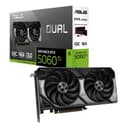
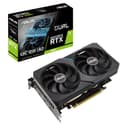
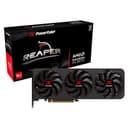
Even the largest listed network needs about 4GB of GPU memory, so VRAM is rarely the limit here. Our suggestion: any card with 8GB or more, such as the ASUS RTX 5060 Ti 16GB Dual OC, the ASUS RTX 3060 12GB Dual Gaming OC V2 or, on the AMD side via ONNX-DML, the PowerColor RX 9070 16GB Reaper, has room for the biggest networks with plenty left over. Beyond memory, the project simply says Lc0 runs best with a powerful GPU. You can watch how much video memory it's using with Task Manager or the other tools in our VRAM guide.
Step 5: Tune the settings that matter
Most people can leave Lc0's settings at their defaults. You can change options in your GUI's engine settings, pass them as command-line flags, or put them in a text file called lc0.config in the same folder as lc0.exe, one flag per line. These are the ones worth knowing, as described in Lc0's options reference:
Backend: the neural-network backend to use. The default is cuda-auto.
MinibatchSize: how many positions the engine batches together for the GPU. 0 lets the backend choose a value.
Threads: the number of CPU worker threads; 0 uses the backend default.
NNCacheSize: the number of positions kept in a memory cache, 2,000,000 by default. A larger cache can speed up search but uses more system RAM.
RamLimitMb: a rough cap on the engine's memory use, off (0) by default. The documentation warns the estimate can be off by a lot.
UCI_ShowWDL: shows win, draw and loss probabilities. It's off by default.
SyzygyPath: the folder holding Syzygy endgame tablebases, if you have them.
Fixing common problems
Out-of-memory errors with a large network. The Lc0 project recommends adding --minibatch-size=16 to the command line or config file so the engine processes positions in smaller chunks, or switching to a smaller network. If you see similar errors in other AI apps, our guide to fixing CUDA out-of-memory errors covers the general causes.
The engine won't start on an AMD or Intel GPU. Check that you downloaded the ONNX-DML build and followed its README to get directml.dll.
The wrong network is loading. Remove the extra network files from the folder, or set the weights file in your GUI.
It won't run on a Snapdragon laptop. ARM-based Windows machines aren't currently supported by the official builds.