Replacing a power supply (PSU) is a job most PC owners can do with a screwdriver. You might be upgrading for a new graphics card, replacing a noisy or failing unit, or moving to a modern ATX 3.1 PSU with a native 12V-2x6 cable. The job itself is simple. The dangerous part is the cables.
This guide is based on Corsair's power supply manual and its guidance on PSU cable compatibility. The basic steps apply to any brand, but always follow the manuals for your PSU and case. Forge PC hasn't tested specific PSUs for this guide.
The golden rule: use only the new PSU's cables
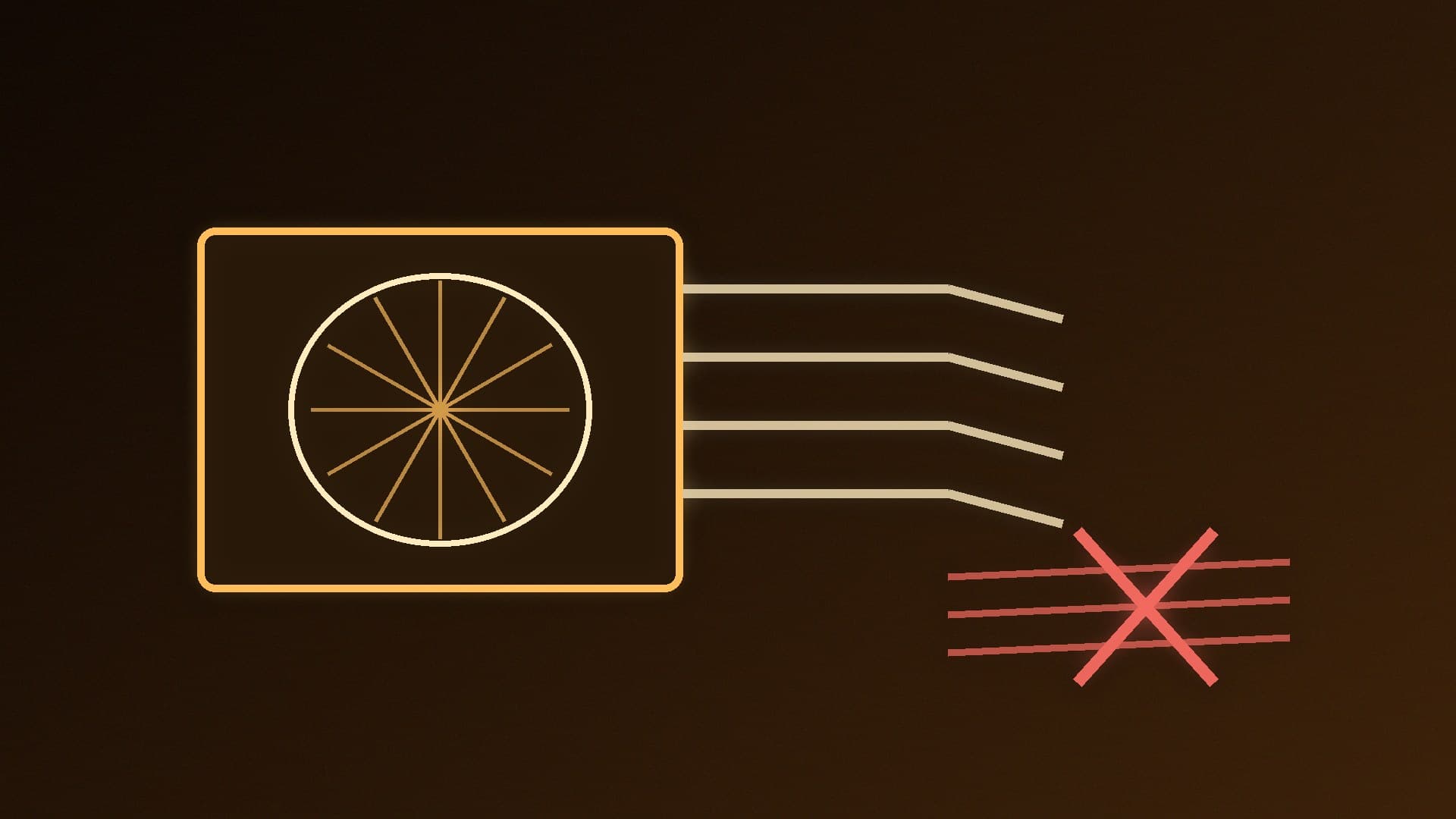
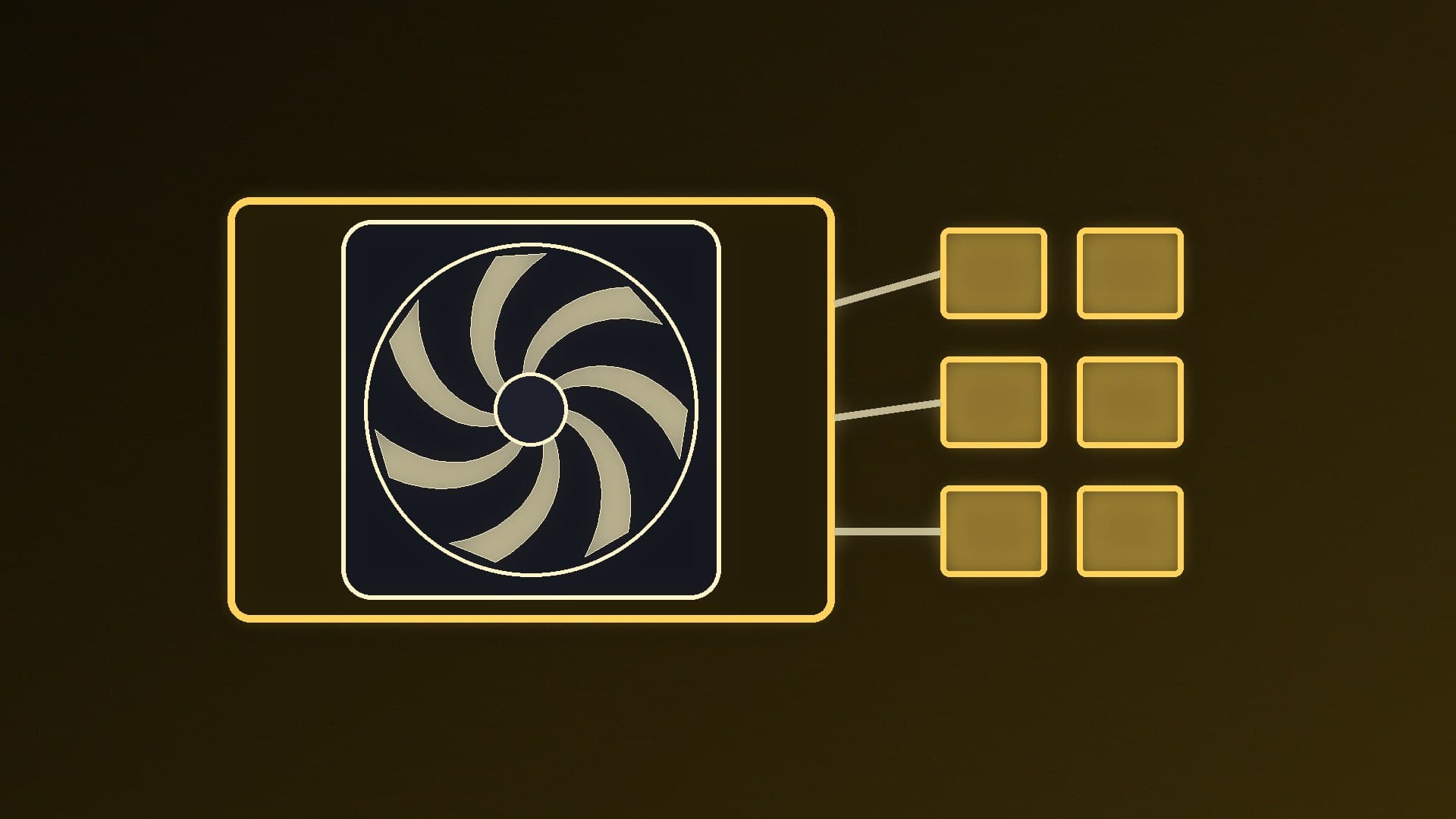
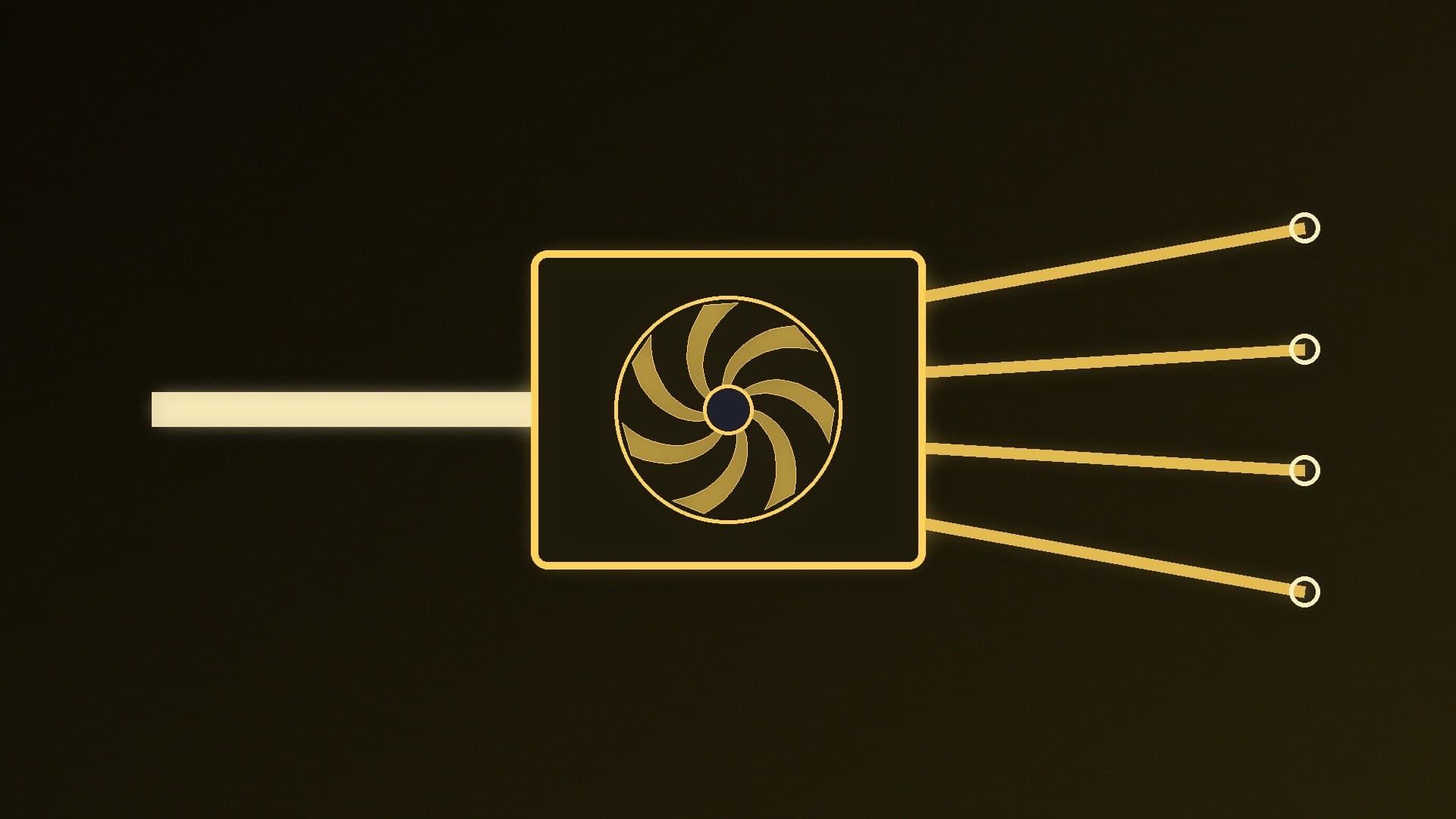
Corsair is blunt about this: PSU cables are not universal. The connectors at the component end (motherboard, graphics card, drives) are standardised, but at the power supply end each manufacturer is free to wire the pins however it likes. Plug a modular cable from one PSU into another and you could send the wrong voltage to your components.
Different brands: never mix them. Corsair says this "could be dangerous to you and your components".
Same brand: don't assume either. Corsair says cabling can change between ranges and over time, and that its own PSUs use different cable types (Type 3, Type 4 and Type 5). You can only reuse cables if the old and new units use the same type, and that applies to aftermarket cable kits too.
The exception: the mains cable from the wall to the PSU follows industry standards (usually IEC C13). Corsair says you can reuse it if it meets the new PSU's requirements, typically a 10A cable for PCs.
The safest approach is to remove every old modular cable completely and use only the cables in the new PSU's box.
Step 3: Connect the cables
24-pin motherboard cable. Corsair notes that this connector often has a detachable 4-pin section for older 20-pin boards. That 4-pin piece is not a CPU power connector. Never force it into the CPU socket.
CPU power (EPS12V). Connect the 8-pin CPU power cable(s). Corsair notes that some boards have a 4-pin socket instead, in which case you use the detachable 4-pin half.
Graphics card. Use PCIe power cables or a 12V-2x6 cable, as your card needs. Push a 12V-2x6 connector fully home. See our guide to connecting a 12V-2x6 cable safely.
Drives and accessories. Connect SATA power to SATA SSDs or hard drives, and peripheral power cables to anything else that needs them.
Check every connector is fully seated. Keep spare modular cables with the box for later.
Tidy the cables as you go: our cable management guide has tips.
Step 4: Power on
Plug the mains cable in, flip the PSU switch to on (marked "I") and start the PC. If it doesn't power on, switch off at the wall and recheck the 24-pin, CPU and graphics card connectors first.
Our verdict
Replacing a power supply is straightforward: unplug everything, swap the unit and reconnect the 24-pin, CPU, graphics card and drive cables. The one rule you can't break is to use only the modular cables that came with the new PSU, because pinouts on the PSU side differ between brands and even between ranges from the same brand. Only the standard mains cable can safely be reused.