If OBS Studio shows an "Encoding overloaded" warning, or your stream or recording looks choppy even though the game runs smoothly, your PC is struggling to play the game, build the OBS scene and encode the video all at once. The fixes are mostly free settings changes. This guide follows the OBS Project's official troubleshooting and hardware-encoding guides, checked on 27 November 2026. The steps are for OBS Studio on Windows 11, though most apply on other systems too.
Why it happens
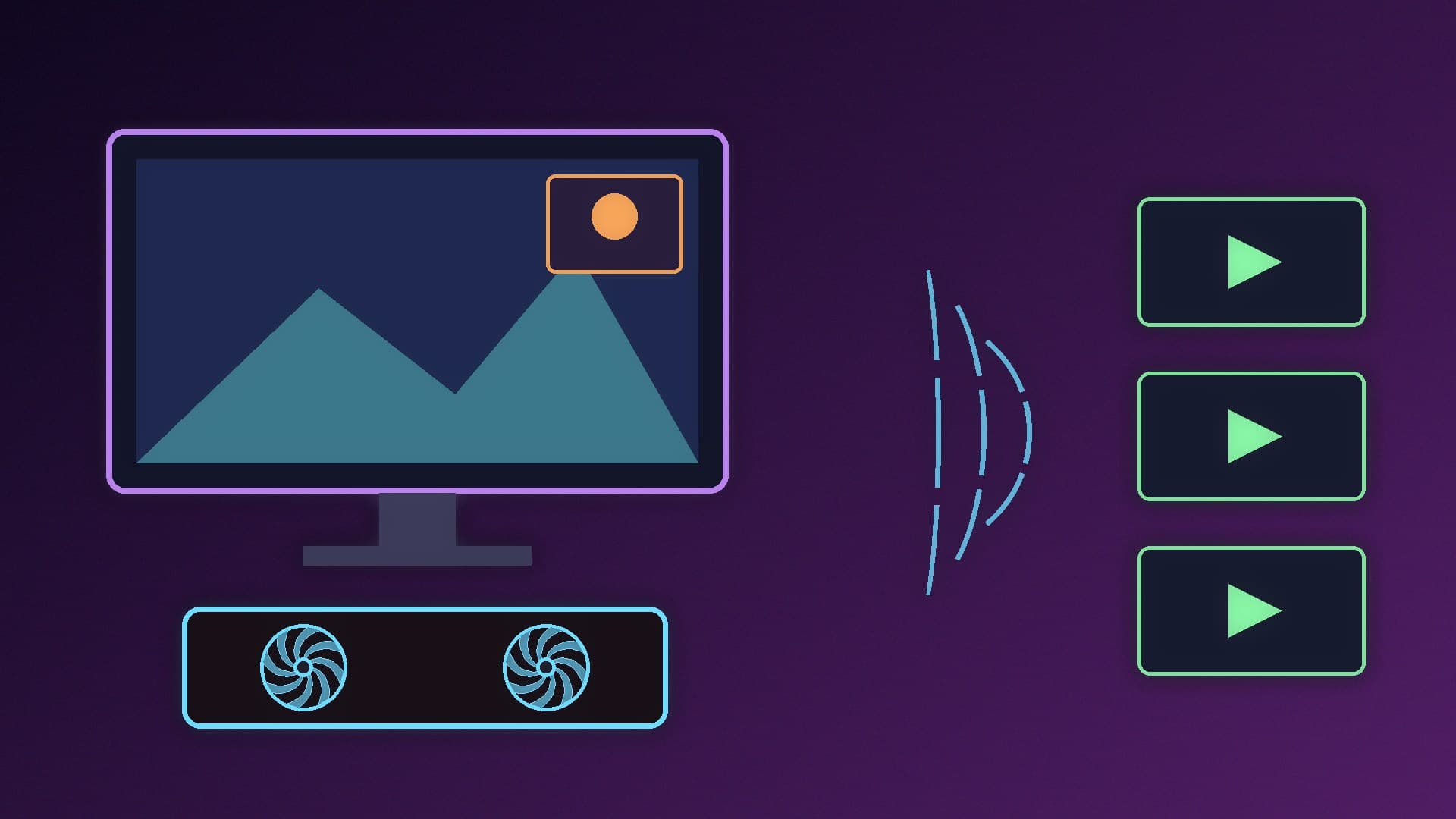
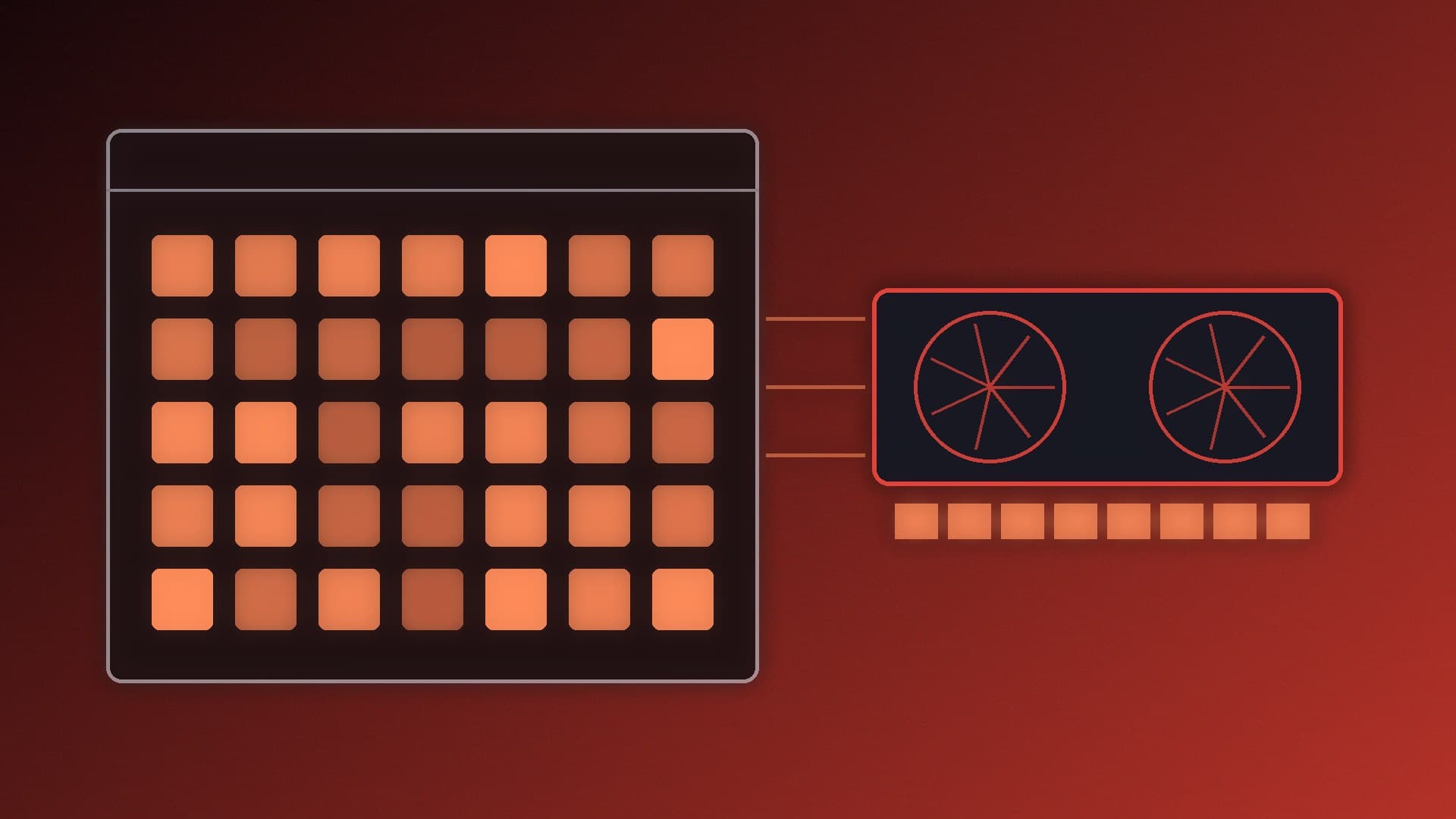
The OBS knowledge base explains that OBS needs GPU time to composite and render your scene, even if you're encoding on the CPU. If the game is using all of the GPU, OBS can't keep up, even when the game's own frame rate looks fine. The guide puts this down to either an overloaded GPU or a bottleneck between the GPU and the rest of the system. Encoding itself also takes work. OBS's hardware encoding guide says hardware encoders take that work off the CPU, which the included x264 software encoder uses, and pass it to a dedicated part of the GPU.
So the aim is to leave some headroom: ask the GPU and CPU to do less, so there's capacity left for OBS.
Step 1: Try running OBS as administrator
The OBS guide calls this the quick fix. On Windows, OBS can ask the system to reserve some GPU capacity for it when it runs with administrator rights, and the guide says this alone often solves GPU overload. Close OBS, right-click its shortcut and choose Run as administrator. If that fixes it, keep launching OBS this way.
Step 2: Use a hardware encoder
The OBS Project generally recommends hardware encoders over the built-in x264 software encoder for performance, because they move the encoding work off the CPU and onto a dedicated part of the GPU. It says modern hardware encoders give very good quality with minimal performance impact, but older generations look worse at the same bitrate.
Choose the encoder in Settings > Output. Which one you get depends on your hardware:
Hardware | Encoder in OBS | What OBS's guide says |
|---|
NVIDIA GeForce | NVENC | Needs a GeForce GTX 750 Ti, 900 series or newer; 6th-generation NVENC (Turing, including the GTX 1650 rev 2 and later) is recommended for best results |
AMD Radeon | AMF | Check the AMF plugin documentation for compatible GPUs |
Intel graphics | QuickSync (QSV) | Needs a 2nd-generation Core (Sandy Bridge) or newer; 4th-generation (Haswell) or newer is recommended because early versions were lower quality |
If you have an NVIDIA or AMD graphics card, OBS advises using that card's encoder rather than the Intel integrated graphics' QuickSync. Whichever you use, install the latest GPU driver first. Our guide to updating graphics drivers covers NVIDIA, AMD and Intel. For how the hardware and CPU encoders compare, see NVENC vs x264 in OBS.
Step 3: Cap the game's frame rate
OBS's guide points out that a game running flat out with an uncapped frame rate leaves very little GPU time for OBS. It recommends capping the game at your monitor's refresh rate (for example 144fps on a 144Hz screen), or turning on V-Sync. If that isn't enough, cap the game at the frame rate you've set in OBS. The guide notes that running a game well above your refresh rate brings diminishing returns, because neither you nor OBS can see the extra frames.
Step 4: Lower the game's graphics settings
If the game and OBS can't both stay smooth, the OBS guide says your system can't handle maximum settings and OBS at the same time. Drop the game's quality settings a step and check whether the game and OBS both stay steady.
Step 5: Close other programs using the GPU
Open Task Manager and check the GPU column for anything else using a lot of GPU time, such as a second game or a GPU-accelerated app. OBS's advice is to close only programs you're sure about and that you opened yourself. If you're capturing two games at once, lower their settings or capture them separately.
Step 6: Turn off Multi-adapter Compatibility
In your Game Capture source's properties, OBS says you should untick Multi-adapter Compatibility unless you have multiple graphics cards (such as SLI or CrossFire) or a laptop with more than one GPU. In almost all other cases, the guide says it should be off.
Step 7: Check Windows gaming features
OBS's guide, written for Windows 10, says Game Mode can be left on in recent versions of Windows, though it should be turned off on versions older than 1809. It recommends turning off Windows' background game recording (Game DVR), because it records gameplay in the background much like OBS's Replay Buffer and uses extra resources. See how to use Game Mode in Windows 11 and our Windows 11 gaming settings guide for the related settings.
Step 8: Reduce OBS's output resolution and frame rate
In Settings > Video, lowering the Output (Scaled) Resolution reduces the load on the encoder, and lowering the frame rate from 60fps to 30fps cuts the work for both rendering and encoding. OBS doesn't generally recommend lowering the Base (Canvas) Resolution, as it makes capture and arranging sources more complicated. If you must, create a new scene collection first, then change it and reposition your sources.
Step 9: Simplify your scenes
Every source uses some resources, and OBS says most use some even when they aren't visible. The guide's suggestions:
Use lower-resolution video capture and media files. For example, you don't need a 4K video in the scene if you aren't streaming or recording in 4K.
Cut down on filters, and apply them to the smallest source possible rather than a whole scene.
Use fewer browser sources, and size each one to only what it needs. Use an Image source for static overlays instead of a browser source. Animated overlays such as tip jars can have a large performance impact.
Split a very large scene collection into smaller ones.
Keep OBS updated
OBS Studio 33.0.3, released on 22 November 2026, fixed a crash in 33.0.2 that hit some Windows PCs with older CPUs, so make sure you're on the latest version. Our OBS Studio 33 news story covers the wider 33.0 changes.
If you're still struggling after all this, the problem may simply be that your hardware can't game and stream at the settings you want. Our PC streaming setup guide and single PC vs dual PC streaming cover the hardware side, and how to check GPU temperature helps rule out a card that's overheating.
Our verdict
Most cases of "Encoding overloaded" in OBS come down to a GPU with no headroom left. Start with the quick fixes: run OBS as administrator, switch to your GPU's hardware encoder and cap the game's frame rate. Then lower the game's settings, OBS's output resolution or frame rate and the complexity of your scenes until the warning stops. Change one setting at a time so you know which one fixed it.