PAGE_FAULT_IN_NONPAGED_AREA is one of the more common Windows blue screen errors. It often appears after installing a new driver, an antivirus program or a piece of hardware such as a RAM kit, but it can also turn up on a PC that's been fine for months. The good news is that Microsoft lists a short set of likely causes, so you can work through them in order.
What the error means
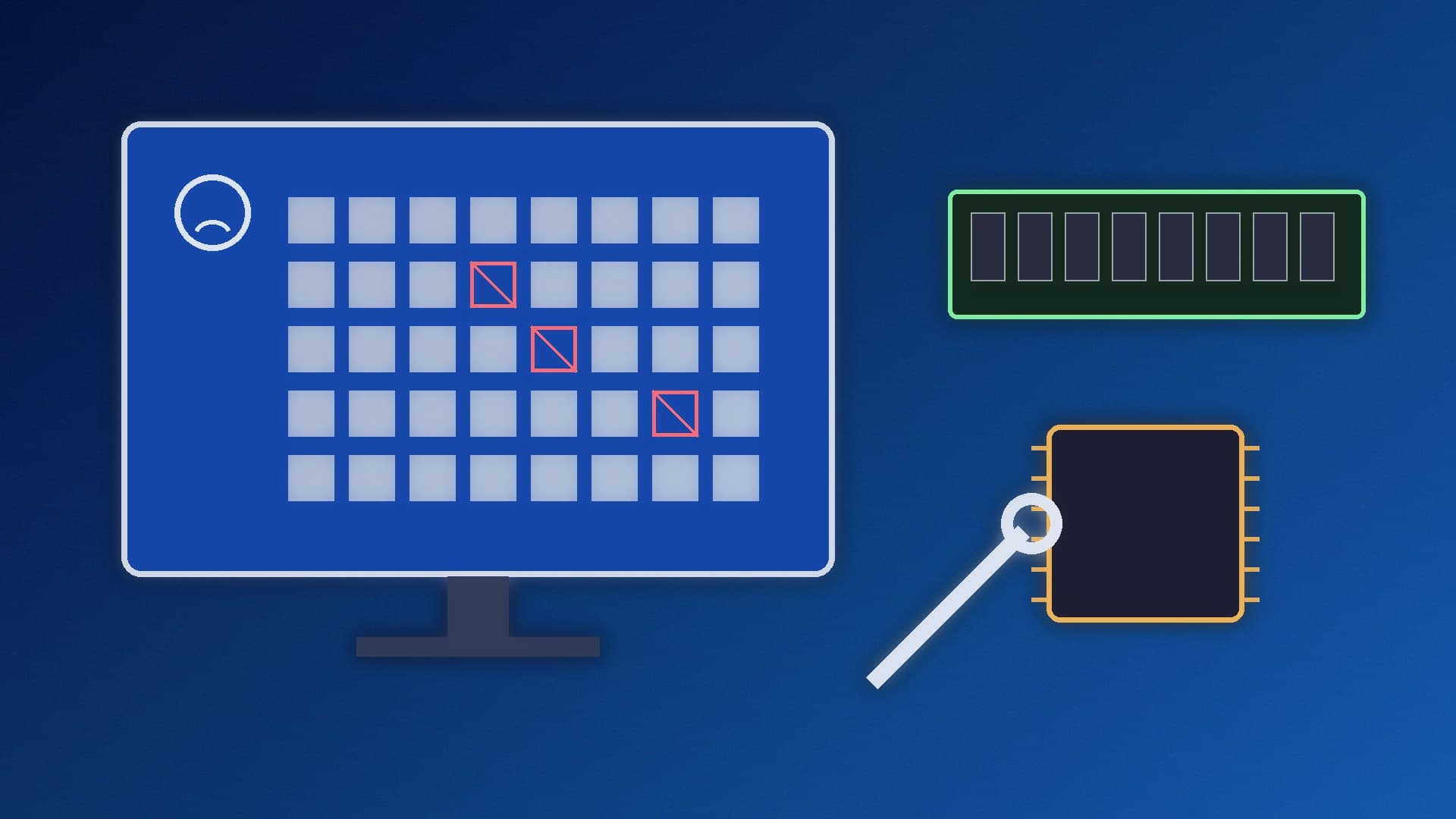
Microsoft's documentation gives PAGE_FAULT_IN_NONPAGED_AREA the bug check code 0x00000050 (often written 0x50). It means Windows has referenced invalid system memory: usually the memory address is wrong, or it points at memory that has already been freed. Microsoft says this can't be handled by the code that caused it, so Windows stops with a blue screen.
Microsoft lists these possible causes:
A faulty driver or system service.
Antivirus software.
A corrupted NTFS volume (a damaged file system on a drive).
Faulty or newly installed hardware, usually defective RAM. Microsoft says this can be main memory, the CPU's cache or the graphics card's video memory.
More broadly, Microsoft's advanced troubleshooting guide says about 70% of stop errors are caused by third-party driver code and about 10% by hardware issues. It also notes that the app running when the crash happens is rarely the real cause.
Before you start
If the blue screen names a file, such as one ending in .sys, write it down. Microsoft says that if the driver responsible can be identified, its name is shown on the blue screen. That file name is your best clue.
If Windows crashes before you can reach the desktop, use Windows' recovery options to start in Safe Mode and work through the steps from there. Our comparison of Safe Mode vs clean boot explains the difference between the two.
Step 1: Check Event Viewer
Microsoft recommends checking the System log in Event Viewer for other critical errors that happened around the same time as the blue screen, as they can point to the device or driver involved.
Right-click Start and select Event Viewer.
Go to Windows Logs > System.
Look for Critical and Error entries with the same time as the crash.
Our guide to using Event Viewer in Windows 11 covers filtering the log.
Step 2: Update, roll back or remove the driver
If the blue screen or Event Viewer names a driver, Microsoft's advice is to check with the driver's maker for an update. If the error started after you updated a driver, go back to the previous version instead. Microsoft's troubleshooting guide also suggests rolling back changes to the last known working state.
Microsoft also recommends installing the latest Windows updates and making sure your BIOS and firmware are up to date. Our guide to updating your BIOS safely explains how to do that without risk.
Step 3: Turn off third-party antivirus and recently added services
Microsoft says antivirus software can trigger bug check 0x50. Temporarily turn off or uninstall any third-party antivirus program and see if the crashes stop. If that fixes it, check with the antivirus maker for an update.
The same applies to any system service or utility you added just before the crashes started, such as RGB, fan control or tuning software. Microsoft suggests turning off the service and checking whether the error goes away. A clean boot is a quick way to start Windows without third-party services.
Step 4: Check your drive for file system errors
Microsoft says a corrupted NTFS volume can cause this error, and recommends running Check Disk:
Search for cmd, right-click Command Prompt and select Run as administrator.
Type chkdsk /f /r and press Enter.
If it's your Windows drive, type Y to schedule the scan, then restart. Microsoft notes that the scan on a system drive only starts after a restart.
Microsoft also recommends keeping 10% to 15% of the drive free. If the scan finds problems, check the drive's health too: see our guide to checking SSD health. To repair damaged Windows system files as well, follow our guide to repairing Windows 11 with DISM and SFC, and see SFC vs CHKDSK for what each tool fixes.
Step 5: Test your RAM
Because faulty memory is a common hardware cause, test your RAM next. Microsoft suggests the built-in Windows Memory Diagnostic:
Search for Memory from the Start menu or Control Panel and select Diagnose your computer's memory problems (Windows Memory Diagnostic).
Choose to restart and check for problems.
After the test, open Event Viewer, go to Windows Logs > System and look for the MemoryDiagnostics-Results entry.
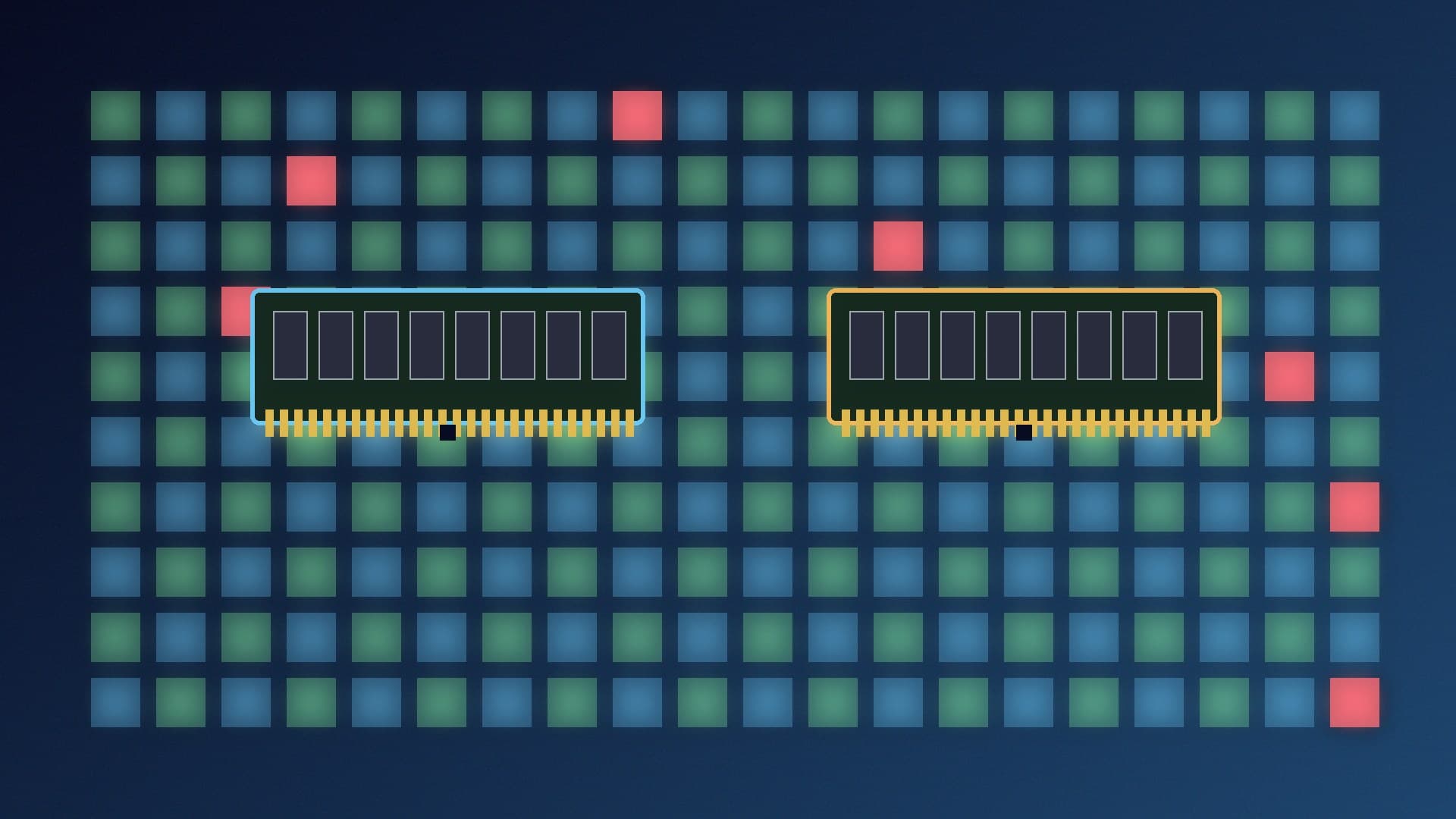
For a more thorough test, use a bootable tester such as MemTest86 or Memtest86+. Our guide to testing RAM with MemTest86 walks through it. If you've turned on XMP or EXPO, or overclocked your memory, test again at default settings, as an unstable memory profile can cause errors too. See our guide to enabling XMP and EXPO for where to find the setting.
Step 6: Remove recently added hardware
If the crashes started after you fitted new hardware, Microsoft suggests removing it to see if the error comes back. If existing hardware has failed, remove or replace it, and run any hardware diagnostics your PC or motherboard maker supplies. If you have more than one RAM module, the Memtest86+ FAQ suggests testing them one at a time to find a faulty one.
Step 7: Analyse the crash dump
If you still can't find the cause, the crash dump file Windows saves can point to the driver involved. Microsoft's developer documentation shows how the !analyze -v command in WinDbg reports the faulting module. Our guide to analysing a BSOD minidump with WinDbg explains how to do this without being a developer. If the dump doesn't give a clear answer, Driver Verifier can stress your drivers to make a faulty one crash and reveal itself, but read our guide before you use it.
For other blue screens, see our guides to fixing blue screen errors in Windows 11, MEMORY_MANAGEMENT and IRQL_NOT_LESS_OR_EQUAL.
Our verdict
PAGE_FAULT_IN_NONPAGED_AREA (0x50) means Windows tried to use invalid memory, and Microsoft says the usual causes are a faulty driver or service, antivirus software, a corrupted drive or bad RAM. Start with the driver named on the blue screen or in Event Viewer, and roll back or update it. Then turn off third-party antivirus, run chkdsk /f /r and test your RAM at default settings. If the error started after a hardware change, undo it. For stubborn cases, a crash dump analysis will usually point to the culprit.