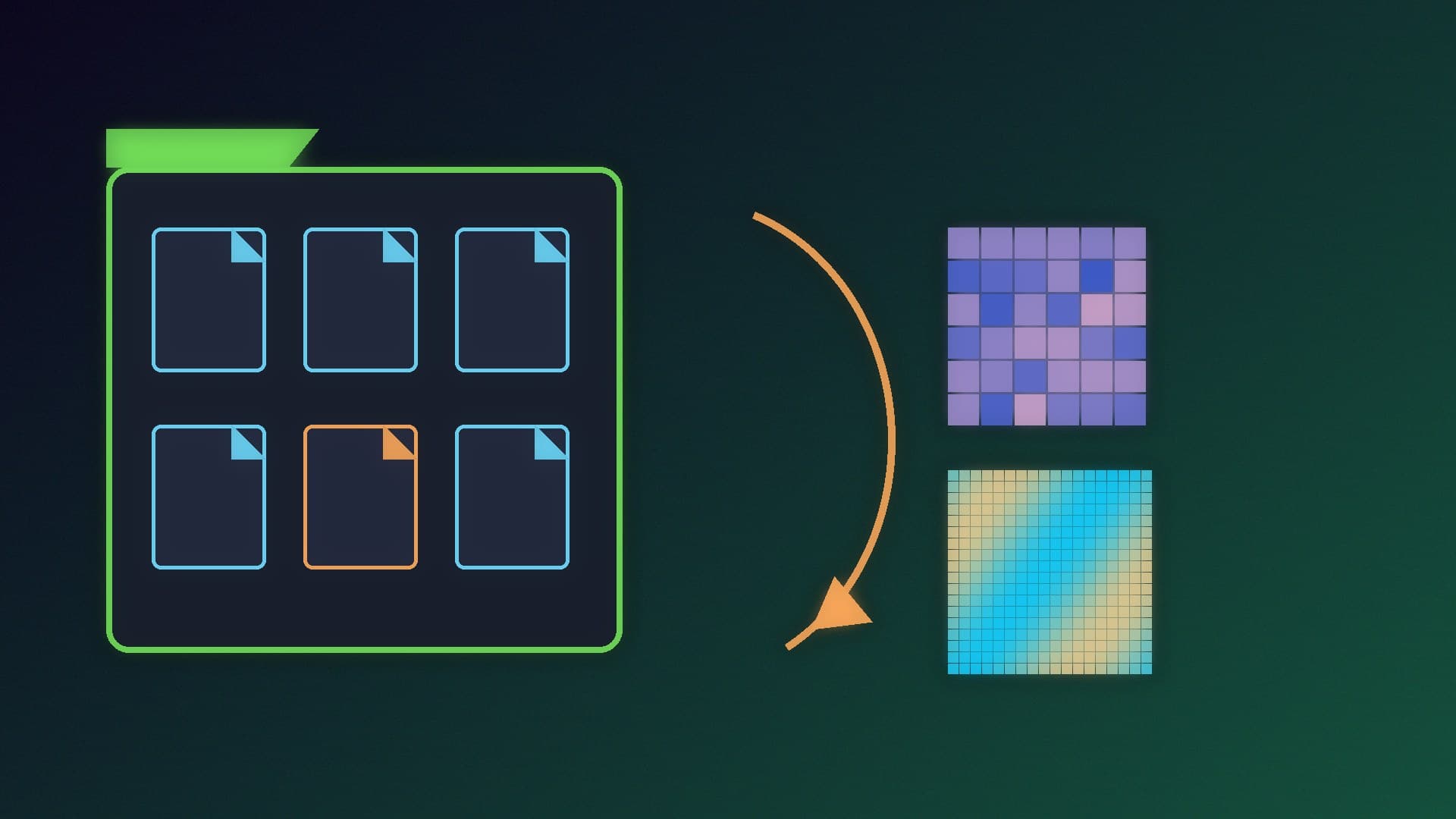
Games ship with whatever version of DLSS, FSR or XeSS was current when they were made, and many never get updated. DLSS Swapper is a free, open-source Windows tool that lets you download, manage and swap those upscaler DLL files per game, so you can try a newer (or older) version without waiting for a patch. The current release at the time of writing is version 1.2.7.0.
If you have an NVIDIA RTX card and only want newer DLSS, NVIDIA's own override may be simpler: see how to use DLSS Override in the NVIDIA app. DLSS Swapper is useful when you want a specific version, per-game control, or FSR and XeSS as well.
Before you start
What it can and can't do. DLSS Swapper's developers say it doesn't add DLSS to games that don't support it, and doesn't guarantee that a swap will improve performance, reduce artefacts or run without crashes. In some cases a swap may stop a game launching until you restore the original DLL, which the tool provides.
Multiplayer and anti-cheat. The app warns that while swapping DLSS versions shouldn't be considered cheating, some anti-cheat systems may object if the files in your game folder aren't what the game shipped with, and it recommends caution with multiplayer games. Our advice: stick to single-player games.
Requirements. Windows 10 64-bit version 20H1 (build 19041) or later. The GPU requirement is listed as "Any", although you can only use a technology your graphics card supports.
Official downloads only. The developers warn about malicious sites pretending to be DLSS Swapper. The only official sources are its GitHub releases page and winget.
Step 1: Install DLSS Swapper
Download the latest release from the GitHub releases page. The wiki recommends DLSS.Swapper-{version}-installer.exe, which installs like a normal program and stores downloaded DLLs in your local app data, although uninstalling it removes those downloads. There's also a portable zip you can run from any folder or a USB stick; when you update the portable version, you need to move the StoredData folder into the new one. Neither needs .NET installed separately, and if the standard build crashes on launch, the wiki suggests trying the "net8" variant.
You can also install it from a terminal with winget:
winget install --id=beeradmoore.dlss-swapper -e
New to winget? See how to install apps with winget.
Step 2: Let it find your games
DLSS Swapper scans supported libraries: Steam, GOG, Epic Games, Ubisoft Connect, the Xbox app and Blizzard's launcher. Games from elsewhere can be added manually with the Add Game button. Use Refresh if a newly installed game doesn't appear.
It detects technologies by looking for specific DLL files in the game folder:
Technology | DLL file |
|---|
DLSS (Super Resolution) | nvngx_dlss.dll
|
DLSS Frame Generation | nvngx_dlssg.dll
|
DLSS Ray Reconstruction | nvngx_dlssd.dll
|
FSR 3.1 (DirectX 12 / Vulkan) | amd_fidelityfx_dx12.dll / amd_fidelityfx_vk.dll
|
XeSS | libxess.dll
|
XeLL | libxell.dll
|
XeSS Frame Generation | libxess_fg.dll
|
FSR 1, FSR 2 and FSR 3.0 aren't supported, because the wiki says those don't use a DLL that can be swapped. If a game shows nothing to swap, it doesn't have a compatible DLL.
Step 3: Swap a DLL
Open a game from your library and choose the version you want for the technology you're changing, then select Swap. If the DLL needs downloading first, wait for the download to finish; the app won't swap until it has. The app keeps a backup of the game's original file and records the swap in the game's history. By default, DLSS Swapper checks that a DLL has a valid Windows signature before swapping it into a game folder and won't use one that fails; its settings recommend leaving the option to allow untrusted DLLs switched off.
Version 1.2.7.0 added Bulk Swap to the toolbar on the games page, which applies a DLL or preset to several games in one go. Try a single game first so you know a version works before rolling it out.
Then launch the game and judge the result yourself. Change one thing at a time, so that if something goes wrong you know what caused it.
Step 4: Set a DLSS preset (optional, NVIDIA only)
The game page also includes DLSS, DLSS Ray Reconstruction and DLSS Frame Generation preset options. Presets need a supported NVIDIA driver; without one, the app says presets aren't available. DLSS Swapper's own tooltip warns that setting a DLSS preset doesn't guarantee the game actually uses it. The wiki says these developer options come from the DLSS SDK and are enabled through the NVIDIA driver, with DLSS Swapper simply providing easy access to them.
Step 5: Restore the original if anything goes wrong
On the game's page, use Restore original DLL for one technology or Reset all to put back everything the game shipped with. If a game won't start after a swap, this is the first thing to do.
Troubleshooting
Game updates undo your swap. The wiki says that if a game is preloading, has a pending update or is updating, you can still change DLLs, but an update may overwrite your changes. Wait for updates to finish, then swap again.
DLSS options disappear in some games. The wiki lists Back 4 Blood, Squad and Squad 44 as games that remove or lock DLSS settings once the DLL has changed. Restore the original if that happens.
Some games need admin rights. The app may report that certain games require running DLSS Swapper as administrator.
A backup with no matching game file. If the app reports a backup DLL with no matching game file, it says you'll need to repair the game files manually, for example with your launcher's verify or repair option.
If you're also tidying up graphics drivers, see how to clean-install graphics drivers with DDU. For the differences between upscalers, see DLSS vs XeSS, and for Intel's frame generation, how to enable XeSS 3 multi-frame generation.
Our verdict
DLSS Swapper is the easiest way to change the DLSS, FSR 3.1 or XeSS version a game uses without waiting for a patch. Install it from GitHub or winget, let it scan your libraries, swap one game at a time and judge the result yourself, and use Restore original DLL or Reset all if anything breaks. Treat it as an experiment rather than a guaranteed upgrade, and avoid using it on multiplayer games with anti-cheat.