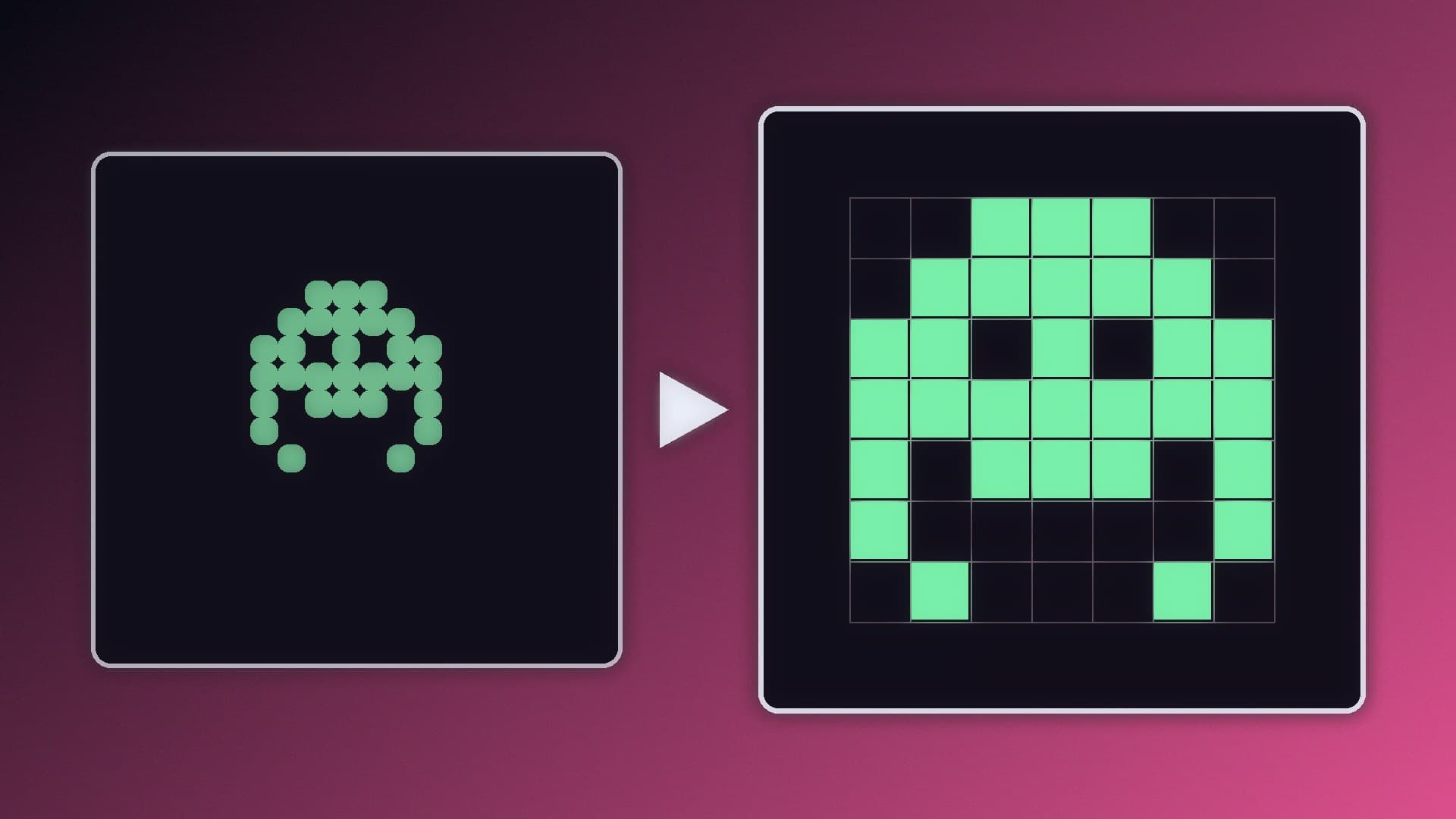
Play an old game or a pixel-art indie at a low resolution on a modern high-resolution monitor and it often looks soft and smeared, because the normal scaler blends neighbouring pixels to fill the screen. Integer scaling fixes that by making each source pixel into a perfect square block of pixels, so a 1080p image on a 4K screen looks crisp rather than blurry. NVIDIA, AMD and Intel all build it into their graphics software. This guide explains how it works, how to switch it on in the NVIDIA Control Panel, AMD Software: Adrenalin Edition and Intel's apps, and what to check if the option is missing. It follows each company's own support documentation.
What integer scaling does
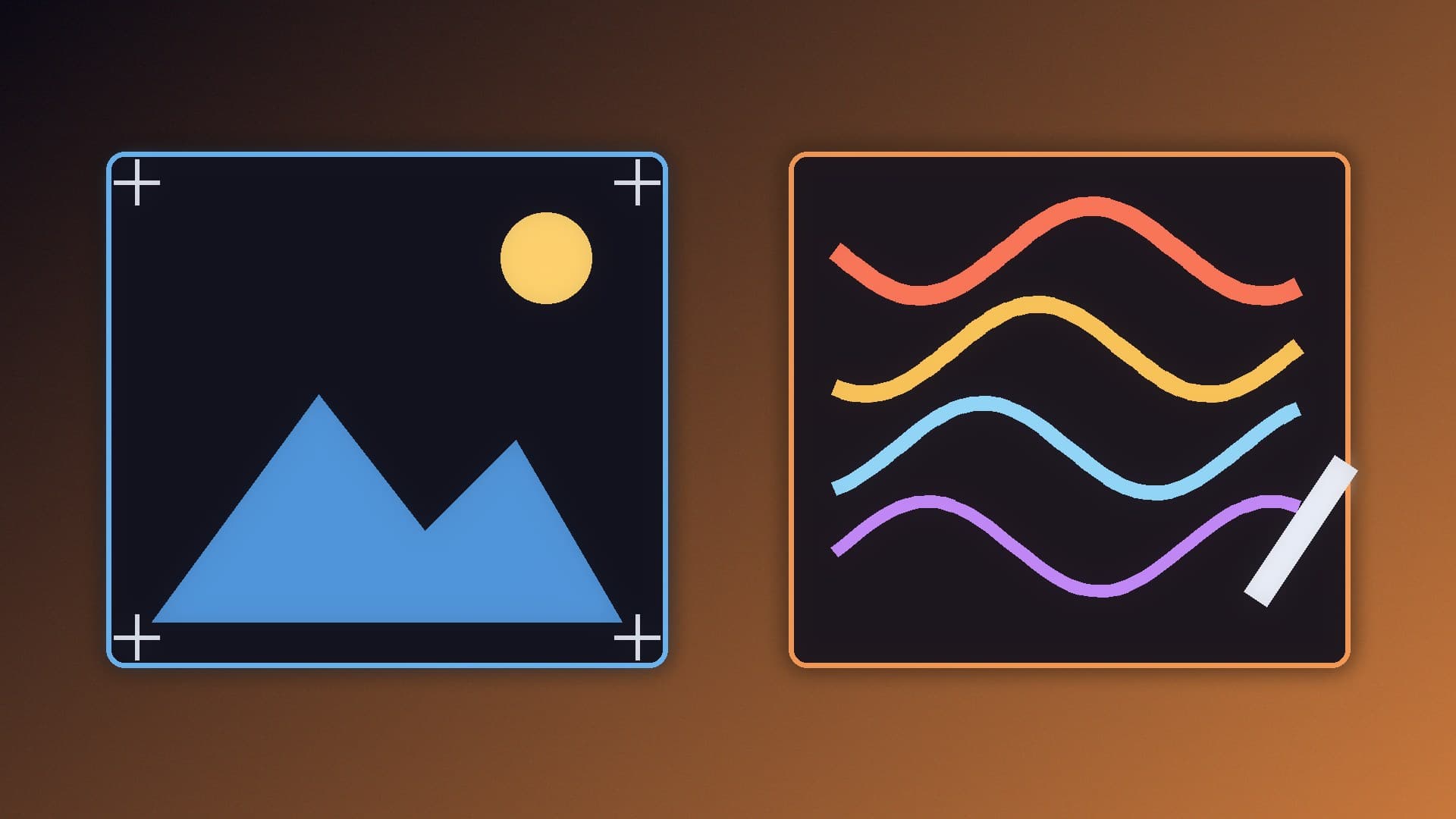
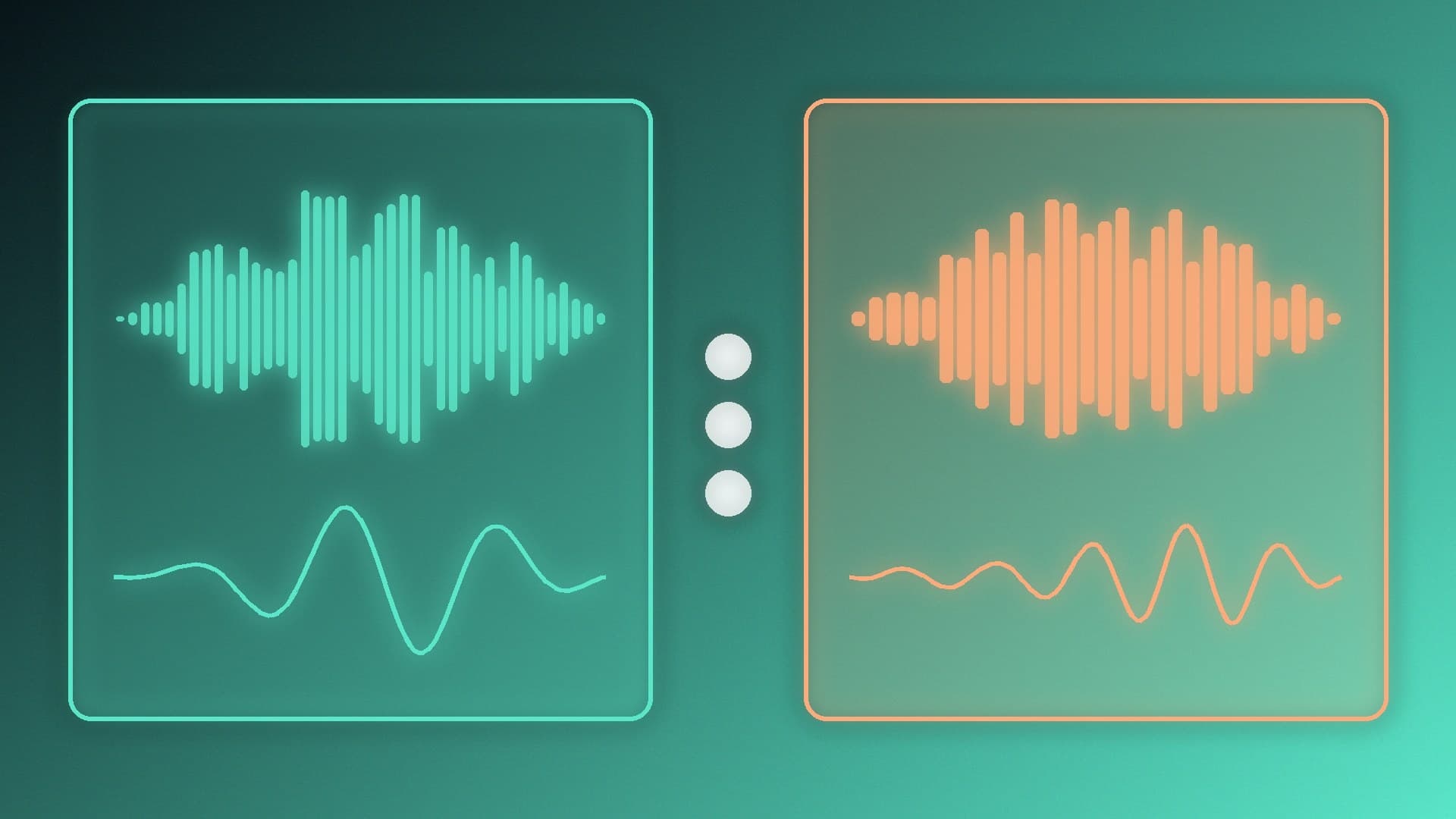
When a game runs below your monitor's native resolution, something has to stretch the image to fit. The usual scaling modes blend pixels together, which is fine for video but makes sharp-edged pixel art look fuzzy. NVIDIA's original announcement said that when many pixel-art games are scaled up to higher-resolution displays, the result is a blurry image.
Integer scaling only enlarges by whole numbers. NVIDIA's Control Panel help describes it as scaling a smaller-than-native source "by duplicating pixels at the maximum possible integer factor in both horizontal and vertical directions". AMD describes it as scaling low-resolution images "from one pixel to four pixels (or more)" for a crisp, pixelated look, and says images that can't be scaled to the display's exact size are centred on screen. Intel calls its version Retro Scaling, "also known as integer-ratio scaling".
The maths explains when it works best:
Game resolution | Monitor | Integer factor | Result |
|---|
1920 x 1080 | 3840 x 2160 (4K) | 2x | Fills the screen exactly |
1280 x 720 | 3840 x 2160 (4K) | 3x | Fills the screen exactly |
1280 x 720 | 2560 x 1440 | 2x | Fills the screen exactly |
1920 x 1080 | 2560 x 1440 | 1x (1.33x isn't a whole number) | No enlargement; black borders all round |
640 x 480 | 1920 x 1080 | 2x (1,280 x 960) | Black borders, mostly at the sides |
So integer scaling suits 4K monitors running 1080p or 720p, 1440p monitors running 720p, and genuinely low-resolution retro games. If the numbers don't divide evenly, expect black borders. That's normal and is the price of keeping pixels perfectly square.
How to enable integer scaling on NVIDIA
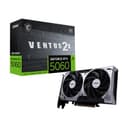
NVIDIA added integer scaling as a beta in the GeForce Game Ready 436.02 driver in August 2019, and the setting is in the NVIDIA Control Panel. NVIDIA's help page says it's available only for Turing and later GPUs, which means GeForce GTX 16 series, RTX 20 series and everything newer, including an RTX 50 card such as the MSI GeForce RTX 5060 Ventus 2X OC. If you're not sure which NVIDIA tool does what, see our NVIDIA Control Panel vs NVIDIA App comparison.
Install a current Game Ready or Studio driver.
Open the NVIDIA Control Panel (search for it from Start).
Go to Display > Adjust desktop size and position.
Select your monitor, then on the scaling options choose Integer scaling.
NVIDIA says integer scaling is only available when scaling is performed on the GPU, so if it's greyed out or missing, make sure the page is set to perform scaling on the GPU rather than the display.
Click Apply, then launch your game at the lower resolution.
The other modes on the same page are Aspect ratio, which expands the image as much as possible without distortion; Full-screen, which stretches it to fill the panel; and No scaling, which shows the image at its original size in the middle of the screen. NVIDIA's announcement adds a useful tip if you want to compare modes: normal screenshots won't show the difference, so photograph the display or use a capture card instead.
If integer scaling won't appear, check for settings that commonly clash with display scaling. Custom resolutions (for example from Custom Resolution Utility) and DSR or DLDSR (see our DLDSR and VSR guide) are the first things to switch off while you troubleshoot. NVIDIA's current help page doesn't list them as conflicts, so treat this as our troubleshooting suggestion.
How to enable integer scaling on AMD Radeon
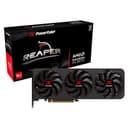
AMD's support article was last updated in June 2025 and its steps are based on AMD Software: Adrenalin Edition 25.5.1 with a Radeon RX 9070, so it applies to current cards such as the PowerColor Radeon RX 9070 Reaper.
Open AMD Software: Adrenalin Edition from Start.
Type Integer into the search box and choose Integer Scaling - Display Settings.
Turn on GPU Scaling, which AMD says is needed for integer scaling, then turn on Integer Scaling.
AMD says the changes are immediate and apply globally to the desktop and games, and that the screen briefly going blank while GPU scaling switches on or off is normal. GPU scaling works over DVI, HDMI and DisplayPort, and AMD says the display should be set to its native resolution and refresh rate.
Per-game integer scaling on AMD
You don't have to run integer scaling everywhere. In AMD Software, go to Gaming > Games, pick the game's profile, choose the display if you have more than one, and set Integer Scaling to Enabled or Disabled. AMD says the default is Global Setting Default, and a per-game setting overrides the global one. This is the neatest approach if you only want sharp pixels in a couple of retro titles.
How to enable integer scaling on Intel graphics
Intel's naming depends on the GPU and app.
Intel Arc graphics cards (Arc Control): Intel's support article says to install Intel Graphics driver 31.0.101.3277 or newer, which includes Arc Control. Then go to Settings > Global Game Settings > Post Processing > Enable Retro Scaling Type.
Intel integrated graphics (Intel Graphics Command Center): Open the Intel Graphics Command Center, select Global Settings in Home, then pick Scaled Width or Fixed Width from the Retro Scaling drop-down. Intel lists the minimum requirements as a 10th Gen Intel Core processor or newer, Intel Graphics Driver 26.20.100.7212 or newer, Intel Graphics Command Center 1.100.1725.0 or newer, and Windows 11 or Windows 10 version 1709 or newer. It also notes that Global Settings are only supported on 10th Gen Core "G" processors (Ice Lake) or newer.
The two Intel modes behave differently:
Fixed Width is what Intel calls true integer scaling. It gives the sharpest result, but you may get unused screen area if the game's aspect ratio doesn't match your monitor.
Scaled Width uses nearest-neighbour interpolation. It fills more of the screen when the aspect ratios differ, but Intel warns this can distort the image because fractional scaling is applied.
Tips for the best results
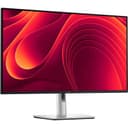
Pick a resolution that divides evenly. Use the table above. On a 4K monitor such as the Dell P3225QE 32-inch 4K, 1080p and 720p fill the screen exactly.
Use exclusive full-screen or borderless at the lower desktop resolution. Integer scaling only kicks in when the image being sent to the display is below native resolution. A game rendering at a low resolution inside a native-resolution window won't trigger the driver's scaler. This is our suggestion based on how driver scaling works; behaviour varies by game.
Check emulator settings first. Emulators often have their own video scaling options, which may make driver-level integer scaling unnecessary. Our RetroArch setup guide covers setting up a popular multi-system front end.
Windowed games may need a different tool. Third-party scaling apps can upscale windowed games. Our Magpie vs Lossless Scaling comparison explains which scaling modes each offers.
Don't confuse it with Windows display scaling. The 100%, 125% or 150% setting in Windows makes text and apps bigger on the desktop and has nothing to do with integer scaling. See how to change display scaling in Windows 11.