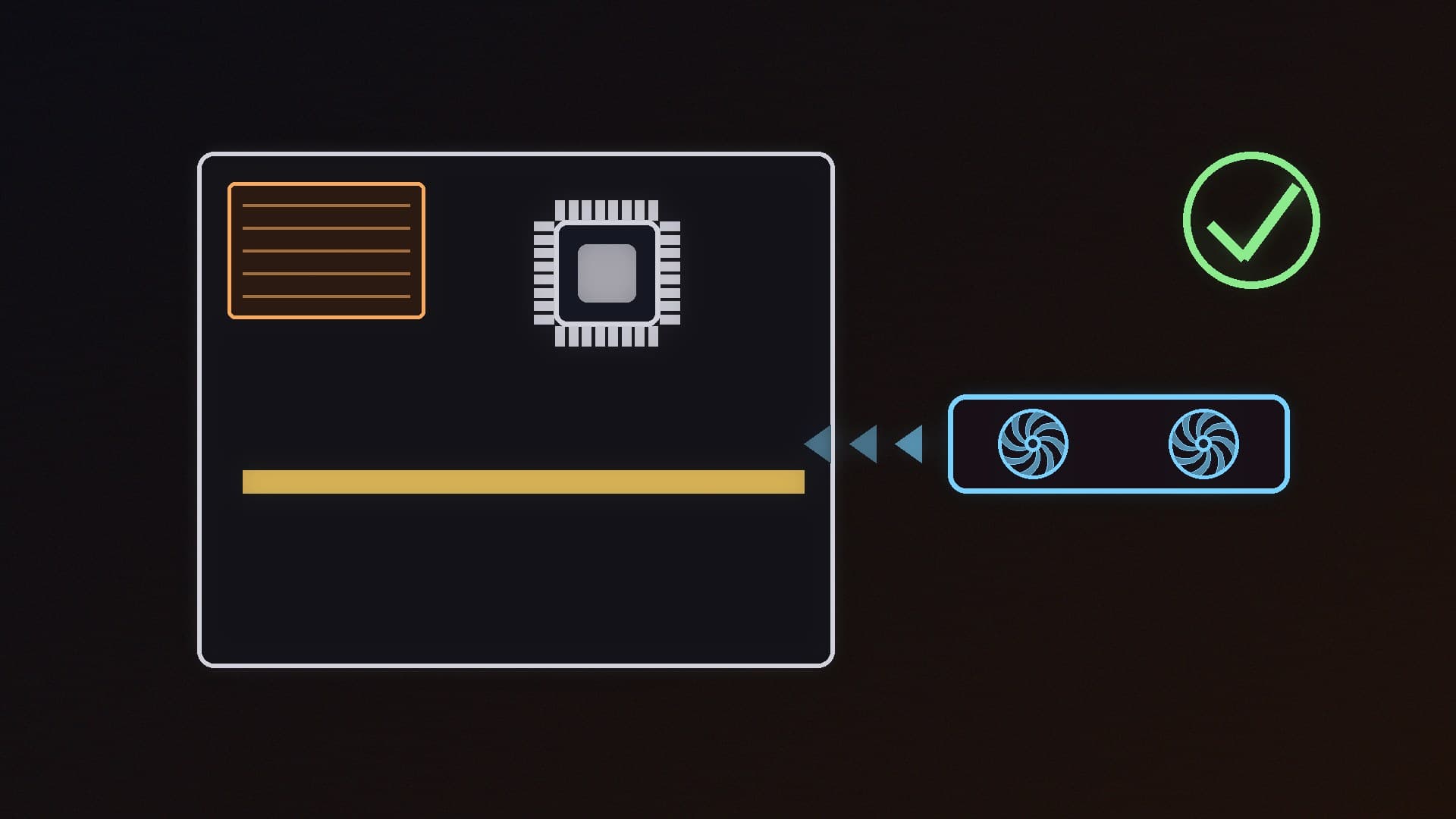
Ex-business desktops are some of the cheapest complete PCs you can buy in the UK, and many have perfectly decent processors. What they usually lack is a graphics card. Adding one can turn an office box into a 1080p gaming PC, a media centre with modern video decoding, or a small local AI machine. The trouble is that office PCs are built to be cheap and compact, not upgraded, so the case, slot and power supply can rule out most cards.
This guide walks through the checks in the order that saves you the most money and hassle. Every office model is different, so check your own PC's manual or service guide alongside these steps.
What you'll need
Your PC's exact model name (on a sticker on the case, or in Windows by running msinfo32 and reading the System Model line).
A tape measure or ruler.
A Phillips screwdriver.
The manual or service guide for your PC, from the maker's support site.
About an hour, including driver installation.
Step 1: Work out which kind of office PC you have
Office desktops come in three broad sizes, and the size decides almost everything else:
Tower or mini tower: usually takes full-height cards. The limits are normally length and power supply.
Small form factor (SFF): slim cases that take only half-height (low-profile) cards. These are very common in ex-office sales.
Micro or tiny PCs: many have no full-size PCIe graphics slot at all. If yours has none, an internal graphics card isn't an option.
Look up your model's specifications on the maker's support site. It will tell you the chassis type, the expansion slots and the power supply rating.
Step 2: Check the slot
Open the case (with the PC unplugged) and find the PCIe x16 slot, the long slot nearest the processor. Note:
Is there a free slot next to it? Almost every modern graphics card is two slots thick, including the Gigabyte, Intel and NVIDIA low-profile cards mentioned in this guide. Anything in the neighbouring slot, or a component on the motherboard directly below, can block it.
Which PCIe generation is it? Older office PCs may have PCIe 3.0 slots. Current cards still work in them, but some only use eight lanes. MSI, for example, lists its GeForce RTX 5050 and RTX 5060 cards as PCIe Gen 5 x16 cards that use x8, and Intel lists the Arc Pro B50 as PCIe 5.0 x8. On an older slot, an x8 card gets less bandwidth than an x16 card would. After fitting, you can check what you're getting with our PCIe link speed guide.
Step 3: Measure the space
Measure three things:
Height: in an SFF case, the bracket opening is half height. You need a card sold as low profile with a low-profile bracket. Gigabyte lists 69mm for the height of its RTX 5050 and RTX 5060 low-profile cards, and Intel and NVIDIA list 2.7in (about 69mm) for the Arc Pro B50 and RTX PRO 2000.
Length: measure from the back of the case to the first obstruction in line with the slot, such as a drive cage, fan or the power supply. Gigabyte's low-profile cards are 182mm long; Intel and NVIDIA list 6.6in (about 168mm) for their workstation cards.
Thickness: Gigabyte lists 36mm for its low-profile cards. Make sure that clears any cables, drive bays or heat sinks below the slot.
Our guide to checking a graphics card fits your case goes into more detail on measuring.
Step 4: Check the power supply
This is where most office PC upgrades fail. Look at the label on the power supply for its wattage, and check whether it has a spare PCIe power lead (6-pin or 8-pin). Office power supplies are often low wattage, and some use non-standard connectors to the motherboard, so the manual or service guide is worth checking.
Compare it with the card's requirements:
Card | Power figure | Power connector | Power supply guidance |
|---|
Intel Arc Pro B50 | 70W total board power | None required | 280W minimum |
NVIDIA RTX PRO 2000 Blackwell | 70W maximum | Check the card maker's page | Check the card maker's page |
GeForce RTX 5050 (NVIDIA spec) | 130W total graphics power | 1x 8-pin | 550W required system power |
GeForce RTX 5060 (NVIDIA spec) | 145W total graphics power | 1x 8-pin | 550W required system power |
If your power supply has no PCIe power lead, stick to a card that doesn't need one, such as the Arc Pro B50. We'd avoid adapters that turn SATA or Molex drive connectors into an 8-pin PCIe connector to power a card like the RTX 5060; they are not the connector the card maker specifies. If you really want a bigger card, the alternative is to move the motherboard to a standard case and power supply, but many office boards use non-standard layouts, so check that before you buy anything. Our guide to calculating PSU wattage explains how to size a replacement.
Step 5: Update the BIOS first
Before fitting the card, update the BIOS to the latest version from your PC maker's support page while the old setup still works. An out-of-date BIOS is one of the things worth ruling out early if a newer graphics card doesn't work as expected, and it's easier to update while the PC is still working normally. Follow our guide to updating the BIOS safely.
While you're in the BIOS, look for any setting that controls the primary display or the integrated graphics, and note where it is in case you need it later.
Step 6: Fit the card
Shut down Windows, switch off at the wall and unplug the power cable. Press the power button for a few seconds to drain any remaining charge.
Touch a bare metal part of the case to discharge static.
For a low-profile card, swap the full-height bracket for the low-profile one supplied in the box (usually two small screws).
Remove the slot covers on the back of the case for the slots the card will use.
Open the latch at the end of the PCIe x16 slot and press the card in firmly and evenly until the latch clicks.
Screw the bracket to the case or close the case's bracket clamp, then connect the PCIe power lead if the card needs one.
Close the case and connect your monitor to the graphics card's outputs, not the motherboard's.
Step 7: Install the drivers
Start the PC. Windows will usually show a picture using a basic display driver. Download the current driver from the graphics card maker: NVIDIA for GeForce and RTX PRO cards, Intel for Arc Pro cards. Install it and restart.
If there's no picture at all, or Windows doesn't see the card, work through our graphics card not detected fix. The usual culprits in office PCs are a monitor plugged into the motherboard instead of the card, a card that isn't fully seated, a missing power lead, or an out-of-date BIOS.
Which card for which office PC?
Slim SFF PC with no PCIe power lead: a 70W low-profile card with no power connector, such as the Intel Arc Pro B50 (16GB). It's a workstation card, but it adds modern AV1 video encoding and decoding and 16GB of memory for creative and AI apps.
SFF PC with an 8-pin lead and enough wattage: a low-profile GeForce such as Gigabyte's RTX 5050 or RTX 5060 OC Low Profile, if gaming is the goal.
Tower office PC: check the power supply first. If it can't meet a card's requirements, a power supply swap may be possible in a tower, but confirm the motherboard's power connectors first, because office boards don't always use standard ones.
Our verdict
Adding a graphics card to an office PC can be a cheap, worthwhile upgrade, but check before you buy. Confirm the chassis type and a free double-width PCIe x16 slot, measure height, length and thickness, and read the power supply label. In most slim office PCs without a PCIe power lead, a 70W card that needs no connector, such as the Intel Arc Pro B50, is the safe choice. Cards like the RTX 5050 and RTX 5060 need an 8-pin lead and a 550W-class power supply, which most small office PCs can't provide. Update the BIOS first, plug the monitor into the card and install the maker's driver.