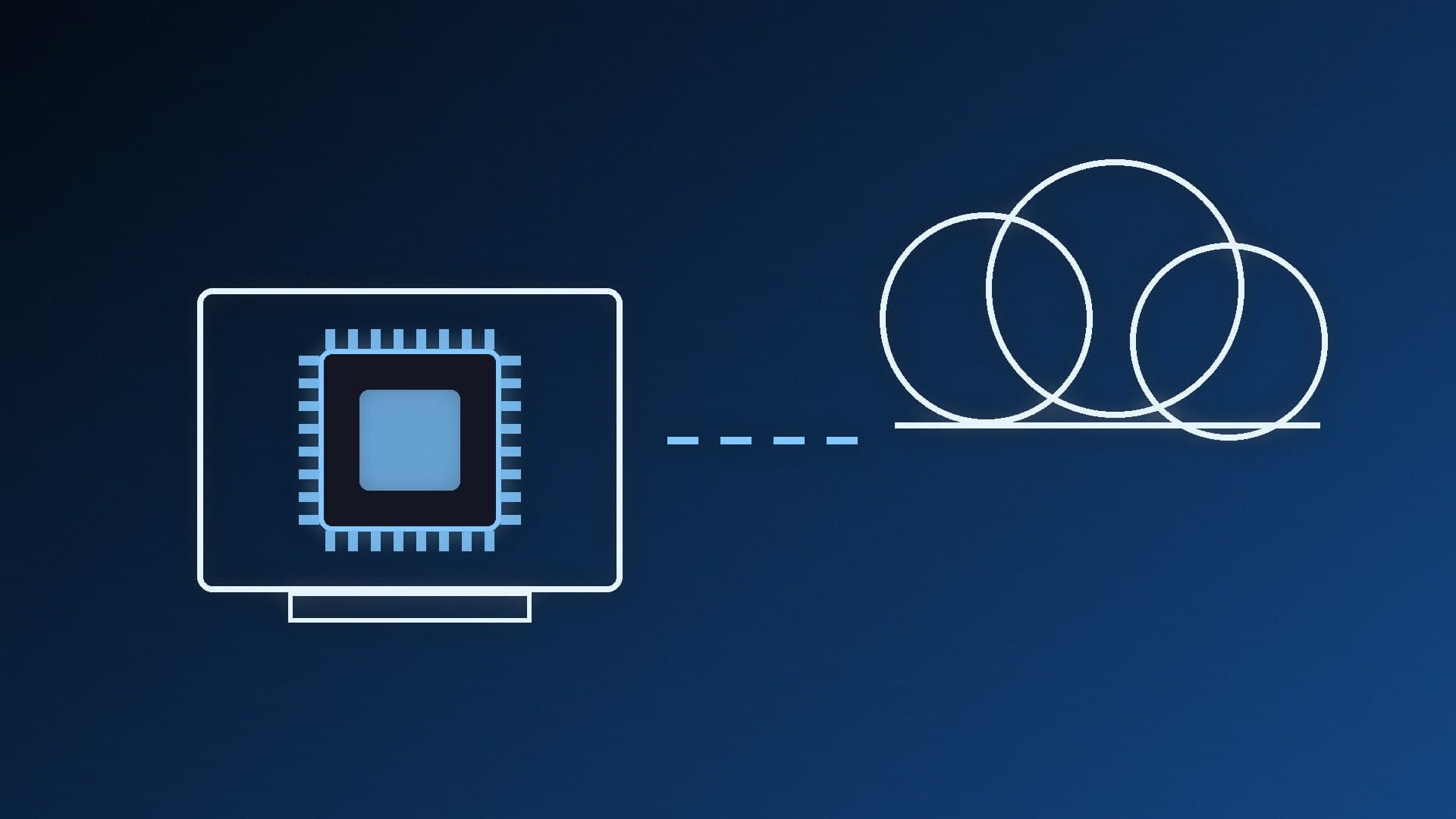
You can now run capable AI models on a gaming PC or laptop, but cloud chatbots such as ChatGPT are still a click away. The right choice depends on what you're doing, how sensitive it is and what hardware you have. This comparison is based on the official documentation for Ollama and OpenAI's ChatGPT data controls.
The short version
Local AI (on your PC) | Cloud AI chatbot | |
|---|---|---|
Where prompts are processed | On your own hardware | On the provider's servers |
Works offline | Yes, once the model is downloaded | No |
Hardware needed | Enough VRAM or RAM for the model | Any device with a browser |
Ongoing cost | Electricity; no subscription needed for open models | Usually a free tier with limits or a paid plan |
Model size | Limited by your memory | The provider's largest models |
Setup | An app and a model download | Sign in |
Privacy: where your data goes
This is the biggest difference. Ollama's FAQ says: "Ollama runs locally. We don't see your prompts or data when you run locally." Local apps such as Ollama and Msty process prompts for local models on your own machine (Msty's docs say it stores your data locally), so they stay there unless you choose a cloud model or an online feature.
There's a catch worth knowing about. Some local apps now offer cloud models as well. Ollama, for example, offers cloud-hosted models and web search; its FAQ says it can run in local only mode by setting "disable_ollama_cloud": true in ~/.ollama/server.json, or by setting the environment variable OLLAMA_NO_CLOUD=1, then restarting Ollama. If privacy is your reason for going local, check which mode you're in.
With a cloud chatbot, your prompts are sent to the provider. OpenAI's ChatGPT data controls page says that on personal ChatGPT Free, Plus and Pro accounts, data sharing for model training is enabled by default, and you can turn off Improve the model for everyone in Settings > Data controls while keeping your chat history. Policies vary by provider and plan, so read the settings for whichever service you use.