Skip to content

VersusHeadset

USB vs 3.5mm Gaming Headset: Which Connection Should You Use?

USB vs 3.5mm for a gaming headset: where the audio conversion happens, why USB unlocks the maker's software on a Windows PC, why 3.5mm is still the connection for console controllers, and which to use when your headset has both.

By , Senior Hardware Editor

3 min read

USB vs 3.5mm Gaming Headset: Which Connection Should You Use?

Many wired gaming headsets come with both a 3.5mm jack and a USB cable or dongle, and plenty of people just plug in whichever fits. The connection you choose decides what does the audio processing, which software features you get and which devices the headset works with. This comparison explains the difference using manufacturer documentation from HyperX and Corsair.

The short version

3.5mm analogue

USB

What it carries

Analogue audio signal

Digital audio

Audio conversion

Done by the device you plug into (PC sound chip, controller)

Usually done in the headset or its USB adapter

Software features on PC

Generally none from the headset maker

Often EQ, surround and mic settings via the maker's app

Console controllers

Works with controller headset jacks

Depends on the headset and console

Phones, Switch, laptops with a jack

Usually works

Depends on the device

How 3.5mm works

A 3.5mm headset receives an analogue signal. Your PC's motherboard audio, a sound card or a controller does the digital-to-analogue conversion and drives the headphones. That makes 3.5mm the most widely compatible option. HyperX says to use the 3.5mm connection on its Cloud III Wired for Xbox and PlayStation controllers and other devices with a compatible headset jack. Corsair says all of its headsets that work with consoles connect through a 3.5mm jack on the controller.

Two caveats from Corsair's support page: the Nintendo Switch's 3.5mm port doesn't support a microphone, and some Xbox One controllers have a 2.5mm port that needs Microsoft's Stereo Headset Adapter.

How USB works

With a USB headset, the conversion happens in the headset or its USB adapter, so your PC sees it as its own audio device. The main practical benefit is software. HyperX says that on a supported Windows PC, USB gives the Cloud III Wired access to its NGENUITY features, while those settings don't carry over when you move the headset to another system. Corsair's compatibility chart shows several headsets, such as the HS55 Surround and HS65 Surround, using USB on PC and 3.5mm for consoles.
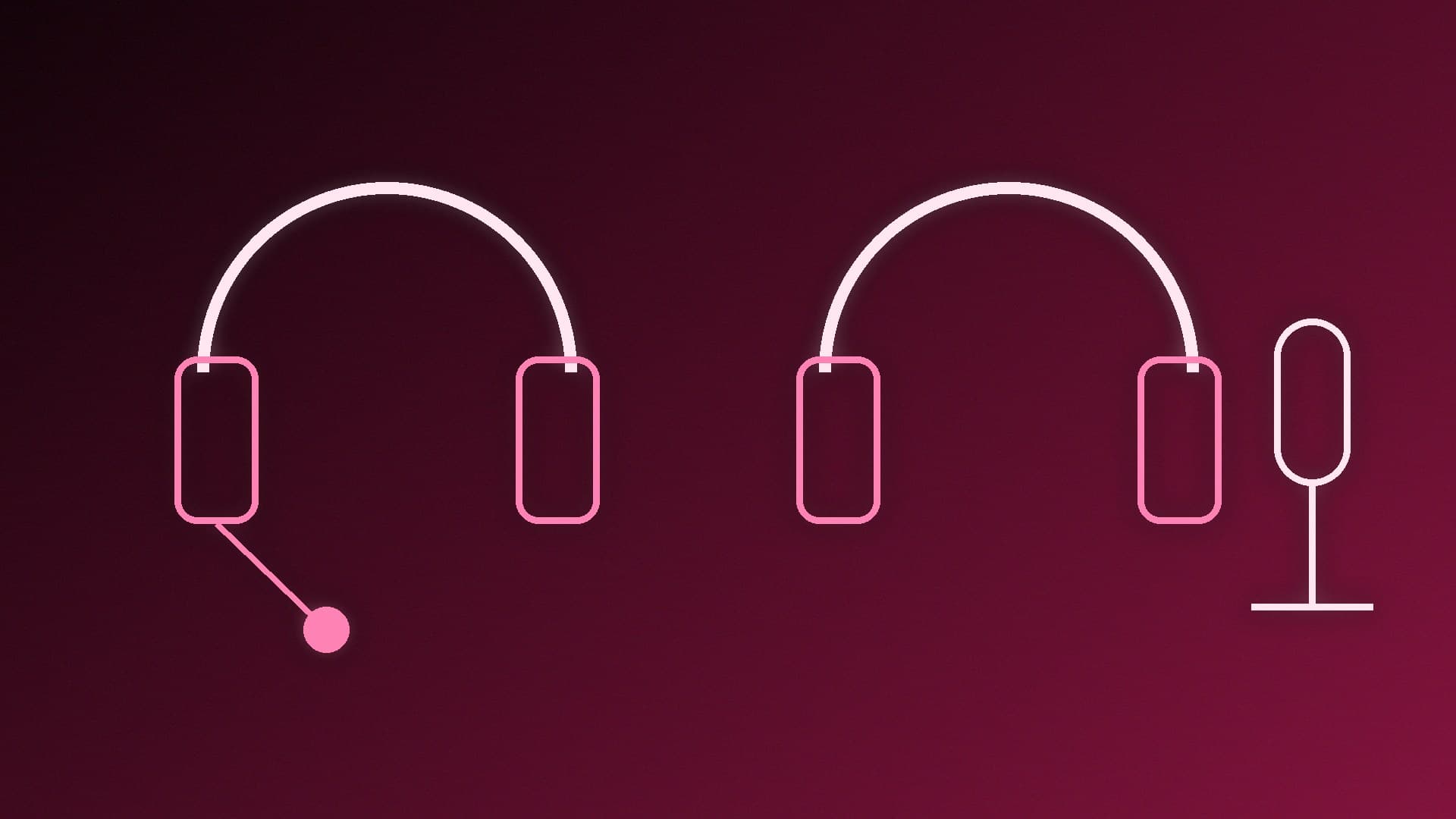
USB also means the headset doesn't depend on your motherboard's audio. If you're unhappy with your PC's 3.5mm output, switching to USB is worth trying. If your headset mic isn't picked up at all, our guide to fixing a microphone not working in Windows 11 covers the settings to check.

Surround and EQ

Virtual surround and EQ on a USB headset usually come from the maker's software. Windows also has its own spatial audio settings; see how to set up spatial audio in Windows 11. For system-wide EQ on any headset, our Equalizer APO guide is free. HyperX's own advice is to avoid running several surround or spatial audio effects at the same time.

Which should you choose?

  • Choose USB if you mainly game on a Windows PC and want the headset maker's EQ, mic and surround settings, or if you're unhappy with your PC's 3.5mm output.

  • Choose 3.5mm if you plug into a console controller, a Switch, a phone or a laptop with a headset jack, or you want the simplest setup that works almost anywhere.

  • Use both if your headset supports it: USB on the PC, 3.5mm on the controller.

If you're still choosing a headset, our wired vs wireless gaming headset comparison and best gaming headset guide are good next reads.

Our verdict

Neither connection is better for everyone. USB puts the audio conversion in the headset and unlocks the maker's software on a Windows PC, which is why it's usually the better choice at a desk. 3.5mm is the universal option, and the one HyperX and Corsair point console players to. If your headset has both, use USB on the PC and keep the 3.5mm cable for your controller.

The bottom line

Neither connection is better for everyone. USB puts the audio conversion in the headset and unlocks the maker's software on a Windows PC, which is why it's usually the better choice at a desk. 3.5mm is the universal option, and the one HyperX and Corsair point console players to. If your headset has both, use USB on the PC and keep the 3.5mm cable for your controller.

Sources

  1. 01HyperX, Cloud III Wired Gaming Headset
  2. 02Corsair Help Center, Headset Compatibility and Console Support

About the author

Callum Reid

Senior Hardware Editor

Callum leads GPU, CPU and platform architecture coverage at Forge PC. Before joining the editorial desk, he spent nine years specifying, assembling and stress-testing custom gaming and workstation systems in the UK, with a focus on PCIe bandwidth, VRM thermal design, DDR5 memory tuning and 1440p/4K frame-time consistency.

More from Callum Reid

Read next

Black Friday 2026 UK Keyboard, Mouse and Headset Deals: Which Cuts Are Real Lows?

News

Black Friday 2026 UK Keyboard, Mouse and Headset Deals: Which Cuts Are Real Lows?

UK shops have cut prices on gaming keyboards, mice and headsets ahead of Black Friday on 27 November 2026. Price tracker VantaSpec flags many as real 90-day lows, including the Razer Huntsman V3 Pro Mini at about £89.99 and the Logitech G502 HERO at about £22.99, while some deals are just usual prices. Prices are approximate, recorded 19-20 November 2026.

Eleanor Shaw4 min

How to Use Equalizer APO on Windows 11: A Free System-Wide EQ for Headsets and Speakers

How-To

How to Use Equalizer APO on Windows 11: A Free System-Wide EQ for Headsets and Speakers

Equalizer APO is a free, system-wide equaliser for Windows. Install it, tick your headset or speakers in the Configurator and restart. Then edit config.txt or use the Configuration Editor; changes apply instantly. Lower the preamp by at least your biggest boost to avoid clipping, and make sure audio enhancements are enabled if nothing changes.

Marcus Thorne3 min

No Sound on Windows 11? How to Fix Speakers and Headsets

How-To

No Sound on Windows 11? How to Fix Speakers and Headsets

First check Windows is sending audio to the right device: on a desktop, a monitor connected over HDMI or DisplayPort is a common culprit. Then check cables, jacks, mute and volume, turn off audio enhancements, run the Get Help audio troubleshooter, check the volume mixer, install updates and restart, and finally update or reinstall the audio driver.

Marcus Thorne3 min