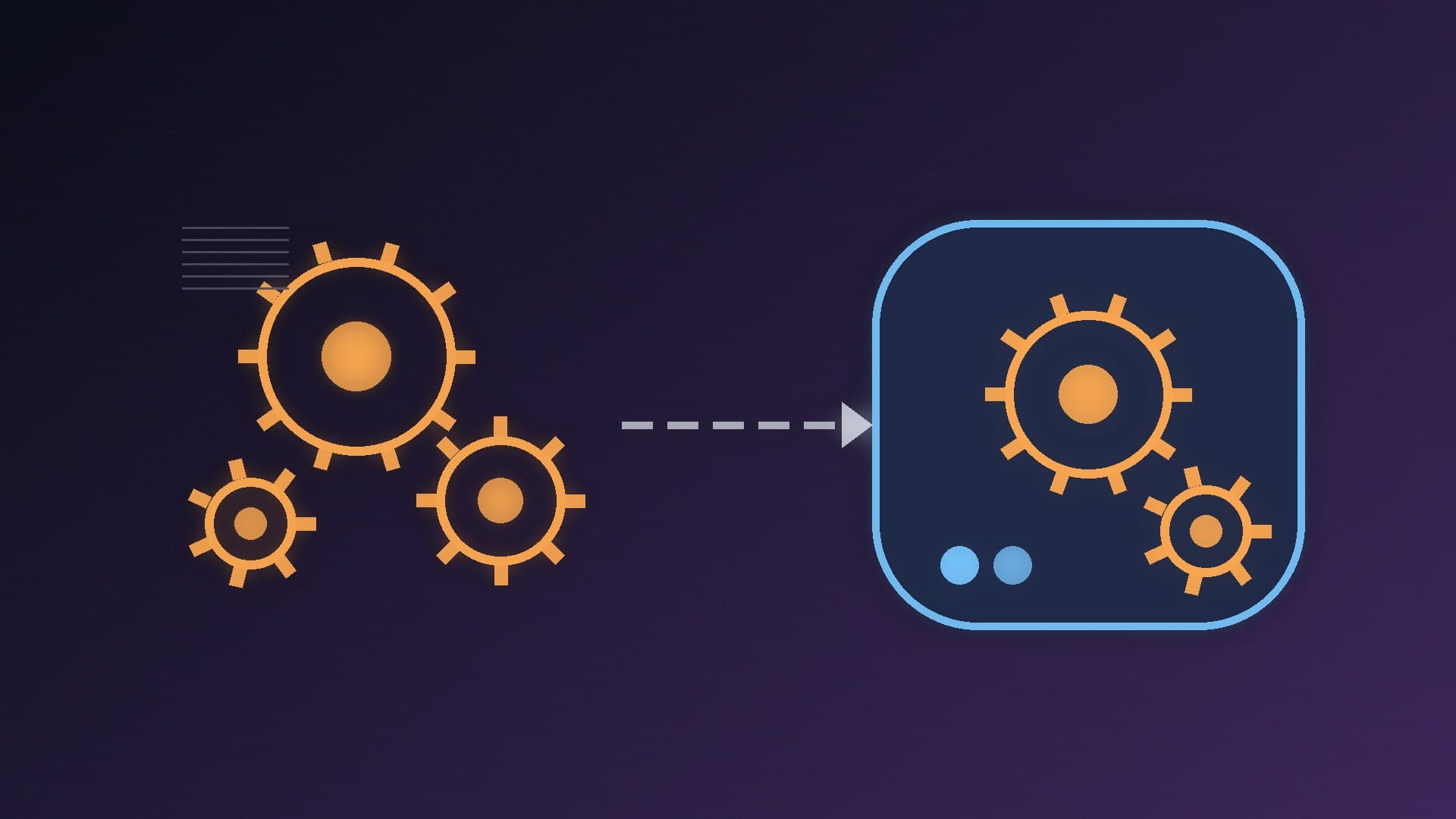
LM Studio is one of the friendliest ways to run AI language models on a Windows PC: a proper desktop app with a model browser, chat window and one-click server. llama.cpp is the open-source engine underneath it. LM Studio's documentation says it runs models on Windows, Linux and macOS using llama.cpp (plus Apple's MLX on Apple silicon Macs). So choosing between them isn't about which engine runs the model. It's about whether you want a polished app that makes the decisions easy, or the engine itself, with every option exposed and an open-source licence.
cpp against LM Studio, and this comparison contains no speed figures of our own. It's based on the official llama.cpp and LM Studio documentation, and LM Studio's app terms, read on 26 November 2026.
The short answer
Choose LM Studio if you want a graphical app: search and download models from Hugging Face inside the app, chat with documents, add MCP tools, and start a local API server with a switch.
Choose llama.cpp if you're comfortable in a terminal and want an open-source (MIT-licensed) tool, the newest llama.cpp features as soon as they're released, full control over every setting, or a lean server for a home lab or another app.
You can also use both. Because LM Studio runs GGUF models with llama.cpp, GGUF files you download for one should generally work in the other.
At a glance
| llama.cpp | LM Studio |
|---|
What it is | Open-source inference engine with command-line tools and a server | Desktop app (plus a headless version, llmster) built on llama.cpp, and MLX on Apple silicon |
Licence | MIT (open source) | Closed source; licensed for personal and internal business use under its app terms, which say some features may be paid |
Install options | Install script (PowerShell on Windows, shell script elsewhere), prebuilt binaries, Docker or build from source | Windows (x64 and Arm), Linux (x64 and ARM64, as an AppImage) and Apple silicon Macs |
Interface | Terminal (llama cli) plus Llama Chat, a chat app built into the server | Full desktop app with chat, model browser and settings |
Getting models | -hf user/model downloads a GGUF from Hugging Face (Q4_K_M by default), or point it at a local file
| Built-in model search and downloader for Hugging Face; paste a model name or URL |
APIs | OpenAI-compatible chat completions, responses and embeddings; Anthropic Messages-compatible; reranking | OpenAI-compatible (including responses), Anthropic-compatible, its own REST API and Python/TypeScript SDKs |
Default server address | 127.0.0.1, port 9931 | Localhost; the docs' examples use port 1234 |
Extras | Speculative decoding, schema-constrained JSON, function calling | Chat with documents offline, MCP servers, presets, speculative decoding |
What LM Studio gives you
LM Studio's documentation sums up its appeal: download and run local models, use "a simple and flexible chat interface", connect MCP servers, search and download models from Hugging Face, and serve models on OpenAI-like endpoints, locally or on your network. You can attach documents to a chat and work with them entirely offline, and once you've downloaded some models the whole app can run without an internet connection.
The built-in downloader is the biggest time-saver for newcomers. You can search by keyword or paste a Hugging Face user/model name or URL, and the docs explain the quantisation options you'll see (Q3_K_S, Q8 and so on), advising a 4-bit option or higher if your PC can run it. Our guide to choosing models in LM Studio goes further, and GPU offload in LM Studio explains how to fit a model to your graphics card.
For developers, the Developer tab starts an API server with a switch, or you can run lms server start from a terminal. LM Studio offers OpenAI-compatible endpoints including /v1/chat/completions, /v1/embeddings and /v1/responses (which the docs say is why OpenAI's Codex works with it), Anthropic-compatible endpoints, its own REST API with extra statistics such as tokens per second, and Python and TypeScript SDKs. If you don't want the desktop app on a server, llmster is the headless version; see our guide to running LM Studio headless with llmster.
The system requirements are worth checking. On Windows, LM Studio needs a CPU with AVX2 (on x64), and recommends at least 16GB of RAM and 4GB of dedicated VRAM. It also runs on Arm-based Snapdragon X laptops.
The main catch is the licence. LM Studio isn't open source: its terms grant a non-transferable licence for "personal and / or internal business purposes", describe the software's source code as a trade secret, and say some features may be offered for a fee. For most home users that's no problem, but it matters if you want to inspect, modify or redistribute the software.
What llama.cpp gives you
llama.cpp's stated goal is to run language models "with minimal setup and state-of-the-art performance on a wide range of hardware". You can install it with a one-line script (PowerShell on Windows), download prebuilt binaries from its GitHub releases, use Docker or build it yourself; our guide to running llama.cpp on Windows walks through it. After that, llama cli -hf ggml-org/Qwen3.5-0.8B-GGUF chats with a model in the terminal and llama serve with the same model starts a server. The llama.cpp 1.1 release is the latest stable version.
The server, llama-server, matches LM Studio's server on the essentials and goes further in places. Its documentation lists OpenAI-compatible chat completions, responses and embeddings, Anthropic Messages compatibility, a reranking endpoint, parallel decoding for several users, continuous batching, multimodal input, schema-constrained JSON, function calling and speculative decoding. It also includes Llama Chat, a built-in web chat app, so you get a basic graphical chat without installing anything else.
Where llama.cpp really differs is control. Every setting is a command-line option or environment variable:
-ngl sets how many model layers go on the graphics card: a number, auto (the default) or all.
--fit, on by default, adjusts any settings you haven't fixed so the model fits in your device memory, leaving 1,024MiB spare per device unless you change it.
-c sets the context size; by default it's taken from the model.
--api-key requires a key for access, which matters if you use --host to open the server to your network.
Started without a model, llama-server runs in router mode, loading models from its cache or a --models-dir folder as requests arrive, with up to four loaded at once by default. Our guide to llama-server router mode explains it.
The trade-off is that there's no model browser holding your hand. You choose the GGUF file and quantisation yourself; our explainer on GGUF quantisation helps.
Key differences
Ease of use. LM Studio wins clearly. Finding a model, checking whether it fits, loading it and chatting all happen in one window. llama.cpp's Llama Chat is handy, but you choose and download models from the command line.
Openness. llama.cpp is MIT-licensed open source. LM Studio is closed source, with a licence limited to personal and internal business use. If you're building something to share or sell, or want to audit what runs on your PC, that difference matters.
New features. LM Studio runs models through its own LM Runtimes, which you install and manage from the app (Ctrl+Shift+R on Windows). New llama.cpp features and model support arrive in llama.cpp first and reach LM Studio once its llama.cpp runtime is updated, so llama.cpp is the way to try something on day one.
Server use. Both offer OpenAI- and Anthropic-compatible servers. LM Studio adds polished SDKs, while llama-server adds router mode, reranking and a long list of tuning options. For an always-on server, LM Studio's llmster or llama-server both work without a desktop session; see our guide to LM Studio's server if you're starting there.
Extras. LM Studio's offline document chat, MCP client and presets are ready to use; see chatting with documents in LM Studio. llama.cpp's server documentation doesn't list a document-chat feature, so you'd typically add a separate front-end for that.
If you're comparing other options, see llama.cpp vs Ollama and Ollama vs LM Studio.
Our verdict
For most people running local AI on a Windows PC, LM Studio is the better place to start: it makes finding, fitting and chatting with models easy, and its server covers the common APIs. Choose llama.cpp if you want open-source software, need the newest model support or features the day they land, or want precise control over GPU offload, context and serving. Since LM Studio runs GGUF models on llama.cpp, GGUF files should generally work in both, so there's little to lose by keeping both installed.