Everything below comes from the official llama.cpp server documentation (the llama-server README on GitHub), read on 23 November 2026. llama.cpp changes quickly, so run llama-server --help to confirm the options in your own build.
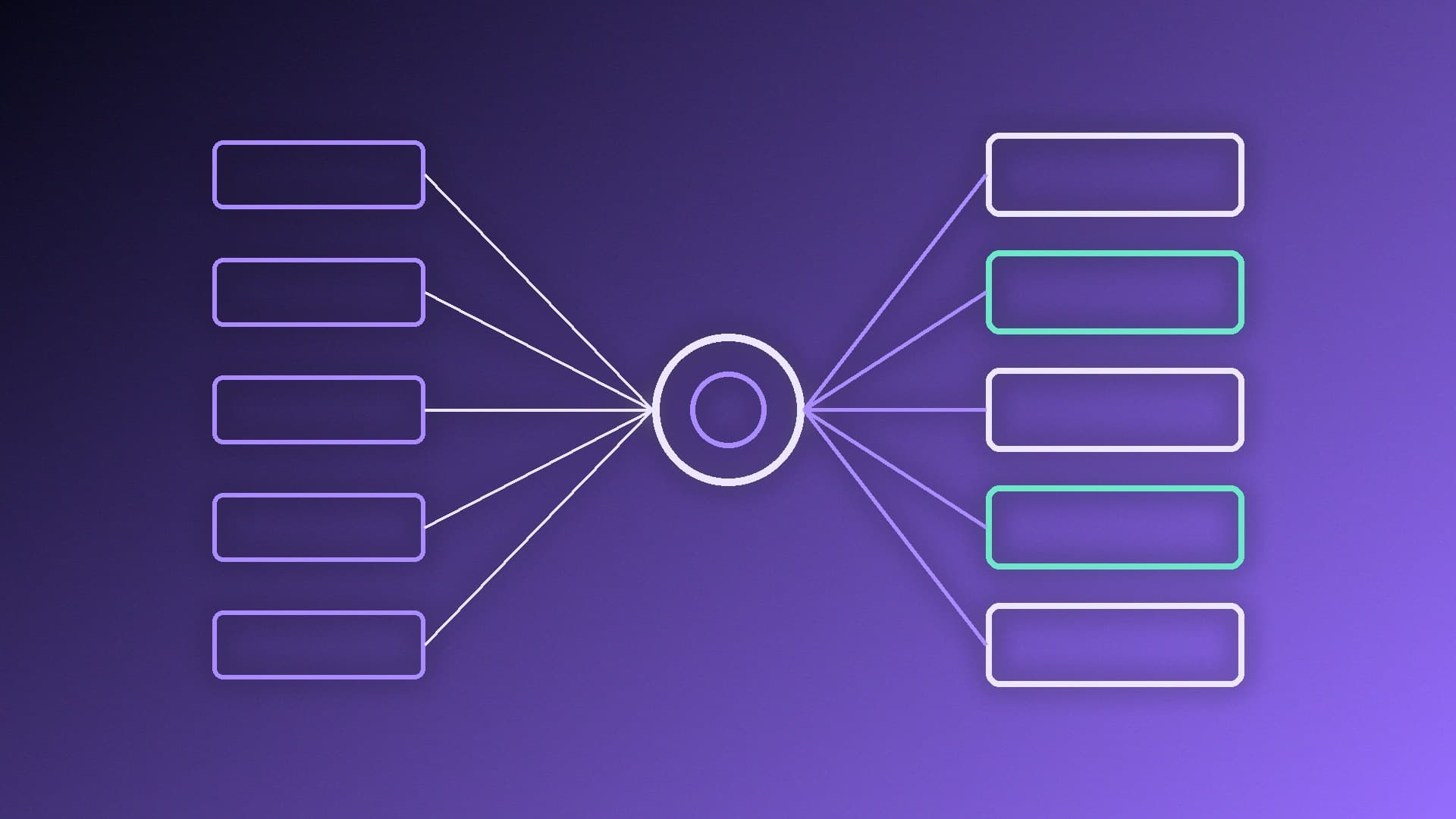
If you use llama.cpp directly rather than through Ollama or LM Studio, you've probably got used to starting llama-server with one model and restarting it whenever you want to switch. Router mode removes that chore. A single llama-server process becomes a "router" that knows about all of your models, starts a separate model instance when a request asks for one, and forwards the request to it. Front ends that speak the OpenAI-compatible API can then switch models just by changing the model name, much as they can with Ollama (see how to run multiple models in Ollama for that approach).
If you haven't installed llama.cpp yet, follow how to run llama.cpp on Windows first, and make sure an ordinary single-model llama-server -m model.gguf works on your GPU before you try the router.
Step 1: Start llama-server without a model
The documentation is clear that router mode is switched on simply by launching llama-server without specifying any model:
llama-server
On its own, that makes the router look for models in llama.cpp's download cache, which is controlled by the LLAMA_CACHE environment variable. You can add a Hugging Face model to that cache with llama-server -hf <user>/<model>:<tag>. The README notes that the server must be restarted after adding a new model this way.
The router never touches the GPU itself. Each model runs in its own child instance, and those instances inherit both the command-line arguments and the environment variables you gave the router. Arguments such as -c (context size), -n (maximum tokens to generate) and -np (parallel slots) therefore become defaults for every model.
Step 2: Point it at your own GGUF folder
Most PC users already have a folder full of GGUF files. Use --models-dir to point the router at it:
llama-server --models-dir D:\AI\gguf
Single-file models can sit directly in that folder. Models made of several files need their own subfolder:
Multimodal (vision) models: put the main GGUF and its projector file in one subfolder. The projector's file name must start with mmproj.
Multi-part (sharded) models: put every -00001-of-0000N.gguf part in one subfolder.
That layout matters. If shards or projector files are loose in the top-level folder, the router can't tell which files belong together.
Step 3: Give each model its own settings with a preset file
The weakness of plain --models-dir is that every model gets the same arguments, and a 4B model and a 70B model rarely want the same context length or GPU offload. Presets fix that. They're an .ini file loaded with --models-preset:
llama-server --models-preset D:\AI\my-models.ini
Each section in the file is a preset, and the keys are ordinary command-line arguments without the leading dashes. --n-gpu-layers 123 becomes n-gpu-layers = 123. Short forms such as c and ngl, and environment variable names such as LLAMA_ARG_N_GPU_LAYERS, also work as keys. A simple file might look like this:
version = 1

[*]
c = 8192

[small-chat]
model = D:\AI\gguf\small-chat-Q4_K_M.gguf
c = 16384

[big-coder]
model = D:\AI\gguf\big-coder-Q4_K_M.gguf
c = 4096
n-gpu-layers = 30
The [*] section holds global settings shared by all presets. A section whose name matches a model the server already knows about, such as a cached Hugging Face model, sets that model's defaults. A section with a new name must name a model file (model =) or a Hugging Face repository. The README recommends absolute file paths, because relative paths are resolved from the folder the server was started in.
When the same option is set in more than one place, this order of priority applies:
Command-line arguments passed to llama-server (highest)
Model-specific options in the preset file
Global [*] options in the preset file
Some arguments, including host, port, API key and model alias, are controlled by the router and are removed or overwritten when a model loads. Presets also accept a few extra options of their own. load-on-startup loads a model as soon as the server starts. stop-timeout sets how many seconds to wait after an unload request before forcing the instance to quit (10 by default). dedup-cache-models hides duplicate cache entries when a preset points to an already-downloaded Hugging Face model.
Step 4: Ask for a model by name
Once the router is running, requests are sent to whichever model they name. For POST endpoints such as /v1/chat/completions and /v1/completions, the router reads the "model" field in the JSON body, which is how OpenAI-compatible clients already work. For GET endpoints such as /props and /metrics, it uses a URL-encoded ?model= query parameter. The model field is required in router mode but ignored when the server runs a single model.
By default, a model that isn't loaded yet is loaded automatically when a request asks for it, so the first reply from a model takes longer while it loads. If you'd rather control loading yourself, start the router with --no-models-autoload. You can also add ?autoload=true or ?autoload=false to an individual request. To load or unload models explicitly, send {"model": "<name>"} to the POST /models/load and POST /models/unload endpoints. GET /models lists everything the router knows about.
Step 5: Stop it running out of VRAM
This is where the PC hardware matters. Every loaded model takes up VRAM (or system RAM for any layers you leave on the CPU), and the router can keep several instances loaded at once. Two options control this:
--models-max N caps how many models can be loaded at the same time. The documented default is 4, and 0 means unlimited. When the limit is reached, the least recently used model is unloaded first.
--models-memory-margin N makes the router track device memory as well. Before it starts a new instance, it unloads idle models (least recently used first) until the new model fits, while keeping N MiB free on each device. It's disabled (0) by default.
The documentation describes some caveats worth knowing:
The router measures how much memory each model needs by briefly starting a child process that reads the model's metadata. Multimodal projector files aren't included in that measurement yet, so vision models need more memory than reported.
A model that is serving a request is never unloaded. If nothing else can be unloaded and the new model still doesn't fit, it's loaded anyway and llama.cpp's automatic --fit placement decides how to split it.
With --fit on (the default), an instance takes the largest context that fits when it loads. If you want two models to share a card, set a fixed context with c = in each preset, or the first model may claim almost all of the VRAM. Our explainer on context length and VRAM shows why context size has such a big effect.
System RAM is treated as unlimited, just as it is with --fit. On a build without GPU devices, the memory limit has no effect, so watch Task Manager if you offload a lot to the CPU.
For a 12GB or 16GB graphics card, a sensible starting point is a small --models-max (2, say) plus a memory margin of a few hundred MiB, with fixed context sizes in the presets. Adjust from there based on what Task Manager's dedicated GPU memory graph shows.
Optional: let idle models sleep
--sleep-idle-seconds puts the server to sleep after a set period with no incoming tasks. It's disabled (-1) by default, and the documentation says it works with both single-model and multi-model setups. That's useful on a PC you also game on, because memory is freed when you stop chatting.
Our verdict
Router mode turns llama-server into a proper multi-model server. Point --models-dir at your GGUF folder, use a preset .ini file to give each model its own context and GPU offload settings, and let OpenAI-compatible apps switch models by name. On a single consumer graphics card, the settings that matter most are --models-max, --models-memory-margin and a fixed context size per preset. Without them, the router can keep more models loaded than your VRAM can comfortably hold. If you'd rather not edit config files, Ollama and LM Studio do the same job with less setup.