It's based on LM Studio's official documentation (the Chat with Documents and Offline Operation pages) and the published source code of LM Studio's built-in rag-v1 document plugin on LM Studio Hub, all read on 24 November 2026. LM Studio updates often, so menu names and behaviour can change between versions.
One of the most useful things you can do with a local AI model is point it at your own files: a long PDF manual, a contract, meeting notes or a pile of research. LM Studio has this built in. You attach a document to a chat, ask questions, and the model answers using what's in the file. Because it all runs on your PC, it's a good fit for documents you wouldn't want to paste into a cloud chatbot.
What you need
LM Studio installed with at least one chat model downloaded. If you haven't picked one yet, our guide on how to choose models in LM Studio explains sizes and quantisation, and how to set GPU offload in LM Studio helps you get it running on your graphics card.
Your documents in a supported format. LM Studio's documentation lists .docx, .pdf and .txt files.
An internet connection only for setup. LM Studio says chatting with documents doesn't need the internet. Its Offline Operation page states that when you drag and drop a document into LM Studio, "that document stays on your machine", and that all document processing is done locally.
Step 1: Load a model and start a new chat
Open LM Studio, load the model you want to use and start a fresh chat. A new chat matters more than you might think here, for reasons explained in Step 3: the space your conversation already takes up affects how LM Studio handles a document.
Step 2: Attach your document
Drag and drop the file into the chat, or attach it to your message, then type your question and send it. You can attach more than one document.
LM Studio's built-in document plugin only processes document attachments. Its source code filters out image files, so a screenshot or photo attached to the same message isn't treated as a document by this plugin.
Step 3: Understand what LM Studio does with the file
This is the part most guides skip, and it explains why answers are sometimes excellent and sometimes miss the point. LM Studio has two ways of giving a document to the model:
Approach | When LM Studio uses it | What the model sees |
|---|
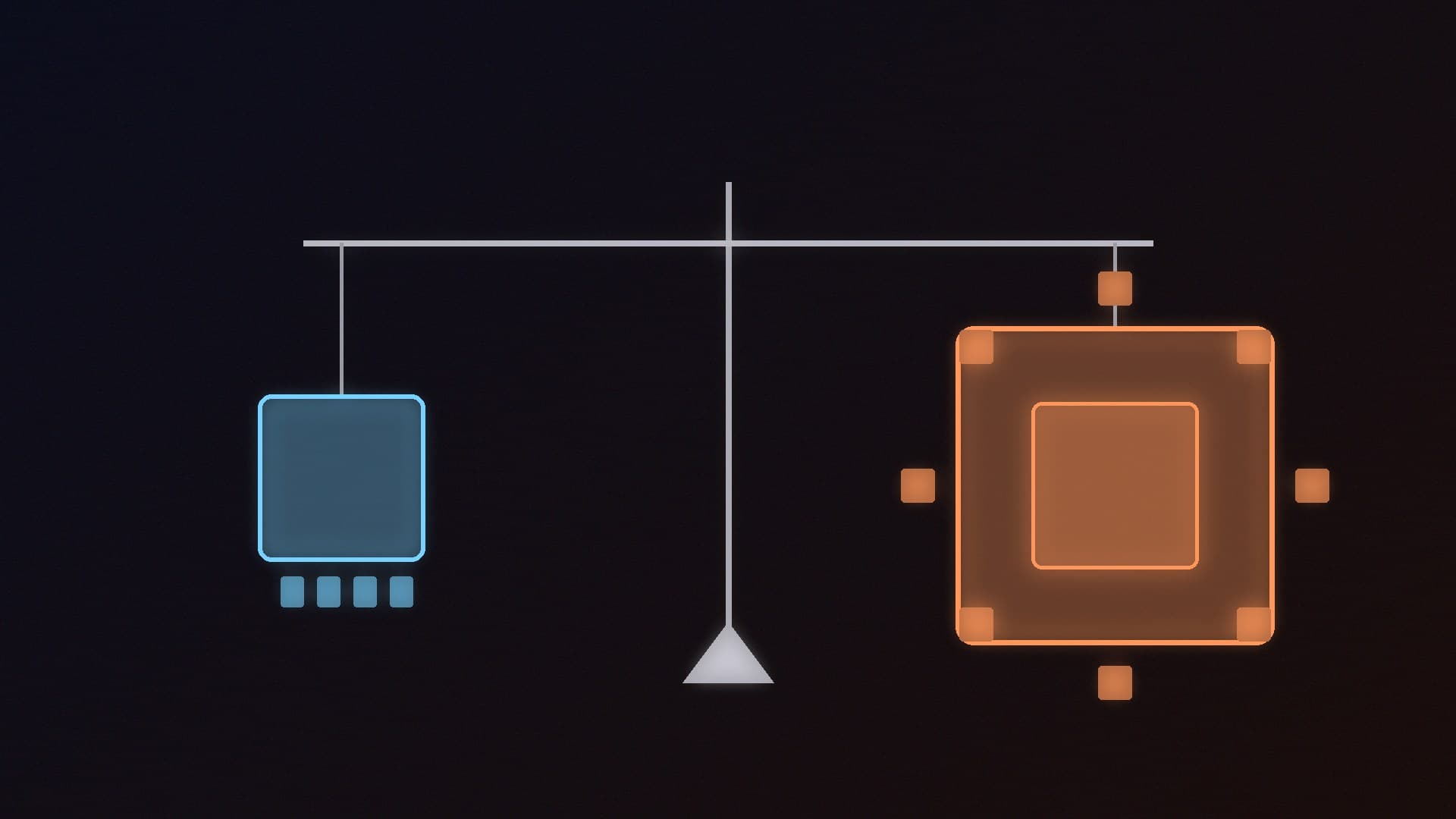
Full document in context | The document is short enough to fit in the model's context | The whole file, added to your message |
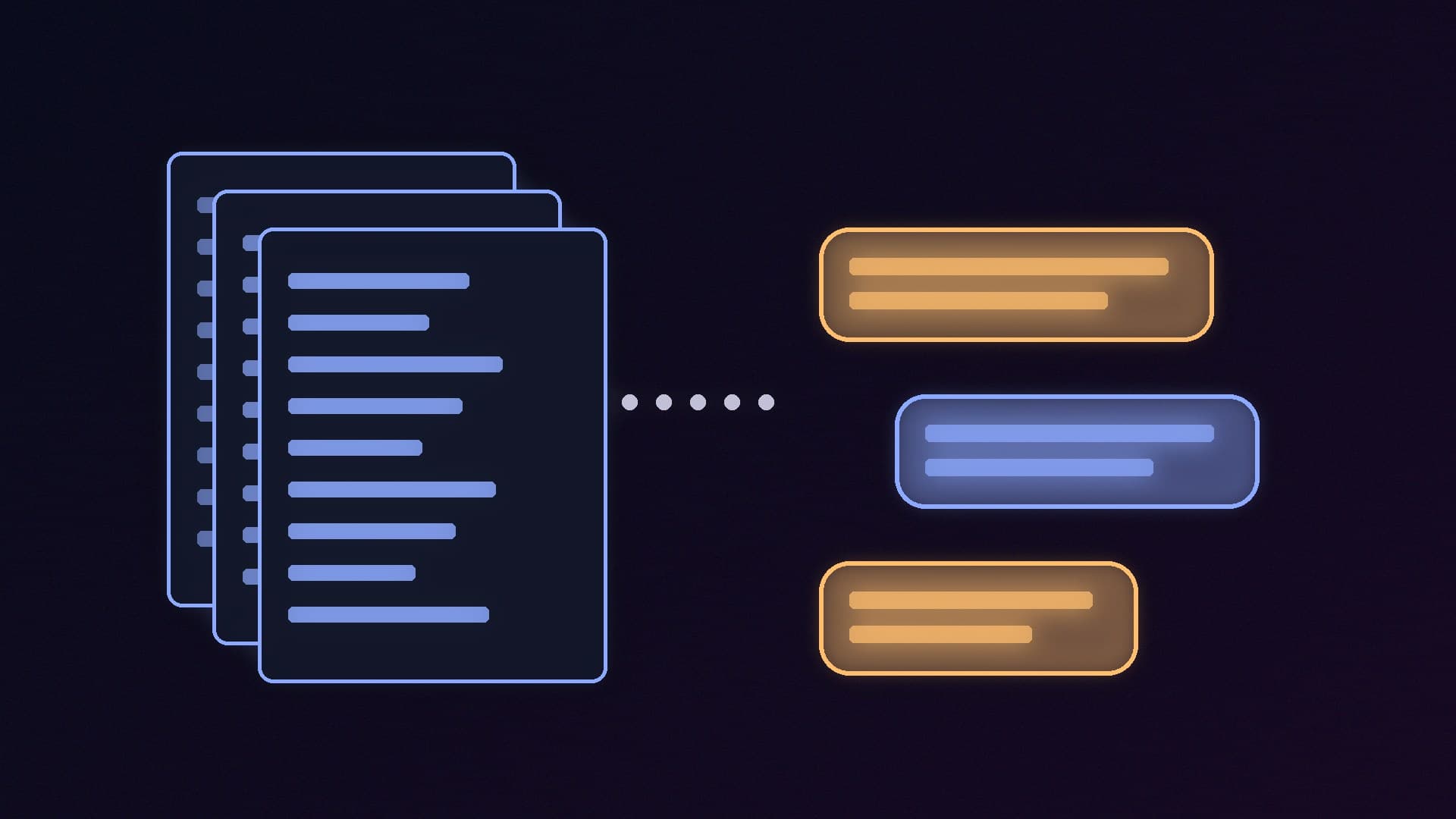
Retrieval (RAG) | The document is too long | Only the chunks that look most relevant to your question |
LM Studio's documentation says that if the document fits in the model's context, it adds the contents to the conversation in full, and that for very long documents it opts into Retrieval-Augmented Generation (RAG), which "sometimes works really well, but sometimes it requires some tuning and experimentation".
The rag-v1 plugin's source code shows how it decides. It counts the tokens in your files and your question, then compares that with the free space left in the model's context window. If the total is more than about 70% of the remaining context (and less than that if the chat is already partly full), it switches to retrieval. Otherwise it injects the full text.
In practice that means:
A short document in a new chat is usually read in full, which tends to give the most complete answers.
A long PDF, several files or a long-running chat pushes LM Studio into retrieval mode, where the model only sees a few extracts.
LM Studio's docs point out that context size is measured in tokens and that one token is often about three-quarters of a word. Models that support longer context sizes can take bigger documents in full. The docs name Meta's Llama 3.1 and Mistral Nemo as examples.
Step 4: Know how retrieval mode works
When retrieval kicks in, the plugin's code shows these steps:
It loads a separate small embedding model, nomic-ai/nomic-embed-text-v1.5 (GGUF), to turn text into searchable vectors. LM Studio shows a status message while it loads this model.
Each file is loaded, split into chunks and embedded. LM Studio shows progress for each file.
Your question is compared with those chunks and the best matches are picked.
Matching chunks are passed to the model as numbered citations, with an instruction to use them only if they're relevant.
If nothing in your files scores as relevant, the plugin tells the model to say briefly that no citations were found, then answer as best it can. So if you see a reply along those lines, the problem is usually the question or the settings, not the model.
There's one more useful detail in the code: once a chat contains documents, later messages without a new attachment still trigger retrieval across all the files in that chat. You don't need to re-attach the PDF for every follow-up question.
Step 5: Tune the two retrieval settings
The rag-v1 plugin has two settings:
Setting | Range | Default | What it does |
|---|
Retrieval Limit | 1 to 10 | 3 | The maximum number of chunks returned when retrieval is triggered |
Retrieval Affinity Threshold | 0.0 to 1.0 | 0.5 | The minimum similarity score for a chunk to count as relevant |
How to use them:
Answers feel thin or miss details? Raise the Retrieval Limit so the model sees more extracts. Each extra chunk uses more context, so don't max it out on a small context window.
Getting "no citations found" too often? Lower the affinity threshold slightly so weaker matches get through.
Getting irrelevant extracts? Raise the threshold so only strong matches are used.
Where these settings appear can vary between LM Studio versions. They belong to the built-in document plugin rather than the model's own settings.
Tips for better answers
Put the right words in your question. LM Studio's own tip is to provide as much context in your query as possible and mention the terms, ideas and words you expect to be in the source material. Retrieval matches your wording against the document, so "What does section 4 say about the warranty period?" beats "Is it covered?".
Start a new chat for each big document. Free context makes it more likely that LM Studio reads the whole file rather than retrieving extracts.
Raise the model's context length if your PC can handle it. The plugin's decision is based on the model's context length, so a bigger setting lets bigger documents go in full. Longer context uses more memory, so keep an eye on VRAM. Our guide to how much RAM you need for local AI covers the memory side.
Split huge files. If you only need one chapter of a 400-page PDF, a shorter extract is more likely to fit in full.
Always verify important answers. Local models can still misread or invent details. The citations show which extracts were used, so check them against the original document.
LM Studio or a dedicated document app?
LM Studio's built-in document chat is ideal for quick, private questions about a handful of files. If you want permanent document libraries, workspaces shared across many chats or more control over how documents are chunked, a dedicated tool may suit you better. Our best free local AI apps guide covers the alternatives, and RAG vs fine-tuning explains why retrieval is usually the right way to teach a local model about your own documents.
Our verdict
LM Studio's document chat is one of the easiest ways to ask a local AI model questions about your own PDFs, Word files and text documents without anything leaving your PC. The key to good results is knowing which mode it's in: short documents in a fresh chat are read in full, while long ones are searched for a few relevant extracts. Start new chats for big files, word your questions using terms from the document, give the model a longer context if your hardware allows, and adjust the Retrieval Limit and Affinity Threshold if answers miss the mark.