If you want to generate and edit AI images on your own PC, two free tools come up again and again: ComfyUI, the node-based app that's one of the most popular engines for local image and video models, and Krita AI Diffusion, a plugin that brings generative AI into the free Krita painting app. They're closely linked, because the Krita plugin actually uses ComfyUI behind the scenes. So which should you work in?
This comparison is based on the official ComfyUI README, the Krita AI Diffusion README and the plugin's handbook, read on 27 November 2026. For a step-by-step setup guide for the plugin, see how to use Krita AI Diffusion.
Specs at a glance
| Krita AI Diffusion | ComfyUI |
|---|
What it is | Plugin for the Krita painting app | Standalone node-based AI engine and app |
Price | Free and open source (optional paid cloud service) | Free and open source (optional paid cloud and API nodes) |
Interface | Painting canvas with layers, selections and a simple AI panel | Visual node graph, plus App Mode for simpler front ends |
Media | Images | Images, video, audio, 3D and text |
Image models listed | Flux 2, Z-Image, Stable Diffusion 1.5, SDXL, Illustrious, edit models | SD 1.5, SDXL, SD3.5, Flux.1, Flux.2, Qwen Image, Z-Image and many more |
Platforms | Windows, Linux, macOS | Windows, Linux, macOS |
GPU support | NVIDIA (CUDA), AMD (ROCm), Intel (XPU), Apple silicon | NVIDIA, AMD, Intel Arc, Apple silicon and others |
Krita AI Diffusion's developer says the plugin uses ComfyUI as its backend. When you first click Configure in the plugin, you can let it download and install a managed local ComfyUI server for you, connect it to a ComfyUI server you already run (on your PC or another machine), or use the developer's paid online service instead.
That means choosing Krita AI Diffusion doesn't mean giving up ComfyUI's engine. The question is which interface you want to work in day to day.
Interface and workflow
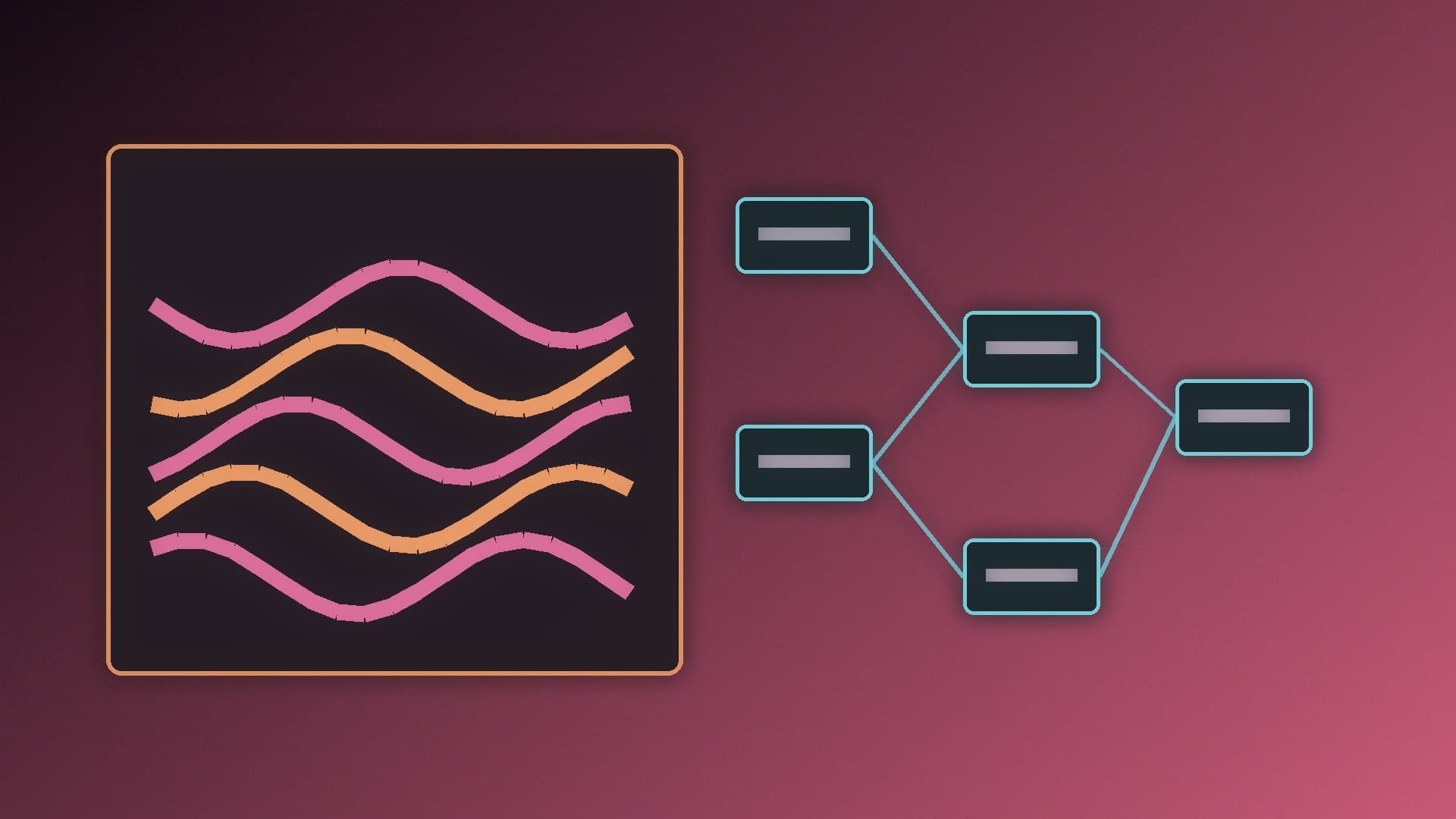
ComfyUI is built around a visual node graph: you connect model loaders, prompts, samplers and other nodes to build a workflow, save it as a JSON file and reuse it. Its README says even complex workflows can be presented through a simpler interface with App Mode, and it has a local API for connecting workflows to other apps. It's powerful and flexible, but it's designed around AI settings rather than drawing.
Krita AI Diffusion takes the opposite approach. Its developer says the aim is an "unobtrusive tool" that fits into normal image-editing work, so you can draw, paint and generate without worrying about resolution and technical details. You work on a normal Krita canvas with layers, and the plugin offers strong default style presets so the AI panel stays simple. If you want more control, it can run custom ComfyUI workflows: you design the workflow in ComfyUI's web interface with special Krita nodes, then run it from inside Krita.
Editing and control
This is where Krita AI Diffusion stands out. Its features include inpainting (generative fill using selections, to expand an image or add and remove objects), live painting where the AI interprets your canvas in real time, upscaling to 4K, 8K and beyond, text-instruction edit models, ControlNet guides such as scribble, line art, pose and depth, IP-Adapter reference images, and regions that give different parts of the image their own text prompts. Because it's all inside Krita, you can paint over the results by hand at any point.
ComfyUI can do much of this too, and its README lists built-in tools for inpainting, outpainting, masks, compositing, upscaling and segmentation, but you build them as nodes rather than painting them on a canvas. Where ComfyUI clearly wins is breadth: it supports far more model types, including video models such as Wan 2.2 and LTX-Video, audio models, 3D models and text generation, and you can extend it further with custom nodes through ComfyUI-Manager.
Hardware and installation
ComfyUI's README recommends the Comfy Desktop installer on Windows and macOS, with a portable Windows build and manual installs as alternatives; our ComfyUI install guide covers the options. Comfy says it can run even the biggest open models "relatively quickly" with as little as 4GB of graphics memory (VRAM) and 8GB of RAM, using what it calls asynchronous weight streaming.
For Krita AI Diffusion's managed local server, the handbook asks for an NVIDIA RTX 2060 or better, an Intel Arc card with 8GB or more, an AMD card with ROCm support, or an Apple silicon Mac; it works on a CPU but very slowly. The README recommends an NVIDIA card with at least 6GB of VRAM. You need Krita 5.2 or later (the 1.x plugin releases are for Krita 5.x), and the handbook warns that models take at least 10GB of disk space, with 50GB or more not unusual. It also recommends installing Krita from krita.org rather than the Microsoft Store or Steam versions, because some packages can't be installed in those. For card recommendations, see our best GPU for ComfyUI guide, which applies to both.
Which should you buy?
Both are free, so you can try each.
Choose Krita AI Diffusion if you're an artist or photo editor who wants AI as part of painting and retouching, with inpainting, live painting, regions and control layers on a familiar canvas, and you'd rather not build node graphs.
Choose ComfyUI if you want the widest model support, including video, audio and 3D, need repeatable workflows and automation through its API, or like having full control over every step.
Our verdict
For painting and editing images with AI, Krita AI Diffusion is the better choice: it puts inpainting, live painting, regions and control layers on a normal Krita canvas with simple presets, while still using ComfyUI underneath. ComfyUI is the better pick if you want to generate video, audio or 3D as well as images, build your own workflows or automate them, and it can serve Krita too, so many people will end up using both. We haven't tested either tool ourselves. For other options, see our comparison of ComfyUI vs InvokeAI.