A good webcam is only half the story. The software you run it through decides whether you can fix the exposure, blur a messy room, keep yourself in frame or feed a polished scene into Discord and Teams. The good news is that the best webcam software for Windows 11 is free, and some of it is already on your PC. We've picked the best options for different setups, from Windows' own camera settings to NVIDIA Broadcast and OBS Studio. Our picks are based on each developer's official documentation and requirements.
Our picks at a glance
Software | Best for | Works with | Key requirement (per developer) |
|---|
Windows 11 Camera settings | Default brightness and contrast for any webcam | Most USB webcams | Windows 11 |
Windows Camera app | Quick recordings and test shots | Built-in and USB webcams | Windows 10 or 11 |
Windows Studio Effects | Built-in AI effects on Copilot+ PCs | Built-in and compatible third-party cameras | NPU of 40+ TOPS for the full set |
NVIDIA Broadcast | AI background, framing and eye contact on a desktop | Any webcam | GeForce RTX 2060 or better |
OBS Studio virtual camera | Sending a whole scene to Zoom, Teams or Discord | Any webcam | Windows 10 or 11 |
Elgato Studio | Owners of Elgato Facecam webcams | Elgato Facecam | Elgato hardware |
Best built-in option: Windows 11 Camera settings
Before installing anything, open Settings > Bluetooth & devices > Cameras. Microsoft added this page in Windows 11, and it's the easiest way to set default image settings for a webcam. Select your camera to see a live preview and adjust its default imaging settings, such as brightness and contrast, which apps then use. You can also disable a camera here, and Windows 11 can search your local network for ONVIF-compatible IP cameras and use them like a USB webcam.
Microsoft notes a few limits. The defaults are saved per camera and per user account, they don't sync between PCs, and they aren't backed up if you reinstall Windows. Some cameras don't appear at all, including Windows Hello infrared cameras, DirectShow cameras such as some DSLRs and action cameras, and proprietary cameras. Where a manufacturer has its own companion app, the page includes a link to it.
Our guide to adjusting webcam settings in Windows 11 walks through each option.
Best for quick recordings: Windows Camera app
Microsoft's free Camera app is the simplest way to check your webcam is working, take a photo or record a short clip. Microsoft's Store listing says you can pause and resume recording and the app joins the parts into one video, and it has a timer and a framing grid. Depending on your camera, it also offers HDR, digital video stabilisation and 4K capture, though Microsoft says these need supporting hardware.
It's not a streaming tool, but it's the first place to go when you're troubleshooting. If the camera doesn't work in the Camera app, it won't work in Teams either, and our guide to fixing a webcam that isn't working in Windows 11 can help.
Best on Copilot+ PCs: Windows Studio Effects
Windows Studio Effects adds AI camera and microphone effects that use the PC's NPU (neural processing unit). According to Microsoft, the effects include:
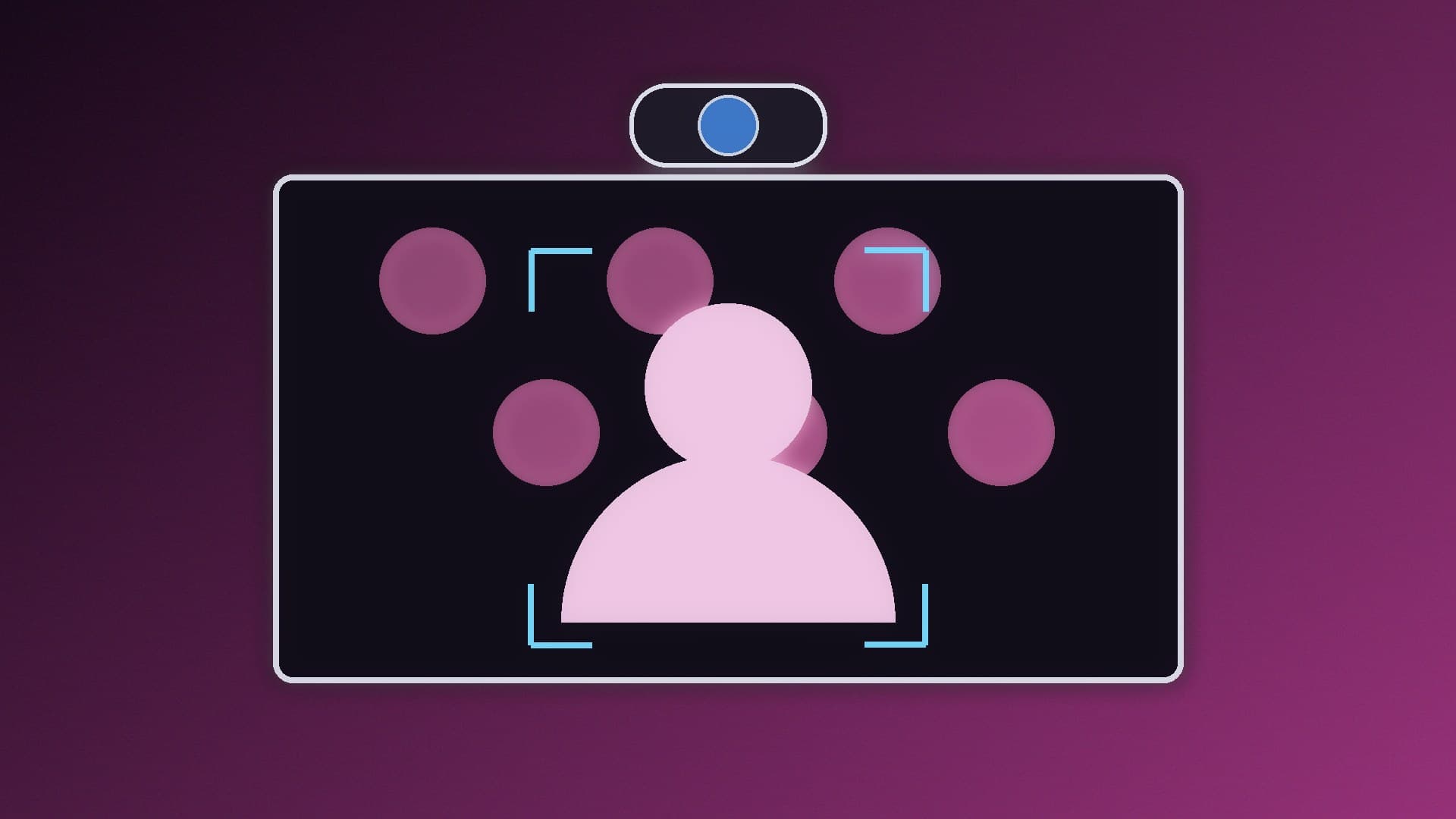
Automatic framing, which keeps you centred as you move.
Background blur, in standard and stronger portrait styles.
Eye contact, which adjusts your gaze so you appear to be looking at the camera.
Portrait light and creative filters (illustrated, animated and watercolour), which Microsoft says are only available on Snapdragon Copilot+ PCs.
Voice focus, which reduces background noise on your microphone.
The full set needs a Copilot+ PC with an NPU rated at more than 40 TOPS, and only some effects are available on PCs with slower NPUs. Microsoft says Studio Effects now supports compatible third-party cameras, so it isn't limited to the built-in webcam. You can turn effects on from Quick Settings, the Settings app or the Camera app. Microsoft also warns that some effects can noticeably affect performance and battery life on some devices.
Not sure what your laptop has? See how to check if your PC is a Copilot+ PC, and our Windows Studio Effects vs NVIDIA Broadcast comparison for how the two approaches differ.
Best for gaming desktops: NVIDIA Broadcast
If you have a GeForce RTX graphics card, NVIDIA Broadcast is the most capable free webcam effects app you can run on a desktop. It creates virtual camera, microphone and speaker devices called NVIDIA Broadcast, applies AI effects to your real devices and lets you pick the virtual device in OBS, Discord, Teams or any other app.
Camera effects listed by NVIDIA include:
Background removal, replacement and blur, without a green screen.
Auto Frame, which tracks you and crops and zooms to keep you in shot.
Eye Contact, so you appear to be looking at the camera while reading notes.
Virtual Key Light, which relights your face to reduce shadows.
Video noise removal, plus RTX Video Super Resolution upscaling and frame generation for webcam feeds.
Broadcast also handles audio, with noise and room echo removal for your microphone. NVIDIA's requirements are a GeForce RTX 2060, Quadro RTX 3000, TITAN RTX or better, and Windows 10 or 11 64-bit or Windows on Arm. Some newer effects need more: NVIDIA says Virtual Key Light, Studio Voice and RTX Video Super Resolution need an RTX 3060 or better, and RTX Video Frame Generation needs an RTX 40 series card or newer. The installer downloads the AI models for your GPU, and NVIDIA's setup guide says to allow about 3GB of extra storage.
NVIDIA's setup guide has two useful tips: set the camera resolution in Broadcast and leave your other apps on default or matching settings, and turn off any similar effect (such as noise suppression) in your video-call app so it isn't applied twice. Our step-by-step guide to setting up NVIDIA Broadcast covers the rest.
Best for custom scenes: OBS Studio virtual camera
OBS Studio is best known for streaming and recording, but its built-in Virtual Camera lets you send anything you build in OBS to any app that accepts a webcam, such as Zoom, Teams or Discord. That means you can add overlays, a logo, a second camera angle or a screen share, and apply OBS filters to your webcam before it reaches your meeting.
Click Start Virtual Camera in the Controls dock to begin. The gear icon next to it lets you choose what the virtual camera shows: OBS's normal output, the Studio Mode preview, one specific scene, or one specific source. OBS Studio is free and open source, and the Windows version supports Windows 10 and 11.
OBS is more work to set up than the other picks, but nothing else here gives you as much control. See how to use the OBS virtual camera to get started.
Best for Elgato Facecam owners: Elgato Studio
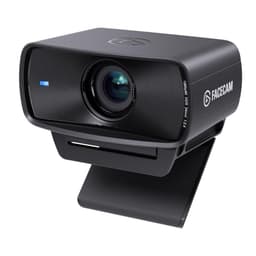
If you use an Elgato webcam such as the Elgato Facecam MK.2 or Elgato Facecam 4K, use Elgato's own software for camera controls. Elgato's downloads page says Studio 2.0 fully replaces Camera Hub, with Facecam controls and recording built in, along with a redesigned teleprompter and a Virtual Prompter that Elgato says is free for everyone.
Elgato's Facecam guides on the same page, written for Camera Hub, describe camera controls such as Dynamic Range, Noise Reduction and Low Light Mode, which help in tricky lighting. Our best Elgato webcam guide covers the hardware.
How to choose
Start with what's built in. Windows 11's Camera settings and Camera app cost nothing and fix most basic brightness and contrast problems.
Match AI effects to your hardware. On a Copilot+ laptop, use Windows Studio Effects. On a desktop with an RTX graphics card, use NVIDIA Broadcast. Don't stack both effects, or a call app's own background blur, on the same feed.
Use OBS when you need a layout, not just a cleaner picture.
Install the maker's app for camera-specific controls, such as Elgato Studio for Facecam webcams. If your webcam doesn't show up in one app, close the others and try again.
Software can't fix bad light. Even the best AI effects work better with a well-lit face. If you're still choosing hardware, read how to choose a webcam and our best webcam and best Logitech webcam guides; models such as the Logitech MX Brio are in our specs database.