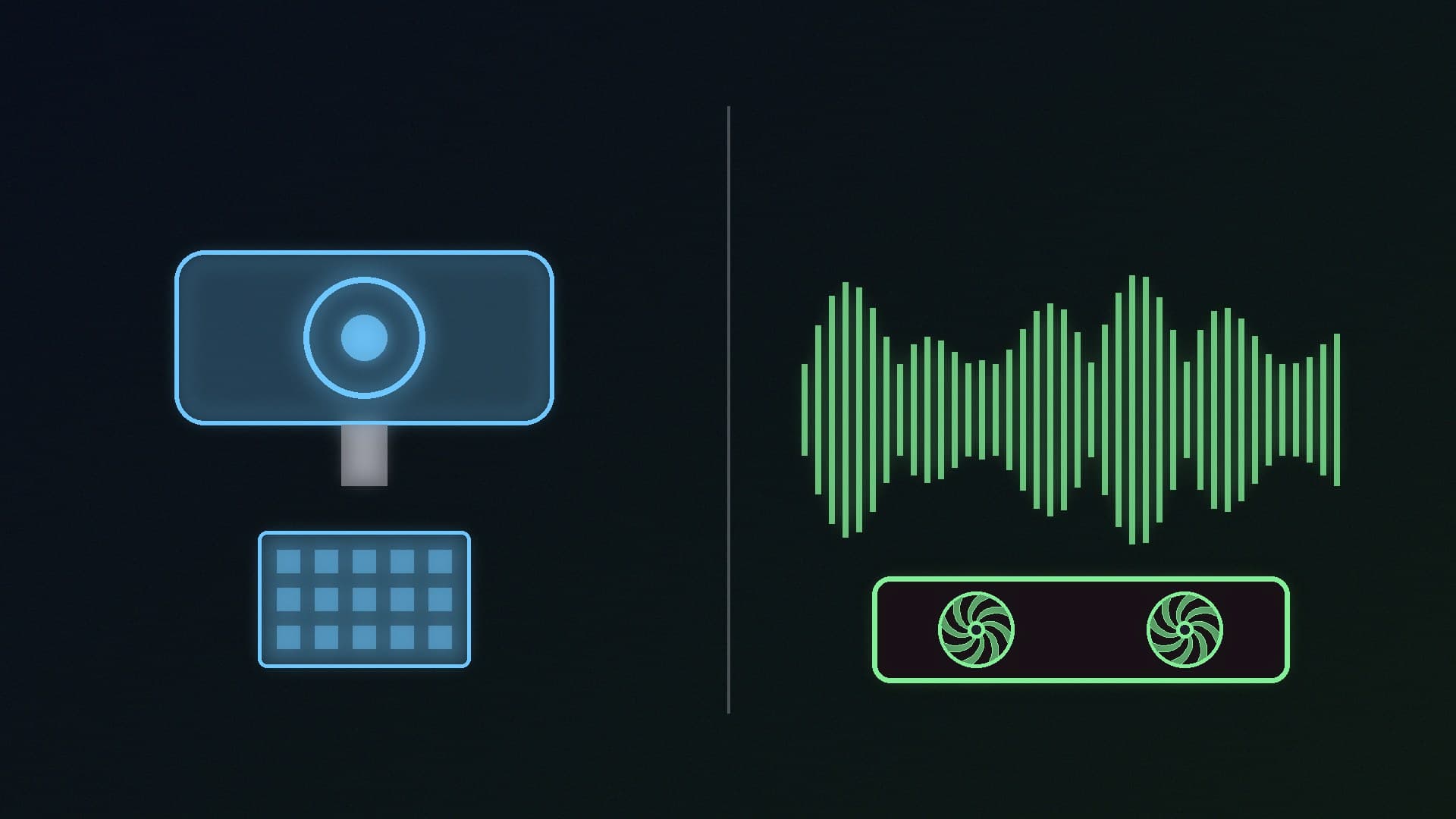
This comparison is based on Microsoft's and NVIDIA's official support pages, developer documentation and system requirements, read on 24 November 2026. Neither Microsoft nor NVIDIA lists a price for these tools, so there are no prices to compare.
AI video and audio effects have become a standard part of video calls and streaming. Two of the biggest names on Windows take very different approaches. Windows Studio Effects is built into Windows 11 and runs on the NPU (neural processing unit) in Copilot+ PCs and other machines with a supported NPU. NVIDIA Broadcast is a separate app that runs on the Tensor Cores in NVIDIA RTX graphics cards. Which one you can use depends almost entirely on the hardware you already own.
At a glance
| Windows Studio Effects | NVIDIA Broadcast |
|---|
Runs on | NPU | NVIDIA RTX GPU (Tensor Cores) |
Hardware needed | Supported NPU; full feature set needs a Copilot+ PC with an NPU over 40 TOPS | GeForce RTX 2060, Quadro RTX 3000, TITAN RTX, RTX Spark or higher |
How you get it | Built into Windows 11, with a driver from the PC maker | Download from NVIDIA |
How apps use it | Applied to the camera at system level | Virtual NVIDIA Broadcast camera, microphone and speaker |
Background blur | Yes | Yes, plus removal and replacement |
Eye contact | Yes | Yes |
Auto framing | Yes | Yes (Auto Frame) |
Microphone noise removal | Voice focus | Noise Removal, Room Echo Removal, Studio Voice |
Cleans incoming audio | Not listed by Microsoft | Yes, via the speaker effects |
Lighting | Portrait light (Snapdragon Copilot+ PCs only) | Virtual Key Light |
Webcam upscaling | Not listed by Microsoft | 4K upscaling and 60fps frame generation |
Hardware: NPU vs RTX graphics card
This is the deciding factor for most people. Microsoft says Windows Studio Effects requires an NPU and the latest Windows updates, and that the full range of effects requires a Copilot+ PC with an NPU capable of more than 40 TOPS (trillion operations per second). Its developer documentation adds that the PC maker must have opted in and installed the Windows Studio Effects driver, and that you need Windows 11 version 22H2 or newer. So you can't simply add Studio Effects to any desktop by installing software. If you're not sure what your machine has, our explainer on what an NPU and a Copilot+ PC are covers it.
On machines whose NPU is below 40 TOPS, Microsoft says only four effects are available: background effects, standard eye contact, automatic framing and voice focus.
NVIDIA Broadcast has the opposite requirement. It needs an NVIDIA RTX graphics card: NVIDIA lists a GeForce RTX 2060, Quadro RTX 3000, TITAN RTX, RTX Spark or higher, plus 8GB of RAM, a recommended Intel Core i5 8600 or AMD Ryzen 5 2600 CPU or better, and driver 572.61 or newer on Windows (617.42 on Windows on Arm). It runs on 64-bit Windows 10 and Windows 11, and Windows 11 on Arm. AMD and Intel graphics owners can't use it.
In practice, that splits neatly. A Copilot+ laptop without an NVIDIA GPU gets Studio Effects. A desktop gaming PC with an RTX card gets NVIDIA Broadcast. Some machines may have both.
Video effects compared
Both tools cover the basics that matter on a work call: background blur, eye contact correction and automatic framing that keeps you in shot as you move.
Windows Studio Effects offers two background options, Standard Blur and Portrait Blur, though Microsoft's developer documentation notes that lower-capacity NPUs may support Standard Blur but not Portrait Blur. Eye contact comes in Standard and Teleprompter modes. Microsoft says Portrait light, Teleprompter eye contact and the Creative filters (Illustrated, Animated and Watercolor) are only available on Snapdragon Copilot+ PCs.
NVIDIA Broadcast goes further with the background, offering removal and replacement as well as blur, which is useful for streamers who want a virtual green screen. It also has Virtual Key Light, which NVIDIA says relights your face automatically to reduce shadows, Eye Contact, Auto Frame, and AI-driven 4K upscaling and 60fps frame generation for your webcam feed. NVIDIA says the app can now process recorded files offline as well as live feeds.
Audio effects compared
Studio Effects has one audio effect, Voice focus, which Microsoft says isolates your voice and minimises background noise. Microsoft's developer documentation describes it as applying to the built-in microphone.
NVIDIA Broadcast has more audio tools. Noise Removal and Room Echo Removal tackle keyboard clatter, fan noise, static and reverb, while Studio Voice aims to make an ordinary microphone sound more like a studio one. NVIDIA Broadcast can also apply effects to the audio coming through your speakers or headset, not just to your own microphone. NVIDIA's own setup guide warns not to set NVIDIA Broadcast as your default Windows speaker, because that would filter all system sound, including videos and music. If audio is your priority, our NVIDIA Broadcast vs AMD Noise Suppression comparison goes deeper.
Setup and app compatibility
The two tools plug into your apps in different ways.
Windows Studio Effects works at system level. Microsoft's developer documentation says effects are applied at the hardware level for the camera or microphone, so once you turn an effect on it's active in any app that uses the camera, even if that app doesn't know about the effect. You control it from the Studio Effects tile in Quick Settings, from Settings > Bluetooth & devices > Cameras, or from the Camera app. Microsoft's support page now says Studio Effects supports compatible third-party cameras; our guide to using Windows Studio Effects with a desktop webcam covers that side.
NVIDIA Broadcast creates virtual devices instead. You select your real camera, microphone and speakers in the Broadcast app, then choose Camera (NVIDIA Broadcast), Microphone (NVIDIA Broadcast) and Speaker (NVIDIA Broadcast) in Teams, Zoom, Discord, OBS and other apps. NVIDIA recommends turning off the app's own noise cancellation so the effects don't conflict. It's an extra step, but it means you choose exactly which apps get the effects. Our guide to setting up NVIDIA Broadcast walks through it.
Microsoft says Studio Effects uses models optimised for the NPU to deliver battery-friendly effects that reduce the load on the CPU and GPU. That's the main argument for the NPU approach on a laptop. Microsoft does warn that on some devices, turning on camera effects such as background effects, eye contact and automatic framing might have a significant effect on performance and battery life.
NVIDIA Broadcast runs on the graphics card's Tensor Cores, which NVIDIA says allows high-quality effects in real time. On a desktop that's rarely a concern, but the work is being done by the same GPU that runs your games or creative apps. We haven't measured the impact of either tool.
Our verdict
Choose based on your hardware: Windows Studio Effects is the obvious pick on a Copilot+ PC, because it's built in, works in every app automatically and runs on the NPU to save battery, while NVIDIA Broadcast is the choice for any desktop or laptop with an RTX graphics card. Where you can use both, NVIDIA Broadcast offers more features, including background replacement, speaker noise removal, Studio Voice and webcam upscaling, so it's the better tool for streamers and anyone with noisy surroundings, while Studio Effects is the simpler option for everyday work calls.