The steps are based on Open WebUI's official Knowledge documentation, read on 24 November 2026, when the latest Open WebUI release was v0.13.4 (17 November 2026, per its GitHub releases page). Menu names can change between versions.
If you already run Open WebUI on top of Ollama, you have a private document assistant waiting to be switched on. Its Knowledge feature lets you build collections of files, such as manuals, contracts, research papers or notes, and ask a model questions about them. Unlike uploading a file to a single chat, a knowledge base can be reused across conversations, attached to a custom model or applied to a whole folder of chats.
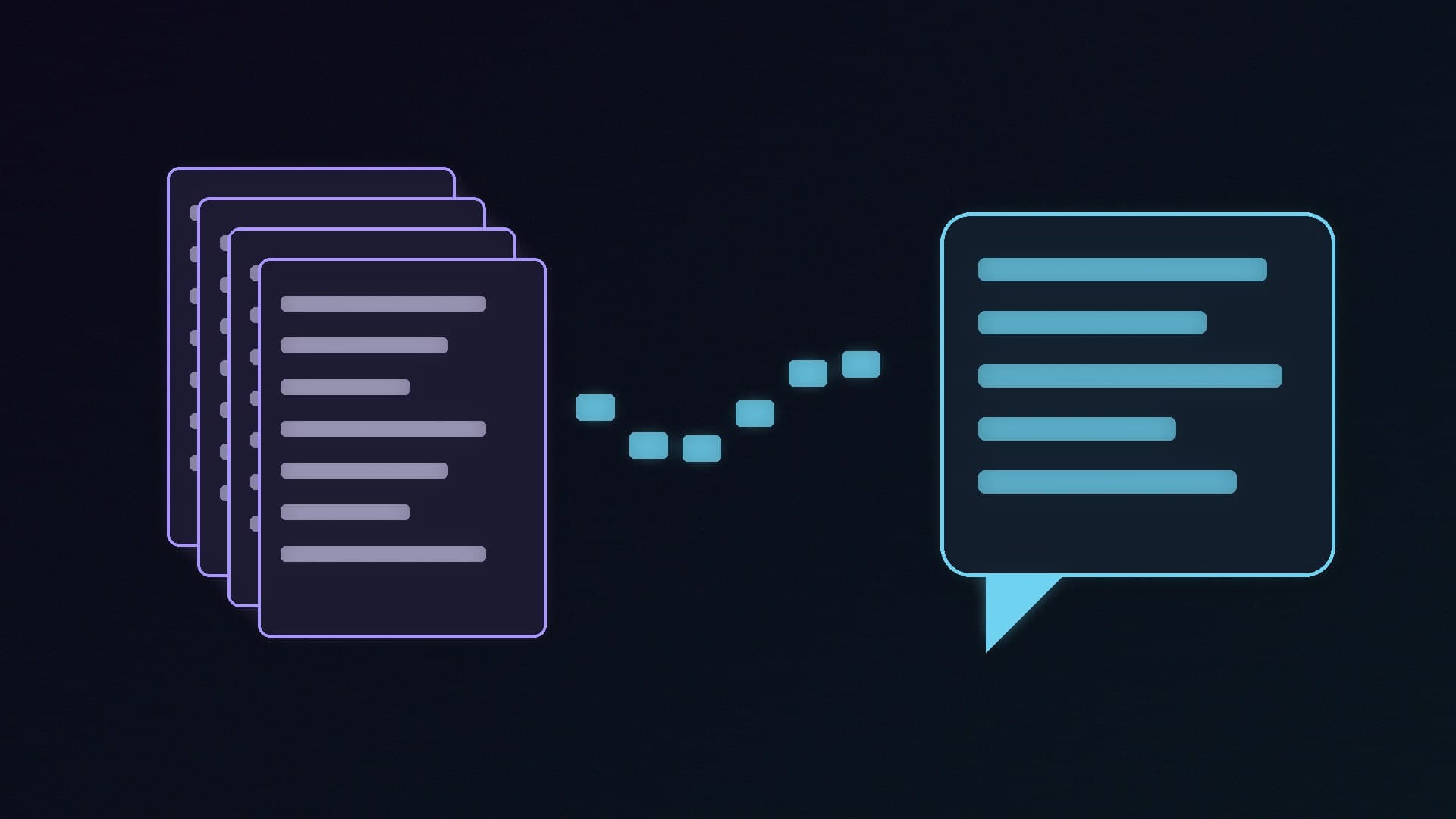
This is retrieval-augmented generation (RAG): instead of retraining the model, Open WebUI finds the relevant passages in your documents and hands them to the model alongside your question. Our RAG vs fine-tuning explainer covers why that's usually the right approach on a home PC.
What you need
A working Open WebUI install connected to a model. If you haven't set it up, follow our guide to installing Open WebUI with Ollama.
Permission to create knowledge bases and upload files. You'll have this on your own install; on a shared instance, ask the admin.
Ideally, a model with tool-calling support. Open WebUI's docs recommend a model that supports Native function calling for focused retrieval, with Builtin Tools and the Knowledge Base tool category enabled. Our tool calling with Ollama guide explains what that means.
Step 1: Create a knowledge base
Click Workspace, then Knowledge, then Create.
Give the knowledge base a name and a description. A clear description helps, because models can search knowledge bases by name and description when none is attached.
Upload your files. Open WebUI's docs suggest starting with a small text-based PDF or text file for your first test.
Wait for processing to finish before you ask about the contents.
Knowledge bases can also hold nested folders, and the docs describe an incremental directory sync that mirrors a local folder: only new and modified files are uploaded, deleted files are removed and the folder structure is kept.
Step 2: Attach it to a chat, a folder or a model
Open WebUI gives you three places to attach knowledge, according to its docs:
In a chat: type # in the message box and pick from Folders, Knowledge or Files, or click + (More), open Attachments and choose Attach Knowledge.
On a folder: open the folder's Edit dialog and use the Knowledge field under Advanced. Every chat in that folder then uses it.
On a model: open the model editor under Workspace > Models and add the knowledge base in the Knowledge field. This is the neatest option if you want, say, a "Home office manuals" assistant that always searches the same files.
Attaching is also how you control scope. The docs say that when knowledge is attached, the model's knowledge tools list and search only those items. If you attach nothing, a model with knowledge tools can browse every knowledge base you have access to.
Step 3: Ask a question and check the answer
Ask something whose answer you know is in the file. Open WebUI's own example is along the lines of asking the model to use the attached handbook to find the office opening hours and quote the relevant passage. Asking for a quote is a good habit, because you can compare the answer and any source references with the original document.
If the model can't find something you know is there, see the troubleshooting section below.
Step 4: Choose the right retrieval mode
Click an attached knowledge base or file to switch between two modes:
Mode | What it does | Best for |
|---|
Focused Retrieval (default) | Uses RAG to find and inject the most relevant chunks for your question | Large document sets where only some sections matter |
Using Entire Document | Injects the full text of the file into every message, with no chunking | Short reference documents, style guides, context that's always relevant |
Full-document mode is more precise but uses far more of the model's context window, so it only suits short files. With Ollama's default context on cards with under 24GB of VRAM (4K tokens, per Ollama's documentation), even a modest document can overflow it. Our guides to setting Ollama's context length and context length and VRAM explain how to raise it and what it costs in memory.
Agentic retrieval: let the model explore
With native function calling enabled, Open WebUI gives models a set of built-in knowledge tools. According to the docs, these include semantic search across file contents (query_knowledge_files), exact text and regular-expression search that returns matching lines with line numbers (grep_knowledge_files) and a file reader that can page through a document or jump to a line range (view_file). The docs describe a typical pattern: semantic search to find the right document, grep to pinpoint exact lines, then view_file to read the surrounding text.
In practice, that means you can ask broader questions, such as comparing what two documents say about the same topic, and a capable model will search and read the files itself rather than relying on a single retrieval step. Smaller local models may handle multi-step tool use less reliably, so if answers are poor, try a larger tool-calling model.
Settings worth knowing about
Hybrid search. Open WebUI can combine BM25 keyword search with vector search and reranking (the ENABLE_RAG_HYBRID_SEARCH option). That helps with exact terms such as part numbers or error codes that pure semantic search can miss.
Extraction engines. The docs list eight, including Tika, Docling, Mistral OCR, MinerU and PaddleOCR, which matters for scanned PDFs and complex layouts.
Full Text Threshold. In Settings > Documents (admin), files below a set number of characters are included in full automatically. Knowledge base attachments aren't affected by this threshold, per the docs.
Vector databases. ChromaDB and PGVector are officially maintained, with others such as Qdrant and Milvus available as integrations.
Embedding model. Retrieval quality depends on the embedding model as well as the chat model. Our embedding models with Ollama guide explains the options.
Troubleshooting
The model says it can't find the information: make sure processing finished, try asking with wording closer to the document's, or switch on hybrid search for exact terms.
Answers ignore part of a long document: you're probably in Focused Retrieval, which only sends the most relevant chunks. For short files, switch to Using Entire Document; for long ones, ask narrower questions.
Garbled answers from scanned PDFs: the text extraction may have failed. Use the file browser's preview to read the indexed text, and try a different extraction engine.
Everything is slow: check that your model and context fit on your GPU; see our can your PC run a local LLM? guide.
Open WebUI's docs link to a dedicated Knowledge Base troubleshooting page for anything else.
Our verdict
Knowledge bases turn Open WebUI into a private document assistant with no cloud service involved. Create a knowledge base under Workspace > Knowledge, attach it with # in a chat or permanently to a custom model, leave Focused Retrieval on for big collections and switch to Using Entire Document only for short files. For the best results, use a tool-calling model with native function calling switched on, give it enough context, and always ask it to quote its source so you can check the answer. If you'd rather use a desktop app, LM Studio can do something similar; see our guide to chatting with documents in LM Studio.