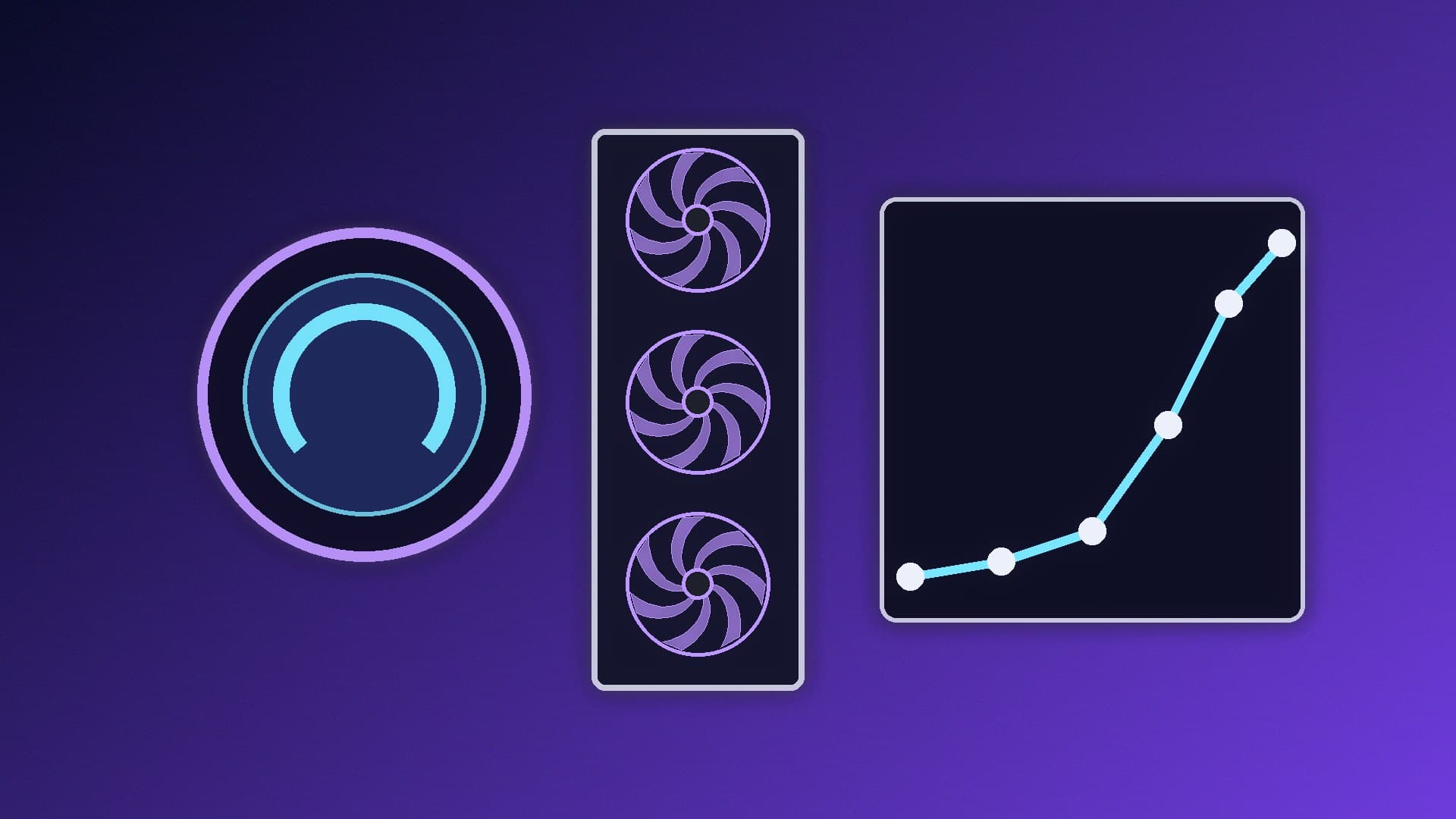
NZXT CAM is the free Windows app behind NZXT's Kraken liquid coolers, fan controllers, RGB accessories and N-Series motherboards, and it also works as a system monitor on PCs with no NZXT parts at all. This guide explains what CAM can and can't control, how to set fan and pump curves properly, and how to avoid the most common problems. It's based on NZXT's CAM page, release notes, support articles and fan curve guide, checked on 27 November 2026.
What CAM does (and what it needs)
NZXT says CAM "monitors any Windows PC in real time", and that when you plug in NZXT hardware "it controls your fans, RGB, and Kraken LCD too". It's free, and NZXT's FAQ says there's "No account, no sign-in, no subscription". CAM runs on Windows 10 and Windows 11; NZXT says Windows 7 and 8.1 are no longer supported and there are no plans for macOS or Linux versions.
What you get depends on your hardware:
Your setup | What CAM can do |
|---|
Any Windows PC | Real-time CPU, GPU, memory and storage readouts, temperature graphs and utilisation, plus a compact Mini mode overlay |
A CAM-powered Kraken (Elite, Plus, Kraken 2023 and others) | Pump and fan curves, lighting and, on models with a screen, the Kraken LCD |
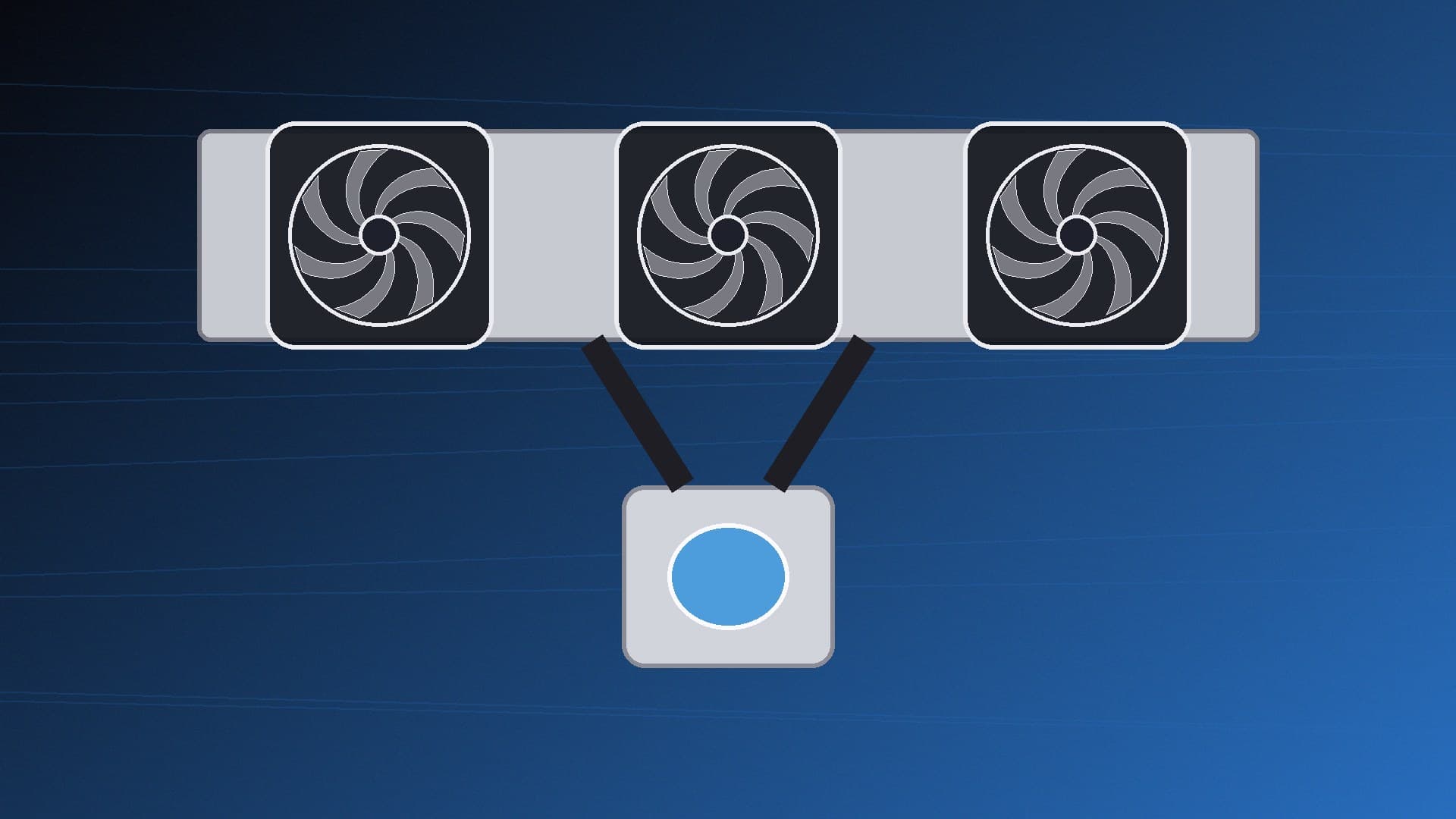
NZXT Control Hub or RGB & Fan Controller | Fan control and lighting for fans connected to it |
NZXT N-Series motherboard | Fan control for the board's headers, and lighting for connected 12V RGB and 5V ARGB accessories |
Kraken Core or Kraken 120 | No fan or pump control: NZXT says these aren't CAM-powered and run from your motherboard's headers |
Two limits are worth knowing before you install. NZXT says CAM can't change fan speeds without an NZXT fan controller, and it doesn't control RGB on RAM or graphics cards. If you want one app for mixed-brand fans or lighting, our best free fan control software and best free RGB software guides cover the alternatives.
Step 1: Download and install CAM
Download CAM from NZXT's official CAM page (linked in our sources) rather than a third-party mirror.
Run the installer and open CAM. You don't need to create an account.
Let CAM finish detecting your NZXT devices. If a firmware update is offered for a Kraken or controller, install it before changing settings; NZXT's release notes regularly include device firmware fixes, such as the Kraken Elite v2 update in CAM 4.76.1 that addressed LED flickering.
At the time of writing, NZXT's release notes list CAM 4.76.6, released on 14 October 2026, as the latest version.
Step 2: Use CAM as a system monitor
CAM's monitoring works whether or not you own NZXT hardware. NZXT describes "Real-time CPU, GPU, memory, and storage readouts with temperature graphs and utilization", and says Mini mode "docks a compact overlay to the desktop". That makes it a reasonable quick check when you want to see how hot your CPU or graphics card runs during a game. If you're not sure what's normal, see safe CPU temperatures for AMD and Intel and how to check GPU temperature in Windows 11. For logging every sensor in detail, our best free hardware monitoring software guide covers more specialised tools.
Privacy note: NZXT's FAQ says that when you're online, CAM sends anonymised usage data (such as which lighting modes and fan profiles you use) and anonymised performance data. You can turn this off in CAM's Settings, under the gear icon.
Step 3: Set fan and pump curves
NZXT's support article says fan and pump settings live in the Cooling tab on the left of the CAM window.
Click Cooling, then click the device you want to adjust (for example your Kraken).
Expand its Fan or Pump channel to see the curve and temperature source.
Pick a preset:
Fixed: one constant speed whatever the temperature.
Silent: lower speeds at idle and light load, ramping up as temperatures rise.
Performance: moderate to high speeds at idle, ramping up aggressively under load.
Custom: a curve you draw yourself.
Set the Temperature Source. Most channels can follow CPU or GPU temperature, and a compatible NZXT liquid cooler adds liquid temperature.
For a Custom curve, click a point and drag it up or down. NZXT notes that a point can't be lower than the one to its left or higher than the one to its right, so neighbouring points move with it if you drag too far.
NZXT's fan curve guide says Silent "suits most builds and is the best place to start", and suggests switching to Custom only if Silent ramps up more than you'd like. Its guide also recommends liquid temperature for Kraken radiator fans, because it rises and falls slowly, and GPU temperature for case fans that mainly cool a graphics card. For the general principles behind a good curve, see our guide on how to set fan curves.
Step 4: Stop fans ramping up and down
The most common complaint with any AIO is fans that rev up and settle down repeatedly. NZXT's fix is to find your CPU's realistic load temperature and shape the curve around it:
Set the fans to Silent.
Run a CPU stress test at medium load, such as OCCT, for about 10 minutes. Our guide on how to stress test a PC explains the options.
Note the temperature the CPU settles at.
Switch to Custom and make the curve gentler up to that temperature, then let it climb more steeply above it.
If your problem is noise from the pump itself rather than the fans, see how to fix AIO pump noise.
Step 5: Lighting and the Kraken LCD
On compatible NZXT hardware, CAM controls lighting on NZXT devices plus standard 12V RGB and 5V addressable RGB accessories connected to an NZXT motherboard. If you have a Kraken with a screen, such as the NZXT Kraken Elite 360 RGB, CAM lets you upload GIFs and still images, show live temperature or load readouts, or use a built-in visualiser; NZXT says content is resolution-matched to each Kraken model. CAM can also render a webpage to the Kraken display through its Web Integrations, and NZXT lists a drag-and-drop editor that mixes live sensors, GIFs, video, clocks and Now Playing. NZXT points out that the community presets in its gallery are independent projects, not made or supported by NZXT.
Step 6: Keep CAM running (if your hardware needs it)
This catches a lot of people out. NZXT's support article says CAM-enabled Krakens work without CAM, but "many features will not be available", including custom cooling curves and profiles, RGB effects and custom display modes. Its fan curve guide adds that custom curves need CAM running on Krakens and NZXT controllers, that CAM-powered Krakens drop back to fixed default speeds without it, and that the Control Hub needs CAM to manage its fans at all. So if you use custom curves, make sure CAM starts with Windows.
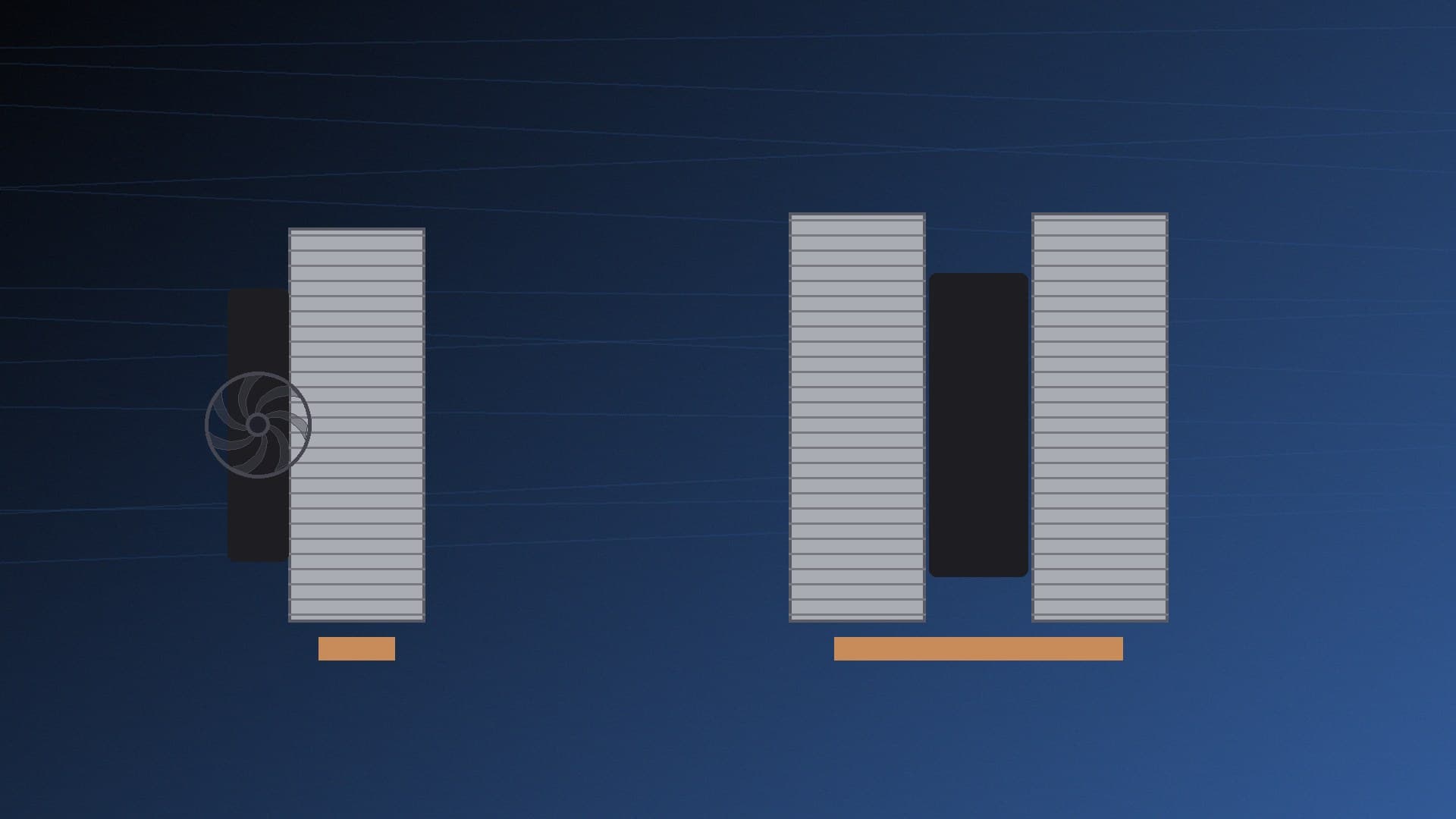
The opposite applies to the NZXT Kraken Core 360 (2026) and Kraken Core 420 (2026): NZXT says Kraken Core models aren't CAM-powered, so their fan and pump curves live in your motherboard's BIOS. Our Kraken Core vs Kraken Elite comparison covers that choice, and how to connect CPU cooler fan headers helps with the wiring. NZXT also warns never to plug an AIO pump into an NZXT fan controller: connect it as its manual shows, usually to an AIO_PUMP or CPU_FAN header.
Troubleshooting quick fixes
Your controller or cooler isn't in the Cooling tab: NZXT says that means CAM can't see it yet. Our suggestion is to check the device's internal USB and power cables and update CAM to the latest version before anything else.
Fans read 0 RPM after changing a curve: NZXT says a curve set to 0% at the current temperature stops the fan on purpose; drag the point up.
Kraken Core RPM jumps around: NZXT says some early units report jumpy RPM even though the fans spin steadily, and anything within about 10% of the set speed is normal.
Motherboard fans don't appear: CAM only controls motherboard fan headers on NZXT N-Series boards. Use the BIOS or your board maker's software instead, or connect the fans to an NZXT Control Hub.
Uninstalling CAM
NZXT's FAQ says to open Windows Settings, go to Apps, find NZXT CAM in your installed apps and select Uninstall. Remember that NZXT says CAM-powered Krakens drop back to fixed default speeds without CAM, and custom RGB effects and display modes won't run either.