This guide follows Ollama's official hardware support, FAQ and troubleshooting documentation, read on 26 November 2026. Ollama describes the override as something to experiment with, not a guaranteed fix, and it only applies to Linux.
Ollama runs local AI models on AMD graphics cards through ROCm, AMD's software stack for GPU compute. The catch is that ROCm doesn't support every AMD GPU. If your card isn't on the list, Ollama may ignore it and run models on the processor and system memory instead of the graphics card.
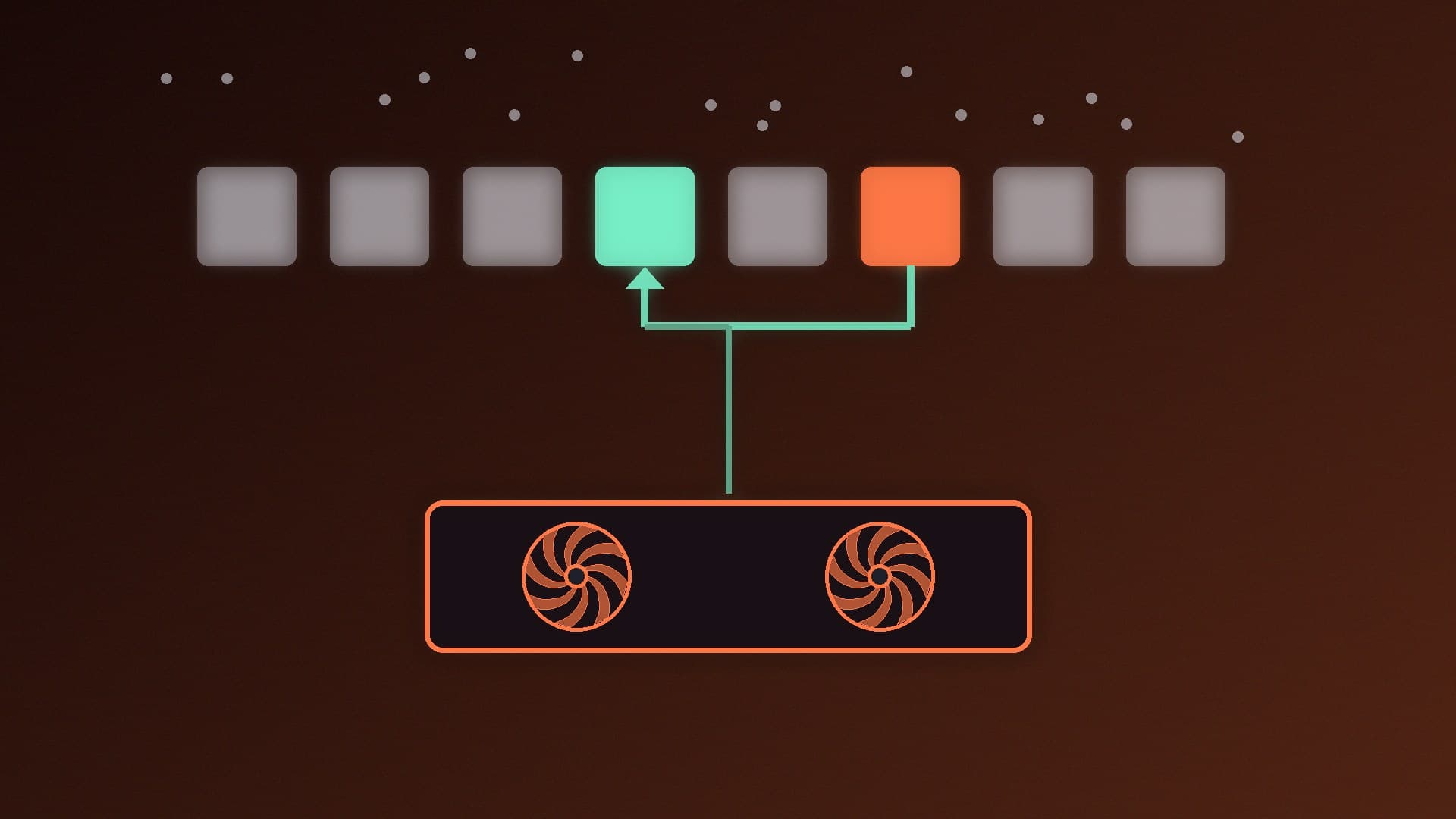
On Linux, Ollama documents a workaround: the HSA_OVERRIDE_GFX_VERSION environment variable. It tells ROCm to treat your GPU as a similar, supported target. We've mentioned it briefly in our guides to running local AI on an AMD Radeon GPU and installing ROCm on Ubuntu. This guide walks through it step by step.
Before you start
You'll need Ollama installed on Linux. If you haven't done that yet, follow our guide to installing Ollama on Linux. Ollama's documentation says it needs the AMD ROCm v7 driver on Linux, which you can install or upgrade with AMD's amdgpu-install utility.
Ollama's troubleshooting guide adds two points worth checking first:
Group membership. On Linux, AMD GPU access usually requires membership of the video and/or render group to reach the /dev/kfd device. If the permissions are wrong, Ollama reports an error in its server log.
Driver age. Ollama bundles ROCm 7 libraries. If your system runs an older ROCm 6.x (or earlier) driver, Ollama says GPU discovery can hang, time out and fall back to the processor. Upgrade the driver, reboot and restart Ollama.
It's also worth checking whether your card is supported already. Ollama's hardware support page lists AMD cards that work through ROCm on Linux, including the Radeon RX 9000, RX 7000 and some RX 6000 series cards. If yours is on the list, you don't need the override.
Step 1: find your GPU's LLVM target
Each AMD GPU has an LLVM target name that starts with "gfx". Ollama's example is the Radeon RX 5400, which is gfx1034, also written as version 10.3.4. ROCm doesn't support that target.
If you have AMD's amd-smi command-line tool installed (AMD's documentation links to its installation instructions), it can show the target. Run:
amd-smi static --asic
Look for the TARGET_GRAPHICS_VERSION line in the output. AMD's documentation shows it in the form gfx942.
Step 2: pick the closest supported target
Ollama lists the LLVM targets known to be supported on Linux, with an example GPU for each:
LLVM target | Example GPU (from Ollama's docs) |
|---|
gfx908 | Radeon Instinct MI100 |
gfx90a | Radeon Instinct MI210/MI250 |
gfx942 | Radeon Instinct MI300X/MI300A |
gfx950 | Radeon Instinct MI350X |
gfx1030 | Radeon PRO V620 |
gfx1100 | Radeon PRO W7900 |
gfx1101 | Radeon PRO W7700 |
gfx1102 | Radeon RX 7600 |
gfx1150 | Ryzen AI 9 HX 375 |
gfx1151 | Ryzen AI Max+ 395 |
gfx1200 | Radeon RX 9070 |
gfx1201 | Radeon RX 9070 XT |
Choose the supported target closest to your card's. In Ollama's example, the closest match for the RX 5400's gfx1034 is gfx1030. The variable takes the version in x.y.z form, so gfx1030 becomes 10.3.0.
Step 3: set the variable for the Ollama service
If Ollama runs as a systemd service, which Ollama's Linux guide recommends, the variable has to be set on the service rather than in your terminal. Ollama's FAQ gives the method. Open the service for editing:
sudo systemctl edit ollama.service
In the editor, add an Environment line under a [Service] section. Using Ollama's RX 5400 example:
[Service]
Environment="HSA_OVERRIDE_GFX_VERSION=10.3.0"
Save and exit, then reload systemd and restart Ollama:
sudo systemctl daemon-reload
sudo systemctl restart ollama
If you start Ollama by hand instead, you can put the variable in front of the command, in the same way Ollama's FAQ does for other settings: HSA_OVERRIDE_GFX_VERSION=10.3.0 ollama serve.
Step 4: check that Ollama is using the GPU
Load a model, then run:
ollama ps
Ollama's FAQ says the Processor column shows where the model was loaded. "100% GPU" means it's entirely on the graphics card, "100% CPU" means it's entirely in system memory, and a split such as "48%/52% CPU/GPU" means it's partly on each. For more ways to confirm, see our guide to checking whether Ollama is using your GPU.
Using more than one AMD GPU
If you have several AMD GPUs with different gfx versions, Ollama's documentation says you can set them one by one by adding the device number to the variable name. Its example is:
Environment="HSA_OVERRIDE_GFX_VERSION_0=10.3.0"
Environment="HSA_OVERRIDE_GFX_VERSION_1=11.0.0"
To limit Ollama to some of your AMD GPUs, Ollama documents the ROCR_VISIBLE_DEVICES variable. Our guide to choosing which GPU Ollama uses covers that in detail.
If it still doesn't work
Read the server log. On Linux systems with systemd, Ollama's troubleshooting guide gives journalctl -u ollama --no-pager --follow --pager-end. Our guide to finding Ollama's logs has more detail.
Turn on extra logging. Ollama suggests OLLAMA_DEBUG=1 for more information during GPU discovery, and AMD_LOG_LEVEL=3 for more detailed error codes from AMD's HIP and ROCm libraries. Set them the same way as in Step 3.
Check the kernel log. Ollama suggests sudo dmesg | grep -i amdgpu and sudo dmesg | grep -i kfd to look for driver errors.
Try Vulkan instead. Ollama's documentation says extra AMD GPU support comes through its Vulkan backend, which is enabled by default when that backend is installed. Most Linux distributions need extra Vulkan driver components. Our explainer on CUDA vs ROCm vs Vulkan for local AI explains the difference.
If you've tried a target and Ollama still won't use the card, remove the Environment line with sudo systemctl edit ollama.service, then reload and restart as in Step 3. Ollama suggests asking on its Discord or filing an issue for more help.
Our verdict
If ROCm doesn't support your AMD graphics card, setting HSA_OVERRIDE_GFX_VERSION to the closest supported target is Ollama's documented way to try it on Linux. Find your card's gfx target, set the matching x.y.z version on the Ollama service, restart it and check with ollama ps. It isn't guaranteed to work, so try Ollama's Vulkan backend if it fails.