If your aim feels inconsistent, or the same flick moves the cursor a different distance from one moment to the next, Windows' pointer acceleration may be to blame. In Windows 11 it's a single setting called Enhance pointer precision, and it's often switched on. This guide shows how to turn it off, how to set your sensitivity afterwards, and what to check in your mouse software. It's based on Microsoft's and Logitech's support documentation. Forge PC hasn't measured the effect on aim, and whether you prefer acceleration on or off is partly personal taste.
What Enhance pointer precision does
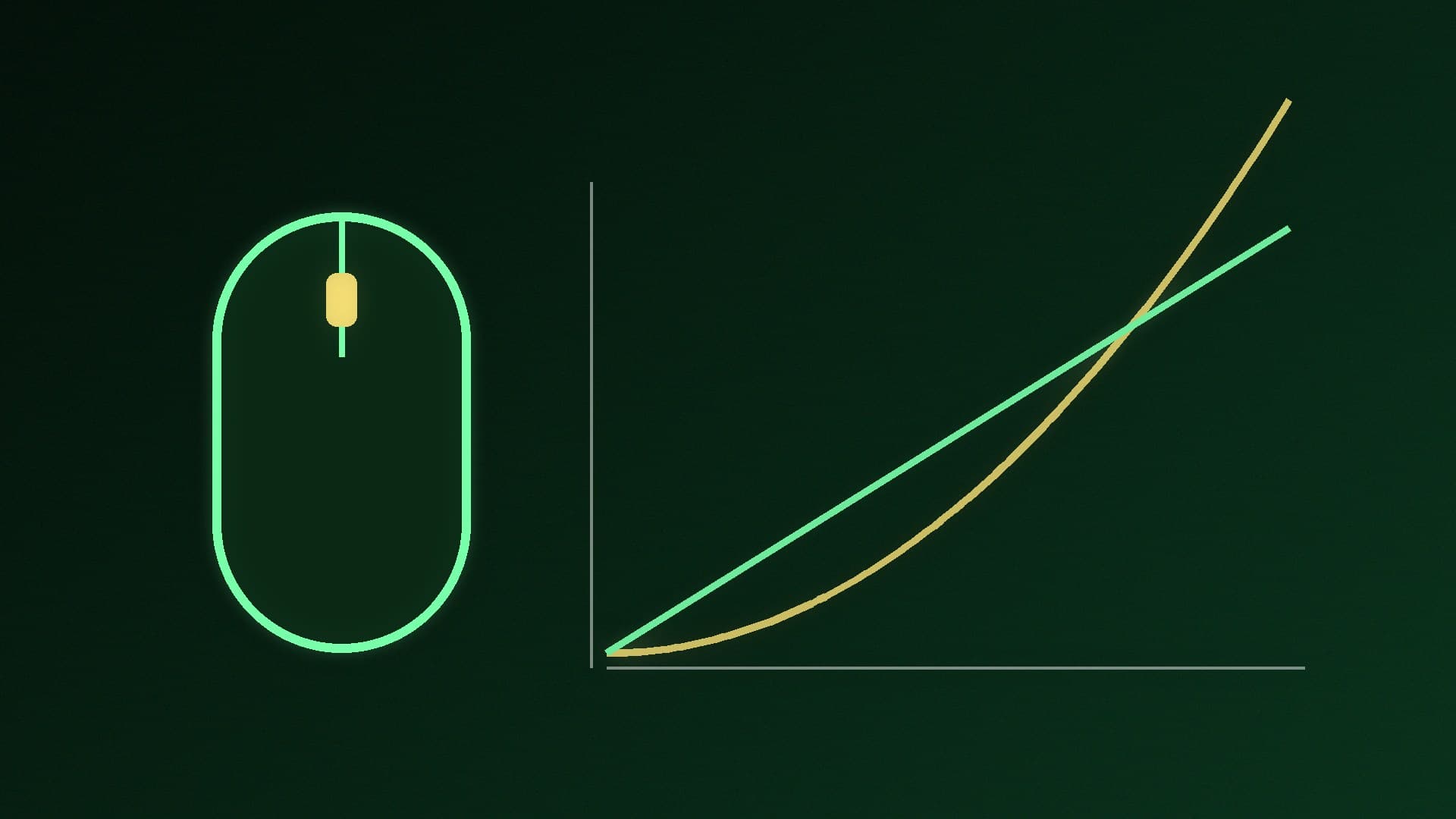
Microsoft describes the setting as a way "to make the pointer more accurate when the mouse is moving slowly". In practice, Windows changes how far the pointer travels depending on how fast you move the mouse: slow movements move it less, and fast movements move it further. That can be handy on a big desktop with a small mouse pad, but it means the same physical movement doesn't always produce the same on-screen movement.
For games and precise work, many players prefer a one-to-one feel, where moving the mouse a set distance always moves the pointer the same amount. Mouse makers point the same way:
Logitech says that if you notice inconsistent tracking at the same DPI between its gaming mice's performance and endurance modes, you need to disable Enhance pointer precision.
Logitech's sensitivity guide also notes that if your mouse sensitivity varies between apps, Enhance pointer precision may be enabled, and you should disable it for more consistency.
How to turn it off in Windows 11
Open Start > Settings > Bluetooth & devices > Mouse.
Find Enhance pointer precision and switch it Off. (On some builds it's under Additional mouse settings > Pointer Options. Untick Enhance pointer precision there and click OK.)
The change takes effect immediately, so you don't need to restart.
Windows 10: go to Settings > Devices > Mouse > Additional mouse options, open the Pointer Options tab and untick Enhance pointer precision.
Set your pointer speed afterwards
With acceleration off, fast flicks no longer travel further, so the pointer may feel slow at first. You can fix that two ways:
Raise your mouse's DPI in its software. Many players prefer to change DPI rather than Windows' speed slider. Our guide to changing mouse DPI and sensitivity explains how DPI, the Windows slider and in-game sensitivity interact.
Use the Windows slider. Microsoft's instructions: Settings > Bluetooth & devices > Mouse, then use the slider next to Mouse pointer speed.
Give yourself a few days to adjust before you judge the change. Your muscle memory was built with acceleration on.
Check your mouse software too
Some gaming mouse apps have their own acceleration or "angle snapping" options that work alongside Windows. Open your mouse's software (such as Logitech G HUB, Razer Synapse or the maker's app) and check that any acceleration setting is off or at zero if you want a consistent feel. While you're there, check the polling rate; see how to change mouse polling rate.
Do games use this setting?
It depends on the game. Many PC games read mouse movement directly ("raw input") and ignore Windows' pointer settings, while others, and the Windows desktop itself, follow them. Look for a raw input or mouse acceleration option in the game's settings. If you're not sure, turning Enhance pointer precision off removes one variable.
When to leave it on
If you mostly use the desktop rather than play games, and you have limited desk space or a high-resolution or multi-monitor setup, acceleration can help you cross the screen without big arm movements. Some laptop touchpad users like it too. There's no harm in trying it both ways.
For more ways to make your PC feel more responsive, see our guide to reducing input lag in PC games, and if you're shopping for a new mouse, our best gaming mouse guide.
Our verdict
To turn off mouse acceleration in Windows 11, go to Settings > Bluetooth & devices > Mouse and switch off Enhance pointer precision (or untick it under Additional mouse settings > Pointer Options). Then adjust your DPI or pointer speed to taste, and check your mouse software for any extra acceleration setting. Logitech recommends turning it off when tracking feels inconsistent, and it's the simplest way to get the same pointer movement every time you move the mouse.