The steps, requirements and the inference times quoted below come from Frigate's official documentation, read on 24 November 2026; timings are the Frigate project's published examples, not our measurements.
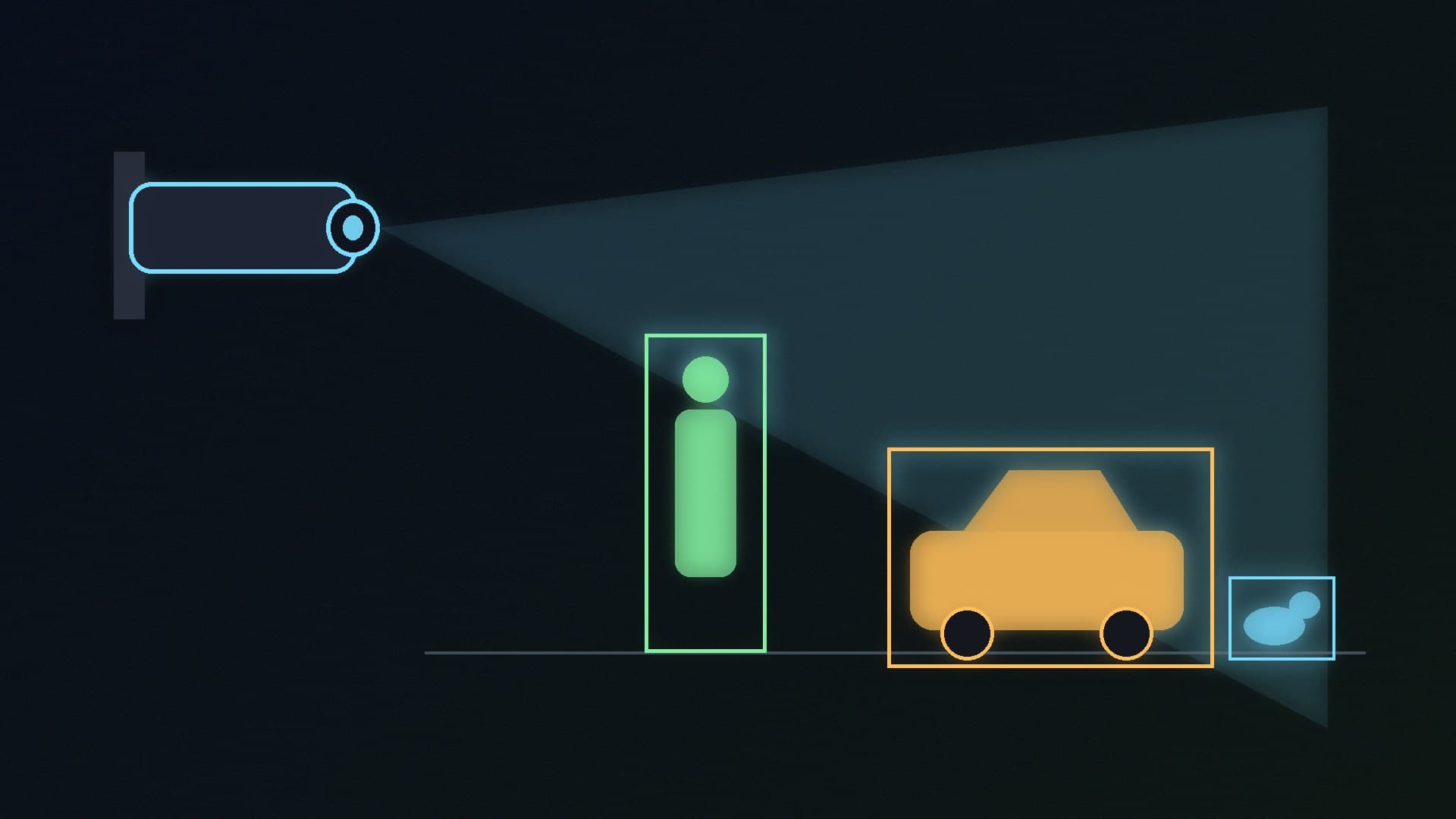
Most consumer security cameras send their clips to a cloud service so that a server somewhere can decide whether the thing moving on your drive is a person, a car or a cat. Frigate does that job at home. It's an open-source network video recorder (NVR) that watches your IP camera streams, uses the CPU to find motion, and then passes those frames to an AI object detector to work out what's actually there. Recordings, snapshots and the AI itself all stay on your own hardware.
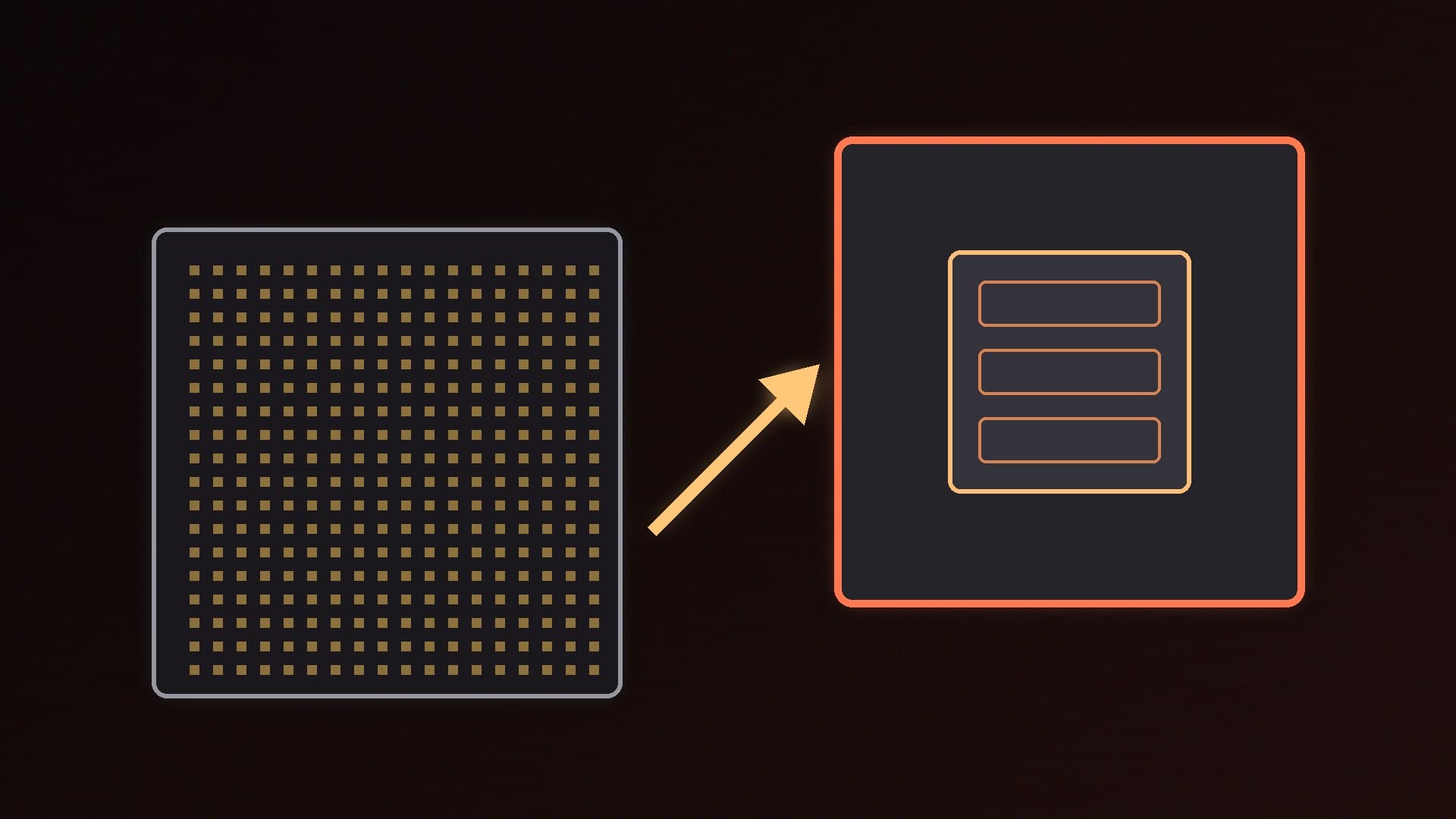
The part that matters for PC builders is the detector. Frigate's documentation says it is designed around the expectation that a dedicated detector is used, and that offloading detection to one is "an order of magnitude faster" than using the CPU alone and reduces CPU load dramatically. The good news is that the detector may already be in your computer: Intel integrated graphics work, as do Intel NPUs, NVIDIA and AMD graphics cards, Hailo modules and the Google Coral.
What you need
A Linux machine running Docker. Frigate ships as a Docker container. Its installation guide says it runs best with Docker on a bare-metal Debian-based distribution, and that running it inside a virtual machine (Proxmox, ESXi, VirtualBox and so on) is not recommended, though some users have had success with Proxmox. Windows is not officially supported.
A suitable CPU. Frigate's hardware page says anything with an Intel CPU that has AVX and AVX2 instructions and can run Debian should work, and the project's current favourite small server is a Beelink EQ13 mini PC with an Intel N100. If you're shopping, our best mini PC guide is a starting point.
A detector (strongly recommended). See the options in Step 5. Our explainer on NPU vs GPU for local AI covers the difference between the two main types of AI hardware.
Wired IP cameras. Frigate recommends cameras that output H.264 video and AAC audio, ideally with multiple substreams so a low-resolution stream can be used for detection and a high-resolution one for recordings. It says Wi-Fi cameras are not recommended because their streams are less reliable.
Storage for recordings. A hard drive or NAS share for footage; our best hard drive guide covers drives built for this kind of always-on recording.
Step 1: Install Docker and create the folders
On a fresh Debian or Ubuntu install, set up Docker Engine and Docker Compose using Docker's official instructions. Then create two folders on the host: one for Frigate's configuration and database (for example /opt/frigate/config) and one for recordings (for example /srv/frigate/media, ideally on a large hard drive).
Frigate keeps its config file and SQLite database in /config inside the container, and recordings, snapshots and exports under /media/frigate. Its documentation recommends a temporary in-memory (tmpfs) mount for /tmp/cache, where new recording segments are written before being moved to the recordings folder.
Step 2: Write the Docker Compose file
Create a docker-compose.yml file. This version is based on the example in Frigate's installation guide, trimmed for an Intel machine using its integrated graphics:
services:
  frigate:
    container_name: frigate
    restart: unless-stopped
    stop_grace_period: 30s
    image: ghcr.io/blakeblackshear/frigate:stable
    shm_size: "512mb"
    devices:
      - /dev/dri/renderD128:/dev/dri/renderD128
    volumes:
      - /etc/localtime:/etc/localtime:ro
      - /opt/frigate/config:/config
      - /srv/frigate/media:/media/frigate
      - type: tmpfs
        target: /tmp/cache
        tmpfs:
          size: 1000000000
    ports:
      - "8971:8971"
      - "8554:8554"
      - "8555:8555/tcp"
      - "8555:8555/udp"
    environment:
      FRIGATE_RTSP_PASSWORD: "change-this"
A few things to adjust for your hardware:
Shared memory (shm_size). Frigate stores decoded frames in shared memory. Docker's default is 64MB, and Frigate says it needs about 210MB for two cameras detecting at 720p. If the container exits with "Bus error" messages, raise this value. The installation page has a calculator based on your detect resolution and camera count.
Devices. /dev/dri/renderD128 passes through Intel or AMD graphics. For a USB Coral add /dev/bus/usb:/dev/bus/usb; for a PCIe or M.2 Coral add /dev/apex_0:/dev/apex_0 after installing its driver; for a Hailo module add /dev/hailo0; and for an Intel or AMD NPU add /dev/accel:/dev/accel.
Image tag. The stable image covers standard x86 PCs and also includes Hailo support. Use stable-tensorrt for an NVIDIA graphics card (the host also needs the NVIDIA container runtime and a driver of version 545 or newer) and stable-rocm for an AMD graphics card.
Port 8971 is the logged-in web interface and API. Frigate also has an unauthenticated port, 5000, intended for use inside the Docker network; its documentation says access to that port should be limited, so don't expose it to your wider network unless you know why you need it.
Start the container with docker compose up -d.
Step 3: Log in and add a camera
Frigate creates a basic config automatically on first start. It also generates an admin user and password and prints them in the container logs, so run docker logs frigate and look for them. Open https://<your-server-ip>:8971 in a browser, log in, and change the password under Settings > Users; Frigate requires passwords of at least 12 characters.
To add your first camera, go to Settings > Global configuration > Camera management and click Add Camera to start the setup wizard. You'll need the camera's RTSP stream address, which is in its manual or web interface.
Step 4: Turn on hardware video decoding
This step is easy to skip and shouldn't be. Decoding several camera streams takes a lot of CPU power, and Frigate's hardware documentation is clear that an AI accelerator such as the Coral does not help with decoding video. On Intel and most AMD systems, go to Settings > Global configuration > FFmpeg and set the hardware acceleration arguments to the matching preset, for example VAAPI (Intel/AMD GPU) for most Intel processors. This uses the same /dev/dri device you passed through in Step 2.
Step 5: Set up your object detector
By default, Frigate uses a single OpenVINO detector running on the CPU. That works for testing, but you'll want to move detection to dedicated hardware. Detectors are set under Settings > System > Detectors and model, or in the detectors: section of the config file. Note that Frigate can't mix detector types for object detection: you can't run OpenVINO and a Coral at the same time, for example.
Intel integrated graphics (most common). Frigate's getting-started guide says the integrated graphics on Intel CPUs provide sufficient performance in many typical setups. Add a detector with type OpenVINO and device GPU, then fill in the model fields using the MobileNet model bundled in the Frigate image:
detectors:
  ov:
    type: openvino
    device: GPU
model:
  width: 300
  height: 300
  input_tensor: nhwc
  input_pixel_format: bgr
  path: /openvino-model/ssdlite_mobilenet_v2.xml
  labelmap_path: /openvino-model/coco_91cl_bkgr.txt
OpenVINO supports 6th-generation Intel (Skylake) platforms and newer. On Intel Core Ultra chips with an NPU, set device: NPU instead; Frigate recommends using the NPU for object detection and the integrated GPU for its other AI features. The NPU needs firmware from the host, and Frigate notes that Intel NPUs can't be used under Home Assistant OS. For better accuracy, Frigate's detector documentation explains how to export a YOLOv9 model and use that instead.
Hailo-8 or Hailo-8L. Install the driver with the script from Frigate's installation guide, pass /dev/hailo0 to the container, and add a detector of type hailo8l with device PCIe (Frigate uses this detector type for both the Hailo-8 and Hailo-8L). If you don't supply a model, Frigate downloads a default YOLOv6n model from Hailo's model zoo on first start and then works offline.
Google Coral. Add a detector with type EdgeTPU and device usb (or pci for the M.2 and PCIe versions, which need the gasket driver on the host). Frigate's hardware page now says the Coral is no longer recommended for new installations, except where power use must be very low or the machine can't use another accelerator.
NVIDIA or AMD graphics card. Use the stable-tensorrt or stable-rocm image respectively, and follow the ONNX detector instructions in Frigate's documentation to generate and configure a YOLO model.
Restart Frigate after changing the detector. You should start seeing detections for people, and you can add other object types under Settings > Global configuration > Objects.
Step 6: Mask out false motion and enable recording
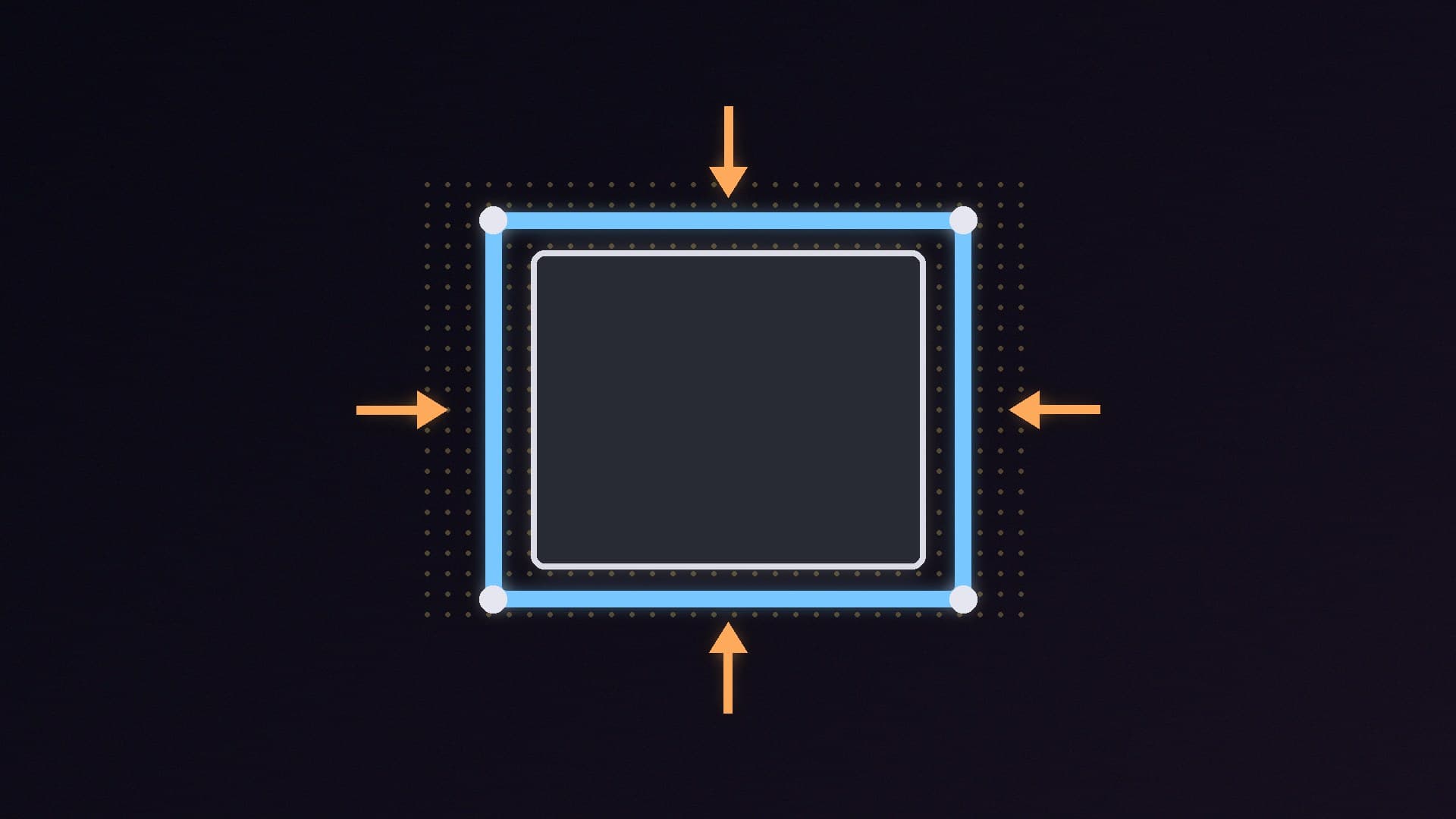
Frigate uses motion to decide which parts of a frame to send to the detector, so swaying trees and on-screen timestamps waste detector time. Open a camera, enable the Debug view with Motion Boxes turned on, and note which areas keep triggering. Then draw motion masks over them under Settings > Camera configuration > Masks / Zones.
Recording is off until you enable it. If your camera has separate streams, assign the high-resolution one the record role and the low-resolution one the detect role, then enable recording for that camera.
How to tell if your detector is keeping up
Frigate reports an inference speed for each detector in its system metrics. Its hardware documentation gives a rule of thumb: divide 1,000 by the inference time in milliseconds to get a rough ceiling on detections per second, so a 10ms inference speed tops out around 100 frames per second. If your detection rate regularly gets close to that, Frigate suggests tuning motion masks first, and only then adding a second detector (its example is a second Coral).
For context, Frigate's own published examples list MobileNetV2 inference at about 10ms on Intel UHD 730 graphics, about 15ms on an Intel N100, and about 6ms on an Intel NPU. They are useful for comparing hardware classes, but results vary with the model and resolution you choose.
Going further with local AI
Frigate works with Home Assistant through its integration, which needs an MQTT broker shared by both. If you already run a local language model, our guide to using Ollama with Home Assistant covers the voice and automation side of a fully local smart home.
Our verdict
Frigate is one of the best ways to add AI person and vehicle detection to IP cameras without a cloud subscription, and the hardware bar is low: a small Intel mini PC with integrated graphics is enough for many homes, according to the project. Install it with Docker on bare-metal Debian or Ubuntu, turn on hardware video decoding, and move object detection off the CPU onto Intel graphics or an NPU, a Hailo module or a graphics card. Buy a Google Coral only if very low power matters most, as Frigate no longer recommends it for new installations.