This guide follows Qualcomm's GenieX documentation, the project's GitHub page and its release notes, all read on 26 November 2026, when the latest release was version 0.12.0 and the project was labelled a developer preview.
Windows laptops with Snapdragon X processors have a Hexagon NPU (neural processing unit) and an Adreno GPU. GenieX is Qualcomm's own tool for putting them to work on local AI: a free, open-source runtime that runs large language models (LLMs) and vision-language models on the NPU, GPU or CPU from a single command-line tool. It can also act as a local server that other apps talk to as if it were the OpenAI API. Qualcomm describes it as the community version of its GENIE runtime, and it's released under the BSD 3-Clause licence.
The project's GitHub page used to belong to Nexa AI's nexa-sdk; that old address now redirects to Qualcomm's GenieX repository.
What you need
A Snapdragon X-series Windows laptop. Qualcomm's Windows install guide lists the X Elite and X2 Elite as prerequisites. GenieX runs only on Qualcomm Snapdragon hardware, so it isn't for Intel or AMD PCs.
Windows on ARM64 with PowerShell.
Up-to-date Qualcomm drivers for the Adreno GPU and Hexagon NPU.
Free storage for the models you download. An example in Qualcomm's documentation shows a small model's Q4_0 download at 1.2GiB.
If you'd rather use a familiar app, our guide to running a local LLM on a Snapdragon X laptop covers other options. GenieX is aimed at people who are happy in a terminal and want direct control over which chip does the work.
Step 1: Update the GPU and NPU drivers
Qualcomm says to install the latest drivers before running GenieX:
Download and install the latest Qualcomm Windows Graphics Driver for the Adreno GPU, then restart Windows.
Download and install the latest Qualcomm NPU Driver for the Hexagon NPU, then restart again.
Open Device Manager and check that the GPU appears under Display adapters and the Hexagon NPU under Neural processors.
The links to both drivers are on GenieX's install page.
Download the latest GenieX CLI installer for Windows ARM64 from the GenieX releases page on GitHub or the install page in Qualcomm's documentation.
Run the downloaded .exe and follow the prompts. Qualcomm notes that the installer isn't yet code-signed, so Windows SmartScreen will warn you. If you've downloaded it from Qualcomm's official page, choose More info and then Run anyway.
Open a new PowerShell window. If the geniex command isn't found, Qualcomm's guide suggests adding an alias:
Set-Alias geniex (where.exe geniex)
Check it works:
geniex --help
Step 3: Choose a runtime and a model
GenieX has two ways of running models, and this choice affects which chip it can use:
| llama.cpp runtime | Qualcomm AI Engine Direct runtime |
|---|
Model format | GGUF files | Pre-compiled bundles for your chipset |
Where models come from | Hugging Face, ModelScope or Docker Hub | Qualcomm AI Hub |
Runs on | NPU, GPU or CPU | NPU only |
Best for | Bringing your own GGUF model | Highest NPU performance, according to Qualcomm |
To see which Qualcomm AI Hub models have NPU builds for your laptop's chip, run:
geniex model list
Add --all to include models for every supported chipset. If you're new to GGUF files, our explainers on GGUF vs Safetensors and LLM quantisation explain the formats and the Q4/Q8 labels.
Step 4: Run your first model
For a pre-compiled Qualcomm AI Hub model, which runs on the NPU, use the example from Qualcomm's quickstart:
geniex infer ai-hub-models/Qwen3-4B
For a GGUF model from Hugging Face, which uses the llama.cpp runtime:
geniex infer unsloth/Qwen3.5-0.8B-GGUF
GenieX downloads the model the first time. For GGUF models it asks which precision (quantisation) to download, showing each option's size. Qualcomm recommends Q4_0, which it says has the best Hexagon NPU support. Then type a question at the prompt to start chatting.
To download a model without starting a chat, use geniex pull followed by the model name. The --model-hub option sets the source; ModelScope has to be set explicitly with --model-hub modelscope.
Step 5: Pick the NPU, GPU or CPU
By default, GenieX runs models on the NPU. For GGUF models you can choose another compute unit with the --compute option:
geniex infer unsloth/Qwen3.5-0.8B-GGUF --compute npu
geniex infer unsloth/Qwen3.5-0.8B-GGUF --compute gpu
geniex infer unsloth/Qwen3.5-0.8B-GGUF --compute cpu
Qualcomm AI Hub models run only on the NPU; GenieX ignores --compute gpu or --compute cpu for them and shows a warning. Trying the same GGUF model on each compute unit is a simple way to see which works best on your laptop. You can watch NPU activity in Task Manager while you do it, as our guide to checking NPU usage in Windows 11 shows.
There's also a --power-mode option that sets how hard the NPU is clocked, with modes from low_power_saver to the default burst. Qualcomm's reference lists the modes but doesn't give battery figures, so try a lower one if you're unplugged and see whether the speed suits you.
Step 6: Give the model more context
GGUF models start with a context window of 4,096 tokens, which covers both your input and the model's reply. To raise it, use --nctx, for example:
geniex infer unsloth/Qwen3-8B-GGUF --nctx 8192
A bigger window uses more memory. For Qualcomm AI Hub models the context length is fixed when the bundle is compiled, so --nctx has no effect; Qualcomm suggests --sliding-window to keep chatting past the limit, or a bundle compiled for a longer context. Our guide to context length and memory explains the trade-off.
Step 7: Use GenieX as a local server for other apps
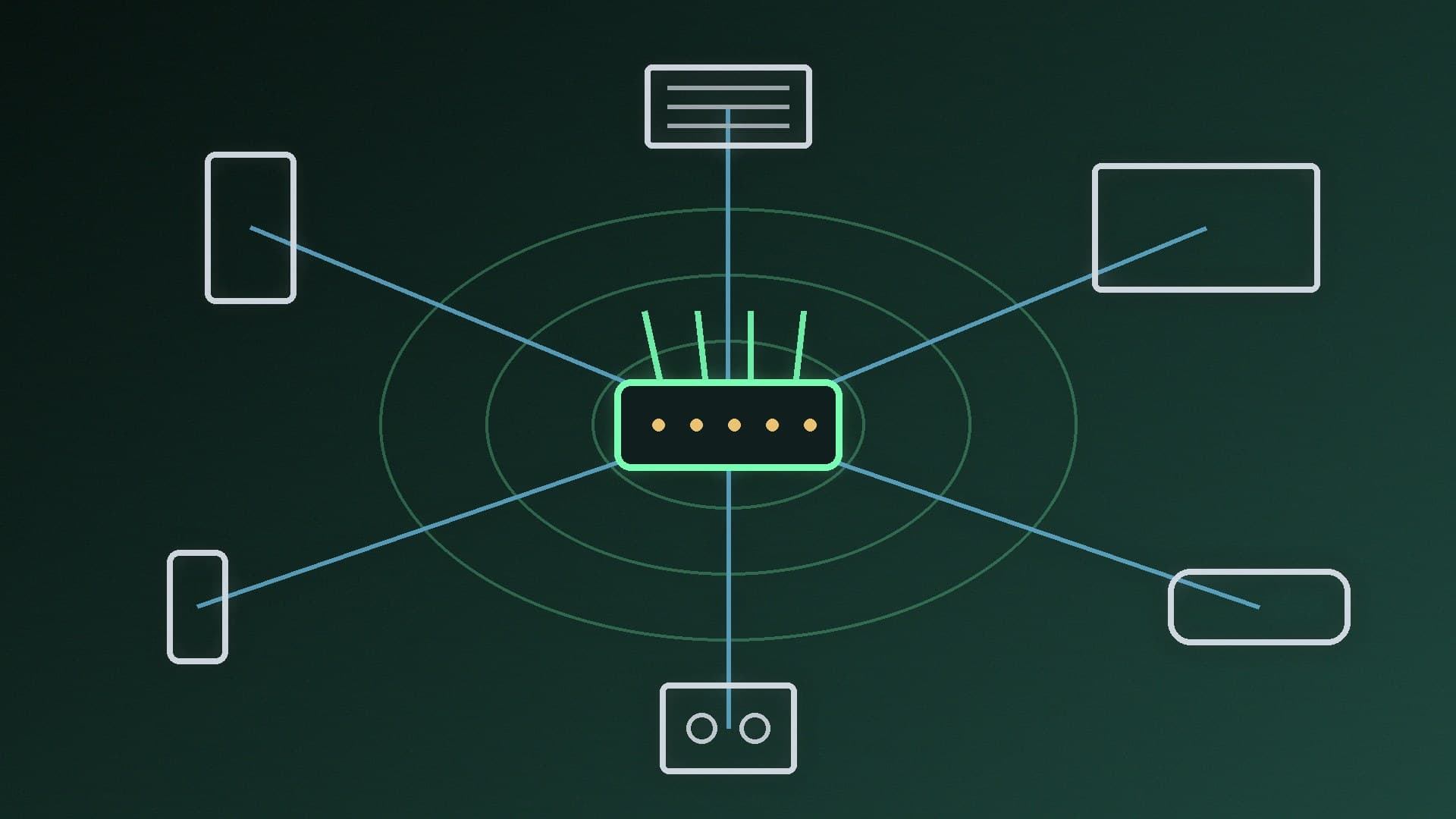
GenieX can serve an OpenAI-compatible API, so apps that let you set a custom OpenAI address can use your laptop's NPU instead of the cloud. The server doesn't download models itself, so pull one first:
geniex pull ai-hub-models/Qwen3-4B-Instruct-2507
geniex serve
The server runs at http://127.0.0.1:18181 by default, and apps should point at http://127.0.0.1:18181/v1. Keep the PowerShell window open while you use it. Opening http://127.0.0.1:18181 in a browser shows a built-in Swagger page where you can send a test request. Our guide to using Ollama's OpenAI-compatible API explains how this kind of local API works with other apps.
Things to know
It's a developer preview. Expect changes between releases. Version 0.12.0, released on 24 November 2026, made several breaking changes, including accepting only organisation/model names rather than hub web addresses.
Start small. Qualcomm's quickstart examples use models of 4B parameters and smaller, which is a sensible place to start before trying larger ones. Our comparison of the NPU and GPU for local AI covers the strengths of each.
Only for Snapdragon. If you're shopping for a laptop for local AI, our guide to the best laptops for local AI compares the options.
Our verdict
On a Snapdragon X laptop, GenieX is Qualcomm's most direct way to run local AI on the Hexagon NPU. Update the GPU and NPU drivers, install the CLI, then use geniex infer with a Qualcomm AI Hub model for the NPU or a Q4_0 GGUF model for any compute unit. Use geniex serve to give other apps an OpenAI-compatible endpoint, but remember it's still a developer preview.