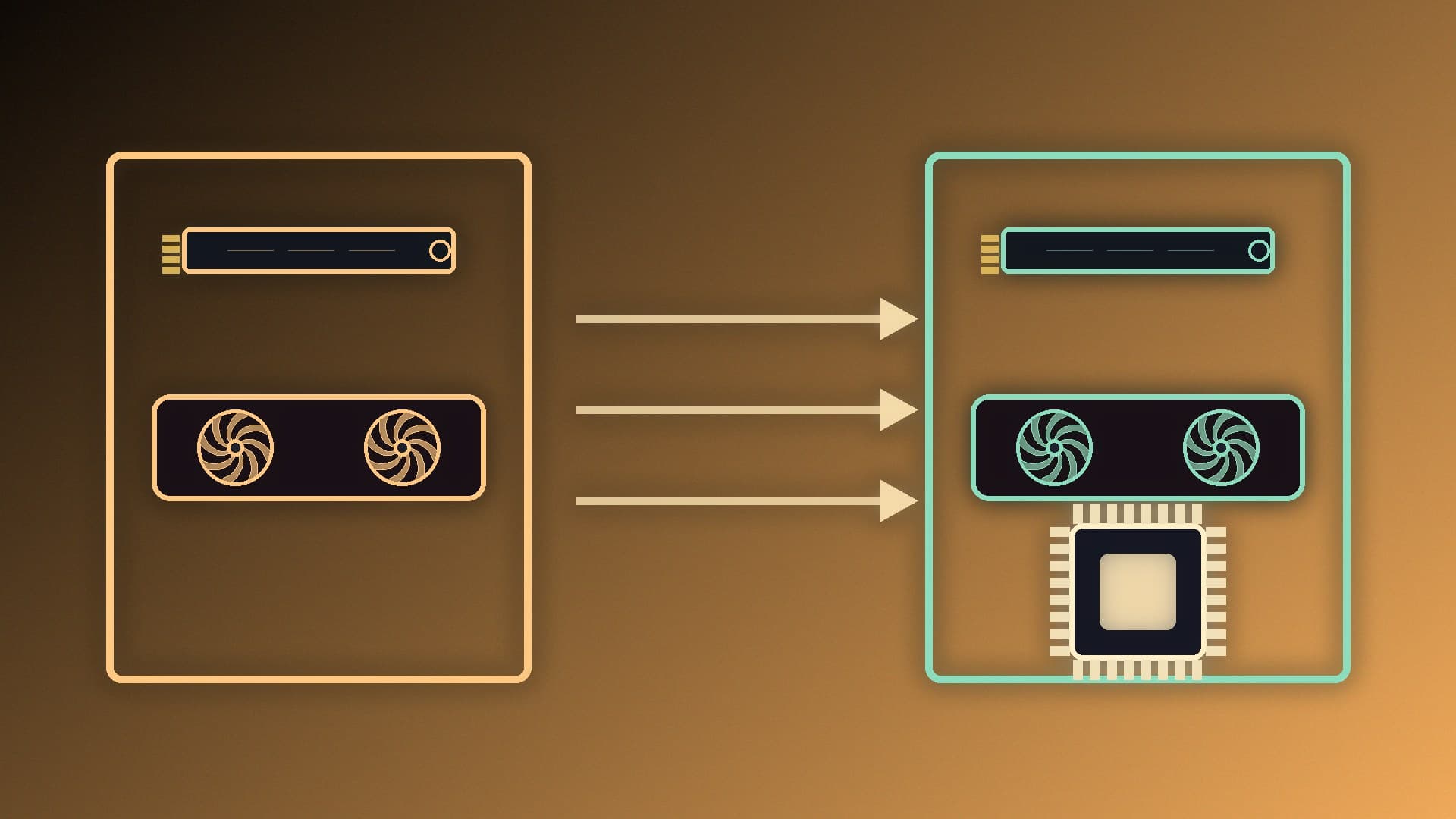
A new CPU platform doesn't always mean a whole new PC. Many builders upgrade the processor, motherboard and memory together and carry over almost everything else. On a tight budget, that can free up money for a better graphics card or a bigger SSD. The catch is that some parts are tied to a platform and others are just past their best. This guide goes through each component in turn and shows how to decide.
It's based on manufacturer documentation: AMD's Socket AM5 chipset page, NVIDIA's GeForce graphics card specifications plus Seasonic's PSU cable guide, all checked on 23 November 2026. Always confirm against the manuals for your own parts.
The core trio: CPU, motherboard and memory
These three usually change together, because each CPU socket supports specific memory.
AMD Socket AM5 is DDR5 only. AMD's AM5 chipset page describes the platform in terms of DDR5 memory support and AMD EXPO memory overclocking. If you're moving from an AM4 system with DDR4, your old memory can't come with you. Our AM4 to AM5 upgrade guide covers that move in detail.
Any AM5 board works with any AM5 CPU. AMD says that across its Ryzen 600 and 800 series chipsets, all Socket AM5 motherboards are compatible with all Socket AM5 processors, from the Ryzen 7000 series to the Ryzen 9000 series. You may still need a BIOS update for a newer CPU on an older board, so check the board maker's CPU support list.
Staying on your current socket? Sometimes the cheapest upgrade is a faster CPU in your existing board, keeping the memory too. Use our CPU and motherboard compatibility guide to confirm the board supports the chip.
If you're replacing the board anyway, write down your old memory's capacity and speed before you take it out. Even if you can't reuse the memory, it tells you how much you're actually using today.
Graphics card: usually the easiest part to keep
A graphics card plugs into a PCIe x16 slot, and current boards still provide one, so a card from your old PC normally moves straight across. The two things to check are power and space.
Power. NVIDIA publishes a "Required System Power" figure for each GeForce card. For the RTX 50 series it lists 1000W for the RTX 5090, 850W for the RTX 5080, 750W for the RTX 5070 Ti, 650W for the RTX 5070, 600W for the RTX 5060 Ti and 550W for the RTX 5060 and RTX 5050. NVIDIA notes these minimums assume a PC with a Ryzen 9 9950X processor and that requirements vary with your system. A new, more power-hungry CPU could push you closer to the limit, so recheck with our PSU wattage guide.
Connectors. NVIDIA also lists the power connectors each card needs. The RTX 5070 Ti, for example, needs two PCIe 8-pin cables (using the adapter in the box) or one PCIe Gen 5 cable rated at 300W or more. Make sure the PSU you keep can supply that.
Space. If you're also changing case, check the new case's maximum GPU length against your card. Our graphics card fit guide shows how.
Power supply: reuse with care
A good PSU can outlast several builds, but it's also the part that can damage everything else if it fails. Before you reuse one, check that:
It has enough wattage for the new CPU and your GPU, using the GPU maker's figure as a floor.
It has the right connectors. NVIDIA's connector list shows RTX 50 series cards taking either a single PCIe Gen 5 power cable or several PCIe 8-pin cables through the adapter in the box, so an older PSU without a Gen 5 cable can still be used if it has enough 8-pin cables.
You keep its own cables. Modular cables aren't standardised at the PSU end, so never use cables from another PSU. Seasonic warns that pin layouts on the PSU side differ between brands and models, even if the plug fits. See our modular PSU cable guide.
It's in good health. If it's old, makes coil whine or clicking noises, or has caused random shutdowns, replace it rather than risk new parts.
Storage: SSDs and hard drives carry over
Storage drives are some of the easiest parts to reuse. An M.2 NVMe SSD fits any M.2 slot that supports its length and the NVMe protocol. A SATA SSD or hard drive needs a SATA port and a power connector from the PSU. A PCIe 4.0 SSD in a newer PCIe 5.0 slot still works, at its own rated speed.
Two cautions apply:
The boot drive. Moving a Windows installation to a completely different platform can work, but a clean install is the tidiest start. If you want to keep your old data drive and do a fresh install on a new SSD, our M.2 SSD installation guide explains the fitting.
Back up first. Before you move any drive, back up anything you can't afford to lose.
You can reuse a case if the new motherboard fits it. An ATX case takes ATX, Micro-ATX and usually Mini-ITX boards. A Micro-ATX case can't take a full ATX board. Also check:
Front-panel connections. Newer boards often have a front USB-C header, which an older case without a USB-C port won't use. Older cases with only USB 2.0 or HD Audio connectors still work.
Cooler height and radiator support, if you're changing the cooler as well.
Airflow. A hotter new CPU or GPU may need better airflow than your old case gives, even if everything fits.
CPU cooler: depends on the mounting kit
Whether an old cooler fits depends on the mounting hardware for the new socket, not the cooler itself. Many coolers ship with brackets for several AMD and Intel sockets. Check the cooler maker's website for your exact model before you assume it fits. Also make sure its cooling capacity suits the new CPU. Clean off the old thermal paste and apply fresh paste when you remount it.
Fans, peripherals and other parts
Case fans, RGB controllers, Wi-Fi cards, sound cards and capture cards generally move across. Check that the new board has enough fan headers and the right type of header (3-pin, 4-pin PWM or addressable RGB). Your monitor, keyboard, mouse and headset don't care what's inside the case.
A quick checklist
Part | Usually reusable? | Check first |
|---|
Memory | Only if the new platform supports the same DDR generation | AM5 is DDR5 only |
Graphics card | Yes | PSU wattage, power connectors, case length |
Power supply | Often | Wattage, GPU connectors, age, own cables only |
SSDs and hard drives | Yes | M.2 slots, SATA ports, backups |
Case | Often | Board size, front I/O, cooler and GPU clearance |
CPU cooler | Sometimes | Mounting kit for the new socket, cooling capacity |
Fans and add-in cards | Yes | Fan headers, spare PCIe slots |
Our verdict
The parts most likely to carry over to a new build are the graphics card, storage, case, fans and, with careful checks, the power supply. The CPU, motherboard and memory usually change together. Moving from AM4 DDR4 to AM5 means buying DDR5, because AM5 doesn't support DDR4. Reuse a PSU only if its wattage and connectors meet your graphics card maker's requirements and you use the cables that came with it. Then spend the money you save where it will make the biggest difference.