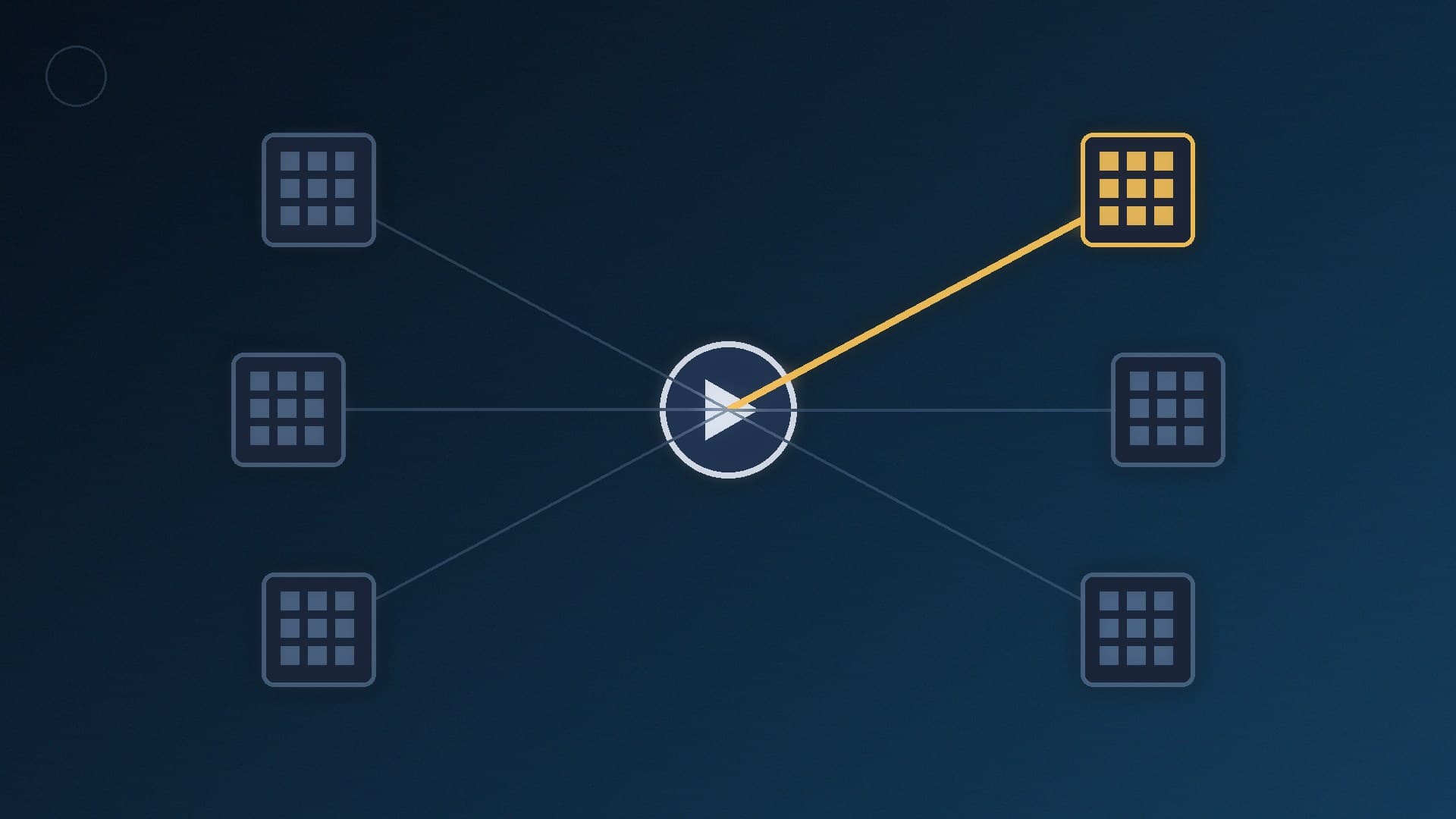
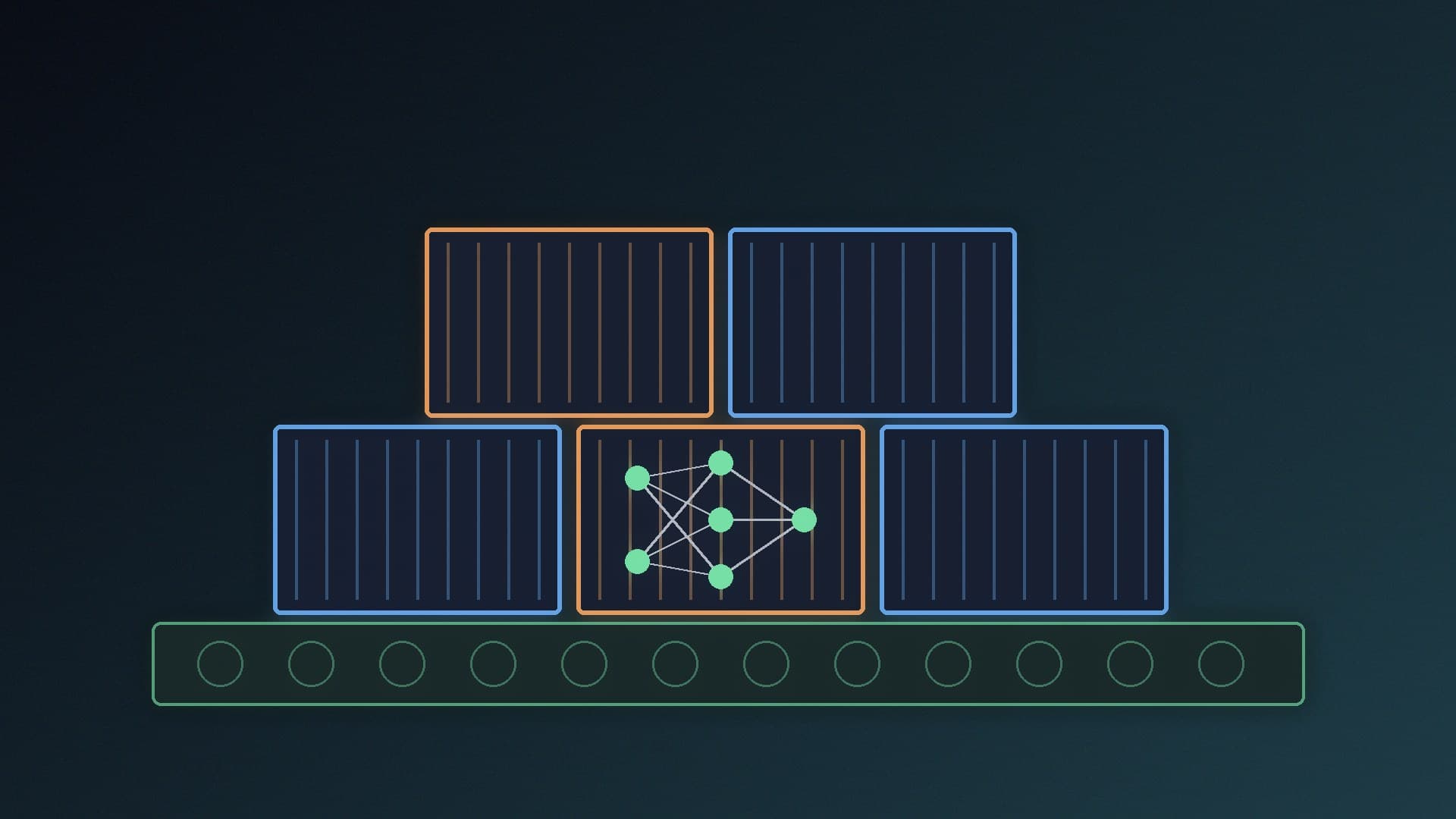
Running several local AI models usually means juggling servers. You start llama-server with one model, stop it, start it again with another, and update every app that points at it. llama-swap fixes this by sitting in front of your inference servers as a single endpoint. When a request names a model, llama-swap starts the right server for it and stops the old one if needed, so a chat app, coding assistant or script can switch models just by changing the model name.
Everything below is based on the official llama-swap README and example configuration file on GitHub, read on 26 November 2026. The project moves quickly, so check the current documentation for your version.
llama-swap or llama-server router mode?
llama.cpp's own server now has a router mode that can load and unload GGUF models from one process, which we cover in how to run multiple models with llama-server router mode. If you only use llama.cpp, that may be all you need.
llama-swap is different because it works with any OpenAI- or Anthropic-compatible server, not just llama.cpp. Its README lists llama.cpp and its forks, vLLM, stable-diffusion.cpp, audio.cpp and ComfyUI among the servers it can switch between. That makes it useful if you mix a llama.cpp chat model with, say, a vLLM or tabbyAPI server, an image generator or a speech model, and want one address for all of them.
What you need
A working inference server. llama-swap doesn't run models itself; it starts and stops the servers that do. Most people use llama-server from llama.cpp, which the README says is the best supported. If you haven't set it up, follow how to run llama.cpp on Windows and make sure a single model works first.
Some GGUF models (or whatever format your server uses).
llama-swap itself. It's a single program written in Go with no dependencies, plus one YAML configuration file.
Step 1: Install llama-swap
The README lists several ways to install it:
Windows: winget install llama-swap (the WinGet package is maintained by a community contributor, not the llama-swap project), or download the Windows binary from the GitHub releases page.
Linux and macOS: Homebrew (brew tap mostlygeek/llama-swap then brew install llama-swap) or the release binaries. Releases are also built for FreeBSD.
Docker: the project recommends its "unified" container images, which include llama-server, ik-llama-server, stable-diffusion.cpp, whisper.cpp, audio.cpp and llama-swap. Pick unified-cuda13 for NVIDIA cards from the RTX 20 and GTX 16 series onwards (including RTX 50-series), unified-cuda for older Pascal cards such as the GTX 10 series that CUDA 13 dropped, or unified-vulkan for AMD and other Vulkan-capable GPUs.
If you're new to running AI servers in containers, our guide to running Ollama in Docker covers the GPU setup basics.
Step 2: Write a minimal configuration
The smallest working config.yaml in the README looks like this:
models:
  model1:
    cmd: llama-server --port ${PORT} --model /path/to/model.gguf
Here, model1 is the name apps will use to ask for this model, cmd is the command llama-swap runs to start the server, and ${PORT} is replaced by a port number llama-swap assigns automatically. Don't hard-code a port in cmd; let llama-swap fill it in.
Add a second model by adding another entry under models, each with its own name and cmd. On Windows, use your full Windows paths to llama-server.exe and your model files.
Step 3: Start llama-swap
Run it with your configuration file and an address to listen on, as in the README's example:
llama-swap --config path/to/config.yaml --listen localhost:8080
Using localhost keeps it reachable only from your own PC. In Docker, the README says to keep the listen address on 0.0.0.0 when you publish a port, because a container bound to its own loopback address can't be reached through the published port.
Step 4: Point your apps at it
Now set your chat app, coding assistant or script to use llama-swap's address as an OpenAI-compatible endpoint (for example http://localhost:8080/v1). The README explains how it works: llama-swap reads the model value in each request, and if the wrong server is running, replaces it with the right one. /v1/models lists your configured models, so apps that show a model picker should see them all.
The README lists support for the main OpenAI endpoints, including chat completions, completions, responses, embeddings, audio speech and transcriptions, and image generation, plus Anthropic's v1/messages. If you use Open WebUI, our guide to installing Open WebUI shows where to add an OpenAI-compatible connection.
Step 5: Use the web UI
Open llama-swap's address in a browser and go to /ui. The README says the web interface has a playground for testing models, token metrics, request and response inspection, manual loading and unloading of models, and live log streaming. There's also a Help page that can answer questions about your configuration using a local model.
Step 6: Free up VRAM automatically
By default, a model stays loaded until another request needs the memory. The example configuration file describes two settings for unloading idle models:
ttl on a model unloads it after that many seconds without use (the example uses ttl: 60).
globalTTL sets a default for every model. It defaults to 0, which means models are never unloaded automatically.
This is handy on a PC you also game on: an idle model gives its VRAM back without you having to remember. You can check what's using your graphics memory with our guide to checking VRAM usage in Windows. The README also lists API calls to unload models manually: POST /api/models/unload unloads everything, and POST /api/models/unload/<model_id> unloads one model.
Aliases. The aliases setting lets a model answer to other names, such as gpt-4o-mini in the example file. That's useful for apps that only offer a fixed list of model names.
Several models at once. In its basic setup llama-swap runs one model at a time. The README says a matrix setting lets you load several models together with your own swapping rules, if you have the memory.
Containers. For Python-based servers such as vLLM or tabbyAPI, the README recommends running them through Podman or Docker so they shut down cleanly. Use cmd with cmdStop (for example docker stop) so llama-swap can stop them. Our guides to running ExLlamaV3 with tabbyAPI and vLLM vs Ollama cover those servers.
API keys. llama-swap can restrict access to its endpoints with API keys, worth setting if you expose it beyond your own PC.
Behind a reverse proxy. If you put it behind nginx, the README says to turn off response buffering for streaming endpoints, otherwise streamed chat replies break.
Tips
Get each model working with a plain llama-server command first, then copy that exact command into cmd with --port ${PORT}.
Give models short, clear names, because that's what you'll type or pick in your apps.
Switching models means loading a new one from disk, so expect a pause on the first request after a swap. A fast NVMe SSD helps, as covered in our best SSD for local AI models guide.
If you have one graphics card, keep the default one-at-a-time behaviour. Our best GPU for local LLMs guide explains how much VRAM different models need.
Our verdict
llama-swap is the simplest way to give all your local AI models one address. Install the single binary, write a few lines of YAML with --port ${PORT} in each command, and point your apps at it. If you only run GGUF models in llama.cpp, the built-in router mode may be enough, but if you mix servers, want automatic unloading with ttl, or like having a web dashboard and logs, llama-swap is well worth setting up.