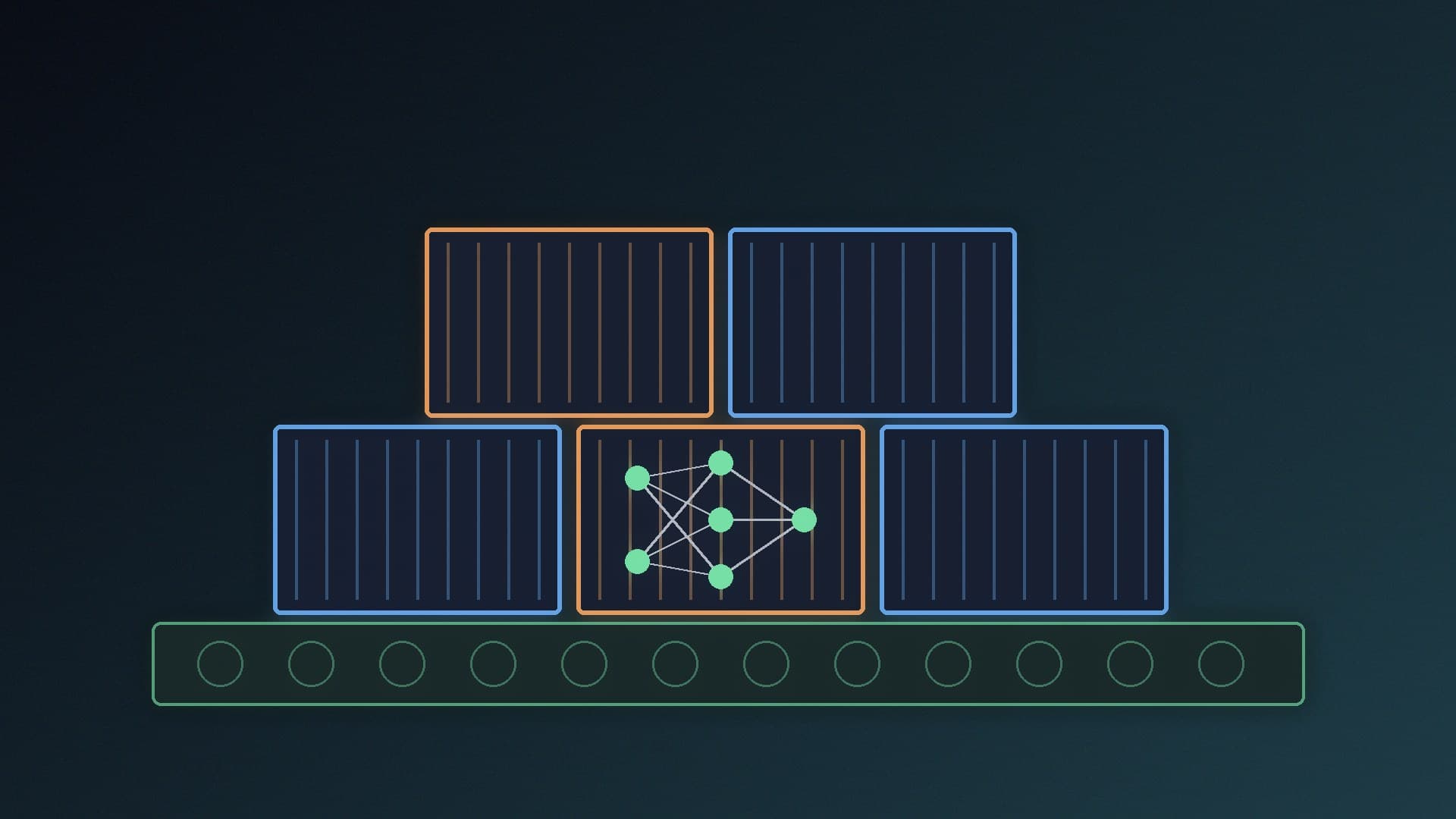
Getting a local AI model running on a graphics card often means wrestling with drivers, CUDA or ROCm libraries and Python packages. RamaLama, an open-source tool built around Podman and Docker containers, takes a different approach: it works out which GPU you have, pulls a ready-made container image with the right software for it, and runs the model inside that container. Models are handled much like container images, with familiar commands such as pull, run, list and rm.
Everything below comes from the official RamaLama README on GitHub, read on 26 November 2026. Commands and defaults can change between versions, so check ramalama --help on your own system.
Why use RamaLama?
According to the README, RamaLama:
Avoids host setup. On first run it inspects your system for GPU support, falls back to the CPU if there's none, and pulls a container image built for your hardware.
Isolates the model. Models run in rootless containers using Podman or Docker. The model file is mounted read-only, ramalama run uses --network=none so the container can't reach the network, and containers are removed when you exit, deleting anything written during the session.
Pulls from several sources, including Hugging Face, ModelScope, Ollama's library, OCI container registries such as quay.io and Docker Hub, and RamaLama's own registry.
Offers a chatbot or a REST API, with an optional web UI when serving.
If you already use Ollama or LM Studio and they work well, you don't need to switch. RamaLama appeals most to Linux users who like containers and want to keep AI software off the host system. Our comparison of Ollama vs Docker Model Runner covers another container-flavoured option.
What hardware it supports
The README's hardware table lists CPU, NVIDIA GPUs (CUDA), AMD GPUs (ROCm or Vulkan), Intel Arc GPUs on Linux, other Intel GPUs via Vulkan on Linux, Apple Silicon, Ascend NPUs and Moore Threads GPUs. Windows is supported through Docker or Podman and requires WSL2.
For NVIDIA cards, the README points to its separate ramalama-cuda documentation for the correct host configuration, and Windows users with NVIDIA GPUs need its WSL2 CUDA setup guide. Whichever card you have, the image RamaLama pulls is matched to it; the README's example is an NVIDIA system pulling the quay.io/ramalama/cuda image. You can override the choice with --image.
Not sure whether Linux or Windows is the better base for this kind of setup? See our guide to Windows vs Linux for local AI.
Step 1: Install a container engine
RamaLama needs Podman or Docker to run models. On Linux, install Podman or Docker from your distribution. On Windows, the README says you need Docker Desktop or Podman Desktop with the WSL2 backend, plus Python 3.9 or later.
Step 2: Install RamaLama
The README lists several methods:
Fedora: sudo dnf install ramalama
Any system with Python (including Windows): pip install ramalama
Linux and macOS install script: curl -fsSL https://ramalama.ai/install.sh | bash (as always, read a script before piping it to your shell)
macOS: a self-contained .pkg installer from the GitHub releases page
Run ramalama info afterwards to display RamaLama's configuration information.
Step 3: Pull a model
Use ramalama pull followed by a model name. The source matters, so it's worth being explicit:
Models written as <organisation>/<model> are pulled from Hugging Face automatically.
Names without an organisation (such as granite-code) currently default to Ollama's library. The README warns that Ollama models are no longer compatible with llama.cpp and that support for the Ollama transport will be removed in a future release, so it advises moving to Hugging Face models.
You can choose a source with a prefix: huggingface://, oci://, modelscope://, ollama:// or rlcr://. The README's example pulls a specific GGUF file: ramalama pull huggingface://afrideva/Tiny-Vicuna-1B-GGUF/tiny-vicuna-1b.q2_k.gguf.
RamaLama also has short names, defined in a shortnames.conf file, which map friendly names to full Hugging Face paths. Use ramalama list to see the models you've downloaded. By default they're stored in ~/.local/share/ramalama, and the README notes this folder can get large.
Before downloading, check the model will fit in your graphics card's memory; our best GPU for local LLMs guide explains the VRAM you need for different model sizes.
Step 4: Chat with it
ramalama run followed by the model name starts a chatbot in your terminal. The first run can take a while, because RamaLama has to download the container image for your hardware as well as the model. After that, the README says, you can use other models with the same image. While a chat is running, podman ps in another terminal shows the container doing the work.
Step 5: Serve it to other apps
ramalama serve runs the model as a REST API server. The README says the default port is 8080 if it's free, otherwise a random free port between 8081 and 8090, and you can set one with --port or -p. When the web UI is enabled, open 127.0.0.1:<port> in a browser; add --webui off if you don't want it.
You can run models in the background with -d and give them names with --name or -n, so the README's example runs two models at once on ports 8080 and 8081. ramalama containers (or ramalama ps) lists what's running, and ramalama stop <name> or ramalama stop --all stops them.
To use a served model from a chat front end such as Open WebUI, add it as an OpenAI-compatible connection; our guide to installing Open WebUI covers the interface. If you want several models behind one address that swap automatically, see our guide to llama-swap.
Other useful commands
ramalama bench <model> benchmarks a model, and ramalama perplexity <model> calculates its perplexity, which the README describes as how well the model predicts the next token (lower is better).
ramalama inspect <model> shows details about a downloaded model.
ramalama rm <model> deletes one, and ramalama rm --all removes everything.
ramalama convert packages a model as an OCI image, and the README shows it converting a Hugging Face model to a Q4_K_M GGUF inside an image. ramalama push uploads it to a registry.
ramalama rag turns PDF, Word, PowerPoint, Excel, HTML, AsciiDoc and Markdown files into a retrieval-augmented generation (RAG) database inside an OCI image, which you can then use with ramalama run --rag.
Tips
Prefer Hugging Face models with an explicit huggingface:// or <organisation>/<model> name, given the planned removal of Ollama transport support.
If RamaLama picks the CPU when you expected the GPU, fix the container engine's GPU access first (the README's CUDA and WSL2 guides cover NVIDIA), then try again.
Keep an eye on disk space in ~/.local/share/ramalama, since both models and container images take room.
Our verdict
RamaLama is a neat way to run local AI models if you're comfortable with containers, particularly on Linux. It handles the GPU-specific software for you, keeps models isolated with no network access when chatting, and lets you pull from Hugging Face and container registries with one set of commands. Windows users can make it work through Docker or Podman Desktop on WSL2, but if you just want a chatbot on a Windows PC, a desktop app such as LM Studio or Ollama is the simpler route.