You've added your game to OBS Studio, hit record and got nothing but a black box in the preview. It's one of the most common OBS problems on Windows, and there's rarely a single cause. The wrong capture source, a laptop running OBS and the game on different graphics chips, an overlay fighting OBS for the same hook, or a game that simply blocks capture can all produce the same black screen. The steps below are based on OBS Studio's official knowledge base, checked on 27 November 2026, and work through the causes from most to least common.
Before you start
Update OBS Studio. At the time of writing the latest release is OBS Studio 33.0.3, a hotfix released on 22 November 2026. Updates matter for game capture in particular, because the OBS project has changed the certificate used to sign its game capture hook (more on that below).
Check whether it's really black. OBS's own troubleshooting guide points out that a game running in exclusive full-screen mode stops rendering when you Alt+Tab out of it. On a single monitor, that means the preview can look black when you switch to OBS to check it, even though the capture is working. Make a short test recording while you play, then watch it back before changing anything else.
Fix 1: Use the right capture source
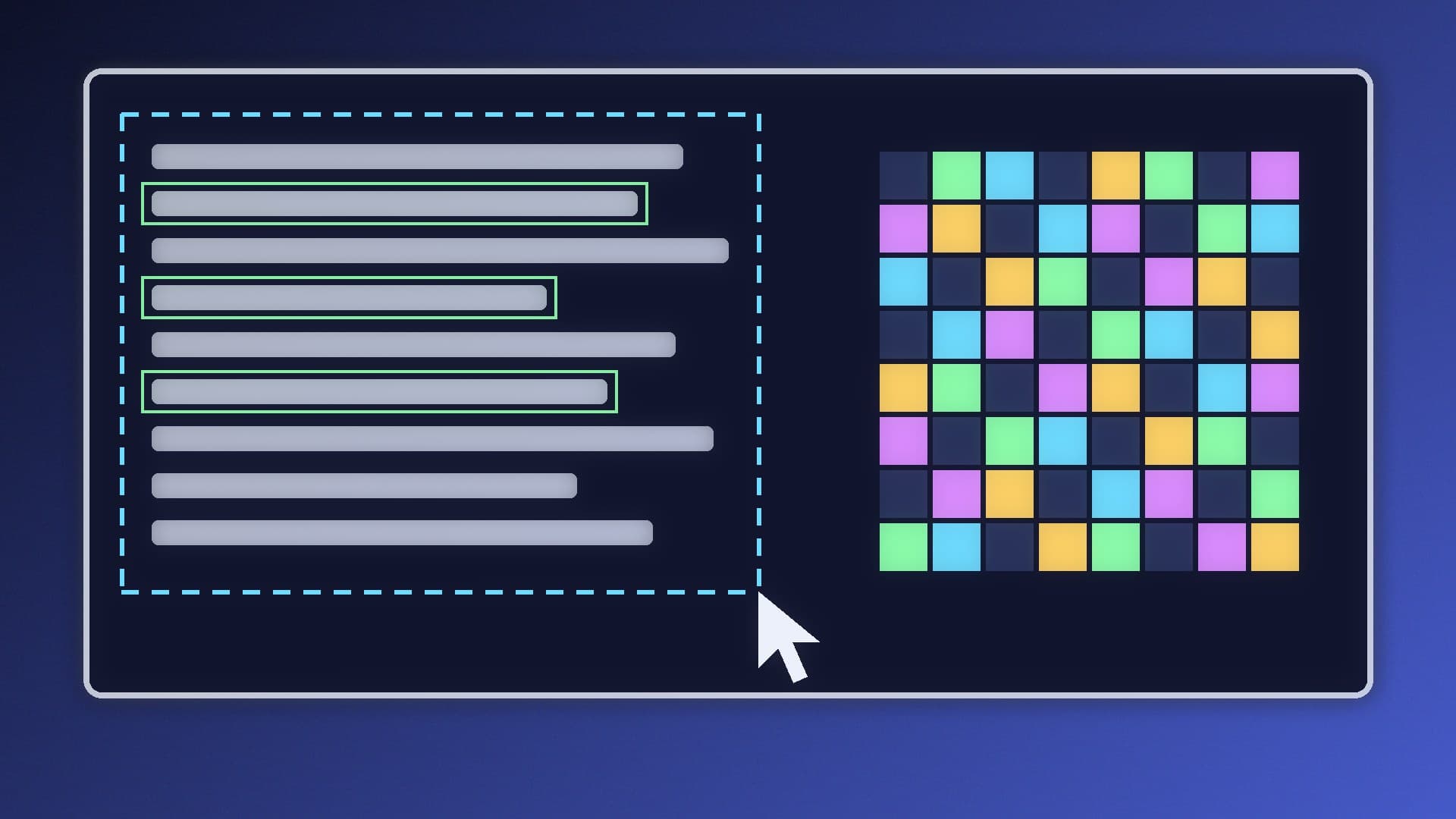
OBS has three main ways to capture a PC screen, and using the wrong one is a common cause of black captures.
Game Capture captures DirectX and OpenGL games directly. OBS calls it the most efficient way to add a game and says you should always try it first.
Window Capture captures one specific window, even if other windows are on top of it. It's for apps and windowed games.
Display Capture captures an entire monitor. You can only add one Display Capture source per display. To show it in several scenes, add a reference to the same source rather than creating a new one.
For Game Capture, the mode setting matters. Capture any fullscreen application automatically picks up a full-screen game on your primary monitor, so for a game on another screen, choose a window instead. Capture specific window lets you choose the game's window, and Capture foreground window with hotkey captures whichever game is in front when you press a hotkey you set in Settings > Hotkeys. If one mode shows black, try another.
Fix 2: Make OBS and the game use the same GPU (laptops)
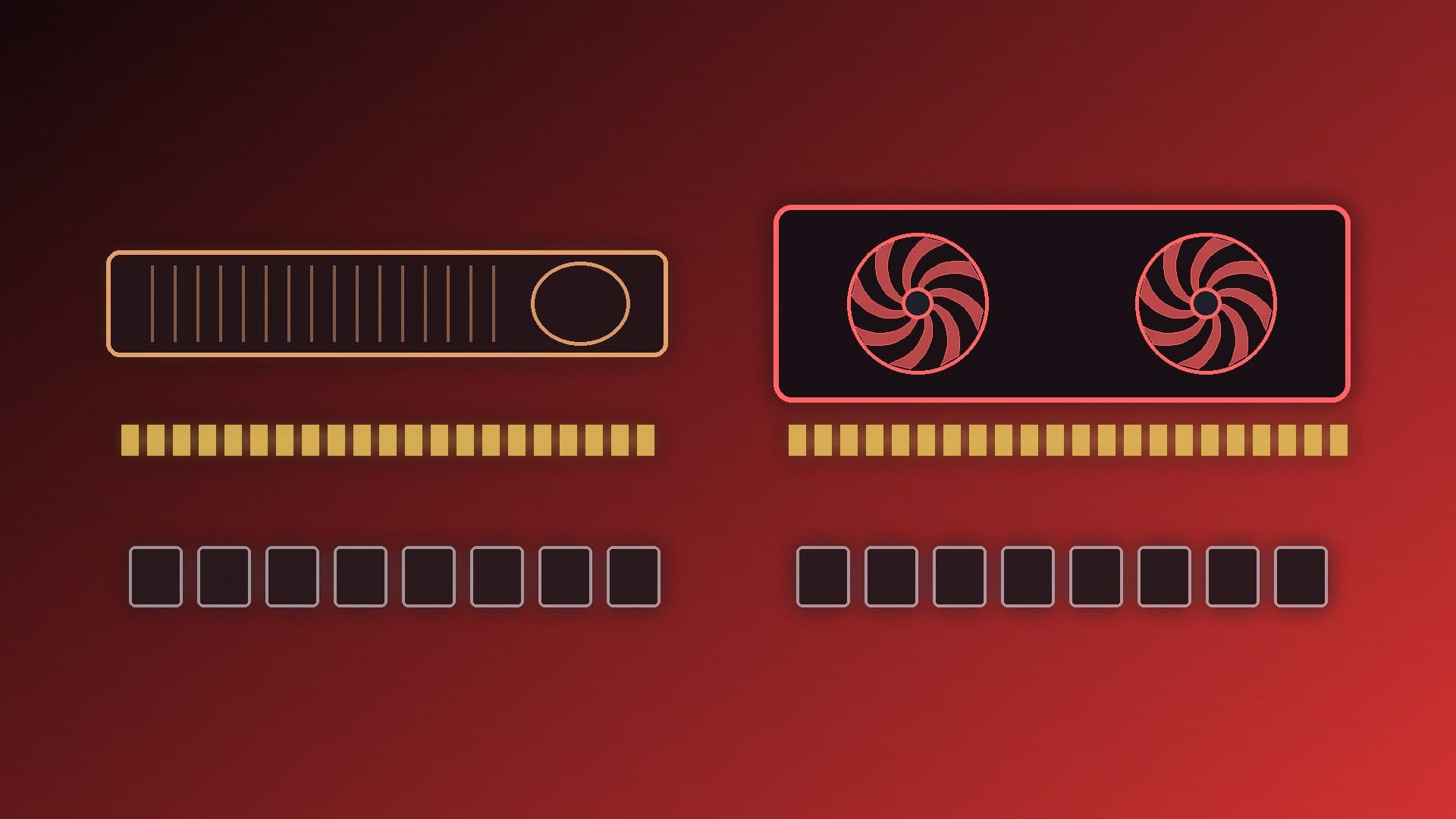
This is the classic black screen on gaming laptops. According to OBS, most modern laptops have two GPUs: an integrated one for the desktop and 2D apps, and a discrete NVIDIA or AMD card for games. OBS can only run on one of them. If OBS runs on the integrated GPU, Game Capture can't see a game running on the discrete card. In rare cases, OBS says, trying to capture across GPUs can even crash the game.
OBS's GPU Selection Guide uses Windows' own graphics settings to fix this on Windows 10 (1809 or later) and Windows 11:
Close OBS Studio.
Open Settings > System > Display > Graphics.
Add OBS as a desktop app and browse to C:\Program Files\obs-studio\bin\64bit\obs64.exe, the path given in OBS's guide.
Set it to High performance if you use Game Capture or Window Capture, or Power saving if you use Display Capture.
Reopen OBS.
OBS says certain games, such as Minecraft: Java Edition and osu!, default to the integrated GPU on multi-GPU systems. Use the same Graphics page to move those games to the high-performance GPU, then restart the game and OBS.
Fix 3: Run OBS as administrator
OBS's troubleshooting guide says some games need OBS Studio to run as administrator before they can be captured properly, and that it can also help performance in some cases. Its list includes Call of Duty, Valorant, Genshin Impact, Honkai: Star Rail and Zenless Zone Zero. Right-click the OBS shortcut, choose Run as administrator, then try Game Capture again.
Fix 4: Switch to Window Capture for games that block Game Capture
A small number of games don't allow OBS to hook into them. OBS's guide names Destiny 2 and Counter-Strike 2, and recommends running them in windowed or borderless full-screen mode and using Window Capture instead. It gives the same advice for Grand Theft Auto: San Andreas, and suggests Window Capture for Roblox. Emulators and older games often don't work with modern game hooking either, so try Window Capture for those too.
If Window Capture is also black, open the source's properties and change Capture Method. The default is Automatic. OBS says the older BitBlt method is less efficient but may help with certain programs, and it also offers a Windows 10 method. When BitBlt is selected, OBS also shows a Multi-Adapter Compatibility option.
For DirectX 12 games, OBS notes that capture can sometimes have odd frame problems, and some games, such as Fortnite in DX12 mode, can crash. If the game has a DirectX 11 option, OBS recommends trying it.
Many apps that draw on top of games hook into the same graphics functions OBS uses, which OBS says can cause crashes or other strange behaviour. OBS's Known Conflicts list includes MSI Afterburner, RivaTuner, EVGA Precision, ASUS GPU Tweak II, Overwolf, the Medal clip recorder, FRAPS and the TeamSpeak, Mumble and Discord overlays. OBS says RivaTuner and MSI Afterburner are especially common culprits. If you use RivaTuner Statistics Server 7.3.2 or newer, you can enable Use Microsoft Detours API hooking in its setup to make it compatible with OBS. If you rely on Afterburner for monitoring, our HWiNFO and Afterburner monitoring guide explains the set-up.
OBS also warns against running several capture or recording apps at once, because their hooks conflict. Some antivirus and firewall software can stop window and game capture from working, too. OBS's advice is to allow OBS in those tools, and to disable or uninstall them if allowing it doesn't help.
Fix 6: Check anti-cheat compatibility
Some anti-cheat systems specifically allow OBS's game capture hook based on the certificate it's signed with, so a certificate change can stop capture working in those games. OBS's certificate update page shows that OBS 31.0, which used only a new certificate, didn't work with FACEIT Anti-cheat or Riot Vanguard. Both work again with the dual-signed hook used from OBS 31.1. That's another reason to keep OBS up to date. If a game with anti-cheat still shows black on the latest OBS, our suggestion is to try Window Capture or Display Capture for it.
Fix 7: Other things that look like a black screen
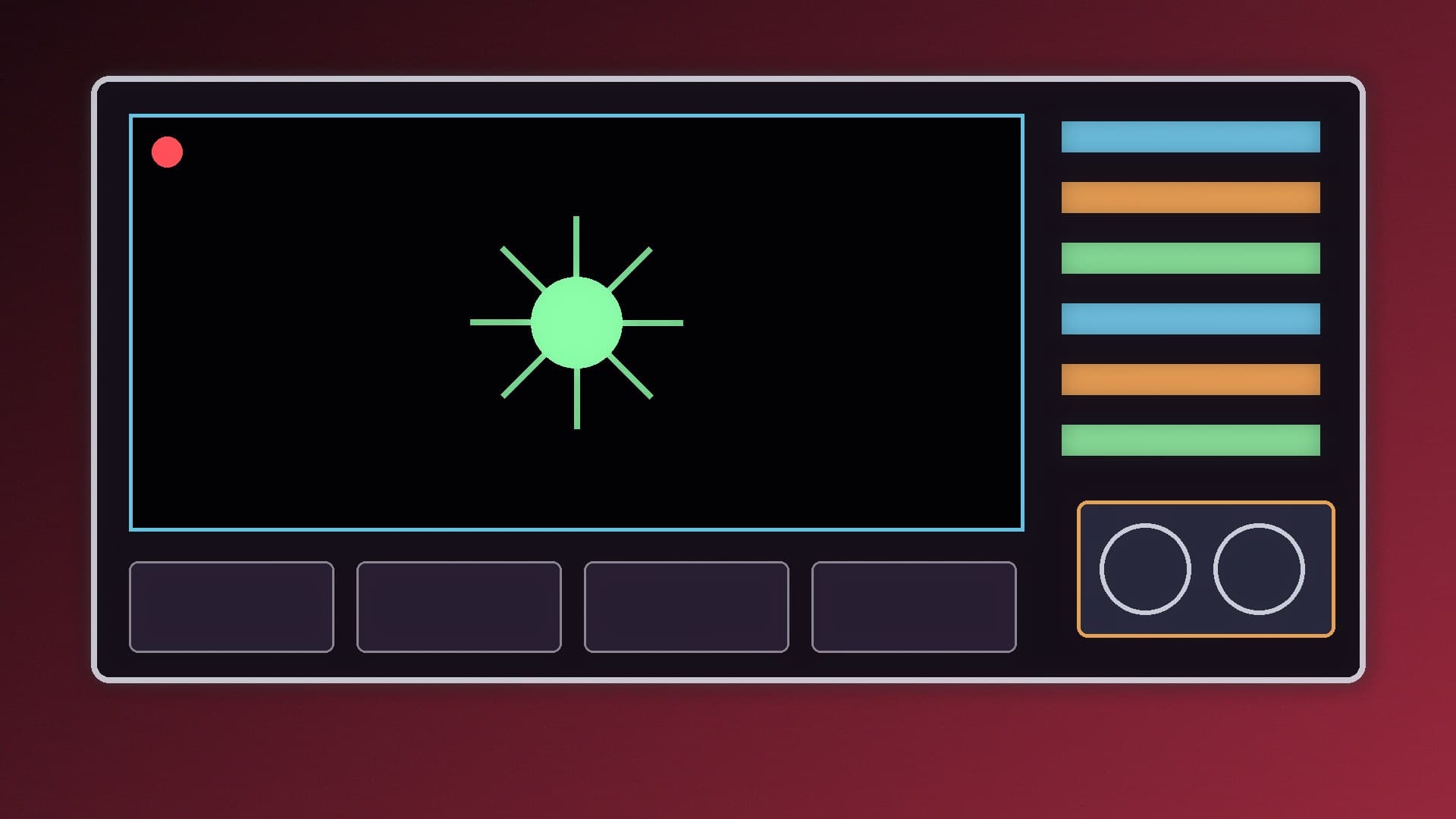
A red dot in the corner of a Game Capture source: OBS says this means the source's size has got stuck. Right-click the source, choose Transform > Reset Transform (Ctrl+R), then Transform > Fit to screen (Ctrl+F).
An endless tunnel instead of your desktop: you're capturing the display OBS is on. Minimise OBS, move it to a second monitor, or tick Hide OBS windows from screen capture in Settings > General. OBS notes that you can't take screenshots of OBS itself while this is on.
Capturing a console: OBS says this needs either a capture card added as a video capture source, such as the Elgato 4K X, or Window Capture of PS Remote Play or the Xbox app streaming from the console to your PC. Our best capture card guide covers other options.
Still not working?
If you've tried everything here, our OBS gameplay recording guide walks through a clean set-up from scratch. Our OBS encoding overloaded fix helps if your recordings stutter once the capture works. If your whole PC screen goes black rather than just the OBS preview, that's a different problem, so see our Windows 11 black screen fix.
Our verdict
Most black screens in OBS Studio come down to the source or the GPU. Use Game Capture for games and Window Capture for apps. Test with a recording rather than Alt+Tabbing, and on a laptop set OBS to High performance in Windows' Graphics settings if you use Game or Window Capture, or Power saving for Display Capture. If that doesn't fix it, run OBS as administrator, close overlays such as RivaTuner and MSI Afterburner, and switch games that block hooking, such as Destiny 2 and Counter-Strike 2, to borderless mode with Window Capture. Keep OBS updated so its game capture hook stays compatible with anti-cheat.