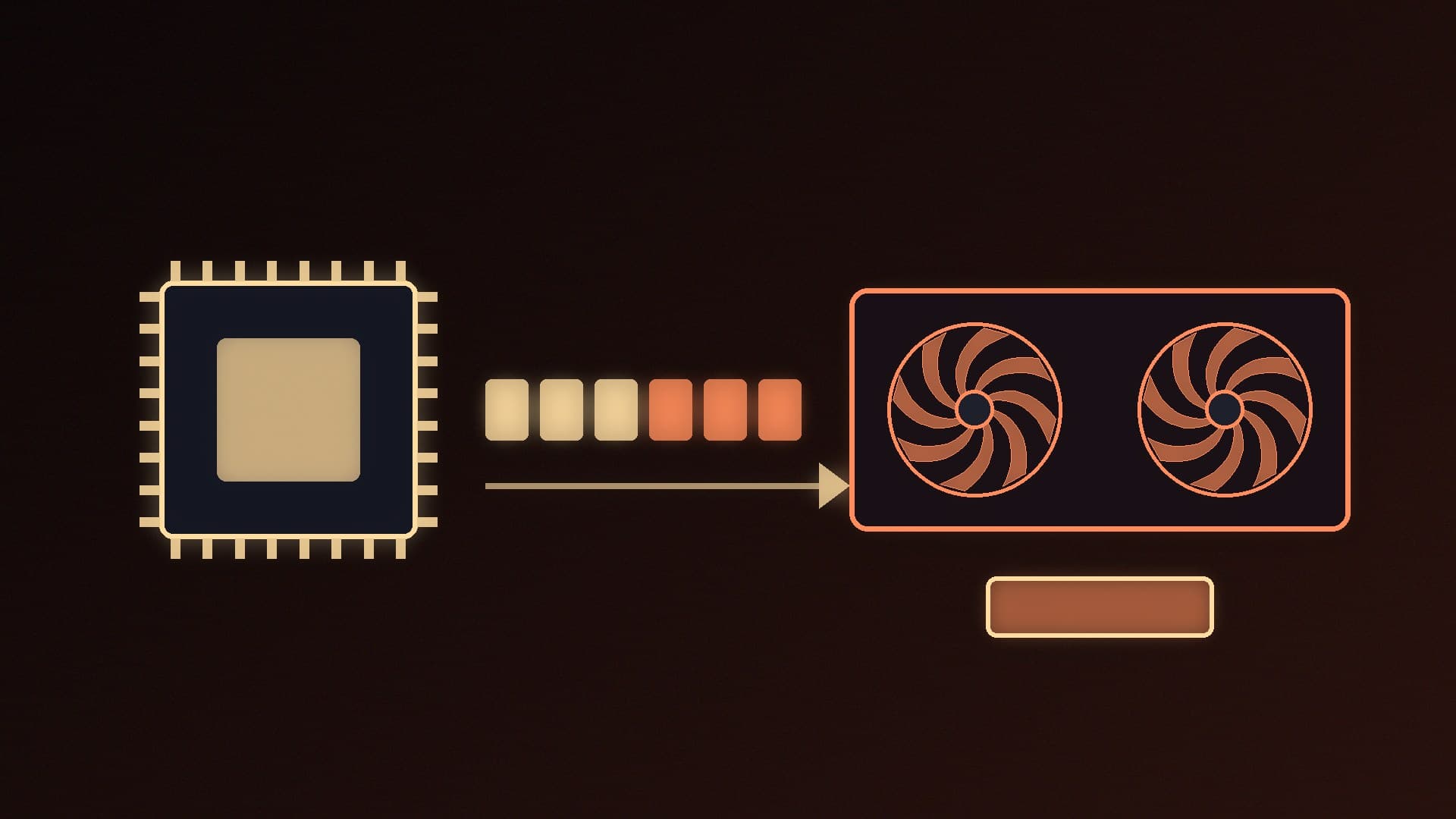
Hardware-accelerated GPU scheduling, often shortened to HAGS, is a Windows setting that lets your graphics card handle most of its own scheduling instead of relying on a high-priority thread on the CPU. It's been around since the Windows 10 May 2020 update, but it matters more now because NVIDIA's DLSS Frame Generation won't work without it.
Forge PC hasn't tested anything for this guide. It's based on Microsoft's DirectX team documentation, NVIDIA's Streamline developer guide and CD PROJEKT RED's support article, all checked on 17 November 2026. We don't quote any performance gains, because Microsoft itself says most users shouldn't notice a significant change.
What HAGS actually does
Microsoft's DirectX blog explains that, since WDDM was introduced, Windows has used a high-priority CPU thread to coordinate and schedule the work apps send to the GPU. With HAGS on, and the right hardware and drivers, Windows offloads most of that scheduling to a dedicated scheduling processor on the GPU. Windows still decides which apps get priority; the GPU handles the high-frequency work such as context switching.
Microsoft's redesigned Graphics settings page describes it as reducing the load on your CPU. But the DirectX team was clear when it launched: "The transition should be transparent, and users should not notice any significant changes", because most apps already hide scheduling costs through buffering.
Why you might need it: DLSS Frame Generation
NVIDIA's Streamline programming guide for DLSS Frame Generation states that hardware-accelerated GPU scheduling must be enabled in Windows. CD PROJEKT RED's support page for The Witcher 3 says the same and notes that in Windows 11 the option is on by default. If DLSS Frame Generation is greyed out in a game on a supported GeForce RTX card, HAGS is one of the first things to check. Our DLSS, FSR and frame generation explainer covers how frame generation works.
How to turn it on in Windows 11
Open Settings > System > Display.
Scroll down and select Graphics.
Select Advanced graphics settings (on some builds this is labelled Change default graphics settings).
Turn on Hardware-accelerated GPU scheduling.
Restart your PC. NVIDIA's guide and CD PROJEKT RED's support page both include this step.
To turn it off again, follow the same steps, switch the toggle off and restart.
The toggle is missing
Microsoft says the setting only appears if your system has a supporting GPU and the necessary display driver. When it launched, Microsoft said support needs recent GPU hardware plus a WDDM 2.7 or newer driver that exposes it. If you can't see it:
Update your graphics driver using our driver update guide. A clean install with DDU can help if the setting still doesn't appear.
Check which GPU Windows is using. On a PC with integrated and dedicated graphics, make sure the dedicated card's driver is installed properly.
Older or unsupported GPUs simply won't show the option.
When to turn it off
There's no rule that says HAGS must be on. Consider switching it off, as a test, if you see new crashes, stutter or problems in a specific app after enabling it. Microsoft asked users to report any regressions when it launched the feature, which tells you they were possible. If you turn it off, remember that DLSS Frame Generation will stop working.
Before experimenting with system-level graphics settings, it's worth creating a restore point; our System Restore guide shows how. For other settings worth checking, see our Windows 11 gaming settings guide and our guide to reducing input lag.
Our verdict
Turn on hardware-accelerated GPU scheduling under Settings > System > Display > Graphics > Advanced graphics settings, then restart. It's required for NVIDIA DLSS Frame Generation and CD PROJEKT RED says it's on by default in Windows 11. If the toggle is missing, update your GPU driver; if a specific app misbehaves, try turning it off. Don't expect a big change otherwise: Microsoft says most users won't notice one. Forge PC hasn't tested it.