This comparison is based on Microsoft's Windows Sandbox documentation and Sandboxie-Plus's official website, GitHub repository and release notes, checked on 25 November 2026.
Both tools let you run software you don't fully trust without it permanently changing your PC. They do it in very different ways, though, and that decides which one suits you.
The short version
Windows Sandbox is a disposable, clean copy of Windows that runs in a lightweight virtual machine. You open it, install or run something inside it, and when you close it everything is deleted. It's built into Windows 11 Pro, Enterprise and Education, but not Home.
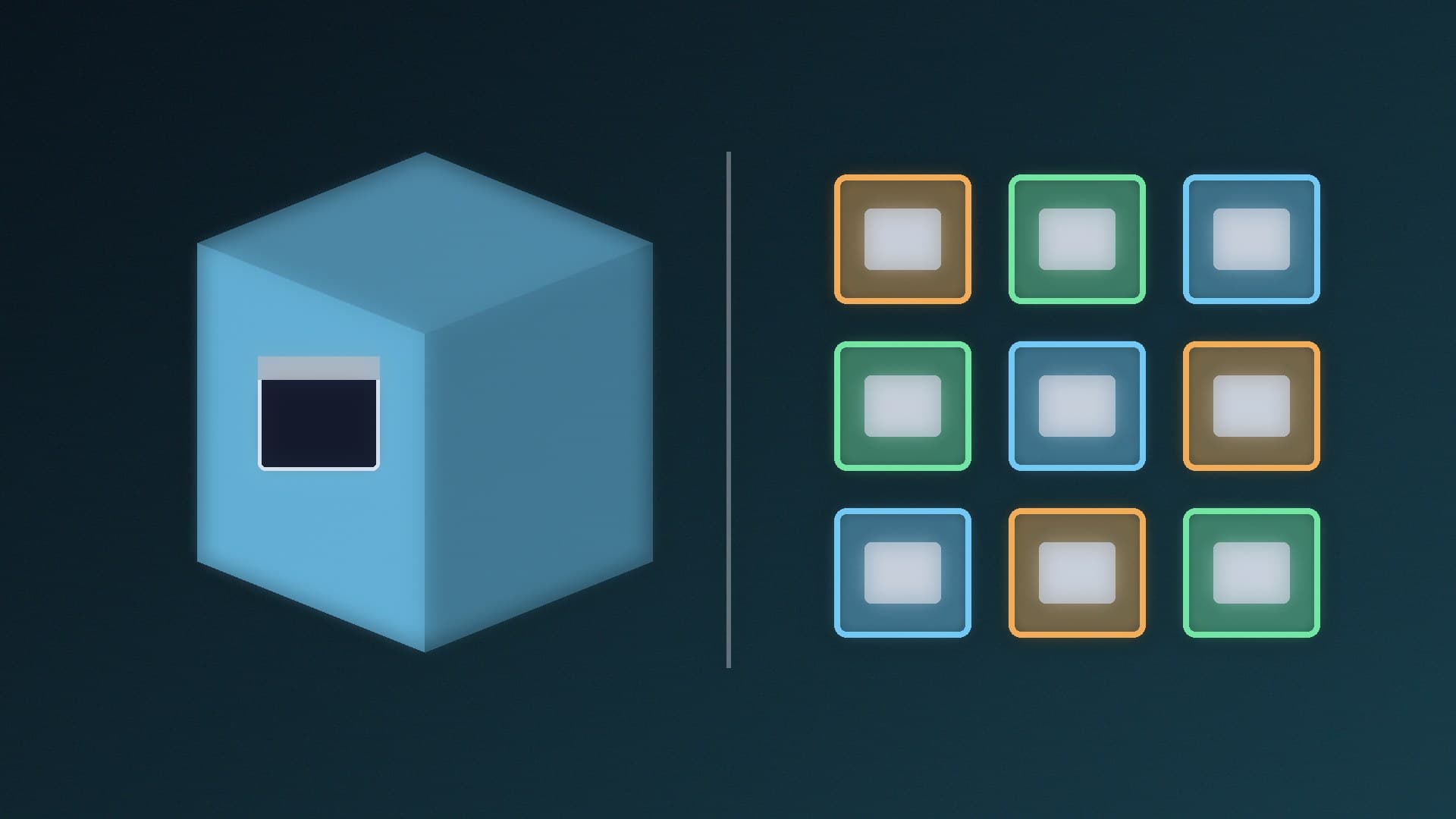
Sandboxie-Plus runs individual programs in an isolated "box" on your normal desktop. Changes they make to files and the registry go into the box instead of your real system. It runs on 64-bit Windows 7 or later, including Home editions, and the core app is free for personal use, but some features need a paid supporter certificate.
How they work
Windows Sandbox uses hardware-based virtualisation. Microsoft says it relies on the Microsoft hypervisor to run a separate kernel that isolates the sandbox from your PC. Each time it starts, it's as clean as a brand-new installation of Windows, and none of your installed software is available inside it, so you have to install what you need each time.
Sandboxie-Plus doesn't run a second copy of Windows. It isolates programs on your existing system, so that they can run or install without permanently modifying your local or mapped drives or the Windows registry. A sandboxed browser, for example, opens on your normal desktop (Sandboxie can mark sandboxed windows with a border), but its downloads, cache and any changes it makes stay inside the box until you delete it.
That difference has practical consequences. Windows Sandbox's VM boundary is a stronger kind of separation, because the untrusted program is running on a different kernel. Sandboxie-Plus is more convenient, because you can run an app you already have installed in a box rather than installing it fresh each time.
Side-by-side comparison
| Windows Sandbox | Sandboxie-Plus |
|---|
Type | Disposable lightweight VM | Application-level sandbox on your desktop |
Windows editions | Windows 11/10 Pro, Enterprise, Education (not Home) | Windows 7 or later, 64-bit (Home and Pro) |
Cost | Included with Windows | Free for personal use; supporter certificate unlocks extra features; business certificate needed for commercial or educational use |
Uses your installed apps | No, you install them inside each session | Yes, run installed apps sandboxed |
Persistence | Everything deleted when you close it (survives restarts initiated inside the sandbox on Windows 11 22H2+) | Box contents kept until you delete them, with optional auto-delete |
Multiple instances | One at a time | Many boxes, run alone or at the same time |
Config | .wsb XML files | SandMan GUI and Sandboxie.ini |
Source code | Closed (part of Windows) | Published on GitHub (Plus has a custom licence) |
Windows Sandbox: strengths and limits
Windows Sandbox is the easier tool to trust because it's simple. There's nothing to configure for basic use: open it from the Start menu, paste a file in (clipboard sharing is on by default), run it and close the window. Microsoft says it launches in a few seconds, supports a virtual GPU and uses less memory than a full virtual machine.
The requirements, according to Microsoft:
Windows 11 or Windows 10 version 1903 or later, in Pro, Enterprise or Education. It isn't supported on Home.
A 64-bit (AMD64) or Arm64 processor with virtualisation enabled in the BIOS.
At least two CPU cores (four with hyper-threading recommended), 4GB of RAM (8GB recommended) and 1GB of free disk space (SSD recommended).
Things to know:
Networking is on by default. Microsoft warns this can expose untrusted applications to your internal network. For risky files, create a .wsb configuration file with networking turned off and map the folder containing the file in read-only mode, as Microsoft suggests.
The default sandbox has a maximum of 4GB of memory. You can change it with the MemoryInMB setting in a .wsb file.
You can only run one Windows Sandbox at a time.
On Windows 11 24H2, inbox Store apps aren't available inside it. Microsoft says Calculator, Photos, Notepad and Terminal aren't available inside the sandbox from version 24H2.
Our guide on how to use Windows Sandbox walks through turning it on and writing .wsb files, and Windows Sandbox vs Hyper-V explains when you need a full virtual machine instead. If the option is greyed out, check virtualisation is enabled in your BIOS.
Sandboxie-Plus: strengths and limits
Sandboxie was a commercial product (most recently owned by Sophos) before its source code was released. Sandboxie-Plus is a community fork developed by David Xanatos since then, and the project notes it isn't the official continuation of the earlier development. It comes in two flavours that share the same core: Plus, with the modern SandMan interface where all new features are added, and Classic, whose old interface is no longer developed. Choose Plus.
What makes it useful day to day:
Run any installed program sandboxed, such as a browser you want to keep isolated, an installer you're unsure about or an old utility.
Many sandboxes, which the project says can run alone or simultaneously, each with its own settings.
Snapshots, so you can return a box to an earlier state, and automatic deletion of box contents.
Privacy and network features such as personal data protection (sandboxed apps see an empty PC with no user data) and per-box internet access rules. Some of these are marked as supporter-only on the Sandboxie-Plus features page.
Windows Home support: it runs on 64-bit Windows 7 or later, while Windows Sandbox isn't supported on Home.
It's also actively maintained. Version 1.19.1, released on 21 November 2026, fixed slowdowns with sandboxed apps that frequently look up localised strings or resources, including frame rate drops in games, and added an optional AI troubleshooting feature that's off by default.
The catches:
Licensing. Sandboxie-Plus is free for personal use, but the project says many exclusive features need a supporter certificate, and encrypted boxes, proxy injection and DNS filtering also need an Advanced Feature Pack on top. Using it in a commercial or educational setting requires a business certificate. The free version also shows a support reminder.
It's not a VM. Sandboxed programs run on the same Windows kernel as everything else, isolated by Sandboxie's driver. That's a different, generally weaker boundary than a separate kernel, and the Sandboxie-Plus features page describes an optional mode that improves compatibility at the cost of security.
More to learn. Box settings, access rules and the INI file give you a lot of control, but it's easier to misconfigure than Windows Sandbox.
Which should you use?
Choose Windows Sandbox if you have Windows 11 Pro and want to open a suspicious download or test an installer in a clean, throwaway copy of Windows. Turn networking off with a .wsb file for anything genuinely risky.
Choose Sandboxie-Plus if you're on Windows 11 Home, want to keep running an everyday app such as a browser in isolation, or need to keep a sandbox's contents between sessions.
Neither replaces antivirus or backups. If you're genuinely worried a file is malicious, the safest move is not to run it at all.
Our verdict
Windows Sandbox is the better choice for one-off testing of untrusted files, because its throwaway virtual machine is simple and well isolated, but it needs Windows Pro, Enterprise or Education and virtualisation enabled in the BIOS. Sandboxie-Plus is the better everyday tool for isolating apps you use regularly, works on Windows Home and is free for personal use, though advanced features need a paid certificate and it doesn't isolate programs as strongly as a VM.