If you want Caps Lock to act as Ctrl, a spare key to launch an app, or a shortcut that only works in one program, there are two free tools most Windows users end up looking at. Microsoft's PowerToys includes Keyboard Manager, a menu-driven remapper. AutoHotkey is a free, open-source scripting language that can remap keys but also automate almost anything on the desktop. Both run in the background, and both can do the simple jobs, but they're aimed at different people. It's based on Microsoft's Keyboard Manager and PowerToys documentation, the PowerToys release notes on GitHub, and AutoHotkey's official site and v2 documentation, all checked on 27 November 2026, when AutoHotkey's latest stable version was 2.0.32.
If you'd rather see every option, our best free keyboard and mouse remapping software guide covers more tools. For step-by-step set-up, see how to use Microsoft PowerToys and how to use AutoHotkey v2.
PowerToys Keyboard Manager vs AutoHotkey at a glance
| PowerToys Keyboard Manager | AutoHotkey v2 |
|---|
Cost and licence | Free, part of Microsoft PowerToys | Free and open source (GNU GPLv2) |
How you set it up | Menus in PowerToys Settings | Plain-text .ahk scripts |
Remap one key to another | Yes | Yes |
Remap shortcuts | Yes, including chords and app-specific remaps | Yes, including app-specific remaps with #HotIf |
Key or shortcut to text | Yes | Yes (hotstrings and Send) |
Shortcut to start an app or open a URI | Yes | Yes |
Mouse buttons | Not covered in its documentation | Yes, plus limited controller remapping |
Macros and automation | No | Yes, a full scripting language |
Needs to keep running | Yes, PowerToys must run in the background | Yes, the script must stay running |
Games | Microsoft advises against using it while gaming | Some games don't support it |
Keyboard Manager lives inside PowerToys Settings. You pick Remap a key or Remap a shortcut, add a row, choose the key you press in the Select column and what it should do in the To send column, then select OK. Microsoft's documentation says the change applies immediately, with no restart. You can type the key on your keyboard or search a drop-down list. Microsoft says that, starting with PowerToys 0.100, new installations open a redesigned editor by default, and a toggle lets you switch back to the legacy editor. The PowerToys 0.102 release notes add search, filters and bulk deletion for long remap lists, plus a searchable key picker that lets you build a shortcut with just the mouse.
AutoHotkey works differently. You write a text file and run it. The remap syntax is short. A script containing the single line a::b makes A behave like B, and CapsLock::Ctrl turns Caps Lock into Ctrl. Its documentation shows a companion line, +CapsLock::CapsLock, placed first so that Shift + Caps Lock still toggles Caps Lock. That's quick once you know the syntax, but there's no graphical editor, and a mistake in a script means it won't do what you expect.
Winner: Keyboard Manager for anyone who doesn't want to learn syntax.
What each can remap
For everyday remapping, the two are closer than you might think. Keyboard Manager can:
Swap or replace single keys, including F13 to F24.
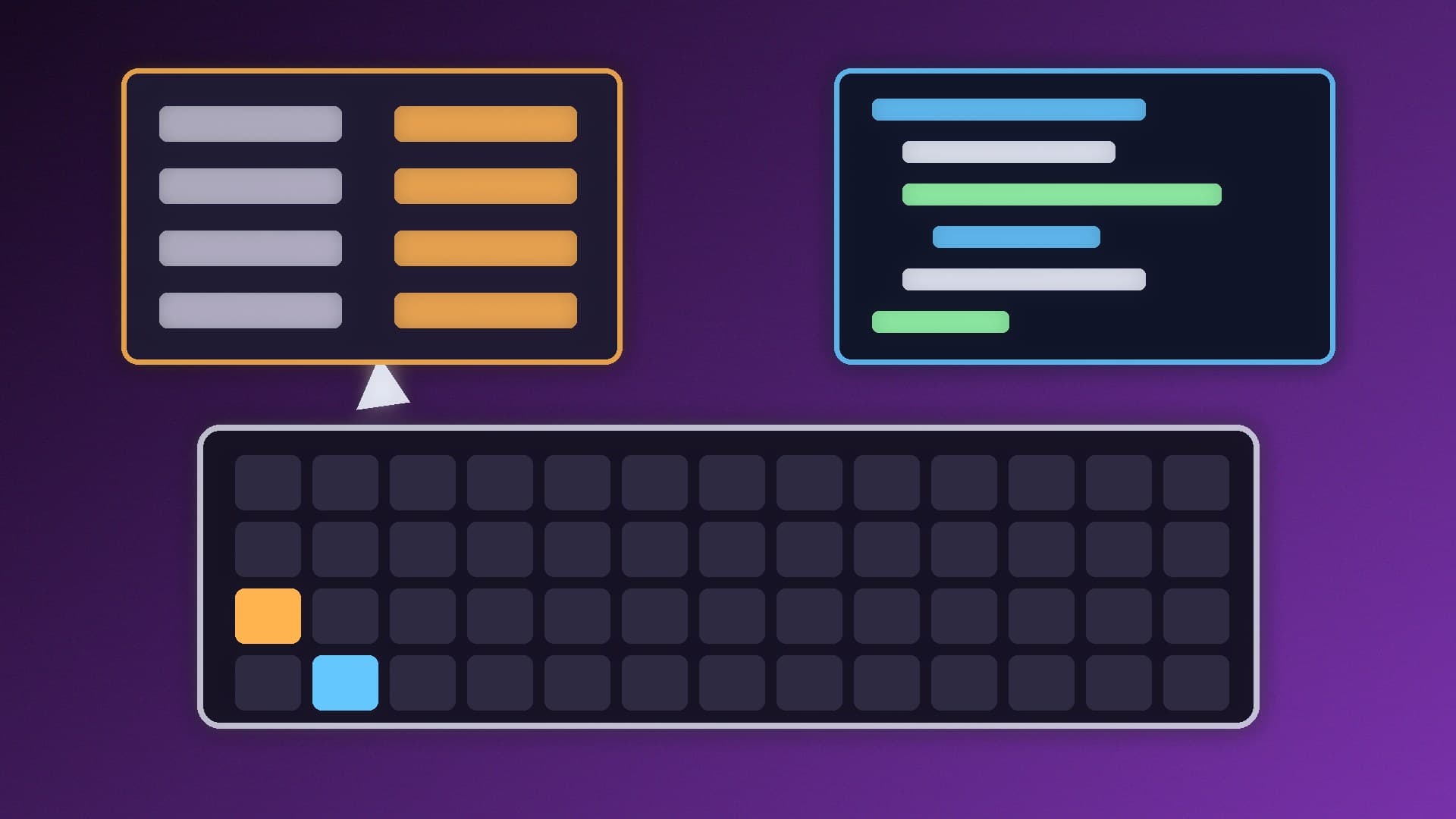
Remap a key to a shortcut, or a shortcut to a single key, with an Exact Match option that ignores the remap when other keys are also held down.
Send a line of text from a key or shortcut.
Use chords, such as Shift + Ctrl + V followed by U for volume up.
Start an app, with options for arguments, elevation and what to do if it's already running, or open a URI.
Limit a shortcut remap to one app, using its process name, such as msedge for Microsoft Edge.
PowerToys 0.102 also added tap-alone remaps, where tapping a key on its own triggers a different action while the key still works normally in shortcuts.
There are limits. Microsoft says Win + L and Ctrl + Alt + Del can't be remapped, the Fn key can't be remapped in most cases, and Win + G often still opens Xbox Game Bar. Remapping Win, Ctrl, Alt or Shift may break gestures and some special keys. Keyboard Manager also can't apply different mappings to different keyboards, so a laptop's built-in keyboard and an external one get the same remaps.
AutoHotkey covers all of that and goes further. Its remapping works with mouse buttons too. The documentation's examples include XButton1::LButton, which makes the fourth mouse button act as a left click, and MButton::Shift. It also lists limited controller remapping. #HotIf makes remaps active only in chosen windows or while any condition is true, which is more flexible than matching a process name.
Winner: AutoHotkey, especially if you want to remap mouse buttons.
Beyond remapping: automation
This is where they really split. Keyboard Manager is a remapper with a few extras, such as sending text and launching apps. AutoHotkey describes itself as a scripting language for automating desktop tasks, from form fillers and auto-clicking to macros. It supports hotkeys, hotstrings (text replacements as you type), simple graphical interfaces, clipboard handling and object-oriented code. A hotkey can run several steps in sequence, check which window is active, or show a message, none of which Keyboard Manager attempts.
The trade-off is that you're writing and maintaining code. If all you want is three key swaps, AutoHotkey is more tool than you need.
Winner: AutoHotkey, by a wide margin.
Games, admin apps and the sign-in screen
Neither tool is ideal for games. Microsoft's FAQ says to avoid using Keyboard Manager while gaming because its key interception may affect performance, and certain keyboard APIs don't work with it. AutoHotkey's remapping documentation says some games don't support remapping, in which case the keyboard and mouse behave as if nothing was changed. Its FAQ adds that games with cheat-prevention measures, such as GameGuard and HackShield, are likely to stop AutoHotkey working. Some online games' rules also restrict macros and automation, so check them before using either tool in competitive play.
Both have the same problem with elevated (administrator) windows. Microsoft says remaps won't work in an app running as administrator unless PowerToys is also running as administrator. AutoHotkey's FAQ says User Account Control blocks hotkeys from non-elevated scripts when an admin program is active, and lists options including running the script as administrator or with UIAccess.
Keyboard Manager doesn't work on the sign-in screen or any password screen. Both tools only work while they're running: close PowerToys or turn off Keyboard Manager and your remaps stop, which Microsoft points out is also the quickest way to undo a mistake.
If you want a permanent key swap that works everywhere, including in more games, AutoHotkey's own documentation points to remapping through the Windows registry's Scancode Map. It says this works in a broader variety of games and needs no software running. The downsides are that it needs a reboot to change, applies globally, can't send shifted characters and only covers the keyboard.
Winner: a draw. Neither is designed for games, and both need extra steps for admin apps.
Updates and requirements
PowerToys needs Windows 11, or Windows 10 version 2004 or newer, on an x64 or ARM64 processor. Microsoft recommends installing it from GitHub or the Microsoft Store, and it's also available through winget, with built-in update checks. Keyboard Manager is just one of many PowerToys utilities, so you get the whole suite.
AutoHotkey v2 is the main version, and the download page offers an installer or a ZIP, with v1.1 still listed for older scripts. AutoHotkey's documentation has a whole page on the changes from v1.1 to v2.0, including removed legacy syntax, so check which version a script was written for before you run it. The download page notes that Google Safe Browsing sometimes wrongly flags AutoHotkey's download directories. As with any download, get it from the official site.
Winner: a draw. Both are free, current and well documented.
Which should you choose?
Choose PowerToys Keyboard Manager if:
You want a few key swaps or shortcut changes and don't want to write code.
You already use other PowerToys tools, such as FancyZones.
You want app-specific shortcuts set up through menus.
Choose AutoHotkey if:
You want to remap mouse buttons as well as keys.
You want macros, text expansion that goes beyond fixed snippets, or multi-step automation.
You're happy editing a text file and reading documentation.
You can install both. If you do, avoid remapping the same keys in both tools, because each intercepts keystrokes and the results can be confusing. That's our suggestion rather than something either project documents.
Our verdict
For most people who just want Caps Lock to be Ctrl or a shortcut moved, PowerToys Keyboard Manager is the easier choice. It's menu-driven, applies changes instantly and can limit remaps to one app. AutoHotkey is the better tool once you want mouse remapping, macros or real automation, but you have to be comfortable writing scripts. Neither is meant for games, where many titles ignore remaps or prohibit macros. For a permanent keyboard-only swap that works everywhere, consider registry remapping instead.