Skip to content

VersusGPU

Ollama vs Open WebUI: What's the Difference and Do You Need Both?

Ollama vs Open WebUI explained: Ollama runs AI models on your PC and serves them on a local API at localhost:11434, while Open WebUI is a self-hosted browser chat interface that connects to Ollama and OpenAI-compatible servers. What each does, why Open WebUI doesn't speed up chat, and when you need both.

By , Senior Hardware Editor

3 min read

Ollama vs Open WebUI: What's the Difference and Do You Need Both?
ASUS RTX 5070 Ti 16GB TUF Gaming OC compared with PowerColor AI Pro R9700 32GB
ASUS RTX 5070 Ti 16GB TUF Gaming OCPowerColor AI Pro R9700 32GB
GPU Chip ManufacturerNVIDIAAMD
GPU SeriesRTX 5000Radeon R9
ArchitectureAmpereRDNA
VRAM Capacity (GB)1632
VRAM TypeGDDR6GDDR6
Base Clock1410 MHzN/A
Boost Clock1770 MHzN/A
CUDA / Stream Processor Count35842560
Ray Tracing SupportYesYes
AI / Tensor SupportYesYes
PCIe Interface VersionPCIe 4.0 x16PCIe 4.0 x16
Typical Board Power (W)250300
Recommended PSU Wattage (W)650750
Minimum PSU Wattage (W)600600

It's based on the official Ollama and Open WebUI documentation, read on 26 November 2026. Both projects update frequently, so check their documentation for the latest features.

If you're new to running AI models at home, it's easy to see Ollama and Open WebUI mentioned in the same breath and assume they're rivals. They aren't. Ollama is the engine that loads and runs models on your hardware; Open WebUI is a front end you use to chat with them. The real comparison is what each one does, and whether you need the second.

Quick answer

Ollama

Open WebUI

What it is

Model runner and local server

Self-hosted, browser-based AI chat platform

Runs the model on your GPU?

Yes

Not for chat; it sends requests to a model server such as Ollama

How you use it

Command line and a local API

A web page, by default on port 3000 when run with Docker

Local API address

http://localhost:11434/api (OpenAI-compatible at /v1)

Connects to Ollama and OpenAI-compatible APIs

Best for

Running models, scripting, feeding other apps

A ChatGPT-style interface for you or your household

What Ollama does

Ollama downloads open models and runs them on your computer. Its documentation also offers cloud models for running models without a local GPU, but for a home AI PC the point is local use. Once it's running, Ollama serves models through a local API: the documentation lists http://localhost:11434/api for its own API and http://localhost:11434/v1 for OpenAI compatibility. That API is what lets coding tools, chat front ends and home automation software use your models.

This is where your hardware matters. Whether a model runs quickly depends on whether it fits in your graphics card's memory, which you can check with how to check Ollama is using your GPU. A 16GB card such as the ASUS RTX 5070 Ti TUF Gaming OC or a 32GB PowerColor AI Pro R9700 gives Ollama more room for larger models.

What Open WebUI does

Open WebUI's documentation describes it as a self-hosted AI platform that's extensible, feature-rich and user-friendly, built to run entirely offline, with support for Ollama and OpenAI-compatible APIs. In practice it gives you a chat page in your browser on top of whichever model server you connect. Its quick start says the first account you create is the administrator, which manages users, and that you can turn on new sign-ups to let other people join.

Open WebUI doesn't make chat replies faster. Its quick start notes that the :cuda Docker image runs Open WebUI's own local models (embeddings, reranking and local Whisper speech recognition) on an NVIDIA GPU, but that chat replies are not faster, because the chat model itself runs in your model server. There's also an :ollama image that bundles Ollama inside the container for an all-in-one setup.

Do you need both?

  • Just Ollama if you're happy in the terminal, or you only want to feed other apps such as coding assistants or Ollama on your local network.

  • Ollama plus Open WebUI if you want a friendly chat window, multiple users or a setup others in your home can use from a browser. Our guide to installing Open WebUI with Ollama walks through it.

  • Open WebUI without Ollama if you already use another OpenAI-compatible model server.

If you're weighing up other chat front ends, see our best Ollama front ends, and if you're comparing Ollama with a desktop app instead, see our Ollama vs LM Studio comparison.

Our verdict

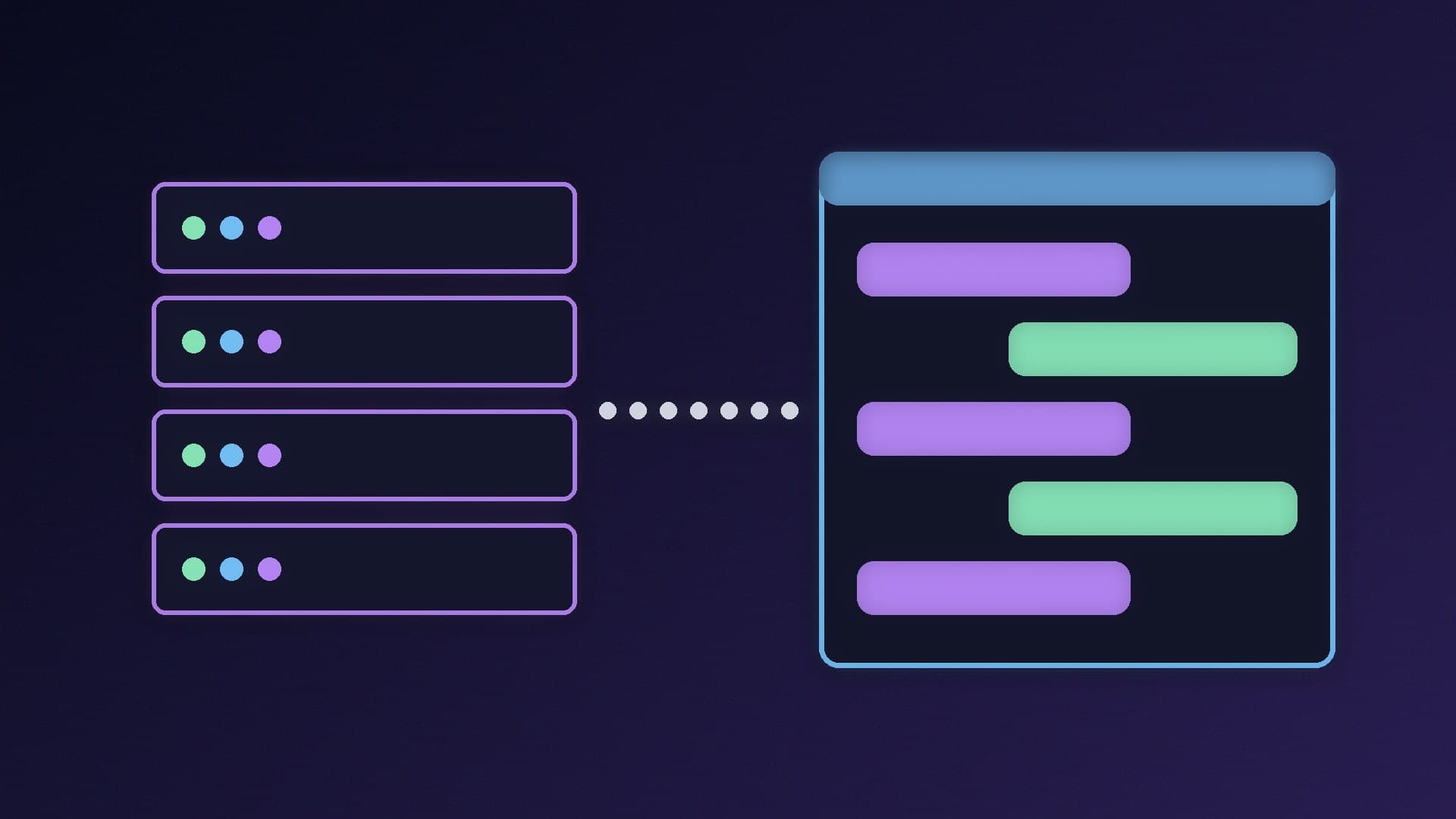
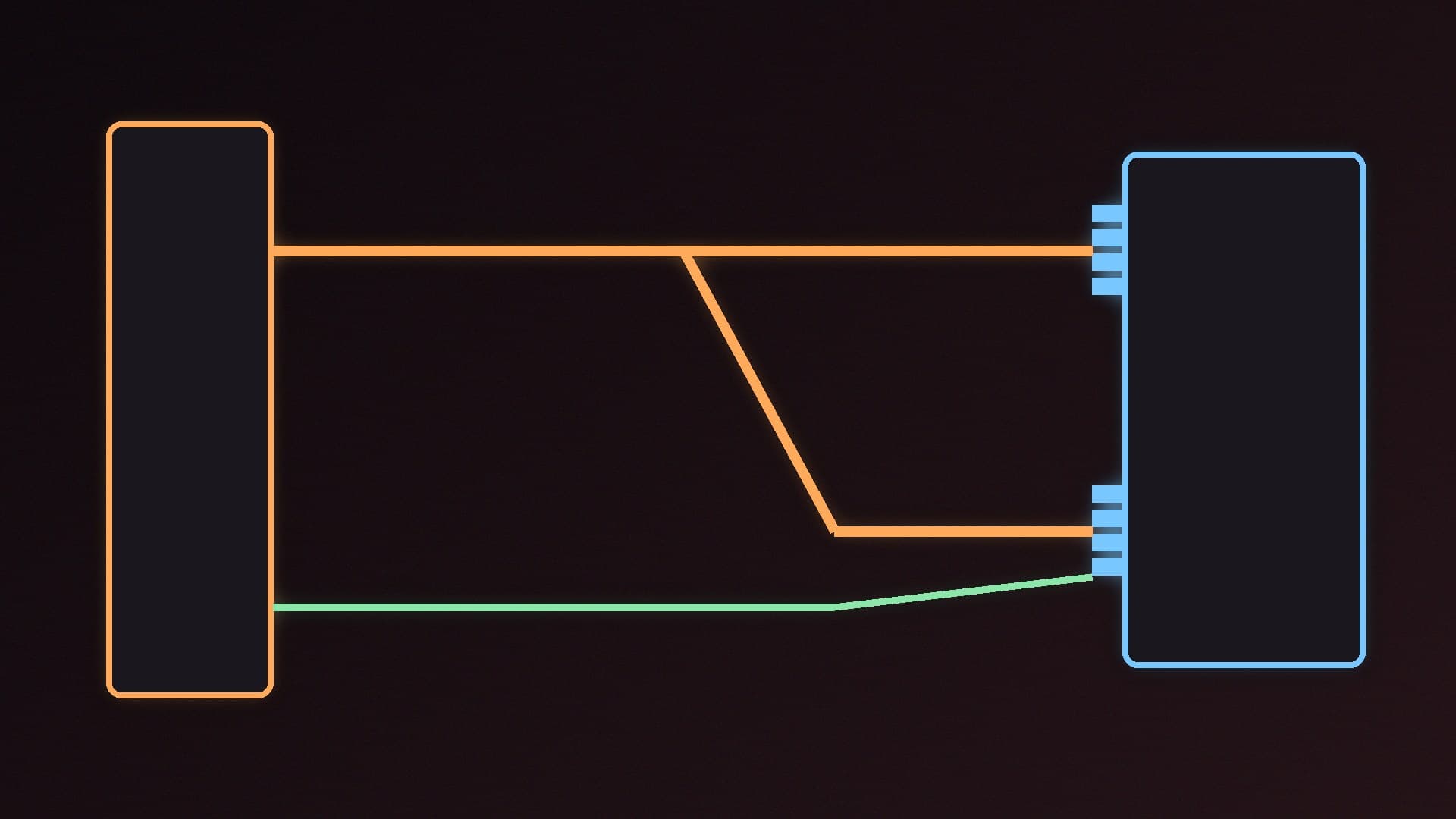
Ollama and Open WebUI aren't alternatives: Ollama runs the models on your PC and serves them on localhost:11434, while Open WebUI is the browser chat interface that talks to it. Your graphics card's VRAM decides how well models run in Ollama; Open WebUI adds convenience, not speed. For most home users, the best setup is both together, and Open WebUI's :ollama Docker image bundles them in a single container if you want one package.
The bottom line

Ollama and Open WebUI aren't alternatives: Ollama runs the models on your PC and serves them on localhost:11434, while Open WebUI is the browser chat interface that talks to it. Your graphics card's VRAM decides how well models run in Ollama; Open WebUI adds convenience, not speed. For most home users, the best setup is both together, and Open WebUI's :ollama Docker image bundles them in a single container if you want one package.
Sources

  1. 01Ollama documentation
  2. 02Ollama documentation, API introduction
  3. 03Open WebUI documentation
  4. 04Open WebUI documentation, Quick Start

About the author

Callum Reid

Senior Hardware Editor

Callum leads GPU, CPU and platform architecture coverage at Forge PC. Before joining the editorial desk, he spent nine years specifying, assembling and stress-testing custom gaming and workstation systems in the UK, with a focus on PCIe bandwidth, VRM thermal design, DDR5 memory tuning and 1440p/4K frame-time consistency.

More from Callum Reid

Read next

Pigtail vs Separate PCIe Cables: How Should You Power Your Graphics Card?

Versus

Pigtail vs Separate PCIe Cables: How Should You Power Your Graphics Card?

Should one pigtail PCIe cable power both 8-pin sockets on your graphics card? Corsair says its pigtail cables are safe for typical two-connector cards but doesn't recommend one on cards that can draw over 288W. Seasonic highly recommends separate cables for any card above 225W. If your PSU has enough cables, use one per socket, and only use the cables that came with it.

Callum Reid4 min

How to Enable Jumbo Frames in Windows 11 (and When You Should)

How-To

How to Enable Jumbo Frames in Windows 11 (and When You Should)

Jumbo frames are Ethernet frames of up to about 9KB instead of the standard 1.5KB. Intel says they can cut CPU use and improve efficiency for large transfers, but every device on the path must support the same size or packets are dropped. Enable Jumbo Packet in Device Manager or PowerShell, match your switch and NAS, test with ping and turn it off if problems appear.

Marcus Thorne5 min

The Best Free GPU Overclocking Software in 2026

Best Picks

The Best Free GPU Overclocking Software in 2026

The best free GPU overclocking software is already in your driver app: NVIDIA App offers one-click automatic GPU tuning for GeForce RTX 20 to 50 Series cards, and AMD Software: Adrenalin Edition has performance tuning built in for Radeon. MSI Afterburner is the pick for manual overclocks and voltage/frequency curve undervolts, but download it only from Guru3D or MSI.

Hannah Vance3 min

Xbox Game Bar vs NVIDIA App: Which Overlay Should You Use?

Versus

Xbox Game Bar vs NVIDIA App: Which Overlay Should You Use?

Xbox Game Bar is built into Windows, opens with Win + G and handles quick clips, screenshots, performance metrics and Xbox chat. The NVIDIA App, for GeForce RTX 20 to 50 Series cards, adds Instant Replay of the last 30 seconds, automatic Highlights, AV1 recording on RTX 40 Series and an overlay with FPS, 1% low and latency stats. GeForce owners should record with NVIDIA.

Callum Reid4 min