Most new PC builders pick a CPU first, then a motherboard chipset, and only then notice that the same board is often sold in several sizes. That size, or form factor, matters more than it looks. It decides which cases you can use, how many memory and M.2 SSD slots you get, and whether there is room for extra expansion cards later.
Forge PC has not measured or tested motherboards for this comparison. The dimensions and typical features below come from TechRadar's motherboard size guide and MSI's motherboard buying guide.
The sizes at a glance
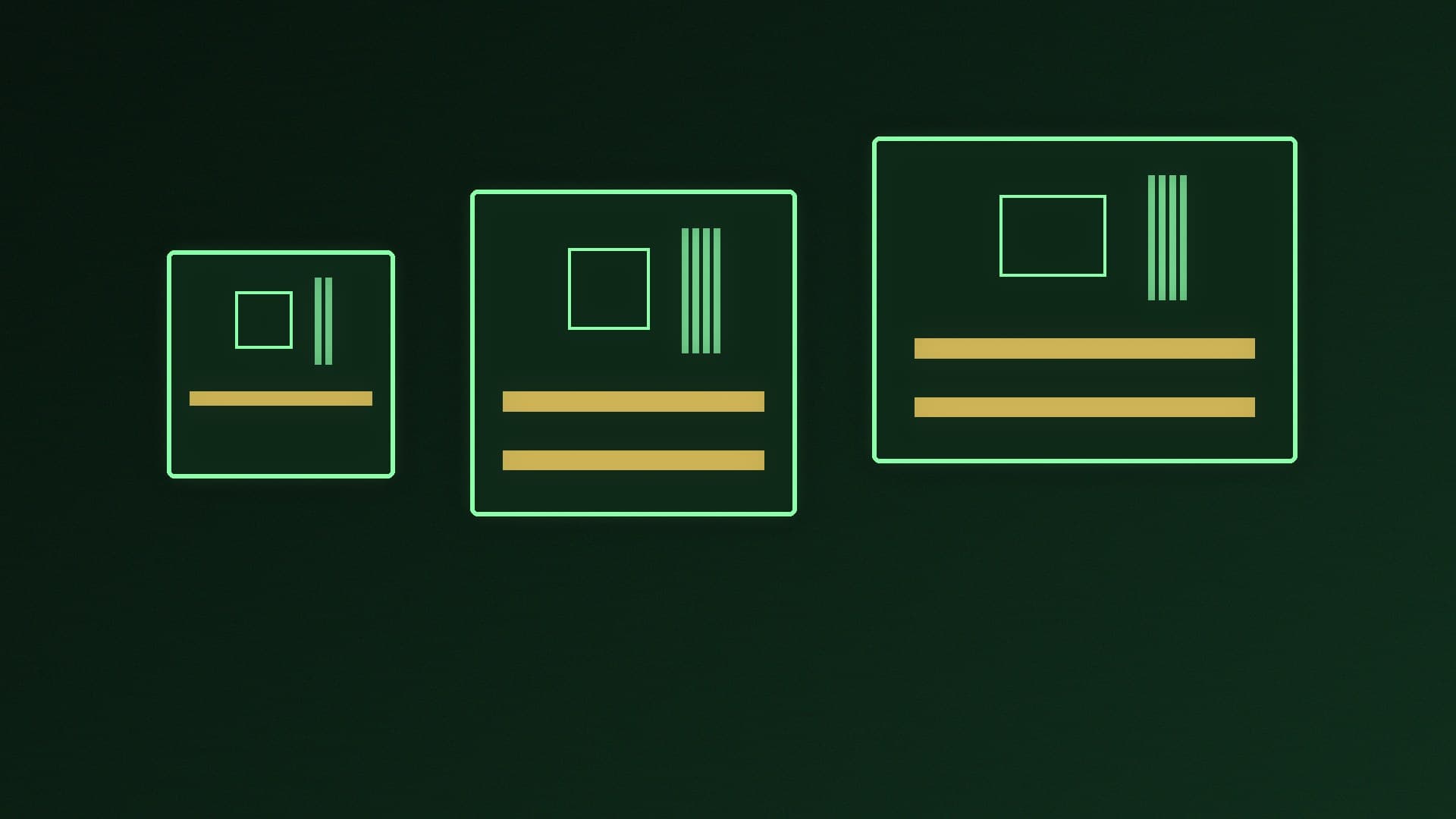
TechRadar lists four mainstream motherboard sizes. We have added approximate metric conversions:
Form factor | Size (inches) | Approx. size (mm) | Typical RAM slots | Typical full-length PCIe x16 slots | Typical M.2 slots |
|---|
Mini-ITX | 6.7 x 6.7 | 170 x 170 | 2 (sometimes 4) | 1 | Up to 2 |
Micro-ATX | 9.6 x 9.6 | 244 x 244 | 4 | 2 | Up to 4 |
ATX | 12 x 9.6 | 305 x 244 | 4 | Up to 4 | Usually the most |
E-ATX | 12 x 13 | 305 x 330 | 4 or more | Up to 8 on some designs | Varies |
The slot counts are typical, not rules, so always check the specification page for the exact board you are buying. TechRadar puts it simply: Micro-ATX has about 43% more space than Mini-ITX, and Mini-ITX is around two-thirds the size of an ATX board.
Mini-ITX: the smallest, with the most compromises
Mini-ITX is the choice for console-sized and small form factor (SFF) builds. According to TechRadar, Mini-ITX boards usually have a single PCIe x16 slot for the graphics card and up to two M.2 slots. Some have only two memory slots instead of four, and the rear panel can be cut down, with fewer USB ports.
A small board does not have to mean a weak PC. MSI notes that there are now "quite a few" Mini-ITX cases with room for large triple-fan graphics cards such as the GeForce RTX 5090 or 5080, so you can build a top-end gaming system in one. The trade-offs are the limited PCIe and M.2 slots, a more cramped build, and less space for big CPU coolers and airflow.
There is also a price premium. TechRadar says Mini-ITX boards tend to be the more expensive way to build a small PC, with Micro-ATX generally the more wallet-friendly option.
Best for: compact living room PCs and SFF builds where size matters more than expansion.
Micro-ATX: the value middle ground
Micro-ATX boards are square and noticeably larger than Mini-ITX. TechRadar says they usually offer four memory slots, two PCIe x16 slots, up to four M.2 slots and more rear connections. For most gamers that covers everything they need: one graphics card, a pair of memory modules with room to add more, and several SSDs.
The catch is case size. A Micro-ATX board needs a larger case than Mini-ITX, which makes the very smallest builds harder.
Best for: budget and mid-range gaming PCs, and builders who want a smaller case without the cost and limits of Mini-ITX.
ATX: the standard choice
ATX is the most common size, and TechRadar notes that it is the most widely stocked. MSI says ATX boards "very usually" provide more PCIe slots, memory slots, SATA ports and M.2 slots than Micro-ATX and Mini-ITX boards.
The trade-off is that you need one of the larger PC cases on the market. If you want lots of storage or extra expansion cards such as capture cards, ATX is the safe choice. Our AM5 motherboard guide and B850 vs X870 comparison cover which chipset to choose once you have decided on a size.
Best for: content creators, storage-heavy builds and anyone who wants maximum expansion.
What about E-ATX?
E-ATX is larger again and, according to TechRadar, mostly appeals to people building servers, deep-learning machines or workstations that need extra slots. It costs more, is less widely available, and needs a case that explicitly supports it. Most gamers will not benefit.
How to choose
Start with the case you want. Every case lists the motherboard sizes it supports. Our best PC case guide includes options for different sizes.
Count what you need. One graphics card and two SSDs? Mini-ITX can work. More SSDs, more memory or extra cards? Choose Micro-ATX or ATX. MSI's advice is to "over-spec rather than under-spec" your motherboard choice.
Check memory slots. MSI recommends installing two identical memory modules for the best performance, with a second identical pair possible on four-slot boards, though that may reduce memory speed. A two-slot Mini-ITX board limits future upgrades to replacing both modules.
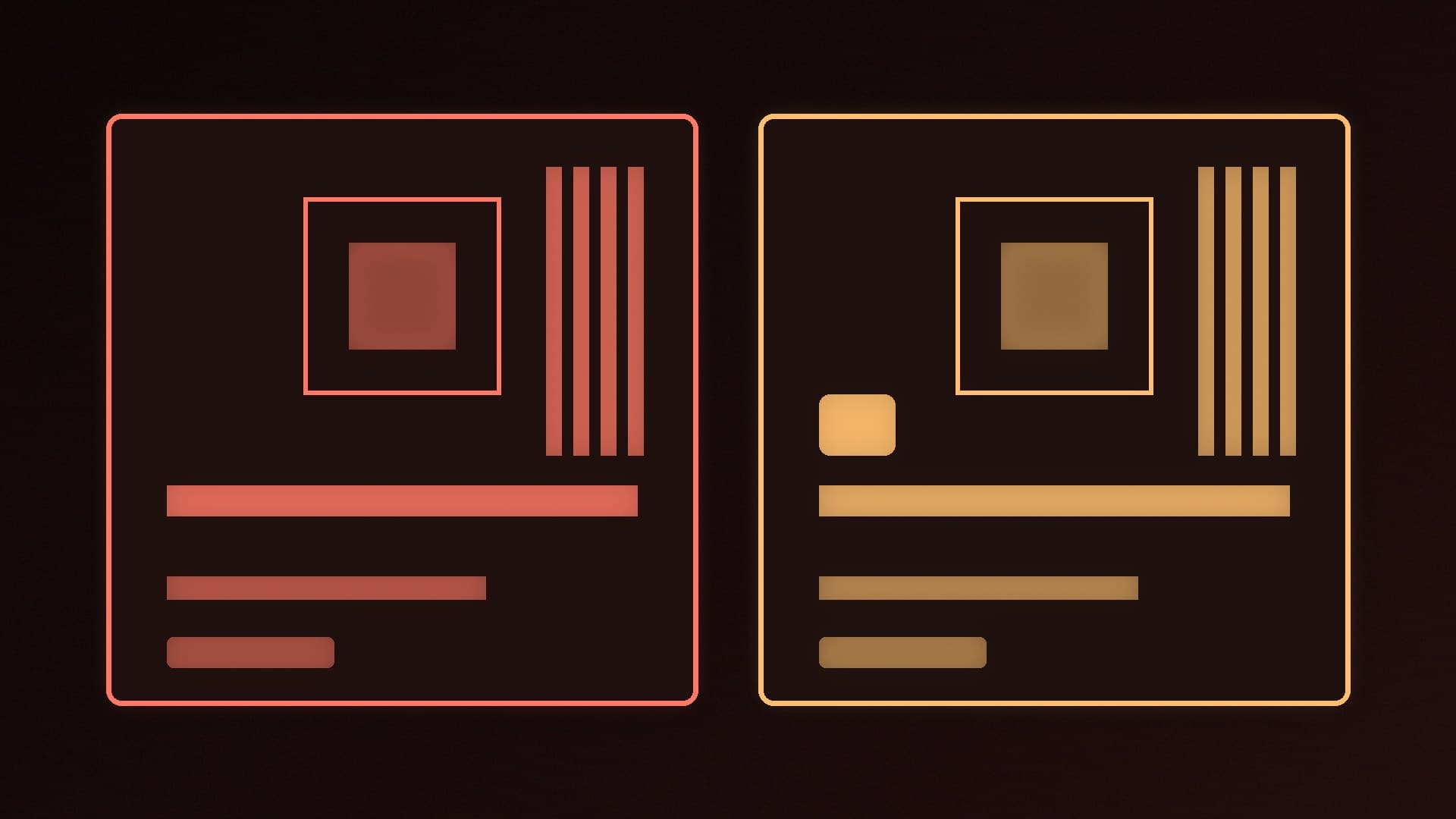
Order the right version. MSI warns that several vendors make the "same" motherboard in different sizes, so double-check the form factor before you buy. Model names often include a letter that hints at the size, such as "M" for Micro-ATX or "I" for Mini-ITX, but confirm on the specification page.
Once you have your parts, our step-by-step PC building guide takes you through the build.
Our verdict
Choose ATX if you want the most slots and the widest choice of boards. Choose Micro-ATX if you want a smaller, often cheaper PC that still has four memory slots and room for several SSDs, which is enough for most gamers. Choose Mini-ITX only if a very small case is the priority and you are happy with one graphics card slot, fewer M.2 slots and a typically higher price. Whatever you pick, check that your case supports the board size, and double-check you are ordering the right version of the board. We have not tested motherboards for this guide; it is based on TechRadar's and MSI's buying guides.