Everything below comes from each project's official documentation, GitHub repositories, licences and release pages, checked on 24 November 2026. How fast a model runs depends mainly on your graphics card, its memory and the model you pick, rather than on which of these two apps you use.
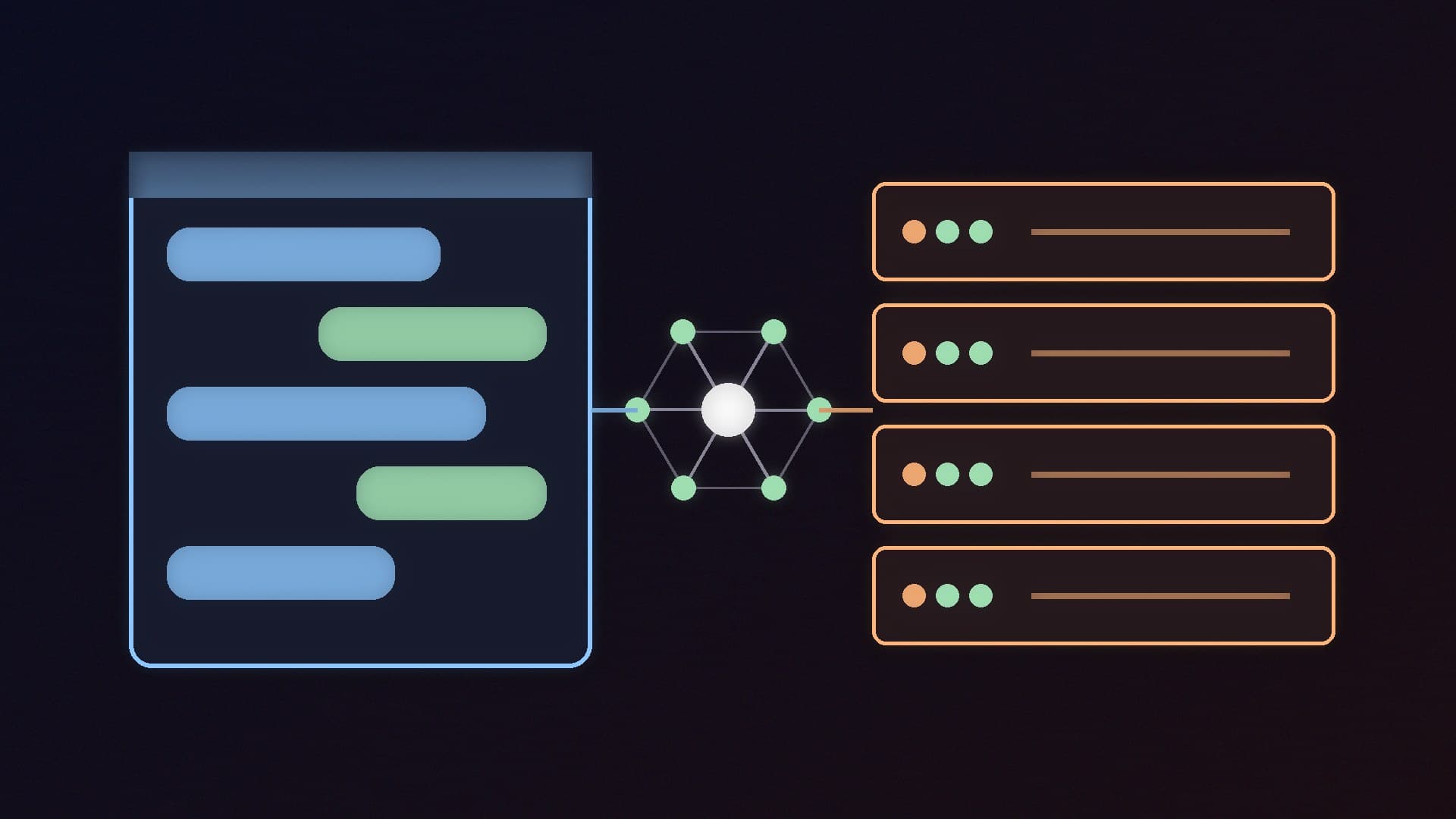
Jan and Ollama both let you download open AI models and run them on your own PC, offline and for free. They're often mentioned in the same breath, but they're built for different jobs. Jan is a desktop app first: a ChatGPT-style window with model downloads, assistants and an optional local server. Ollama is a model runner first: it sits in the background serving models to other apps, and it now includes its own simple chat app on Windows and macOS. Which one suits you depends on whether you mostly want to chat, or mostly want other software to use your local models.
Jan vs Ollama at a glance
| Jan | Ollama |
|---|
What it is | Desktop chat app with a built-in local API server | Background model runner with a CLI, API and chat app |
Licence | Open source, Apache 2.0 | Open source, MIT |
Platforms | Windows, macOS, Linux (deb, AppImage, Arm64) | Windows, macOS, Linux, official Docker image |
Where models come from | Hugging Face, downloaded inside the app | Ollama's model library |
NVIDIA GPUs | Bundled CUDA 13 engine, Vulkan fallback | Compute capability 5.0+, driver 550 or newer |
AMD GPUs | Bundled Vulkan backend | ROCm v7, or Vulkan |
Intel Arc GPUs | Vulkan | Vulkan |
Local API | OpenAI-compatible, 127.0.0.1:1337/v1 | Native API plus OpenAI-compatible, localhost:11434 |
Cloud models | Connects to OpenAI, Anthropic, Mistral, Groq and others | Ollama's own cloud models, with an Ollama account |
Latest release (24 Nov 2026) | v0.8.8, 28 October 2026 | v0.40.18, 24 November 2026 |
Licence and openness
Both apps are genuinely open source, which sets them apart from closed tools such as LM Studio. Jan is released under the Apache 2.0 licence by Menlo Research, and its GitHub repository had about 46,100 stars on 24 November 2026. Ollama uses the MIT licence, and its repository had about 188,000 stars on the same day, making it by far the more widely used project of the two. Both licences let you read, modify and redistribute the code.
Ease of use
Jan is the friendlier place to start if you've never run a local model. You install it like any other desktop app, browse and download models from inside it, and chat in a familiar interface. Its README lists custom assistants, MCP (Model Context Protocol) support for tools, and the option to connect cloud providers alongside local models. Our guide to using Jan for local AI walks through the setup.
Ollama grew up as a command-line tool: ollama run followed by a model name downloads and starts it. Since July 2025, though, Ollama's Windows and macOS versions have included an app for downloading and chatting with models, with drag-and-drop for text and PDF files and image input for models that support it. It's simpler than Jan's interface, and Ollama's announcement covered only the Windows and macOS versions, so on Linux expect to use the terminal or a separate front end. Many people pair Ollama with a separate front end such as Open WebUI; our Open WebUI installation guide shows how.
Hardware and GPU support
Jan documents fairly modest minimums for Windows: Windows 10 or later, an x64 processor with AVX2 (or an ARM64 Windows PC), 8GB of RAM (16GB recommended), 10GB of free storage and, for GPU acceleration, at least 6GB of video memory on an NVIDIA, AMD or Intel Arc card. NVIDIA cards use Jan's bundled CUDA 13 engine, so you don't need to install the CUDA Toolkit, and cards or drivers that can't use CUDA 13 fall back to Vulkan. AMD and Intel Arc cards use the bundled Vulkan backend. On a Mac, Jan's documentation says its local engine needs Apple Silicon.
Ollama on Windows needs Windows 10 22H2 or newer and, for NVIDIA cards, driver 551.61 or newer. Its hardware page says it supports NVIDIA GPUs with compute capability 5.0 or higher on driver 550 or newer (older cards with compute capability 5.0 to 6.2 need driver 570 or newer). AMD Radeon cards can use ROCm v7 or Vulkan, and Ollama notes that some Radeon RX 6000-series systems may not expose ROCm v7 on current Windows drivers, making Vulkan the recommended fallback. Vulkan, which Ollama says is enabled by default when its backend is installed, also covers other GPUs such as Intel's. The install itself needs at least 4GB of disk space, and Ollama warns that models can be tens to hundreds of gigabytes on top of that.
In short, both cover the same graphics cards. Ollama has an extra ROCm route for AMD cards, while Jan keeps things simpler by using Vulkan for AMD and Intel. Before downloading a big model in either app, our guide to checking whether your PC can run a local LLM helps you match model size to your VRAM.
Local API and integrations
This is where the two differ most.
Jan can start an OpenAI-compatible server from Settings > Local API Server. By default it listens only on your own PC at http://127.0.0.1:1337/v1, with an optional API key, and you can switch the host to 0.0.0.0 to reach it from other devices on your network. The server needs a local model loaded before it starts.
Ollama is a server all the time. Once installed, it runs in the background and serves its API on http://localhost:11434, including OpenAI-compatible endpoints under /v1. Its FAQ explains how to expose it on your network with the OLLAMA_HOST setting. Because so much software supports Ollama directly, it's the easier choice for plugging local models into other tools, and its ollama launch command sets up integrations such as Claude Code, Codex and OpenCode. If you're building a home server, our guide to running Ollama in Docker covers the container route.
Cloud models and privacy
Both apps are local first, and both can now reach beyond your PC if you choose.
Jan connects to third-party cloud providers, with OpenAI, Anthropic, Mistral and Groq among those named in its README. Jan's documentation says it stores downloaded models, conversations and settings locally, and notes that requests routed to remote providers are not offline or confined to your computer.
Ollama offers its own cloud models, which run on Ollama's servers and need an Ollama account. Ollama's FAQ says it doesn't see your prompts or data when you run models locally, and that for cloud models it processes prompts and responses to provide the service but does not store or log that content. If you want to be certain nothing leaves your PC, Ollama documents a local-only mode: set OLLAMA_NO_CLOUD=1 or disable_ollama_cloud in its server settings and restart it.
Can you use them together?
Yes, in principle. Jan's documentation describes connecting OpenAI-compatible custom endpoints, and Ollama provides an OpenAI-compatible API, so you can point Jan's interface at models served by Ollama. Check Jan's provider settings for the exact steps in your version.
Which should you choose?
Choose Jan if you want a polished, all-in-one open-source chat app, you like downloading models straight from Hugging Face, or you want to mix local and cloud models from several providers in one window.
Choose Ollama if you want a local AI back end that other apps, coding tools and home-automation systems can use, you run Linux or a home server, or you want the extra ROCm option for an AMD graphics card.
If you're still weighing up other options, our comparisons of Jan vs LM Studio and Ollama vs LM Studio cover the most popular closed-source alternative.
Our verdict
Jan and Ollama are both free, open-source and capable of running the same kinds of models on the same graphics cards, so the choice comes down to how you work. Jan is the better pick if you mainly want to chat with local models in a friendly desktop app, with assistants, MCP tools and optional cloud providers built in. Ollama is the better pick if you want a background model server that the widest range of other software can use, especially on Linux or a home server.