If you want more than a basic 1080p webcam, the Elgato Facecam 4K and Logitech MX Brio are two of the obvious choices. Both are 4K webcams with Sony STARVIS image sensors, USB-C connections and a standard tripod thread, and they cost similar amounts on their makers' UK stores. Beyond that, they're aimed at different users: Elgato's camera is built for streamers and content creators, while Logitech's is designed for video calls as well as streaming.
This comparison uses Elgato's and Logitech's official UK product pages, read on 24 November 2026. Image quality depends heavily on lighting and settings, so we haven't made any claims about which looks better.
If you're still deciding whether you need 4K at all, see our 1080p vs 4K webcam guide, and for more options, our best webcam guide.
Facecam 4K vs MX Brio at a glance
| Elgato Facecam 4K | Logitech MX Brio |
|---|
Maximum video | 4K at 60fps | 4K at 30fps or 1080p at 60fps |
HDR video | Up to 4K30 | HDR listed as part of RightLight 5 |
Uncompressed video | Up to 4K30 or 1080p60 | Not listed |
Sensor | Sony STARVIS CMOS | 8.5MP Sony STARVIS |
Focus | Fixed, 30-120cm | Autofocus |
Field of view | Up to 90 degrees | 90, 78 or 65 degrees (diagonal) |
Aperture | f/4.0 | Not listed |
Microphone | None | Dual beamforming mics, range up to 1.2m |
Privacy | Lens cap (accessory) | Built-in privacy shutter |
Lens filters | 49mm | No |
Connection | USB 3.0 (or later) Type-C recommended | Detachable USB-C to USB-C cable, USB 3.0 |
Mounting | 1/4in thread | Detachable mounting clip, 1/4in thread |
Software | Elgato Studio | Logi Options+ or G HUB (optional) |
UK price (approx., 24 Nov 2026) | £179.99 on Elgato's UK store | £171.99 on Logitech's UK store (down from £189.99) |
Prices are approximate, taken from the makers' own UK stores on 24 November 2026, and will change over Black Friday (27 November). Logitech's page showed the MX Brio as out of stock at the time.
Video: 4K60 vs 4K30
The Facecam 4K's headline feature is 4K at 60 frames per second, and Elgato says HDR video is available up to 4K30. It can also send uncompressed video to your PC at up to 4K30 or 1080p60, which Elgato says avoids losing detail or adding latency.
The MX Brio records 4K at 30fps or 1080p at 60fps. Logitech calls its 8.5MP sensor its most advanced webcam sensor yet, says it has 70% larger pixels, and claims up to two times finer image detail than the Brio 4K. Its RightLight 5 processing handles auto-focus, HDR, white balance and exposure, and Logitech also lists AI face-based image enhancement.
If you stream at 1080p, as most people do, both cameras can deliver 60fps. The Facecam 4K is the one to choose if you specifically want to record or stream 4K at 60fps.
Focus and framing
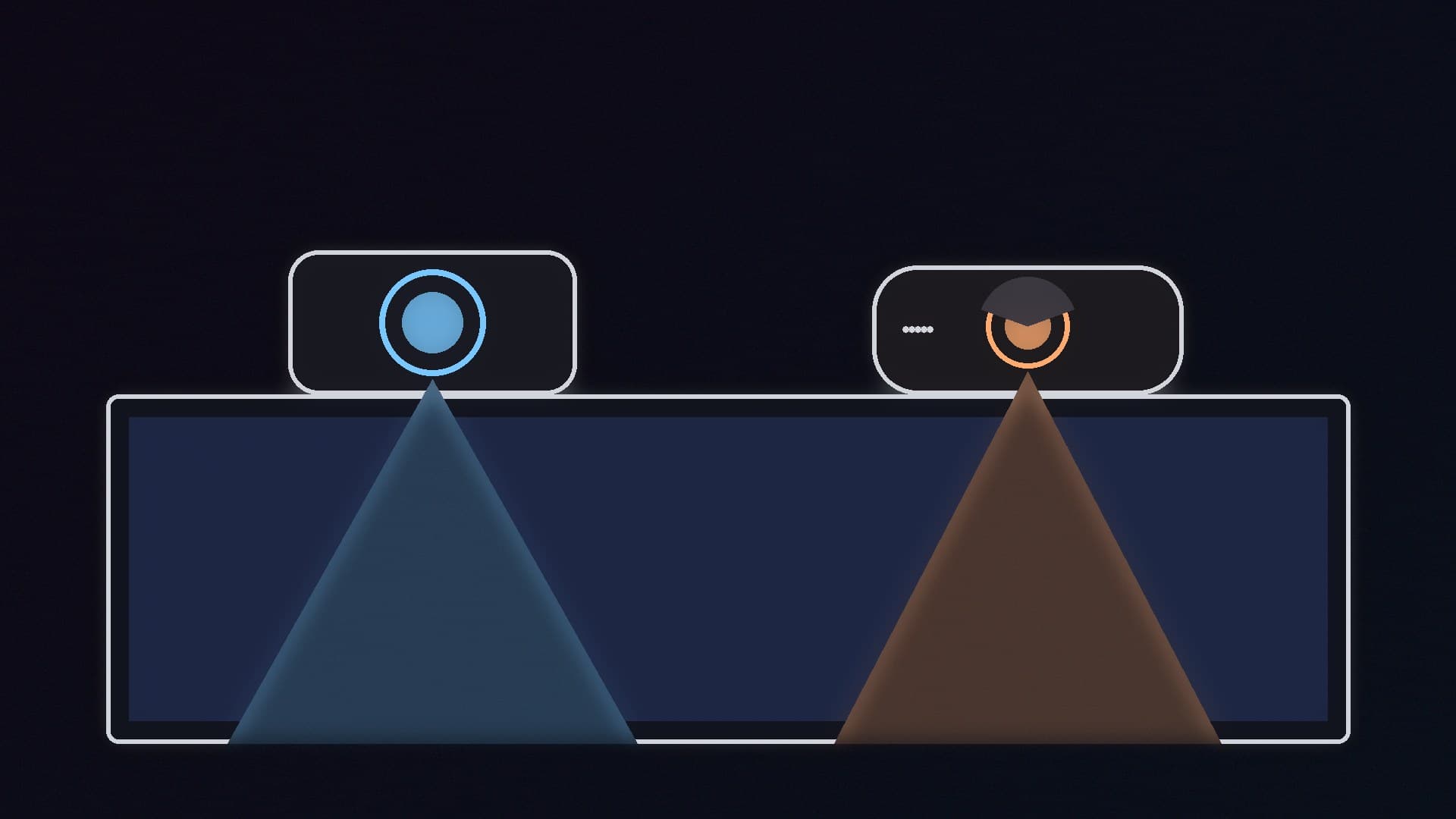
This is a key difference. The Facecam 4K has fixed focus, with Elgato listing a sharp range of 30 to 120cm, which suits someone sitting at a desk. The MX Brio has autofocus, so it's more forgiving if you move around or hold objects up to the camera.
Both offer a field of view of up to 90 degrees. Logitech lists three settings (90, 78 and 65 degrees diagonal) and a 4x digital zoom, while Elgato's Studio software has pan, tilt and zoom controls to reframe the shot. The MX Brio also has Show Mode, which Logitech says lets you tilt the camera down to share notes and sketches on your desk during a call.
Audio and privacy
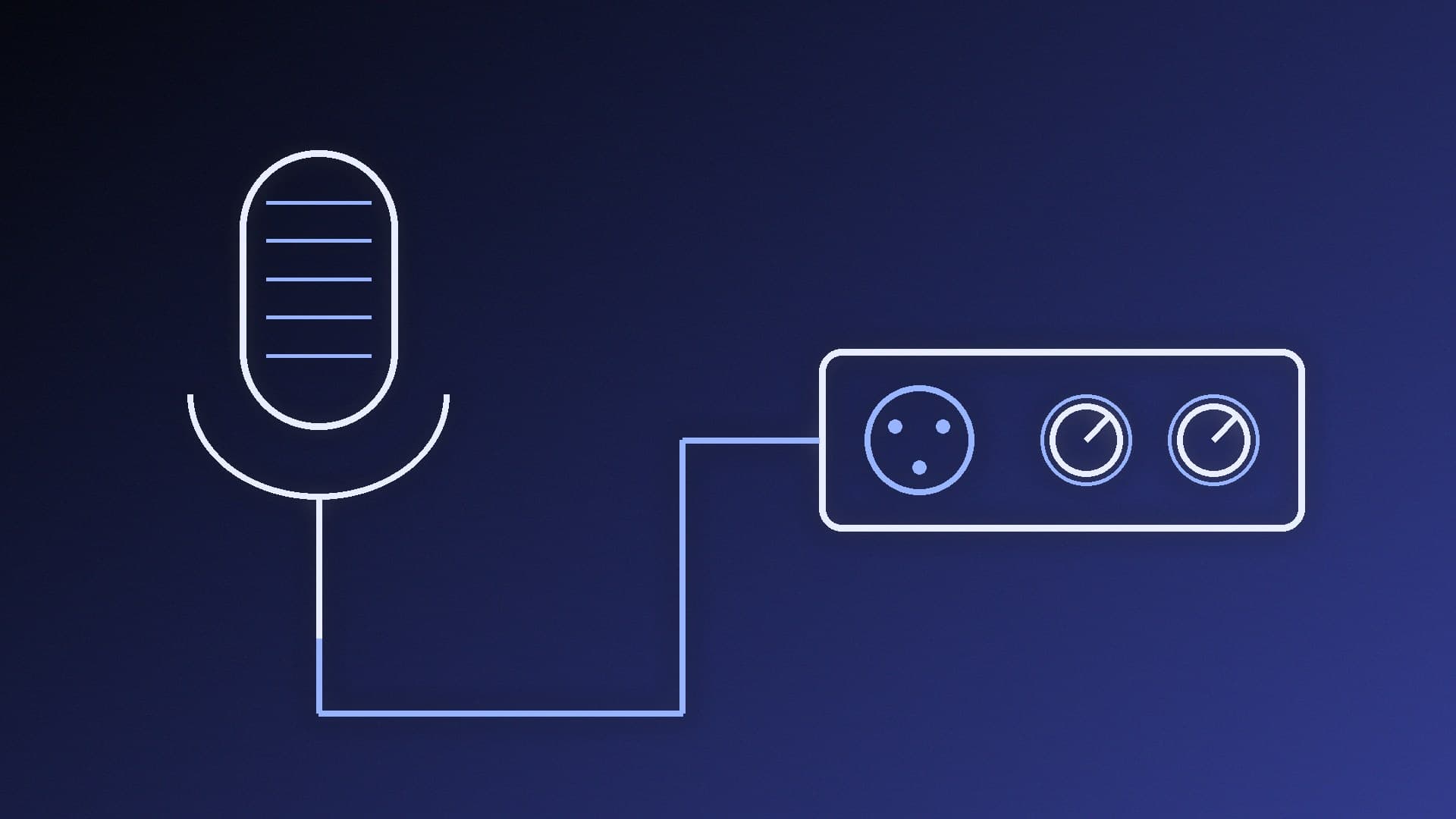
Elgato deliberately left a microphone out of the Facecam 4K, saying the hardware is dedicated to the picture instead. That's fine if you already use a USB or XLR microphone, but you'll need one. The MX Brio has dual beamforming noise-reducing microphones, which Logitech says work at up to 1.2m.
For privacy, the MX Brio has a built-in shutter you rotate to cover the lens. The Facecam 4K relies on a lens cap, which Elgato lists as an accessory.
Creator features vs office features
The Facecam 4K leans towards streamers and creators:
49mm lens filters, which Elgato says makes it the first webcam to support them, so you can use filters such as polarisers and black mist.
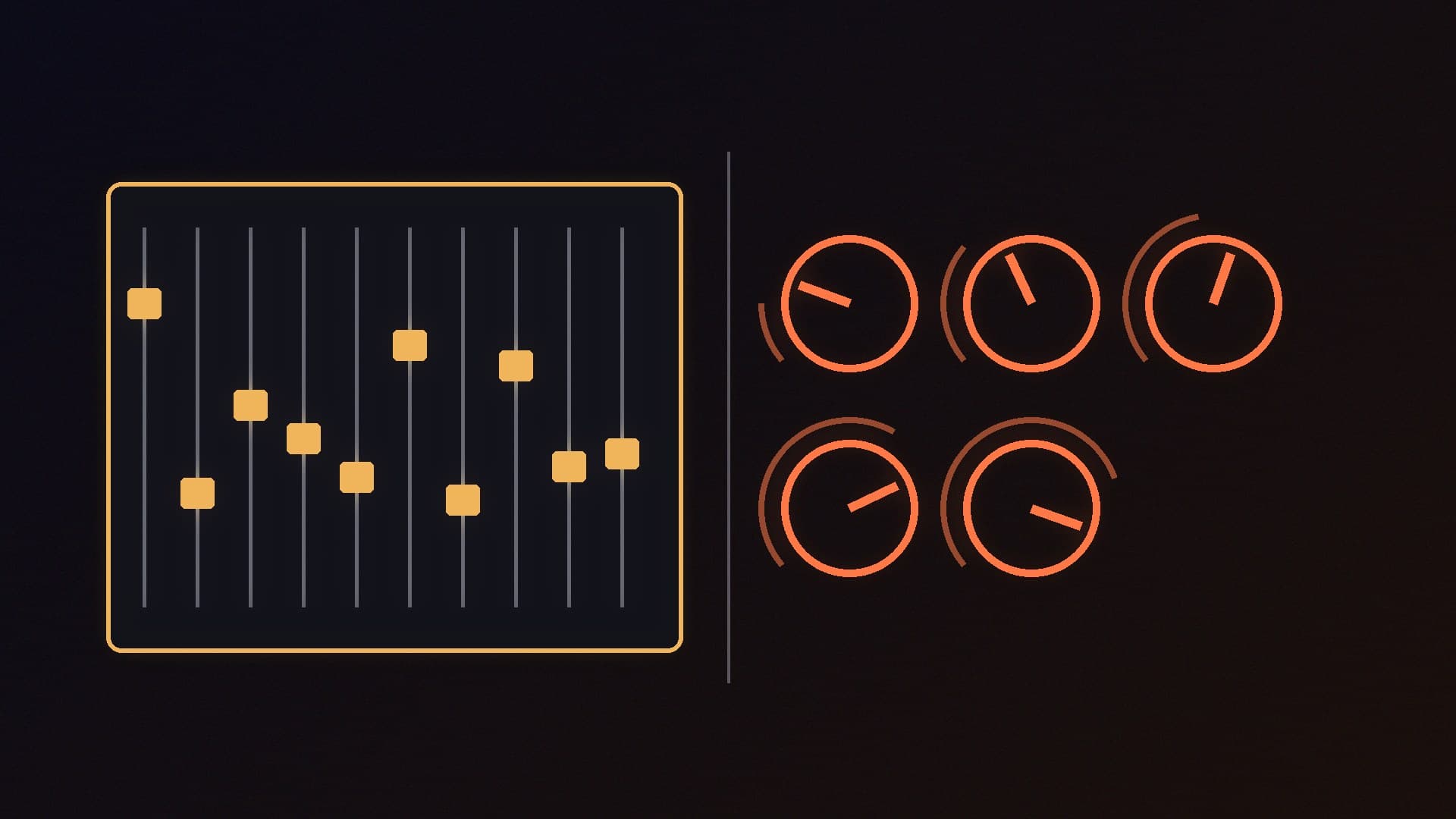
Manual controls in Elgato Studio, including ISO and shutter speed, plus cinematic LUTs for colour grading.
Flash memory that stores your settings on the camera.
Stream Deck control with the Elgato Studio plugin.
AI background effects and face tracking, which Elgato says need an NVIDIA RTX graphics card.
The MX Brio leans towards video calls: Logitech lists it as certified for Microsoft Teams, Zoom and Google Meet, and its Fine Controls in Logi Options+ and G HUB cover lighting, white balance, ISO, shutter speed, tint and vibrance. Logitech lists compatibility with Windows 10 or later and macOS 10.15 or later, plus basic webcam support on ChromeOS and Linux; the extra controls need Logi software, which is available for Windows and macOS.
Both need a USB-C port running at USB 3.0 speeds or faster for best results, according to their makers. If your PC lacks one, check our guide to checking a front USB-C header, and if a webcam isn't detected, see how to fix a webcam not working in Windows 11.
Which should you buy?
Choose the Elgato Facecam 4K if you're a streamer or creator with a separate microphone, you sit in a fixed position and you want 4K at 60fps, lens filters and full manual control.
Choose the Logitech MX Brio if you want one device for work calls and streaming, with autofocus, built-in microphones, a privacy shutter and Show Mode, and you're happy with 4K at 30fps or 1080p at 60fps.
Both are in our specifications database: the Elgato Facecam 4K and the Logitech MX Brio.
Our verdict
The Elgato Facecam 4K is the better webcam for dedicated streamers and creators: it's the only one of the two that records 4K at 60fps, it takes 49mm lens filters and it has full manual controls, but it has fixed focus and no microphone. The Logitech MX Brio is the better all-rounder, with autofocus, dual beamforming microphones, a built-in privacy shutter and Show Mode, at the cost of a 4K30 limit. The prices on the makers' UK stores were close on 24 November 2026 (approximately £179.99 and £171.99), so pick on features.