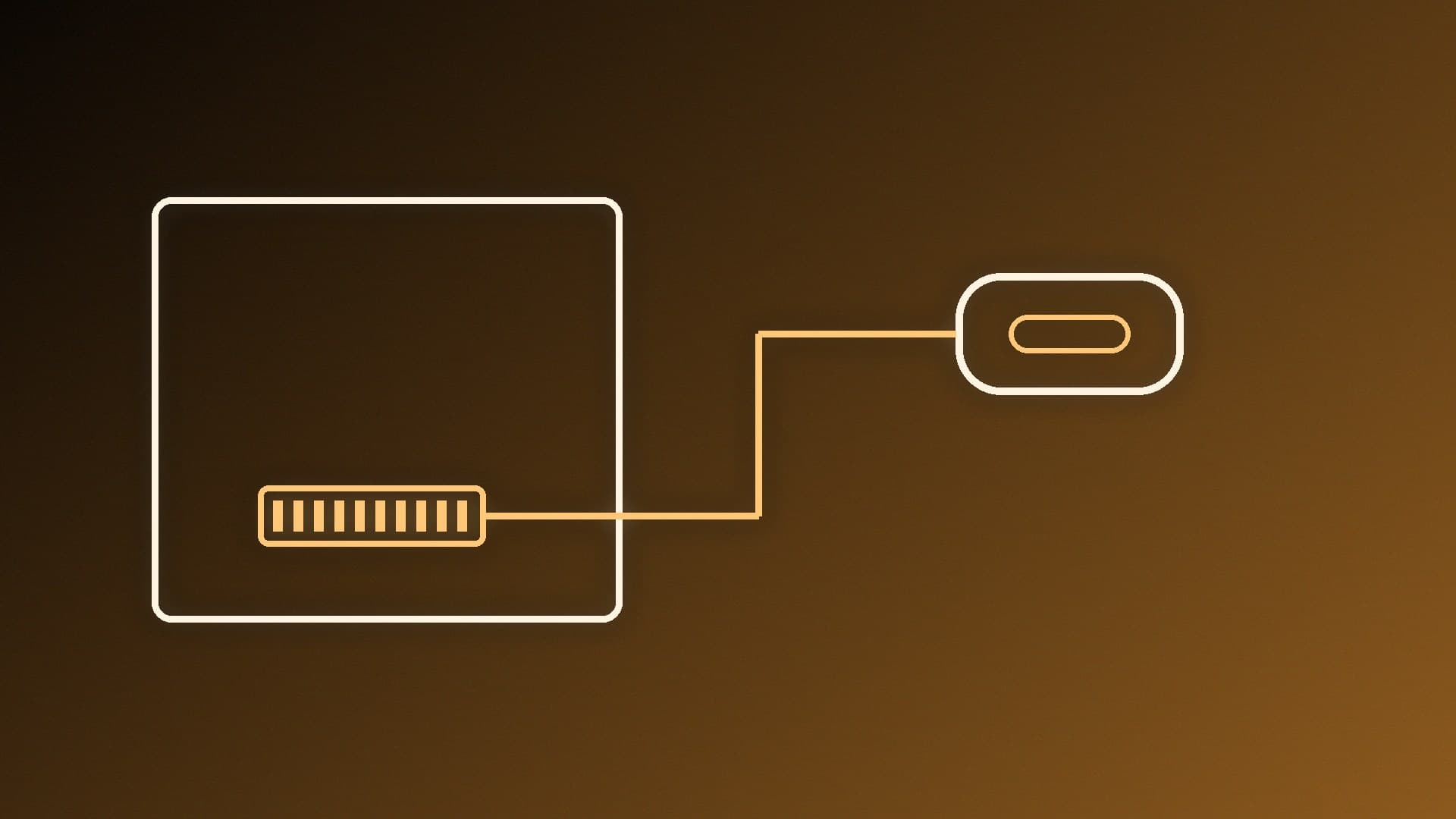
Plenty of PC cases now have a USB-C port on the front panel, but that port is only a socket on the end of a cable. For it to do anything, the cable inside the case has to plug into a matching header on the motherboard. Not every motherboard has one, so it's worth checking before you buy. This guide explains which header a front USB-C port needs, how to check your motherboard for it and what to do if it's missing.
The connector a front USB-C port uses
The USB-IF document that defines front-panel connectors for USB 3.1 and USB Type-C describes the receptacle on the motherboard as the header. It defines a 20-pin header with two keying options:
It also defines a 40-pin header that can drive two USB Type-C ports, or one Type-C and one USB-A port. In practice, the cable from a case's front USB-C port ends in a small rectangular plug that fits the Key-A 20-pin header, which motherboard makers usually list as a USB Type-C front-panel header or connector.
The USB-IF document notes that this connector is much more compact than the older USB 3.0 header. The PC Journal describes that older header as a 19-pin block for front Type-A ports, with different keying, so the two are not interchangeable.
Step 1: Find your motherboard model
If you don't know it, see how to check your motherboard model in Windows 11. You'll need the exact model, as variants of the same board can differ.
Step 2: Check the spec page or manual
Look in the internal connectors or "Internal I/O" section of the board's spec page or manual for a line mentioning a USB Type-C front-panel header or connector. The PC Journal notes boards describe this header as supporting USB 3.2 Gen 2 (10Gbps) or Gen 2x2 (20Gbps), and some call it a Type-E header. The manual's layout diagram shows where it sits.
If the only USB headers listed are USB 2.0 and USB 3.0/3.2 Gen 1 headers for Type-A ports, the board has no front USB-C header.
Step 3: Check the case's requirement
The case spec page or manual should say what its front USB-C port is rated for. The PC Journal notes the port runs at the speed the board header provides, so a 20Gbps-rated front port on a board with a 10Gbps header will run at up to 10Gbps. For what those speed names mean, see our comparison of USB 3.2 Gen 1 vs Gen 2 vs Gen 2x2.
Step 4: Connect it carefully
The Key-A plug is keyed so it only fits one way, and the USB-IF document recommends an arrow mark on both the header and plug to show orientation. Line up the arrow and push the plug straight in without forcing it. Our guide to connecting front-panel connectors covers the rest of the case cables.
You have three options:
Leave it unconnected. The case still works; the front USB-C port just won't do anything.
Add a PCIe expansion card with a front-panel USB-C header. The PC Journal notes these exist, but a card uses a slot and lanes. Check that the card's header type and speed match your case and that it's supported by your operating system.
Use a rear USB-C port on the motherboard or graphics card instead, with an extension if you need it on the desk.
Adapters that convert the older 19-pin USB 3.0 header to a USB-C connector also exist, but The PC Journal notes they cap the speed at USB 3.0 levels.
Planning a new build?
If a front USB-C port matters to you, make it part of your motherboard shortlist. Check the header before you buy rather than after. Our PC building guide and best PC case guide are good starting points.
Our verdict
A front USB-C port on a case only works if your motherboard has a matching internal header, the 20-pin Key-A connector defined by the USB-IF for front-panel Type-C ports. Check your board's spec page or manual for a USB Type-C front-panel header and its speed before you buy a case, and remember the port runs at the header's speed. If your board has no header, leave the port unconnected, use a rear USB-C port or add a PCIe card with the header.