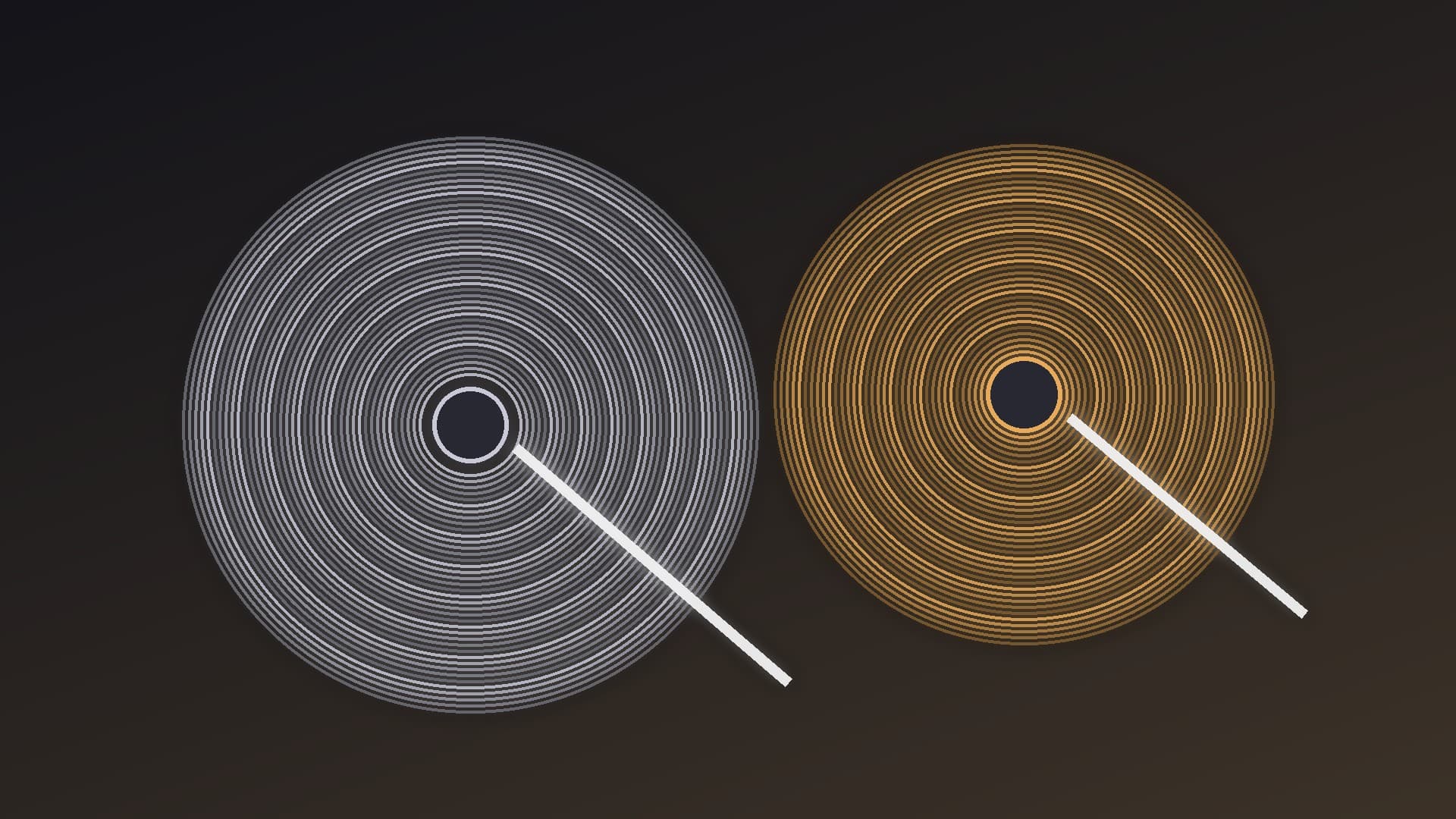
Two hard drives can share a capacity, a rotational speed and even a brand name, yet store data in quite different ways. Conventional magnetic recording (CMR) writes each track separately. Shingled magnetic recording (SMR) overlaps the tracks, a bit like roof shingles, to squeeze more data onto each platter. This guide is based on Seagate's and Western Digital's own published lists and guidance, linked in the sources, and it covers what each type is good at and how to check what's inside a drive before you buy.
CMR vs SMR at a glance
| CMR | SMR |
|---|
How tracks are written | Side by side, each written independently | Overlapping, which boosts density |
Best at | General use, mixed reads and writes, NAS and RAID | Sequential, write-once workloads such as archives and backups |
Setup | Plug and play | Seagate says SMR needs SMR-aware software to get the most from it |
Where you'll find it | Seagate IronWolf, IronWolf Pro and SkyHawk; WD models not on WD's SMR list | Some Seagate BarraCuda capacities; WD Red (EFAX) and some WD Blue and WD Black models |
How SMR differs
Seagate describes SMR as increasing areal density "through track overlay", which is why it can deliver more capacity from the same hardware. The catch is in how data has to be written. Because the tracks overlap, SMR works best when data arrives in long, ordered streams rather than as lots of small changes scattered across the disk. Seagate's own guidance describes SMR as a "sequential-write model" and says it is best suited to workloads that are sequential or easily sequentialised, such as large media repositories, backup tiers, compliance archives and object storage where data is written once and read occasionally.
Seagate is also clear that SMR "requires a level of architectural control that not every deployment has today". In its data-centre guidance it lists things like SMR-aware file systems, control over write ordering and zone management as prerequisites for getting the best from the technology. In contrast, it describes its CMR drives as plug and play, and says that's why CMR drives are prioritised on its product pages.
None of that means an SMR drive is broken or unreliable. Seagate says SMR delivers its density gains without sacrificing reliability or durability. It simply means SMR is a better fit for some jobs than others.
Which should you buy?
For a NAS or RAID array: CMR
If you're building a home NAS, a RAID array or a Storage Spaces pool, stick to CMR. These setups involve lots of mixed reads and writes, and they're exactly the kind of system where Seagate says you need SMR-aware software and control over the storage stack. It's telling that Seagate's own list shows its NAS drives, IronWolf (2TB to 16TB) and IronWolf Pro (2TB to 24TB, plus 28TB to 32TB Mozaic HAMR models), as CMR only, with no SMR versions. For a closer look at the two most popular NAS lines, see our WD Red Plus vs Seagate IronWolf comparison and our guide to the best NAS for home.
A second drive in a gaming PC mostly stores large files that you write once and read many times, such as a Steam library, video or photos. That pattern is closer to the sequential workload Seagate describes as SMR's strength. Even so, if you regularly copy large amounts of data on and off the drive, or the price difference is small, CMR is the less complicated choice. And if you want games to load quickly, an SSD is the better buy anyway, as our HDD vs SSD for gaming guide explains.
For backups and archives: SMR is a reasonable fit
Backups and archives are written once and read occasionally, which is precisely the use case Seagate lists for SMR. If you're buying a large drive purely to keep copies of your files, SMR's extra density is a sensible trade. Pair it with a schedule from our best free backup software guide.
Which drives use SMR?
The range name alone doesn't tell you the recording type, so check the exact model number against the maker's list.
Seagate. According to Seagate's CMR and SMR list, BarraCuda is the range to watch. Its 3.5-inch BarraCuda line lists SMR at 4TB and 8TB and CMR at 12TB, 16TB, 20TB and 24TB, and a separate BarraCuda entry lists SMR at 2TB and 4TB. IronWolf, IronWolf Pro, SkyHawk and SkyHawk AI are listed without SMR models. FireCuda appears with both CMR and SMR at 1TB and 2TB, in separate entries.
Western Digital. WD's published list of SMR client drives, last updated in July 2020, names these models:
WD Red 3.5-inch: WD20EFAX (2TB), WD30EFAX (3TB), WD40EFAX (4TB) and WD60EFAX (6TB)
WD Blue 3.5-inch: WD20EZAZ (2TB) and WD60EZAZ (6TB)
WD Blue 2.5-inch: WD10SPZX (1TB) and WD20SPZX (2TB)
WD Black 2.5-inch: WD5000LPSX (500GB) and WD10SPSX (1TB)
WD says all other capacity points on that list use CMR. Because that list dates from 2020, check the current product page or data sheet for any newer model.
How to check what's in your PC
Find the drive's model number. In Windows 11, open Settings > System > Storage > Advanced storage settings > Disks & volumes and select the drive, or check the label on the drive itself. Our SATA drive installation guide shows where to find it in a typical case.
Look the model number up on Seagate's CMR and SMR list or WD's SMR list, linked below.
If the drive isn't listed, check the maker's current data sheet for the recording type before you buy, especially for NAS use.
Our verdict
For most PC builders, CMR is the safer default: it's plug and play, and it's the only type Seagate offers in its IronWolf and IronWolf Pro NAS ranges. Buy CMR for a NAS, RAID array or Storage Spaces pool, and for any drive that will see lots of mixed writes. SMR makes sense when you want maximum capacity for backups, archives or media that's written once and read occasionally, which is the workload Seagate says it suits. Whichever you choose, check the exact model number against the maker's list, because the same range name can include both types. For drive recommendations, see our best hard drive guide.