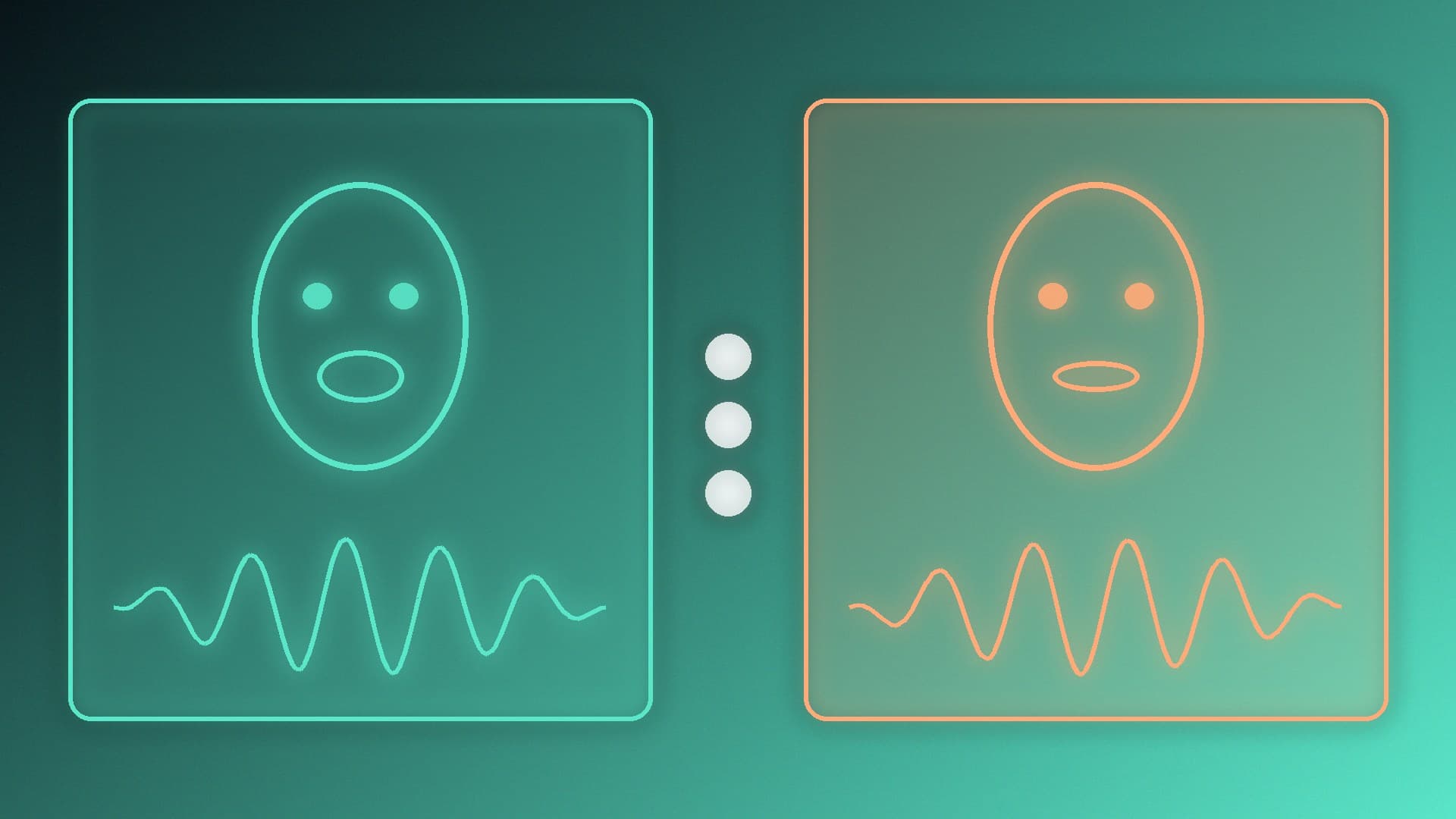
AI lip-sync tools redraw a person's mouth so it matches a new audio track, and talking-head tools go further, animating a whole face from a still photo. You don't need a subscription service to try them: several of the best-known tools are free, open source and run on your own graphics card. We've picked four, based on each project's own documentation, licence and hardware guidance.
Use these tools responsibly. Only edit or animate footage and photos of people who have agreed to it, and label the results clearly.
Our picks at a glance
Tool | Best for | Developer | Hardware guidance (developer) | Licence |
|---|
MuseTalk 1.5 | Best overall for home PCs | Tencent Music Lyra Lab | Tested on a 4GB RTX 3050 Ti Laptop GPU (fp16) | Code MIT; models usable commercially |
LatentSync 1.6 | Best for higher-resolution lip sync | ByteDance | 18GB VRAM minimum (8GB for 1.5) | Repository listed as Apache-2.0 |
LivePortrait | Best for animating a still photo | Kuaishou (KlingAIResearch) | NVIDIA GPU; Windows one-click package | MIT code; InsightFace models non-commercial |
Wav2Lip | Best for research and lighter experiments | Researchers at IIIT Hyderabad (CVIT) | No VRAM figure given; trained on lower-resolution faces | Non-commercial use only |
1. MuseTalk 1.5: best overall for home PCs
MuseTalk is a real-time lip-sync model from Tencent Music Entertainment's Lyra Lab. It changes the face region at 256 x 256 to match the input audio, and the developers say it reaches 30fps or more on an NVIDIA Tesla V100. Version 1.5, released in March 2025, improved clarity, identity consistency and lip synchronisation, according to the README.
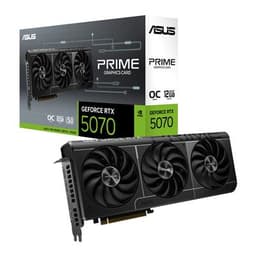
What makes it our top pick for most people is its modest hardware needs. The developers tested the Gradio demo on Windows with an RTX 3050 Ti Laptop GPU with 4GB of VRAM, generating an 8-second video in about five minutes in fp16 mode. The README includes Windows commands throughout, a real-time inference script, and terms saying the models are available for any purpose, even commercially. Our suggestion: an 8GB or 12GB card such as the ASUS RTX 5070 12GB Prime OC gives comfortable headroom above that tested minimum.
2. LatentSync 1.6: best for higher-resolution lip sync
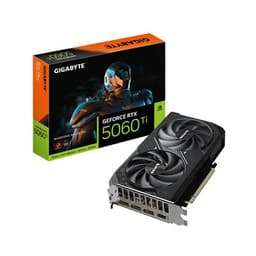
LatentSync is ByteDance's lip-sync model, built on audio-conditioned latent diffusion with Whisper audio embeddings. Version 1.6, released in June 2025, was trained on 512 x 512 video to reduce blurriness. The catch is VRAM: the README gives an 18GB minimum for 1.6 inference, or 8GB if you use version 1.5. A 16GB card such as the Gigabyte 5060 Ti 16GB is enough for 1.5 by that figure, but not for 1.6.
It has a Gradio app and a command-line script, with inference_steps and guidance_scale settings to trade speed, sharpness and sync accuracy. Setup uses a Linux shell script, so it's less Windows-friendly than MuseTalk. For a closer look, read our LatentSync vs MuseTalk comparison.
3. LivePortrait: best for animating a still photo
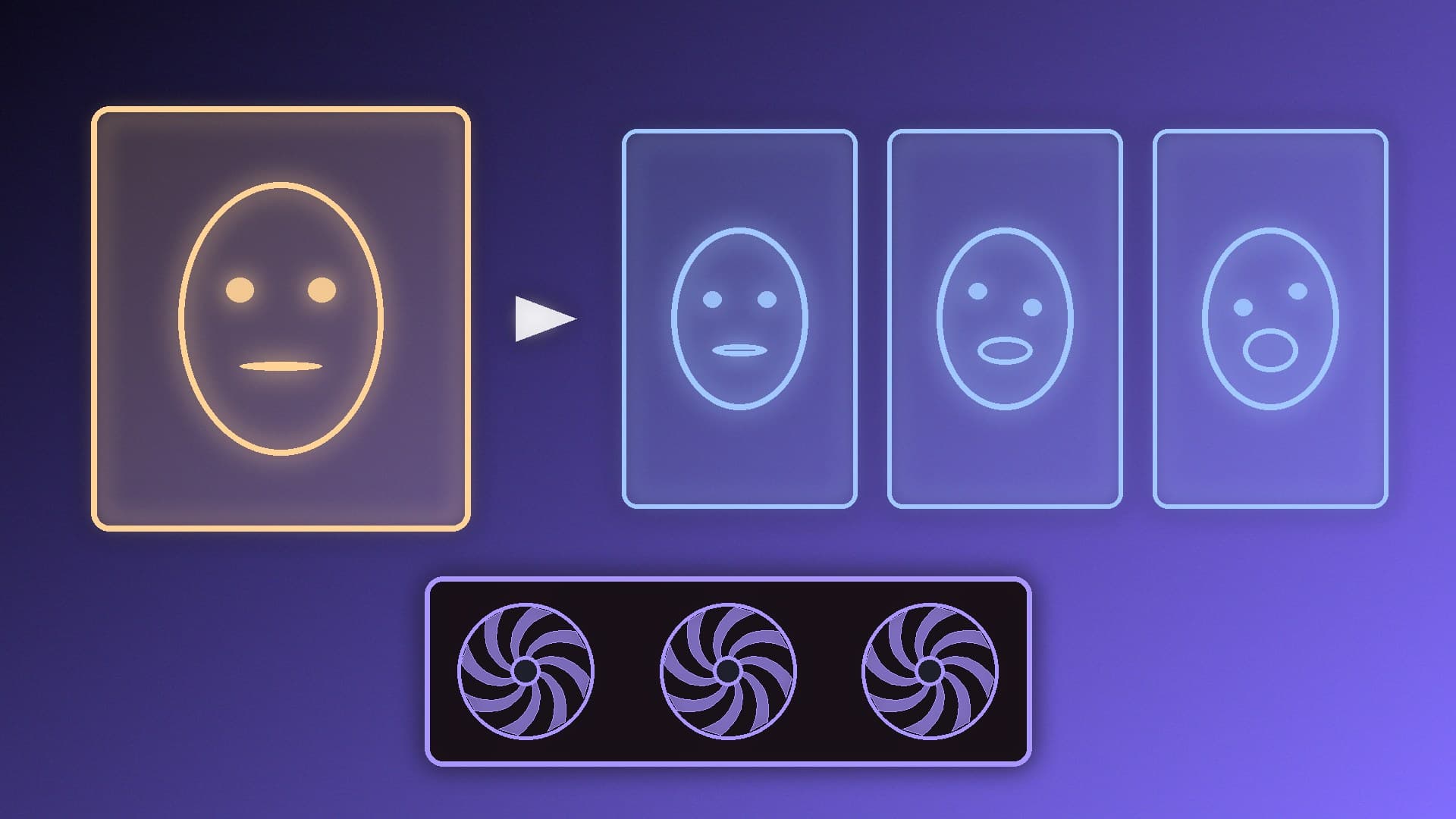
LivePortrait isn't an audio lip-sync tool. It animates a still portrait using the head movements and expressions from a driving video, and can also edit portrait videos. It comes from Kuaishou researchers, and it's the easiest of our picks to install on Windows thanks to a one-click package on Hugging Face. The developers' own per-frame timings on an RTX 4090 are in the milliseconds for each module, and the README says macOS on Apple Silicon may be about 20 times slower than an RTX 4090.
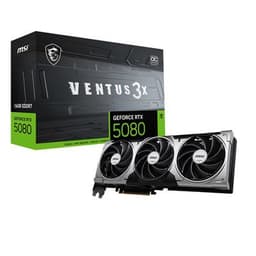
The code is MIT-licensed, but the InsightFace detection models it uses are for non-commercial research only, so the developers say commercial users should replace them. A card like the MSI RTX 5080 16GB Ventus 3X OC is overkill for LivePortrait alone, but makes sense if you also run heavier tools such as LatentSync 1.5 or AI video generators. See our step-by-step guide to animating a portrait photo with LivePortrait.
4. Wav2Lip: best for research and lighter experiments
Wav2Lip is the older lip-sync model from the paper "A Lip Sync Expert Is All You Need for Speech to Lip Generation In the Wild". Its README is clear about the limits: results from the open-source code should be used for research, academic or personal purposes only, and commercial use is prohibited because the models were trained on the LRS2 dataset. The README also points to a separate commercial version, which its authors say is of much higher quality than the old open-source model.
The README notes the models were trained on lower-resolution faces, so you may get better-looking results from 720p video than from 1080p, and suggests the --resize_factor option. It's a good choice for learning how AI lip sync works, but for new projects MuseTalk or LatentSync are the more modern options.
What hardware do you need?
MuseTalk and LivePortrait's install guides use CUDA builds of PyTorch for NVIDIA graphics cards (LivePortrait also runs, more slowly, on Apple Silicon Macs), and LatentSync gives its requirements in GPU VRAM. Based on the developers' figures, a 4GB-8GB card can run MuseTalk, 8GB is the floor for LatentSync 1.5, and LatentSync 1.6 needs 18GB or more. Our VRAM guide covers how much memory to aim for across AI workloads, and if you want to generate the video itself rather than just edit faces, see how to generate AI video locally.