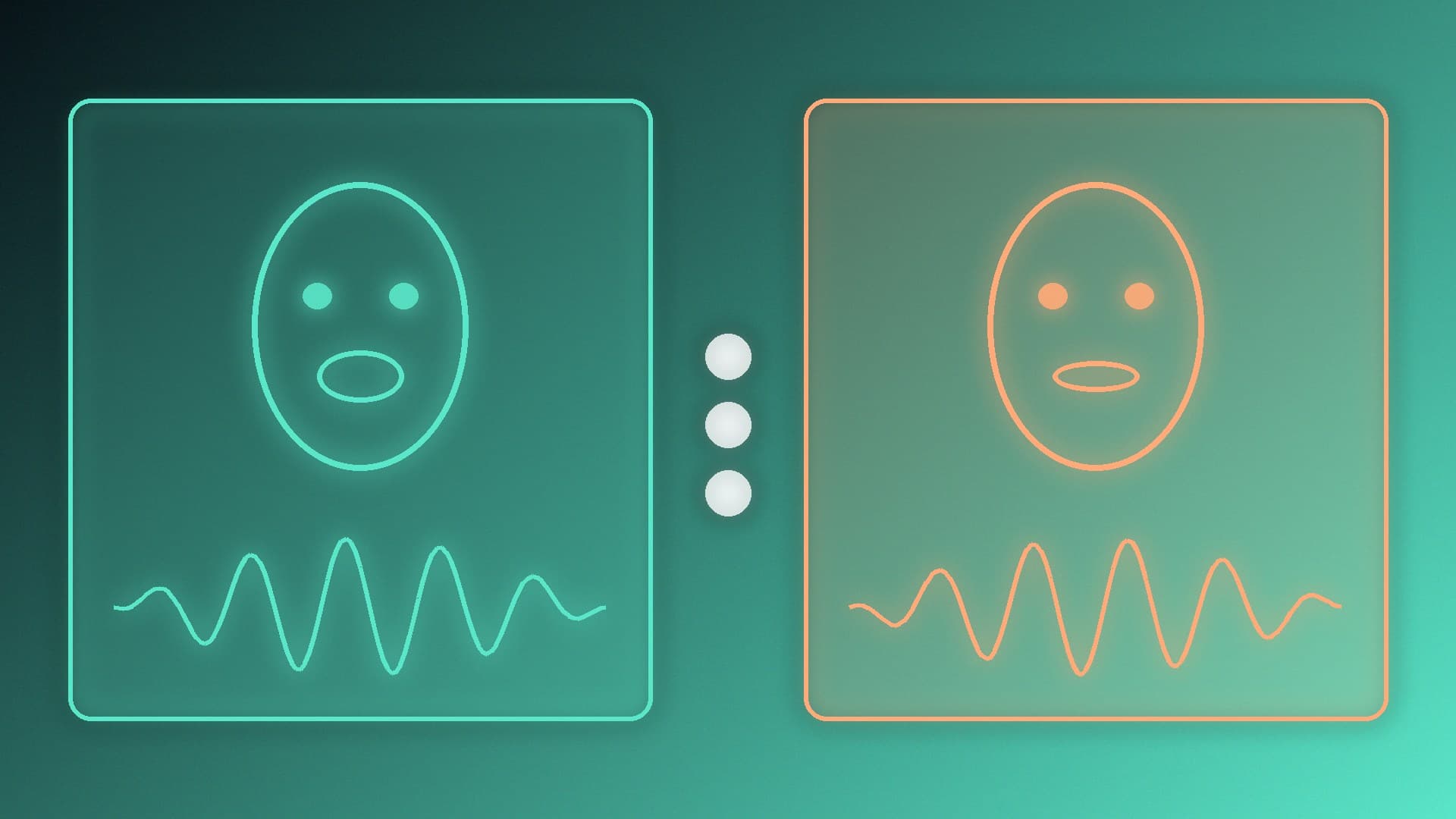
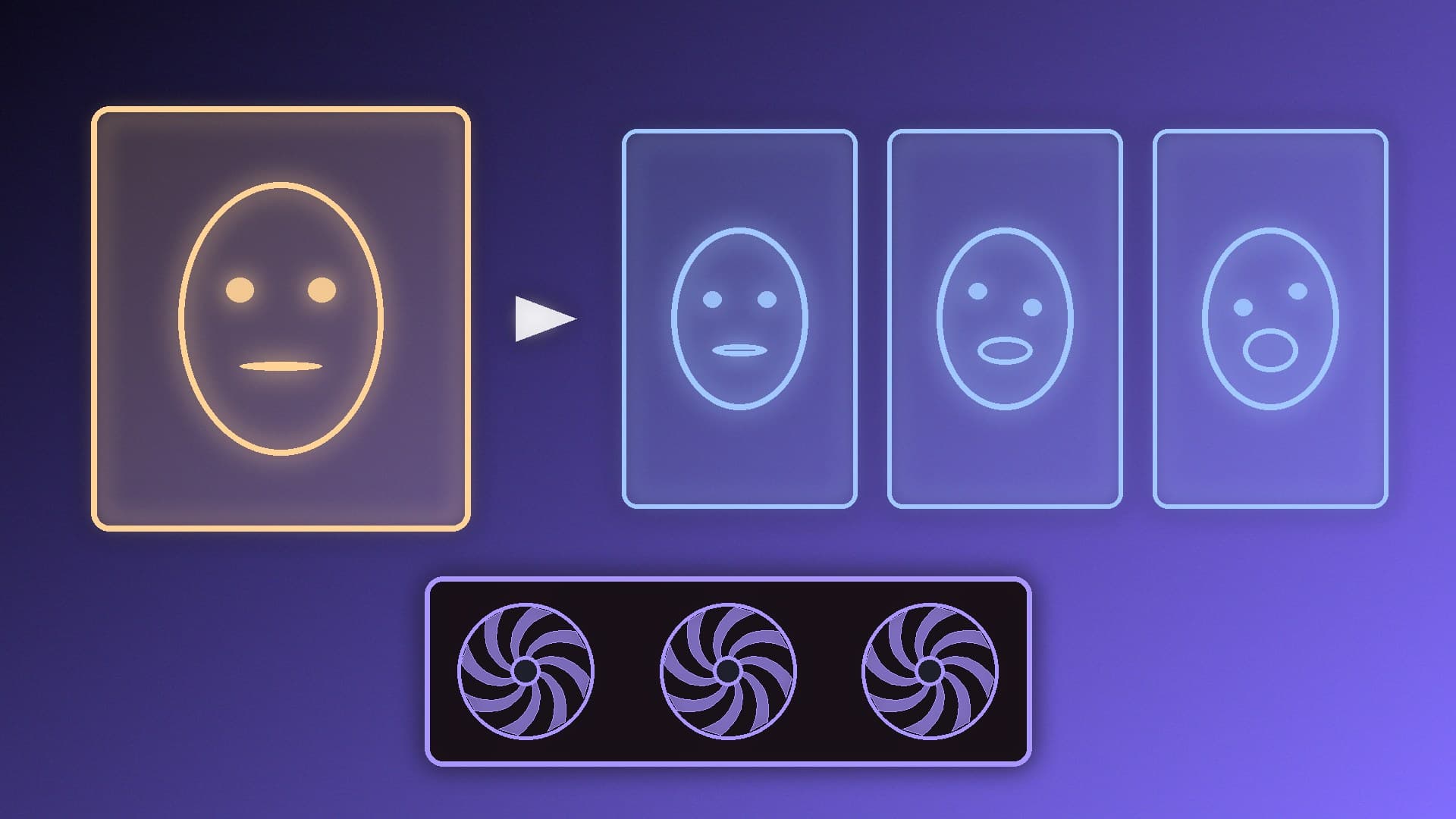
LatentSync and MuseTalk are two of the best-known free, open-source tools for AI lip sync: you give them a video of a face and a new audio track, and they redraw the mouth so it matches the speech. Both run locally on your own graphics card, so nothing has to be uploaded to a cloud service. LatentSync comes from ByteDance; MuseTalk comes from Tencent Music's Lyra Lab. This comparison uses each project's own README and repository details.
Only lip-sync footage of people who have agreed to it, and label edited clips clearly. Convincing dubbed video can easily mislead.
The quick answer
Choose LatentSync if you want the higher-resolution 1.6 model and have a graphics card with plenty of VRAM, or if you're happy to use the 8GB-friendly 1.5 model.
Choose MuseTalk if you have a modest or laptop GPU, want a real-time mode, or need clear permission for commercial use of the models.
At a glance
| LatentSync | MuseTalk |
|---|
Developer | ByteDance | Tencent Music Entertainment Lyra Lab |
Latest model | 1.6 (June 2025) | 1.5 (March 2025) |
Approach | Audio-conditioned latent diffusion, built on Stable Diffusion | Real-time lip-sync model working in the latent space of a VAE |
Minimum VRAM (developer figures) | 8GB (1.5), 18GB (1.6) | Tested on a 4GB laptop GPU in fp16 mode |
Real-time mode | No real-time script in the README | Yes, a dedicated real-time inference script |
Interface | Gradio app or command line | Gradio app or command line |
Licence | Repository listed as Apache-2.0 on GitHub | Code MIT; models "available for any purpose, even commercially" |
How they work
LatentSync is an end-to-end lip-sync method based on audio-conditioned latent diffusion. Its README says it uses OpenAI's Whisper to turn the audio into embeddings that feed a Stable Diffusion-style U-Net. Version 1.6 was trained on 512 x 512 videos to reduce blurriness, and version 1.5 added a temporal layer to improve consistency between frames.
MuseTalk modifies the face region at 256 x 256 to match the input audio. Its developers describe it as a real-time, high-quality model, and say it reaches 30fps or more on an NVIDIA Tesla V100 data-centre GPU. Version 1.5, released in March 2025, improved clarity, identity consistency and lip-speech synchronisation, according to the README.
Hardware and VRAM
This is the biggest practical difference. LatentSync's README gives minimum inference VRAM of 8GB for version 1.5 and 18GB for version 1.6, so the newest model is out of reach of most 16GB gaming cards. Our suggestion: on a 16GB card such as the MSI RTX 5080 16GB Ventus 3X OC, use LatentSync 1.5, and only plan on 1.6 if you have a 24GB-class or larger card.
MuseTalk is far lighter. Its developers tested the Gradio demo on Windows with an NVIDIA GeForce RTX 3050 Ti Laptop GPU with 4GB of VRAM, and say generating an 8-second video in fp16 mode took about five minutes. That means an 8GB desktop card such as the MSI RTX 5060 8GB Ventus 2X OC is above MuseTalk's tested minimum, although that's our inference from the developers' figures rather than a Forge PC result.
To see how much memory either tool actually uses on your PC, see how to check VRAM usage in Windows.
Installation
LatentSync's README sets everything up with a single script, source setup_env.sh, which installs the packages and downloads the checkpoints (latentsync_unet.pt and Whisper tiny.pt). That's a shell script, so it suits Linux most naturally. You can also download the two checkpoints manually from ByteDance's Hugging Face page. Then run python gradio_app.py for the web interface or ./inference.sh from the command line.
MuseTalk's README recommends Python 3.10 with a Conda environment and a CUDA build of PyTorch, plus FFmpeg. It gives separate Linux and Windows commands throughout, including the Windows ffmpeg_path setting, which makes it the more Windows-friendly of the two on paper. Launch the interface with python app.py --use_float16, adding the path to your FFmpeg folder.
Quality and tuning
What the READMEs do give you is the settings to tune:
LatentSync: inference_steps (20-50; higher improves visual quality but is slower) and guidance_scale (1.0-3.0; higher improves lip-sync accuracy but may cause distortion or jitter).
MuseTalk: the Gradio app lets you generate only the first frame to fine-tune lip-sync parameters before the full run, and the developers recommend 25fps input video, the frame rate used in training. Removing --use_float16 can improve quality at the cost of more VRAM and time.
Real-time use
MuseTalk has a dedicated real-time inference script (scripts.realtime_inference), including for version 1.5, which makes it the obvious choice for live avatar or virtual presenter experiments. LatentSync's README only describes processing video files through the Gradio app or command line, not live input.
Training your own model
Both projects publish training code, but it's not a home-PC job. LatentSync's training configurations need between 20GB and 55GB of VRAM, with the developers suggesting the 20GB "efficient" stage 2 for consumer cards such as the RTX 3090. MuseTalk's training tables list roughly 32GB to 85GB per GPU depending on the stage and batch size.