Our picks are based on each app's official documentation and system requirements, all checked on 25 November 2026.
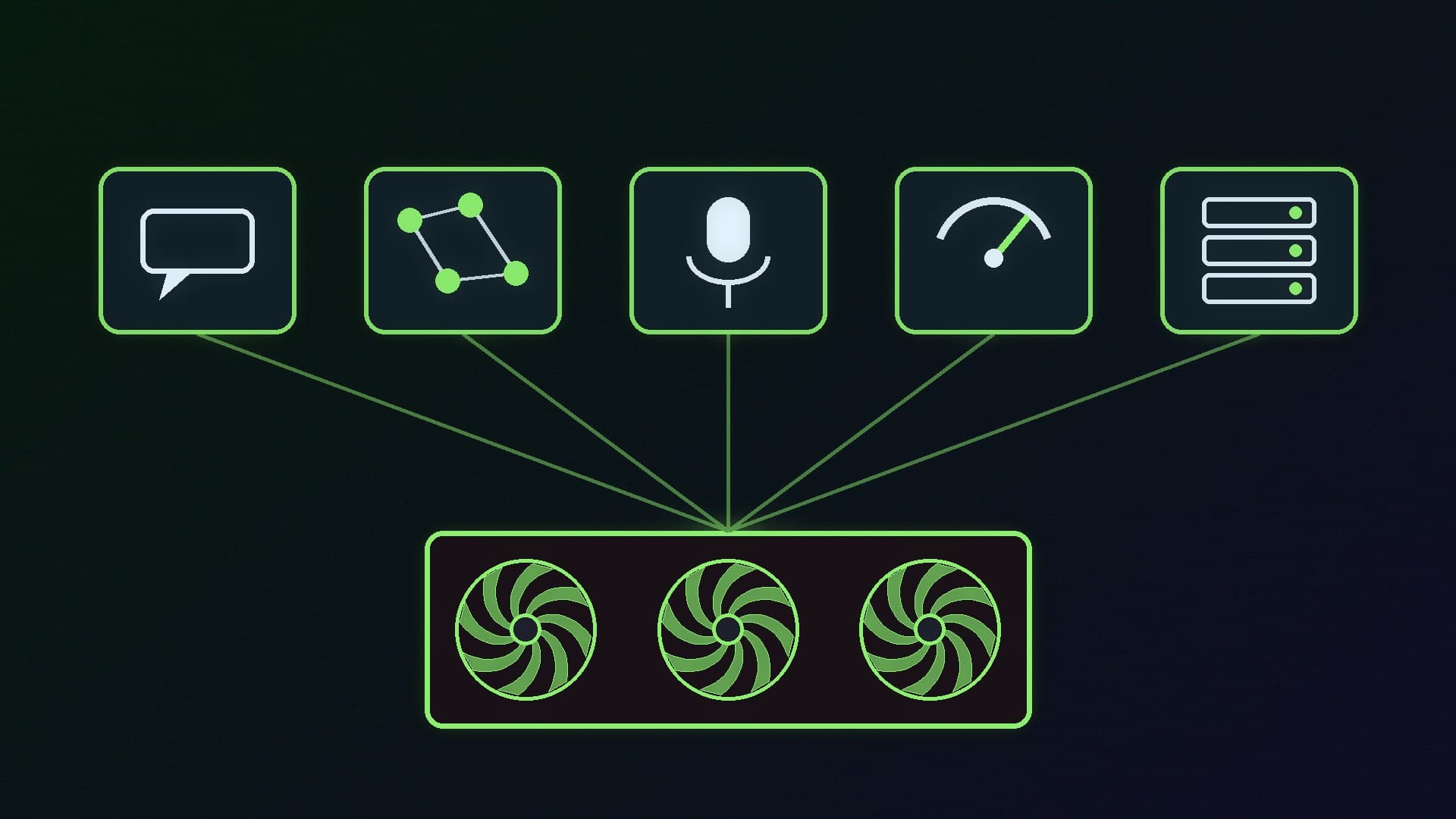
An NVIDIA graphics card is a straightforward way into local AI. The popular local AI apps support NVIDIA cards, and NVIDIA makes its own AI tools that need an RTX graphics card. The catch is that there are so many options that it's hard to know where to start. These are the apps we'd install first, what each one is best at, and what hardware it asks for.
At a glance
App | Best for | Minimum NVIDIA hardware listed | Platforms |
|---|
Ollama | Chatbot back end for other apps | Compute capability 5.0+, driver 550 or newer | Windows, Linux, macOS |
LM Studio | Easiest chatbot app | 4GB+ VRAM recommended | Windows, Linux, macOS |
ComfyUI | Images, video and 3D | No hard minimum listed; RTX 20 Series and newer need PyTorch cu130+ | Windows, Linux, macOS |
NVIDIA Broadcast | Calls and streams | GeForce RTX 2060 or higher | Windows 10, Windows 11 |
Project G-Assist | Controlling and tuning your PC | RTX GPU with 6GB+ VRAM | Windows (via the NVIDIA app) |
1. Ollama: best chatbot back end
Ollama runs large language models in the background and makes them available to other apps, so it's the engine behind many of the tools we cover, from coding assistants to chat front ends such as Open WebUI. It also has its own app with a settings screen, so you don't have to do everything from the command line.
Ollama's hardware documentation says it supports NVIDIA GPUs with compute capability 5.0 or higher on driver version 550 or newer, and cards with compute capability 5.0 to 6.2 need driver 570 or newer. Its compatibility table includes every GeForce RTX generation from the RTX 2060 upwards, plus older GTX cards such as the GTX 1080. Our beginner's guide to Ollama and LM Studio shows how to get your first model running.
Choose it if: you want one AI engine that lots of other apps can plug into.
2. LM Studio: easiest chatbot app
LM Studio is the friendliest way to chat with a local model. It has a built-in model browser, a chat window and a local server mode for other apps. LM Studio says it can work entirely offline once you've downloaded models.
On Windows it supports both x64 and Arm PCs. LM Studio recommends at least 16GB of RAM and a graphics card with at least 4GB of dedicated VRAM, and x64 processors need AVX2 support. Those are minimums: more VRAM lets you run bigger, more capable models. If you can't decide between this and Ollama, read Ollama vs LM Studio.
Choose it if: you want to chat with local models without touching a terminal.
3. ComfyUI: best for images, video and 3D
ComfyUI is an open-source app, and our pick for generating images and video on your own PC. You build workflows from connected nodes, and its developers say it supports a long list of current open models, including Flux.2, Qwen Image and Z-Image for images and Wan 2.2, LTX-Video 2 and HunyuanVideo 1.5 for video.
The ComfyUI project recommends its Comfy Desktop installer on Windows, with a portable version as an alternative. For NVIDIA cards from the RTX 20 Series onwards, its README says PyTorch built for CUDA 13.0 (cu130) or newer is required, and keeping PyTorch up to date is the first troubleshooting step it lists for NVIDIA users. The developers also claim it can run large models with as little as 4GB of VRAM and 8GB of RAM by streaming model weights, although bigger cards will be much more comfortable. Our guide to installing ComfyUI on Windows walks through the setup.
Choose it if: you want to make images or video and don't mind a learning curve.
4. NVIDIA Broadcast: best for calls and streaming
NVIDIA Broadcast uses your graphics card to clean up your microphone and webcam for livestreams, voice chats and video calls, and NVIDIA says it works with all of your favourite apps. NVIDIA lists Noise Removal and Room Echo Removal, Studio Voice for making a cheap microphone sound better, Virtual Key Light for relighting your face, Eye Contact and Auto Frame.
The current version listed on NVIDIA's page is 2.3.0. It needs a GeForce RTX 2060, Quadro RTX 3000, TITAN RTX or higher, 8GB of system RAM and a recent NVIDIA driver (572.61 or newer on Windows). Our NVIDIA Broadcast setup guide explains how to route your mic and camera through it.
Choose it if: you're on video calls or stream and want better sound and video with no extra hardware.
5. Project G-Assist: best for controlling your PC
Project G-Assist is NVIDIA's AI assistant for your own PC. Rather than general chat, it answers questions about your system, optimises game settings, adjusts features such as DLSS and RTX HDR, charts performance and controls some peripherals, by voice or text. NVIDIA says it runs locally on your GeForce RTX GPU, so it's free to use and works offline, and it can be extended with plug-ins.
You install it from the NVIDIA app and open it with Alt+G. NVIDIA says it runs on RTX desktops and laptops with 6GB or more of VRAM, but voice commands need an RTX 30 Series card or newer. NVIDIA still labels it experimental. Our guide to using NVIDIA G-Assist covers the commands that are worth trying.
Choose it if: you'd like to tune your PC by asking for what you want instead of digging through menus.
Skip: ChatRTX
NVIDIA's ChatRTX, a demo app for chatting with your own documents, was deprecated on 21 January 2026, according to its GitHub page, and is no longer maintained. If you want to chat with your files, an actively developed app that connects to Ollama or LM Studio is the better bet.
How to choose
You want a ChatGPT-style chatbot on your PC: start with LM Studio, then add Ollama when you want other apps to use your models.
You want to make images or video: ComfyUI.
You want better calls and streams: NVIDIA Broadcast.
You want help tuning your PC and games: Project G-Assist.
You're still choosing a graphics card: see our pick of the best NVIDIA graphics cards for local AI. If you have a Radeon instead, read our guide to the best local AI apps for AMD Radeon GPUs.
Our verdict
For most GeForce RTX owners, LM Studio is the best first app for local AI chatbots, Ollama is the best engine for connecting AI to your other software, and ComfyUI is the one to learn for images and video. NVIDIA Broadcast is worth installing on any RTX PC used for calls or streaming. G-Assist is a useful extra, but it's still experimental and isn't a general-purpose chatbot.