A model running on your own PC only knows what was in its training data, so it can't tell you about anything newer and may make things up when asked. Ollama's web search API is one way round that: your local model can call it as a tool, read fresh search results and answer from them. This guide explains what the API does, how to get access and how to wire it up, based on Ollama's documentation.
What Ollama's web search API is
Ollama describes its web search API as a way to "augment models with the latest information to reduce hallucinations and improve accuracy". It's a REST API hosted at ollama.com, with deeper tool integrations in Ollama's Python and JavaScript libraries. There are two calls:
API | What it does | Inputs | Returns |
|---|
Web search (POST https://ollama.com/api/web_search) | Searches the web for one query | query (required), max_results (optional, default 5, maximum 10)
| A list of results, each with a title, URL and content snippet |
Web fetch (POST https://ollama.com/api/web_fetch) | Fetches a single web page | url (required)
| The page title, its main content and a list of links on the page |
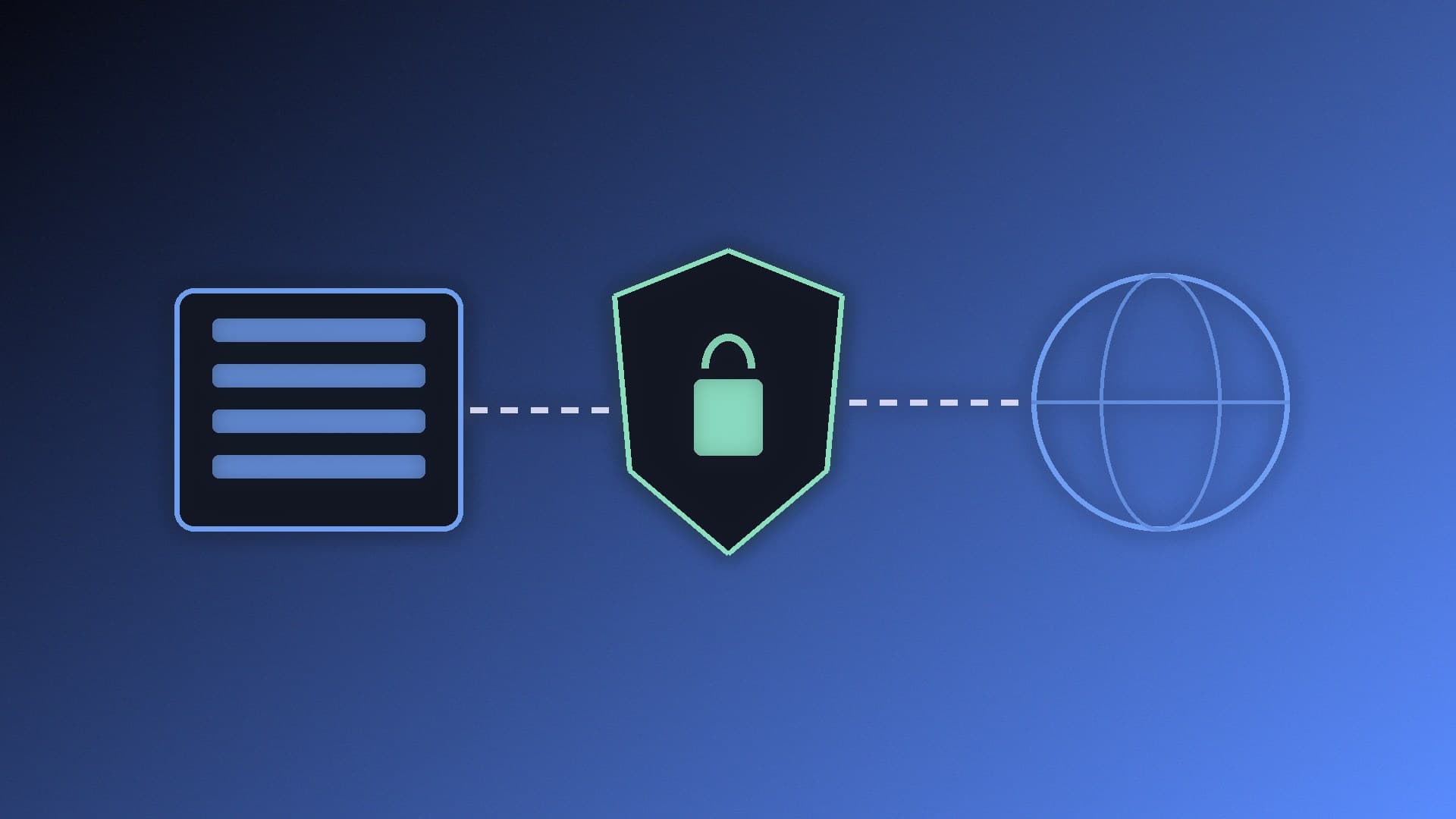
The key point is that the search itself runs on Ollama's servers, not your PC. Your model can still run locally, but the search queries it sends leave your machine. If you want searching to stay fully under your control, look at a self-hosted option instead, such as web search in Open WebUI.
Step 1: Create an Ollama account and API key
Ollama's documentation says a free Ollama account is required, and that you need to create an API key to use the web search API. Sign in at ollama.com, create a key in your account's API keys settings, and keep it somewhere safe. Ollama's documentation says API keys don't expire, but you can revoke a key in the same settings, and it advises keeping keys out of browser code and source control.
Ollama's pricing page doesn't list a separate price for web search, and Ollama's paid cloud plans have changed recently (see our report on Ollama ending its free cloud plan), so check your account's usage page before relying on the API heavily.
Step 2: Set the OLLAMA_API_KEY variable
Ollama's examples expect the key in an environment variable called OLLAMA_API_KEY, or passed in the Authorization header. On Linux or macOS, for the current terminal session:
export OLLAMA_API_KEY="your_api_key"
On Windows, create a user environment variable called OLLAMA_API_KEY in the same dialog described in our guide to setting Ollama environment variables on Windows, then open a new terminal.
Step 3: Try a search
The quickest test is a direct request with cURL, as in Ollama's example:
curl https://ollama.com/api/web_search \
  --header "Authorization: Bearer $OLLAMA_API_KEY" \
  -d '{"query":"what is ollama?"}'
You should get back JSON containing a results list, with a title, url and content for each result.
From Python, the same search is one function in the Ollama library (see how to use Ollama with Python to set it up):
import ollama
response = ollama.web_search("What is Ollama?")
print(response)
The JavaScript library has equivalent webSearch and webFetch methods; our Ollama JavaScript guide covers installing it.
Search results are only useful if the model can request them when it needs to. That's what tool calling is for, and Ollama's documentation includes a short "search agent" example in Python. It pulls Alibaba's Qwen 3 4B model (ollama pull qwen3:4b) and passes the library's web_search and web_fetch functions to the model as tools:
Your question is sent to the model with tools=[web_search, web_fetch].
If the model replies with a tool call, the script runs that search or fetch and adds the result to the conversation as a tool message.
The loop repeats until the model replies with a normal answer instead of another tool call.
Ollama's example cuts each tool result down before adding it to the conversation, to suit limited context lengths. If you haven't used tool calling before, our guide to tool calling with Ollama explains how the loop works and which models support it.
Give the model enough context
Ollama's web search page warns that search results can return thousands of tokens and recommends increasing the model's context length to at least about 32,000 tokens, adding that search agents work best with full context length. Its separate context length page goes further, saying tasks that need a large context, such as web search, agents and coding tools, should be set to at least 64,000 tokens.
That matters because Ollama's default is based on your graphics memory: according to the same page, it uses a 4K context on GPUs with less than 24GB of VRAM, 32K on 24-48GB and 256K on 48GB or more. On a typical gaming card, then, you'll need to raise it yourself; follow our guide to setting Ollama's context length. Ollama notes that a larger context needs more memory, so make sure you have enough VRAM, and check with ollama ps that the model still runs 100% on the GPU rather than spilling onto the CPU.
Using it from other apps (MCP)
You don't have to write your own script. Ollama says web search can be enabled in any MCP client through its Python MCP server, and its documentation gives example configurations for Cline and OpenAI's Codex, each passing your OLLAMA_API_KEY to the server, and says Goose can use it through its MCP feature. If MCP is new to you, start with our explainer, MCP explained for local AI, and our guide to using Cline with Ollama.
Our verdict
Ollama's web search API is a simple way to give a local model current information: create a free Ollama account and API key, set OLLAMA_API_KEY, and pass the web_search and web_fetch tools to a model that supports tool calling, with its context length raised well above Ollama's default - Ollama's web search page suggests at least about 32,000 tokens, and its context length page at least 64,000. Remember that searches run on Ollama's servers rather than your PC, so if you need everything to stay local, use a self-hosted search option instead.