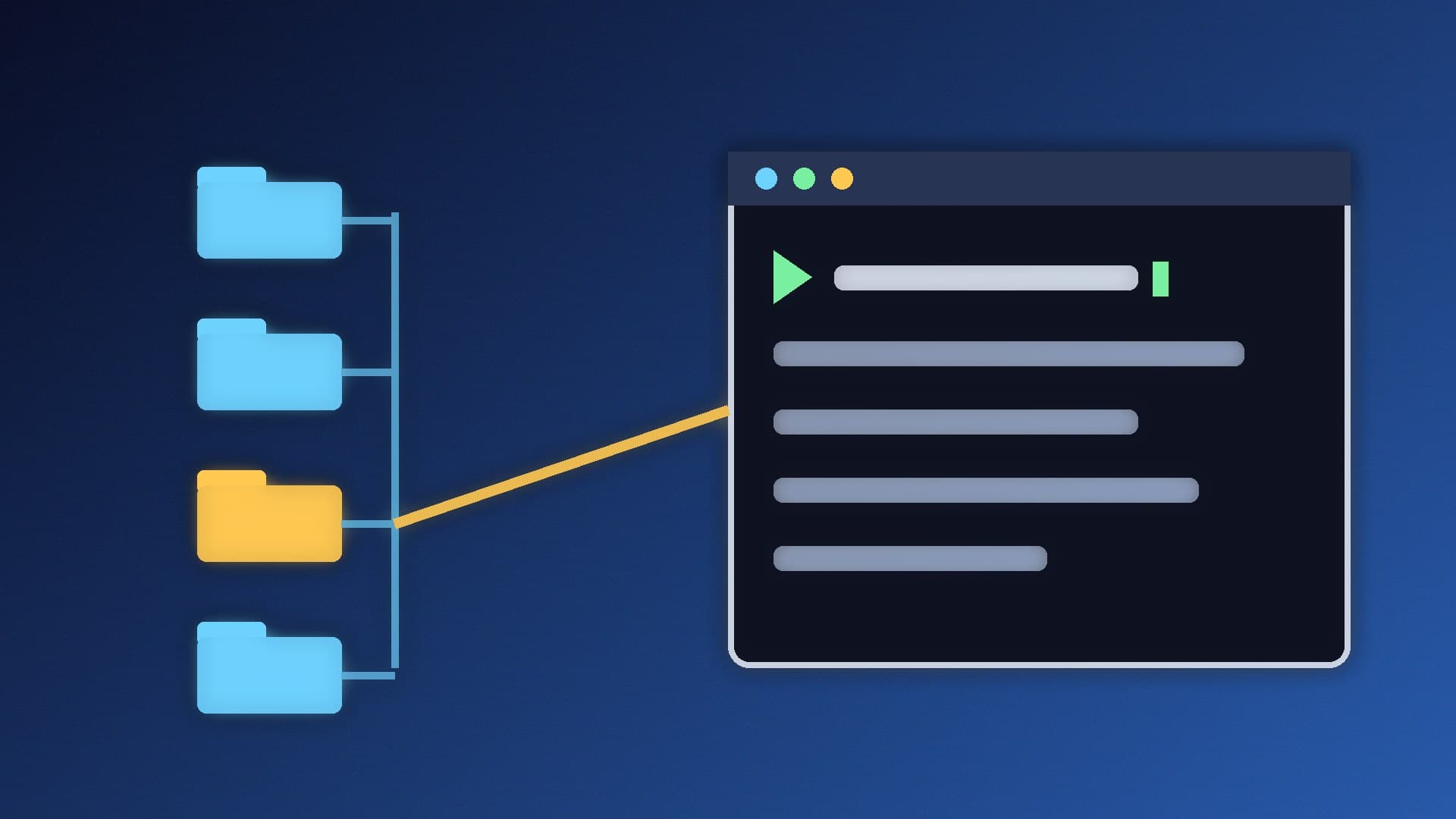
If you install a command-line tool such as a portable app, a compiler or an AI tool and Windows says it "is not recognized as an internal or external command", the folder it lives in usually isn't on your PATH. PATH is an environment variable that tells Windows where to look for programs when you type a name in Command Prompt, PowerShell or Windows Terminal. This guide shows how to add a folder to it safely in Windows 11, how to check the change worked, and which shortcuts to avoid. The behaviour described comes from Microsoft's documentation for environment variables, PowerShell, .NET and the setx, set and where commands on Microsoft Learn, read on 27 November 2026.
What PATH is and where Windows keeps it
Microsoft's PowerShell documentation describes PATH as a list of folder locations that the operating system searches for executable files. On Windows, the folders are separated by a semicolon (;).
Windows keeps environment variables in more than one place, and that matters when you edit PATH:
User variables apply only to your Windows account. Microsoft's .NET documentation says these are stored in the registry under HKEY_CURRENT_USER\Environment.
System variables (Microsoft also calls this the Machine scope) apply to every account on the PC and are stored under HKEY_LOCAL_MACHINE\SYSTEM\ControlSet001\Control\Session Manager\Environment. Microsoft says changing them needs permission, which in practice means administrator rights.
Process variables belong to one running program or terminal window. Microsoft's PowerShell documentation says this list is built from the Machine and User variables when the program starts.
Both the user and system scopes can have their own Path variable. When you open a new terminal, it gets the combined result. For a tool that only you use, we'd add it to your user Path. Only use the system Path if other accounts on the PC need the tool too.
Method 1: use the Environment Variables window (recommended)
This is the method Microsoft's PowerShell documentation describes for making a permanent change through Control Panel. Windows writes the values to the registry, so they survive sign-outs and restarts.
Open Settings, go to System and select About. Under Related links, select Advanced system settings. You can also search the Start menu for environment variables and choose Edit the system environment variables.
On the Advanced tab of System Properties, select Environment Variables.
In the top box (user variables for your account), select Path and click Edit. If there's no Path entry there, click New, type Path as the name and your folder as the value, then skip to step 6.
In the list that opens, click New and type or paste the full folder path, for example C:\Tools\bin. You can also click Browse and pick the folder. Add the folder that actually contains the .exe, not a parent folder above it.
If a different version of the same tool is being picked up, use Move Up to put your folder higher in the list. This is our suggestion. Check the order with the where command shown below.
Click OK in each window to save.
Close and reopen your terminal, and any app you want to use the tool from, such as a code editor. Windows only passes the new value to programs started after the change.
In our view this window is the safest way for most people, because you see every existing entry and only add one line. Don't delete entries you don't recognise. In our view they're usually there because Windows or an installed app needs them.
Method 2: use PowerShell
If you'd rather type than click, PowerShell can change the user or system Path through the .NET SetEnvironmentVariable() method. Microsoft's documentation says the Machine and User scopes both persist outside the current process, and that other apps are told about the change with a Windows WM_SETTINGCHANGE message.
First, save a copy of your current user Path in case you need to undo the change. This is our advice:
[Environment]::GetEnvironmentVariable('Path', 'User') | Out-File "$HOME\path-backup-user.txt"
Then add your folder to the end of the user Path:
$old = [Environment]::GetEnvironmentVariable('Path', 'User')
[Environment]::SetEnvironmentVariable('Path', "$old;C:\Tools\bin", 'User')
To change the system Path, use 'Machine' instead of 'User' in both lines and run PowerShell as administrator. As with Method 1, open a new terminal afterwards.
Just for this window: $Env:PATH and set
If you only need a folder on PATH for the terminal you're working in, you can change the process copy instead. In PowerShell, Microsoft's example is:
$Env:PATH += ';C:\Tools'
In Command Prompt, the set command does the same job. Microsoft's documentation says variables created with set apply only to the command window in which they're set, and to programs started from it. Either way, the change is gone when you close the window. Microsoft lists adding the same line to your PowerShell profile as one way to make it apply to every session that loads the profile. You can find your profile's location with $PROFILE.
Why you shouldn't use setx to edit PATH
You'll see setx PATH "%PATH%;C:\Tools" recommended on lots of forums. Microsoft's own setx documentation explains why that's risky:
The 1,024-character limit. Microsoft warns that setx crops anything over 1,024 characters, and that if the cropped text is applied to an existing variable, it can result in loss of data previously held by that variable. A busy Path can easily be longer than that.
Variable references get flattened. Microsoft says running setx on an existing variable replaces references with their expanded values. If your Path contains %JAVADIR%, for example, it's written as the actual folder, so later changes to JAVADIR won't be reflected.
%PATH% is the combined value. Microsoft's PowerShell documentation explains that a session's variables are built from both the Machine and User scopes. So, in our view, writing a terminal's %PATH% back to your user Path copies system folders into it.
setx is fine for setting short, simple variables. Our guide to setting Ollama environment variables on Windows uses it that way. For PATH, use Method 1 or Method 2.
How to check it worked
Open a new terminal window, then try one of these:
Command Prompt or PowerShell: where toolname (in PowerShell, type where.exe toolname, because Microsoft lists where as a PowerShell alias for the Where-Object cmdlet). Microsoft says where searches the current folder and the folders in PATH, and adds the extensions in the PATHEXT variable if you don't type one. It lists every match it finds, so you can see if an older copy is in another folder.
PowerShell: $Env:PATH -split ';' shows each folder on its own line. Get-ChildItem Env: lists every environment variable.
Command Prompt: echo %PATH% prints the whole value.
If your folder isn't listed, check you saved the change with OK in every window, and that you opened a fresh terminal. If you use Windows Terminal, we suggest closing it completely and starting it again, rather than just opening a new tab.
Common problems
"Not recognized" after adding it. Make sure you added the folder containing the .exe, not the .exe itself or a parent folder.
The wrong version runs. Another folder on PATH may hold a program with the same name. Use where.exe to see every match, then try moving your folder up in the Path editor.
Works in the terminal but not in an app. Restart the app. Programs keep the environment they started with.
You broke your Path. Restore it from the backup file you saved in Method 2, or use System Restore if you made a restore point.
If you're new to the command line, see our explainers on Command Prompt vs PowerShell and how to use Windows Terminal. For installing command-line tools in the first place, see our guide to installing apps with winget.
Our verdict
To add a folder to PATH in Windows 11, use the Environment Variables window: edit your user Path, click New, paste the folder that contains the program, click OK and open a new terminal. PowerShell's SetEnvironmentVariable() method does the same job from the command line if you back up the old value first. Avoid setx for PATH, because Microsoft warns it crops values over 1,024 characters and can lose data. Check the result with where.exe in a fresh terminal window.