It's based on Microsoft's Windows Commands and PowerShell documentation, checked on 25 November 2026, and there are no speed comparisons here.
Plenty of PC fixes start with "open a command prompt and type...", and in Windows 11 that might mean Command Prompt (cmd.exe) or PowerShell. Both come with Windows, both open in Windows Terminal, and many familiar commands work in either. They're built quite differently, though, and knowing which is which saves a lot of confusing error messages.
At a glance
| Command Prompt (cmd.exe) | PowerShell |
|---|
What it is | Windows' original command shell | Shell, scripting language and automation framework |
Commands | Windows Commands, such as ipconfig, chkdsk and sfc, plus .bat and .cmd batch files | PowerShell cmdlets and Windows Commands |
Output | Text | .NET objects you can sort, filter and export |
Scripts | Batch files | .ps1 scripts, subject to an execution policy |
Versions | One, built into Windows | Windows PowerShell 5.1 built in, PowerShell 7 as a separate install |
Runs on | Windows | Windows PowerShell on Windows; PowerShell 7 on Windows, Linux and macOS |
Microsoft's advice | Points advanced users to PowerShell | Recommended for up-to-date Windows automation |
Command Prompt: the original
Microsoft's Windows Commands documentation describes the Command shell as the first shell built into Windows, used to automate routine tasks with batch (.bat) files. It runs the built-in Win32 console commands that every supported version of Windows includes, the same ones in countless guides: ipconfig, ping, chkdsk, sfc and so on.
Command Prompt still has a few strengths:
Old instructions just work. Many support articles and older batch files assume cmd.exe, and they behave exactly as written there.
It's simple. Commands take text in and give text out, and there isn't a scripting language to learn.
Batch files are everywhere. If a tool ships with a .bat or .cmd file, Command Prompt is its natural home.
The limits show when you want to do more. Microsoft's own cmd reference now carries a note encouraging users who want more advanced capabilities to look at PowerShell for scripting and automation.
PowerShell: the modern option
Microsoft describes PowerShell as a cross-platform task automation solution made up of a command-line shell, a scripting language and a configuration management framework. Its native commands are called cmdlets and use a verb-noun style, such as Get-ChildItem or Get-Process.
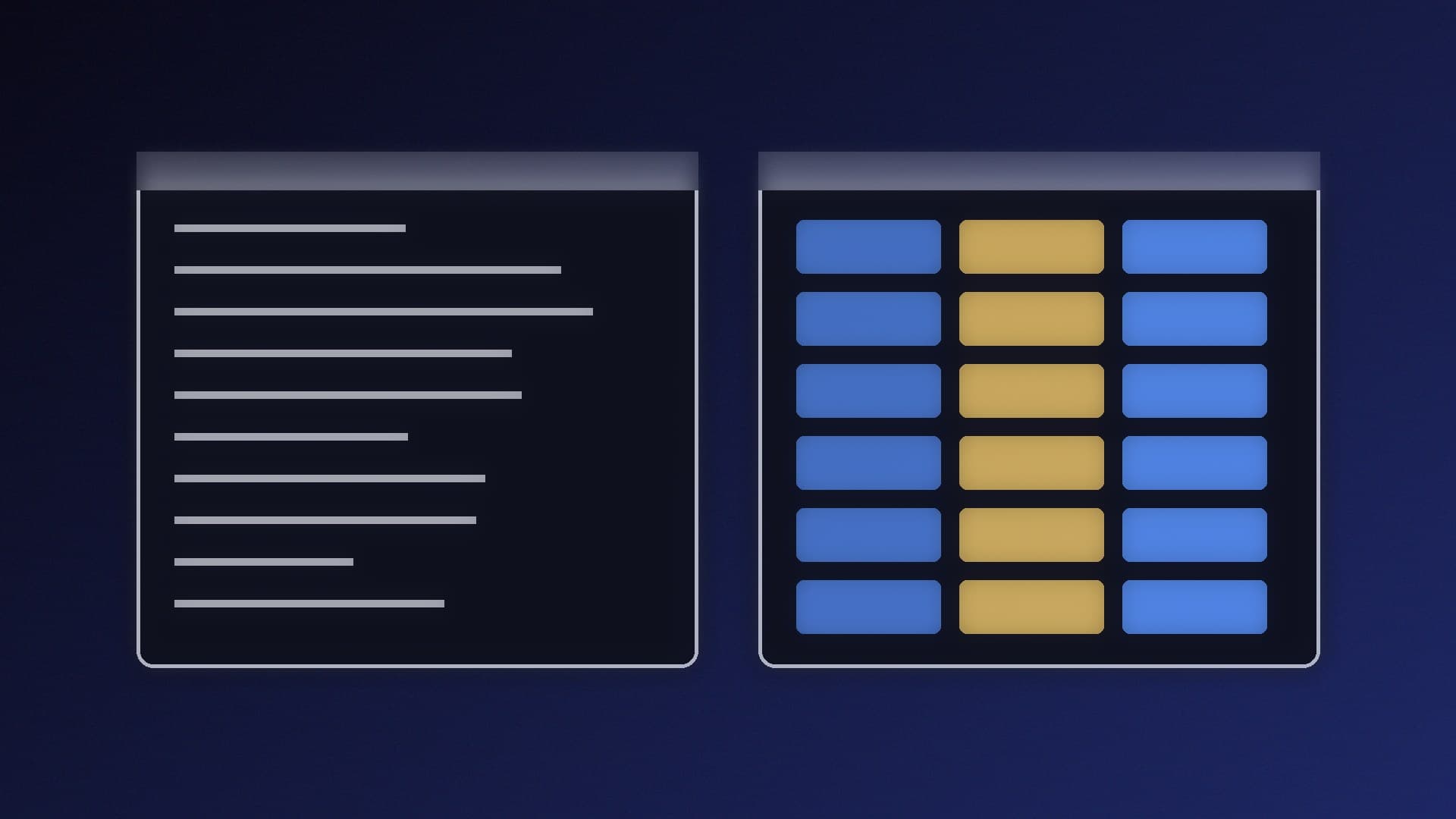
The biggest difference is what comes out of a command. Most shells, including Command Prompt, only accept and return text. PowerShell accepts and returns .NET objects. When you pipe one command into another, the second gets structured data such as file objects with sizes and dates, not lines of text it has to pick apart. Microsoft's pipeline documentation walks through this with an example that finds text files and passes file objects down the pipeline.
Microsoft lists other features too: command history, tab completion and command prediction, aliases, an in-console help system similar to Unix man pages, and built-in support for CSV, JSON and XML.
Crucially, Microsoft says you can run both Windows Commands and PowerShell cmdlets in PowerShell, but Command Prompt can only run Windows Commands. So ipconfig /flushdns, chkdsk and sfc /scannow work in either shell, while Get-Process only works in PowerShell.
The gotchas when switching
Familiar names aren't always the same command. PowerShell includes built-in aliases so old habits keep working. Microsoft says cd and chdir map to Set-Location, and on Windows ls and dir map to Get-ChildItem. They're aliases for PowerShell cmdlets, though, so Command Prompt switches such as dir /s don't carry over. Use Get-Alias to see what a name really runs. If you need the real CMD behaviour, cmd /c followed by the command runs it in a one-off Command Prompt and then exits.
Scripts may be blocked. PowerShell has execution policies that control whether scripts can run. Microsoft's documentation says the Restricted policy allows individual commands but no scripts, and that if no policy is set at any level, the effective policy on Windows client PCs is Restricted. RemoteSigned lets scripts you wrote on your own PC run, but requires a trusted signature on scripts downloaded from the internet. Check yours with Get-ExecutionPolicy -List before changing anything, and only unblock scripts from sources you trust.
There are two PowerShells. Windows 11 includes Windows PowerShell 5.1 (powershell.exe). PowerShell 7 (pwsh.exe) is a separate download that, according to Microsoft, doesn't replace 5.1 but installs to its own folder and runs alongside it. Microsoft's install guide gives the winget command winget install --id Microsoft.PowerShell --source winget. Our PowerShell 7 vs Windows PowerShell comparison explains which to use, and our winget guide covers the package manager itself.
Where Windows Terminal fits in
Windows Terminal isn't a shell. Microsoft describes it as a host application for shells such as Command Prompt, PowerShell and WSL's bash, with tabs, panes and GPU-accelerated text rendering. You can keep a PowerShell tab and a Command Prompt tab side by side in one window. See our Windows Terminal guide to set it up.
Which should you use?
Choose Command Prompt if...
Choose PowerShell if...
You want to filter, sort or export results, such as listing your biggest files or saving process information to CSV.
You're writing anything you'll reuse. Microsoft recommends PowerShell over Windows Commands or Windows Script Host for up-to-date Windows automation. A script can be run on a schedule with Task Scheduler.
You want one shell that runs both cmdlets and the classic commands.
For most everyday repairs, such as DISM and SFC, CHKDSK or flushing the DNS cache, it makes no difference which you open. Just make sure it's running as administrator when the command needs it.
Our verdict
Use PowerShell as your default shell in Windows 11. It runs the same Windows commands as Command Prompt, plus cmdlets that pass objects rather than text, and it's what Microsoft recommends for automation. Keep Command Prompt for old batch files and guides written specifically for cmd.exe, use cmd /c when you need its exact behaviour from PowerShell, and check the execution policy before running downloaded .ps1 scripts.