You click Queue in ComfyUI, start a PyTorch script or load a big model, and instead of a result you get OSError: [WinError 1455] The paging file is too small for this operation to complete. It's an error many people run into when they start running AI on a Windows PC, and it's confusing because it can appear on machines with free RAM and a perfectly good graphics card.
This guide explains what the error actually means and how to fix it, in order of what to try first. If your problem is running out of graphics memory rather than system memory, you want our guide to fixing CUDA out of memory errors instead.
What the error means
Windows error 1455 is ERROR_COMMITMENT_LIMIT, which Microsoft's error code list describes as "The paging file is too small for this operation to complete." Python reports it as OSError: [WinError 1455].
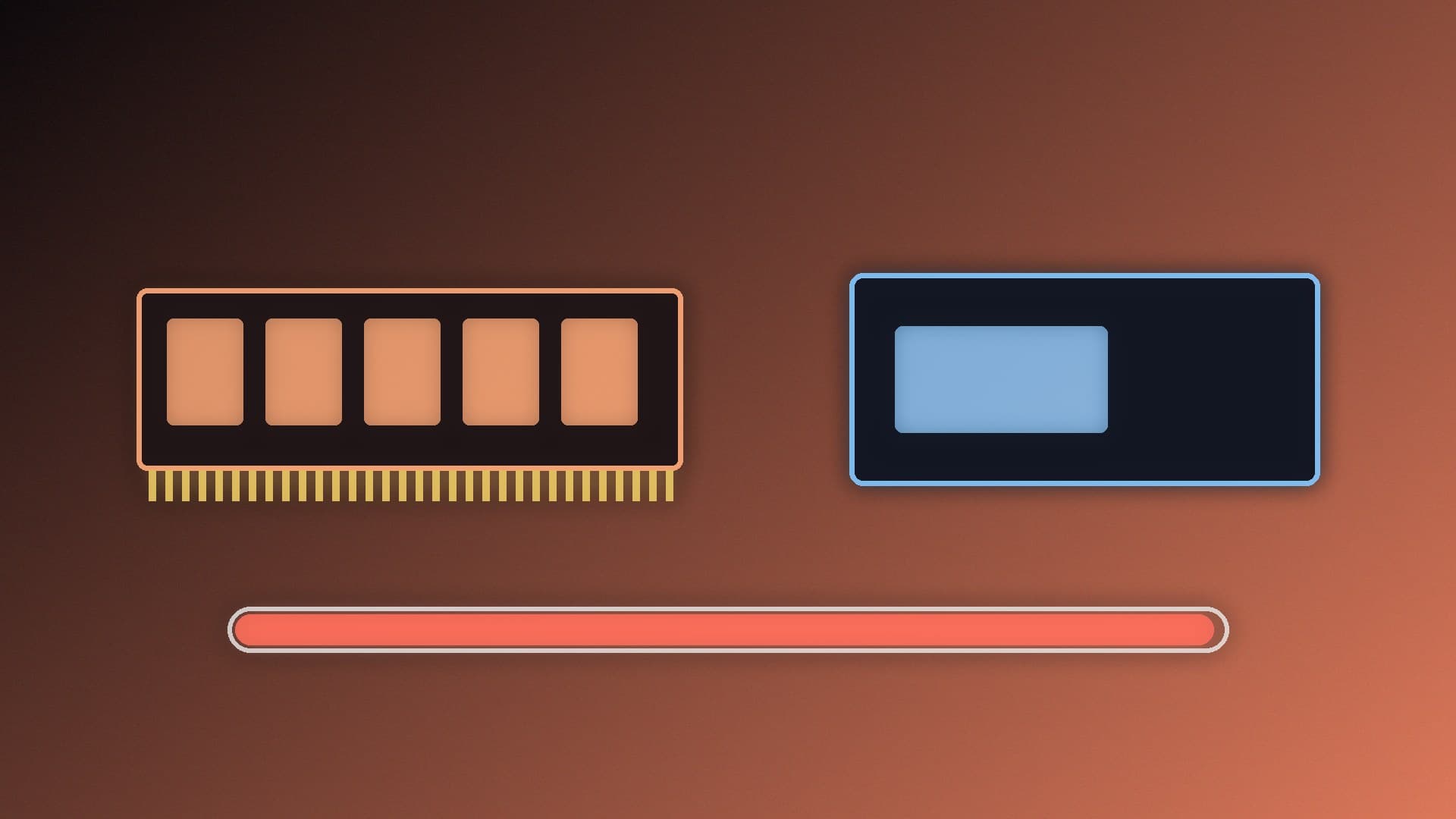
Despite the wording, the problem isn't really the page file on its own. Microsoft explains that Windows keeps track of how much memory programs have been promised (the commit charge) and caps it at the commit limit, which is the sum of your physical RAM and all page files combined. When a program asks for more committed memory than is left under that limit, the request fails. Microsoft warns that reaching the commit limit can cause freezing, crashing and other malfunctions.
So the error means "RAM plus page file isn't big enough for what's being asked right now". That's why it can appear even when Task Manager shows unused RAM: memory that's been promised counts against the limit whether or not it's being used yet.
Why AI apps trigger it
Local AI tools ask for a lot of memory at once. They load model files that can be several gigabytes to tens of gigabytes, plus large GPU libraries. A public GitHub issue in Ultralytics' YOLOv3 repository (issue 1643, linked in the sources) shows a typical example: the error appeared while Windows was loading one of PyTorch's GPU DLL files. In that thread, one user fixed it by reducing the number of data-loading worker processes, and another by increasing the Windows page file limit.
It's most likely if you've disabled the page file or set a small fixed size, if the drive holding the page file is nearly full, or if you're running several memory-hungry apps alongside your AI tool.
Step 1: Check your commit charge and limit
Open Task Manager, select Performance, then Memory, and look at Committed. It shows two figures: how much is committed now and the commit limit. Microsoft says this is where you can read both values.
Now reproduce the problem: start the AI app and load the model or workflow that fails, and watch the committed figure. If it climbs to the limit just before the error, you've confirmed the cause. Note the highest value you see; you'll use it in Step 3.
Step 2: Make sure the page file isn't disabled or starved of space
By default, Windows manages the page file itself. Microsoft says a system-managed page file grows when the commit charge goes above 90% of the commit limit, up to three times your RAM or 4GB, whichever is larger, limited to one-eighth of the drive's size. It also notes that this assumes the drive has enough free space for the file to grow.
That gives two common causes:
The page file has been turned off or fixed at a small size, often by an old "speed-up" tweak. Switch it back to system-managed first.
The drive holding it is nearly full, so Windows can't grow the file. Free up space on that drive, or move the page file to a drive with room. AI models take a lot of space themselves; our guide to moving Ollama models to another drive can help clear your system drive.
To check, search Start for View advanced system settings, open the Advanced tab, select Settings under Performance, open the Advanced tab again and select Change under Virtual memory. If Automatically manage paging file size for all drives is unticked and a drive shows "No paging file" or a small custom size, tick the box, select OK and restart. Try the AI app again before doing anything else.
Step 3: Set a larger custom page file
If the error persists with a system-managed page file, set a custom size so the commit limit is comfortably above the peak you noted in Step 1. Microsoft says page file sizing is unique to each system and can't be generalised, so there's no single right number. Our suggestion is to make RAM plus page file at least a few gigabytes above your observed peak.
For example, on a PC with 32GB of RAM, a 32GB page file raises the commit limit to about 64GB, because the limit is the RAM and page file sizes added together.
In the Virtual memory window from Step 2, untick Automatically manage paging file size for all drives.
Select the drive you want to use. Choose your fastest SSD with plenty of free space.
Choose Custom size and enter an initial and maximum size in megabytes (1GB is 1,024MB, so 32GB is 32,768MB).
Select Set, then OK, and restart your PC.
Our general guide to changing virtual memory in Windows 11 covers these settings in more detail, including how to undo them.
Keep a page file on your system even if you have a lot of RAM: Microsoft says a page file, or a dedicated dump file, is needed for Windows to write a crash dump after a system crash.
Step 4: Reduce how much memory the job needs
A bigger page file stops the error, but if your AI app is constantly committing far more than your RAM, it will lean on the SSD and slow down. These changes reduce the demand:
Close other heavy apps such as browsers with many tabs, games and other AI tools while you work.
Use smaller model files. Lower-precision versions of image models and quantised GGUF versions of language models are much smaller than full-precision files. Our guide to running ComfyUI on low VRAM covers the ComfyUI side.
Load fewer models at once. Complex ComfyUI workflows and apps that keep several models loaded multiply the memory needed.
Lower data-loader workers in your own PyTorch training scripts. In the GitHub thread above, the user who fixed the error this way explained that more workers need much more RAM; try a smaller num_workers value.
Step 5: Add more RAM
If you regularly hit the commit limit, more memory is the real fix. RAM is far faster than an SSD-backed page file, and it also lets you run larger models on the CPU when they don't fit in VRAM. Our guide to how much RAM you need for local AI explains what to aim for, and how to add more RAM covers fitting it. For a desktop, a kit such as the G.Skill Flare X5 64GB (2x32GB) DDR5-6000 CL30, the G.Skill Ripjaws S5 96GB (2x48GB) DDR5-6000 CL30 or the Kingston Fury Beast Black EXPO 128GB (2x64GB) DDR5-5600 CL36 gives far more headroom; check your motherboard supports the capacity first.
Our verdict
"The paging file is too small" (WinError 1455) means your RAM plus page file can't cover the memory an AI app is asking for, not that your graphics card has failed. First turn the page file back to system-managed and make sure its drive has free space, then set a larger custom size if the error continues, using Task Manager's Committed figure as your guide. If you keep hitting the limit, use smaller models, load fewer at once or add RAM.