This guide is based on Microsoft's driver documentation on timeout detection and recovery (TDR) and AMD's current driver release notes, read on 24 November 2026, plus our general troubleshooting advice, which we've labelled as such.
You're in the middle of a game, render or video when the screen goes black or flickers for a moment. The game may crash to the desktop, and Windows pops up a message: "Display driver stopped responding and has recovered." It's alarming, but it's also Windows doing its job: the alternative would usually be a frozen PC.
What the error actually means
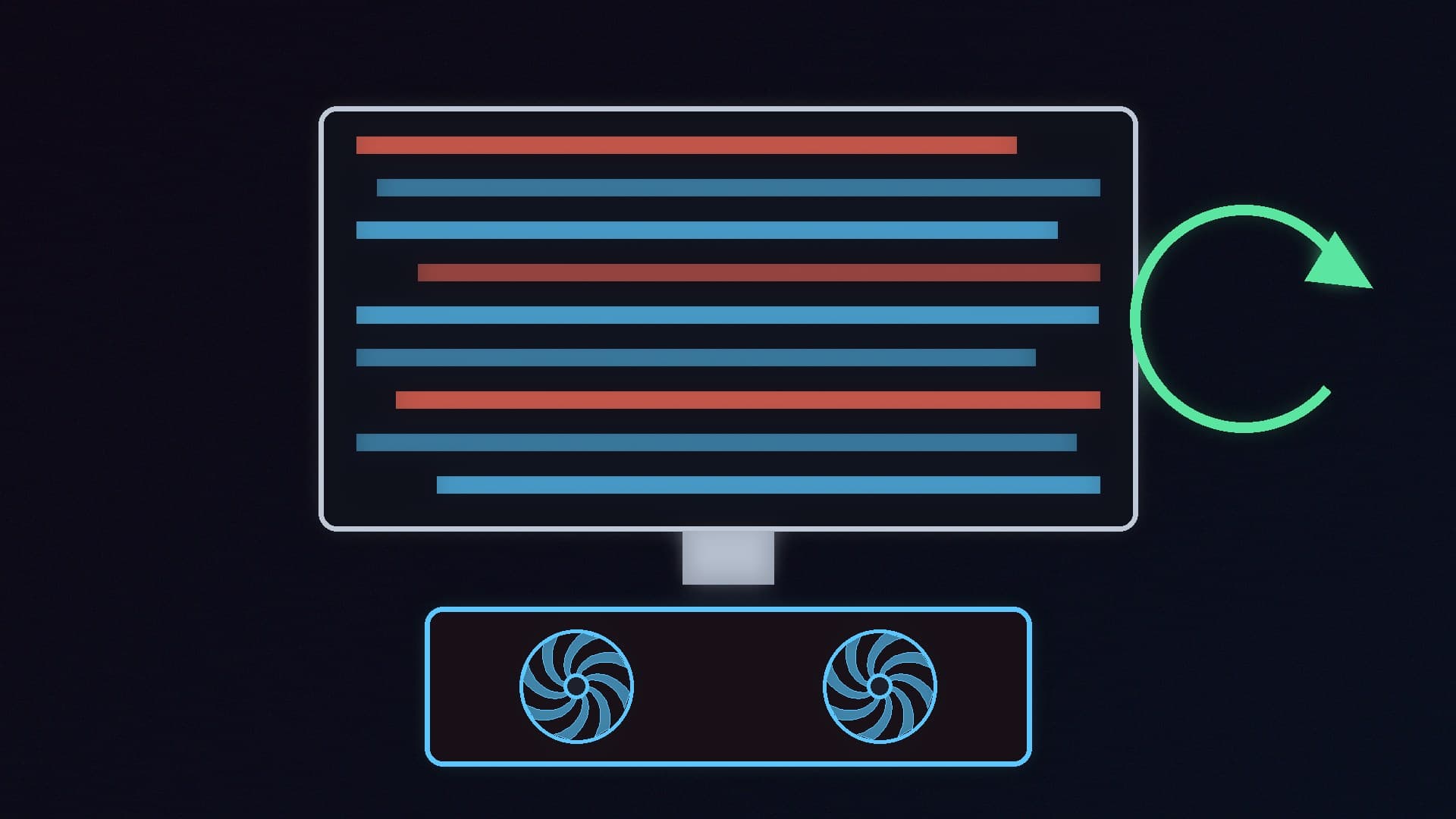
The message comes from a Windows feature called timeout detection and recovery (TDR). According to Microsoft's documentation:
The GPU scheduler in the DirectX graphics kernel watches for the GPU taking longer than allowed to finish a task, then tries to pre-empt (interrupt) it.
If the GPU can't finish or be pre-empted within the timeout, two seconds by default, Windows decides the GPU is frozen.
Windows then tells the graphics driver to reset the GPU, clears video memory and restores the desktop. The only visible sign is usually a screen flicker.
After a successful recovery, Windows shows the "Display driver stopped responding and has recovered" message and logs it in Event Viewer.
Some older DirectX games may render a black screen after the recovery and need restarting, while modern DirectX 10 and later apps that handle device removal properly can carry on.
Windows also has a limit. Microsoft's TDR registry documentation says that by default, if more than five TDRs happen within 60 seconds, Windows stops trying to recover and the PC crashes. That's when you may see a blue screen instead of the message; Microsoft's documentation refers to the related stop codes VIDEO_TDR_FAILURE (0x116) and 0x117.
In plain English: the GPU stopped answering for more than about two seconds. The message tells you that it happened, not why. The cause could be a driver bug, an unstable overclock or undervolt, overheating, a power problem, or a fault with the card.
Don't start by raising TdrDelay
Search for this error and you'll quickly find advice to add a TdrDelay registry value to give the GPU more time, or to set TdrLevel to 0 to turn detection off. Microsoft's documentation is clear that these TDR registry keys are for testing and debugging during driver development only, and that end users shouldn't manipulate them.
Our view: raising the timeout doesn't fix whatever is making the GPU hang; it just changes what you see when it does. Turning detection off removes the safety net that lets Windows recover instead of locking up. Work through the fixes below first.
Step 1: Check how often it happens and when
Before changing anything, find a pattern. Open Event Viewer and look for the logged event around the times you saw the message; Microsoft confirms each recovery is logged there. Reliability Monitor gives a simpler timeline of crashes and warnings. Our guides to using Event Viewer and using Reliability Monitor show where to look.
Note whether it happens in one game, in every game, on the desktop, or only after the PC has been running a while. One game points towards a driver or game issue; every heavy load points towards stability, heat or power.
Step 2: Undo any GPU overclock or undervolt
If you've overclocked or undervolted the card, or applied a tuning profile, set it back to stock and test again. In our experience this is the most common cause on enthusiast PCs: a tune that passes a quick benchmark can still fail after an hour in a different game. That includes factory "OC mode" switches in vendor apps and automatic tuning features. If you tuned the card with MSI Afterburner, use its reset button; our GPU overclocking and GPU undervolting guides cover where those settings live.
If you've overclocked your CPU or memory (including an XMP or EXPO profile), test at default settings too. Instability elsewhere in the system can show up as a graphics crash.
Step 3: Read your driver's known issues
Check which graphics driver version you're on and read its release notes. Driver timeouts are often listed as known issues for specific games and settings. AMD's Adrenalin Edition 26.11.2 release notes (updated 18 November 2026) are a good example: they list fixes for an intermittent driver timeout in War Thunder on Radeon RX 5000 series cards and for driver timeouts while streaming with OBS Studio on RX 9000 series cards. They also list known issues, including a driver timeout in Cyberpunk 2077 on some RX 9000 series cards when FSR upscaling, Anti-Lag and in-game frame generation are enabled during video playback on a second display; AMD's workaround is to turn off in-game frame generation.
If your game and card are on the list, the workaround or the next driver release is your fix. NVIDIA and Intel publish release notes for their drivers too.
Step 4: Clean-install the graphics driver, or roll back
A damaged or half-upgraded driver install can cause all sorts of instability. Do a clean install of the latest driver for your card. Our DDU clean install guide walks through it.
If the timeouts started straight after a driver update, go back to the last version that worked. AMD's release notes recommend using the AMD Cleanup Utility when downgrading to a previous Adrenalin version. On a laptop or all-in-one, AMD recommends the PC maker's own validated drivers if you have problems with the generic package from AMD.com.
To stop Windows Update quietly replacing the driver you've chosen, see how to stop Windows Update installing drivers.
Step 5: Check temperatures and cooling
Keep an eye on GPU temperatures while the problem game is running. Our HWiNFO and Afterburner monitoring guide shows how to set up an on-screen display, and GPU-Z shows the card's sensors and clocks. If temperatures climb towards the card's limits before a crash, clean dust out of the heatsink and case filters, check that every fan spins, and improve case airflow.
Step 6: Check power and the physical install
These are general checks rather than anything from Microsoft's documentation, but they're quick:
Make sure every PCIe power connector on the card is pushed fully home, and use separate cables from the power supply where the card needs more than one connector, if your PSU allows it.
Reseat the card in its slot. If you're using a riser cable, test with the card plugged directly into the motherboard.
Make sure your power supply is comfortably big enough for your GPU and CPU.
Try a different display cable or port if the crashes coincide with the screen blanking or changing mode.
Step 7: Stress test to find the culprit
If you can't reproduce it reliably in a game, a GPU stress test can help. Our PC stress testing guide explains how to load the GPU, CPU and memory separately, so you can see which part falls over. If the GPU fails even at stock settings, with a clean driver install, healthy temperatures and solid power, the card itself may be faulty: contact the retailer or manufacturer about a warranty claim.
Quick reference
Question | Answer |
|---|
What causes the message? | Windows' TDR: the GPU didn't finish or pre-empt a task within the timeout (2 seconds by default), so Windows reset the driver (Microsoft) |
Is it logged? | Yes, in Event Viewer (Microsoft) |
When does it become a crash? | By default, more than 5 TDRs within 60 seconds (Microsoft) |
Should I raise TdrDelay? | Microsoft says end users shouldn't change TDR registry keys |
First things to try | Stock GPU settings, read driver known issues, clean install or roll back driver (our advice; AMD recommends its Cleanup Utility for downgrades) |
Then | Temperatures, power connectors, reseat the card, stress test |
Our verdict
"Display driver stopped responding and has recovered" means Windows' TDR caught your GPU hanging for more than about two seconds and reset the driver rather than letting the PC freeze. Don't paper over it by raising TdrDelay: Microsoft says those registry keys aren't for end users. Instead, put the GPU back to stock, check your driver's known issues, clean-install or roll back the driver, then look at temperatures, power and the card's installation. If it still happens at stock with a clean driver, treat it as a possible hardware fault.