If you've shopped for a custom or enthusiast mechanical keyboard, you've probably seen "QMK/VIA support" on the box. The two names are used together so often that they're easy to confuse, but they aren't rival products. QMK is firmware: the software that runs on the keyboard itself. VIA is an app that talks to QMK firmware and lets you change your keymap without rebuilding it. A third name, Vial, combines a bit of both.
If you just want to remap a VIA keyboard, our step-by-step VIA guide covers that. This article is about understanding the difference and choosing the right route.
The short answer
| QMK | VIA | Vial |
|---|
What it is | Open-source keyboard firmware | App that configures compatible QMK firmware | QMK fork plus its own configuration app |
Where it runs | On the keyboard's processor | In your web browser on your PC | Firmware on the keyboard, app on your PC |
How changes are made | Build a new firmware file and flash it | Live, saved to the keyboard's memory | Live, saved to the keyboard |
Needs flashing to change keys? | Yes | No, once VIA-enabled firmware is installed | No, once Vial firmware is installed |
Best for | Full control, custom code and features | Quick remapping on supported boards | Advanced features without compiling |
What QMK is
QMK stands for Quantum Mechanical Keyboard. Its documentation describes it as an open-source community building firmware and tools for input devices, including keyboards, mice and MIDI devices. The QMK project maintains QMK Firmware, QMK Configurator and QMK Toolbox.
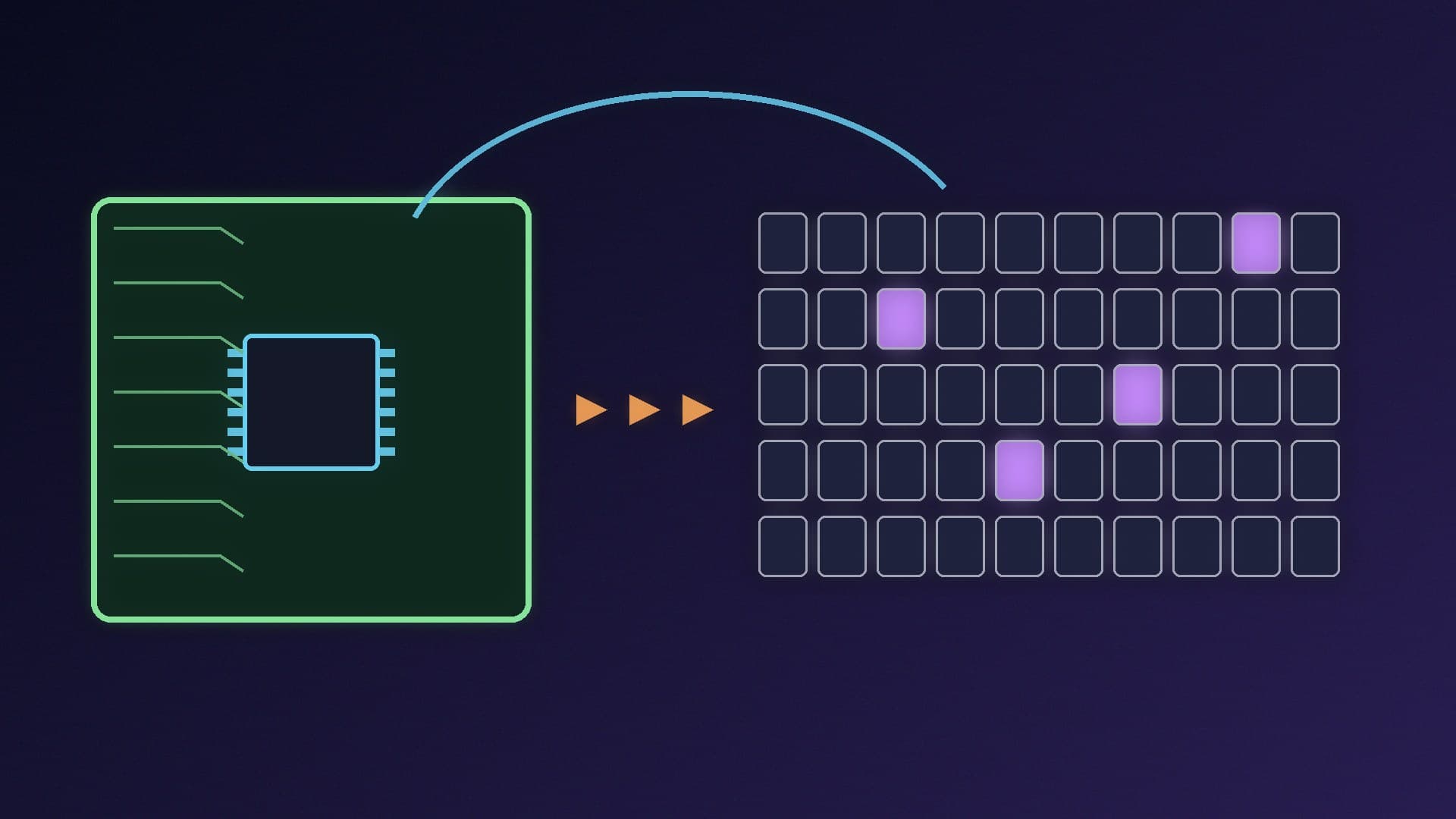
The QMK tutorial explains the basic idea well: your keyboard has a processor inside it, and that processor runs software that detects key presses and tells the computer about them. QMK fills that role. When you build a custom keymap, you're creating a program for your keyboard. QMK says it started as a heavily modified fork of TMK firmware and has expanded the available keycodes to support features such as modifier combinations and momentary layer keys.
There are two ways to make a QMK keymap:
QMK Configurator is an online graphical tool that generates QMK firmware .hex or .bin files, with no programming needed. QMK says it works best in Chrome or Firefox and that files from other tools, such as Keyboard Layout Editor, aren't compatible with it.
Building from source is more powerful but harder. On Windows, QMK provides QMK MSYS, a bundle with the command-line tools, and you compile with a command such as qmk compile -kb <keyboard> -km default.
Either way, the result is a firmware file you then flash to the keyboard. That means putting the keyboard into bootloader (DFU) mode, which QMK says varies between keyboards, and writing the file with a tool such as QMK Toolbox (Windows and macOS) or the command line. QMK warns that you can't type on the keyboard while it's in this mode and that you mustn't unplug it or interrupt the process while firmware is being written.
What VIA is
VIA is a configuration app, not firmware. VIA's documentation says it communicates with compatible firmware over USB and stores dynamic keymaps, macros, layout options and other supported settings in the keyboard's non-volatile memory. In other words, you change keys in the app and the keyboard remembers them, with no compiling or flashing.
VIA says it's compatible with more than 1,400 keyboards and can be added to other QMK keyboards. It isn't automatic, though. To work with VIA, a keyboard needs:
QMK firmware built with VIA enabled. VIA's guide for keyboard makers shows this is switched on with VIA_ENABLE = yes in a dedicated "via" keymap, and that VIA keymaps are now kept in VIA's own QMK userspace rather than the main QMK repository.
A keyboard definition. This is a JSON file describing the physical layout and configurable features such as layout options, rotary encoders and lighting. It's stored in the VIA Keyboards repository and VIA uses the keyboard's USB vendor and product IDs to find it when you plug the board in.
VIA says it provides four dynamic layers by default, and it publishes a list of ready-built VIA firmware files for supported boards. If your keyboard already runs VIA-enabled firmware (check the maker's product page or VIA's supported keyboards list), VIA's own description holds: plug in your keyboard and start.
Where Vial fits in
Vial describes itself as an open-source, cross-platform (Windows, Linux and Mac) GUI and a QMK fork for configuring your keyboard in real time. Like VIA, changes are saved straight to the keyboard and are ready to use immediately. Vial's user manual covers layers, macros, combos, tap dance and QMK settings, so it exposes more of QMK's advanced features from the app.
The catch is that Vial needs its own firmware. Vial says that if a keyboard isn't running firmware intended for Vial, it won't work with the Vial app or may have limited functionality, and you'll need to flash Vial firmware from your keyboard's maker or build it from the vial-qmk repository.
Vial also adds a security model. Its documentation says keyboards boot in a locked mode, and you have to hold specific keys for several seconds to unlock security-sensitive actions such as changing macros or jumping to the bootloader. That's designed to stop a malicious computer from changing them without you knowing.
Which should you use?
Your keyboard supports VIA out of the box: use VIA. It's the least effort, and for remapping keys, adding layers and setting up macros, that's all most people need. Check VIA's supported keyboards list or your keyboard maker's product page first.
Your keyboard runs QMK but not VIA, or you want something VIA can't do: use QMK directly. QMK Configurator is the easy starting point; building from source gives you complete control. The trade-off is that every change means rebuilding and flashing.
You want advanced QMK features such as tap dance or combos, without compiling: look at Vial, as long as Vial firmware exists for your board.
Your keyboard doesn't run QMK at all: none of these apply, and you'll need your keyboard maker's own software or a Windows remapping tool. Our guide to the best free keyboard and mouse remapping software covers alternatives that work in Windows.
If you're buying a new board and want this flexibility, QMK or VIA support is worth looking for alongside layout and switches. One example in our specs database is the Keychron Q3 Max QMK/VIA Wireless Custom Mechanical Keyboard (Ansi, fully assembled), which is listed as a QMK/VIA board. The Q3 Max itself wasn't on VIA's supported keyboards list when we checked (the original Keychron Q3 was), so follow Keychron's own setup instructions for it. See our guides to the best 75% keyboards and the best gaming keyboards.
Our verdict
QMK and VIA aren't alternatives: QMK is the firmware running on the keyboard, and VIA is an app that configures QMK firmware built with VIA support. If your keyboard supports VIA, use it for quick, live remapping with no flashing. Use QMK directly, through QMK Configurator or the source code, when you need features or keyboards VIA doesn't cover. Vial sits in between, adding advanced features in a live app, but it needs Vial-specific firmware.