Steam Cloud is the reason you can install a game on a new PC, a laptop or a Steam Deck and pick up where you left off. It's also widely misunderstood: it isn't a full backup of everything in your game folder, it only covers games whose developers set it up, and it can be switched off without you noticing. This guide explains how Steam Cloud works, how to control it, and how to protect your saves before you rebuild a PC, reinstall Windows or move to a new drive. It's based on Valve's Steamworks documentation for Steam Cloud, checked on 28 November 2026. Valve's documentation is written for developers, so we've translated what it means for players.
How Steam Cloud works
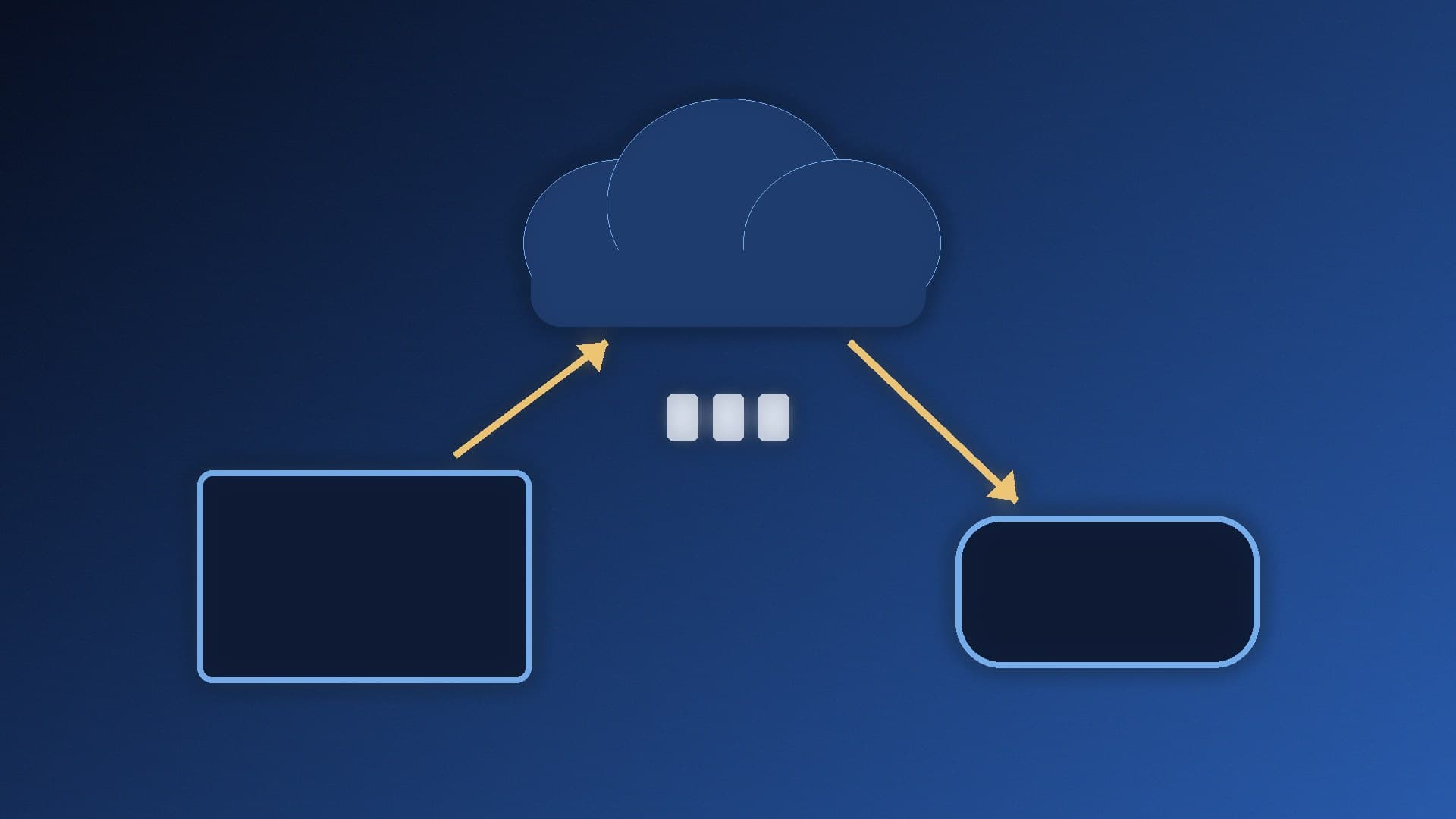
Valve describes Steam Cloud as a service that automatically stores files from your game on Steam's servers so you can log into Steam and access your saved games from any computer. In practice:
Steam syncs before and after each session. Valve says Steam synchronises a game's Steam Cloud files before and after every session, and any matching files that changed during the session are uploaded to Cloud storage immediately afterwards.
New PCs download first. If you change computers, Valve says the files are automatically downloaded to the new computer before the game launches.
Only games that support it. Each developer chooses which files are stored in the cloud, either with the Steam Cloud API inside the game or with Steam Auto-Cloud, which syncs folders the developer lists. If a game doesn't support Steam Cloud, nothing is uploaded at all.
There's a limit per game. Developers set a byte quota and a maximum number of files per user, enforced for each Cloud-enabled game, per user.
Valve's documentation adds that a cloud icon is visible in the Steam client for anyone who owns a game once the developer has published its Steam Cloud settings. So if you don't see Steam Cloud support for a game, assume your saves only exist on your PC.
What Steam Cloud usually doesn't sync
Valve advises developers to avoid machine-specific configurations such as video settings, so don't expect your graphics settings to follow you between a desktop and a laptop. That's deliberate: settings tuned for an RTX desktop would be wrong for a handheld. Expect to redo graphics options on each device.
Mods, screenshots, configuration tweaks you made by hand and anything outside the folders the developer chose are also not covered unless the developer included them.
How to turn Steam Cloud on or off for all games
Valve says you can disable Cloud synchronisation globally in Steam's Settings under Cloud by unchecking Enable Steam Cloud synchronization for applications which support it. To check it's on:
Open Steam and go to Steam's Settings.
Select Cloud.
Make sure Enable Steam Cloud synchronization for applications which support it is ticked.
If you share a PC, or set up a new one in a hurry, this is the first thing to check when saves aren't following you.
How to turn Steam Cloud on or off for one game
Valve also says you can disable Cloud synchronisation for a single game in that game's properties. Open the game's Properties from your Steam Library (right-click the game) and look for the Steam Cloud option. Turning it off for one game is useful if you want to keep a separate local save on one machine, for example a modded playthrough you don't want overwritten by progress from another PC. Remember to turn it back on afterwards, or that game's progress will stay on one machine only.
Where your save files are on Windows
Steam Auto-Cloud works from a fixed list of root folders where games commonly keep saves. Valve's documentation lists these Windows locations, which double as the best places to look when you need to find or back up a save by hand:
Location | Default Windows path |
|---|
Game install folder | [Steam Install]\SteamApps\common[Game Folder]\ |
Documents | %USERPROFILE%\My Documents\ |
AppData Local | %USERPROFILE%\AppData\Local\ |
AppData LocalLow | %USERPROFILE%\AppData\LocalLow\ |
AppData Roaming | %USERPROFILE%\AppData\Roaming\ |
Saved Games | %USERPROFILE%\Saved Games\ |
Valve notes that these are default locations and that Windows lets you move folders such as Documents elsewhere; Steam uses Windows to find their current location. Paste a path like %USERPROFILE%\Saved Games into File Explorer's address bar to jump straight there.
A handy clue from the same documentation: for games using Auto-Cloud, Steam creates a file called steam_autocloud.vdf in each folder it syncs. If you find that file in a game's folder, you've found the folder Steam Cloud is looking after.
Back up saves before big changes
Steam Cloud is sync, not version history. If a save is corrupted or overwritten, the bad copy can be synced too. Before you reinstall Windows, swap your boot drive or clone an SSD, it's worth making your own copy:
Find the game's save folder using the table above, the game's own support pages or the steam_autocloud.vdf clue.
Copy the folder somewhere safe, such as another drive, a USB stick or a cloud storage folder.
Keep a dated copy for games you'd hate to lose progress in.
For automatic protection, Windows' own tools are covered in how to use the Windows Backup app, and our best free backup software for Windows list covers tools that can back up whole folders on a schedule. If you're moving to a new SSD, how to clone an SSD with free tools keeps everything, saves included, in one go. Moving just your game installs is covered in how to move Steam games to another drive; saves stored in Documents or AppData don't move with the install folder, which is another reason to know where they live.
Avoiding sync problems
Let sync finish. Valve notes that games writing very large files, or lots of small ones, can take longer to upload and can delay shutting down Steam or relaunching the game. Wait for Steam to finish before you shut down or switch devices, especially on a slow connection; see how to fix slow Steam downloads if your connection is the bottleneck.
Don't play the same game on two PCs at once. Steam syncs at the start and end of sessions, so playing on two machines in parallel invites one session's progress replacing the other's.
If Steam can't sync or asks which copy to keep, stop and think before clicking. Pick the copy that contains the progress you want, not just the newest timestamp, and back up the local save folder first if you're unsure.
Suspend and resume on Steam Deck. Valve's documentation describes Dynamic Cloud Sync, which uploads changes when a supported game is suspended on a Steam Deck so you can carry on on another device. It only works for games marked as supporting it.
Check the log. Steam keeps a Cloud log at %Steam Install%\logs\cloud_log.txt (by default inside your Steam folder). Valve points developers to it for debugging Steam Cloud issues, and it's worth a look if a game's saves aren't syncing as you expect.
For games that use the Steam Cloud API, Valve says the API isolates individual Steam users' files from each other, which helps if several people use one PC; sharing games across accounts is covered in our Steam Families guide.