The details below come from TechPowerUp's NVCleanstall page, download page and changelog, checked on 25 November 2026.
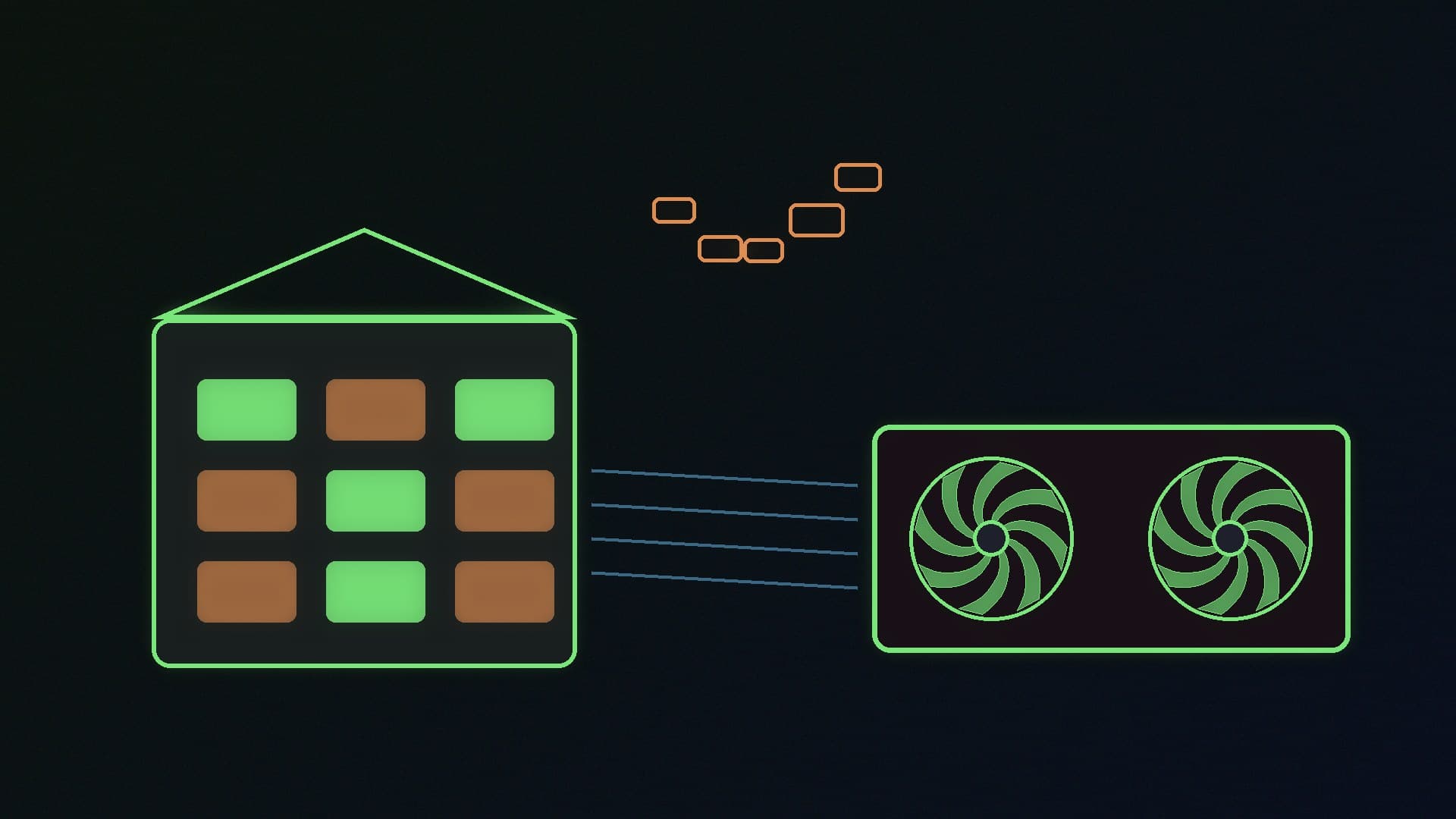
A standard NVIDIA GeForce driver package installs more than the graphics driver itself. Even NVIDIA's own "custom install" won't let you untick some components. NVCleanstall, a free tool from TechPowerUp (the people behind GPU-Z), rebuilds the driver package so you install only what you choose. It's popular with people who want a tidy system, but it isn't something every GeForce owner needs, so it's worth knowing what it does before you use it.
What NVCleanstall does
TechPowerUp says NVCleanstall lets you customise the NVIDIA GeForce driver package by removing components you don't need, which keeps things tidy and lowers disk usage and memory footprint. Its examples of things you might skip include support for Stereo 3D glasses, USB-C, telemetry and notebook optimisations.
It works in two ways:
Download mode. It fetches the driver from the internet and downloads only the components you've selected.
Existing package mode. You give it a driver installer you've already downloaded, and it customises the components inside. This works without an internet connection.
Once the repackaged files are ready you can install straight away or save the package to use later, including on another PC that has no network connection. The app is portable, so there's nothing to install. TechPowerUp also lists detailed help text for every component and automatic dependency checking, so you're warned if you remove something another part needs.
The latest version on TechPowerUp's download page is v1.19.0, dated 23 April 2025, listed for Windows 11, 10, 8 and 7 (32-bit and 64-bit). Version 1.18.0 added full support for the NVIDIA app, and 1.19.0 fixed installs not starting correctly on 576.02 drivers.
Before you start
Check your current driver version so you can compare afterwards. Our guide to checking a driver version in Windows 11 shows how.
Decide which driver you want. NVCleanstall added support for NVIDIA Studio drivers in version 1.13.0, so you can choose between Game Ready and Studio. If you're not sure which suits you, see Game Ready vs Studio drivers.
Know your way back. If a new driver gives you problems you can roll back the graphics driver in Device Manager.
Download it from TechPowerUp only. Grab NVCleanstall from TechPowerUp's own download page, which lists checksums for each version.
Step-by-step: a lean driver install
Run NVCleanstall.exe. On the first screen choose whether to download a driver or use a package already on disk. The tool shows whether the installed driver is a Studio driver, and version 1.17.0 added a "What's new" link to NVIDIA's driver changelog on this page. If Cloudflare is blocked where you are, version 1.19.0 added a checkbox on the first screen to bypass that content delivery network.
Pick your components. Read the help text for anything you're unsure about. The core display driver is what makes your graphics card work; most of the optional items are extras. On laptops, the changelog notes that "Recommended" also selects NV Platform Controllers, which TechPowerUp's description says should be used on laptops, so leave that ticked on a laptop.
Decide about the NVIDIA app. If you use features from the NVIDIA app, such as driver updates, recording or the DLSS override, keep it. Our NVIDIA app vs GeForce Experience comparison covers what the app does.
Check the Tweaks page carefully. This is where NVCleanstall goes beyond trimming. Choices on it are saved for next time. Leave anything you don't understand alone (see below).
Choose what to do with the package. Since version 1.11.0 the final screen lets you pick more than one task from Install, Show in Folder and Build Package, and version 1.16.0 added a Copy Folder action. Build Package creates a self-contained installer for another PC.
Tweaks: which ones to leave alone
NVCleanstall's changelog lists several advanced tweaks. Some are harmless; others change how the driver is signed or how Windows displays things.
Disable NVIDIA Container. TechPowerUp added a notice that enabling this will break the NVIDIA Control Panel. Leave it off unless you know you don't need the Control Panel.
Disable Multiplane Overlay (MPO). An option added in version 1.15.1. Only consider it if you're troubleshooting a specific display problem.
NVENC session limit patch. Removes the concurrent encoding session limit using a third-party patch. Most gamers and streamers don't need it.
Driver signature options. Some tweaks need NVCleanstall to rebuild the driver's digital signature, and the changelog mentions unsigned-driver warnings and an "EAC-compatible" signature mode. Anything that changes driver signing is best avoided on a gaming PC unless you understand the trade-offs, particularly if you play games with anti-cheat.
DLSS indicator and Ansel. You can turn the in-game DLSS status overlay on or off, and version 1.16.0 added support for disabling Ansel.
NVCleanstall or the normal installer?
The normal route is still the simplest. For most people, installing the latest driver from NVIDIA or through the NVIDIA app is fine, as explained in our guide to updating graphics drivers. If you're fixing a broken driver or switching between NVIDIA and AMD, use DDU for a clean install first; NVCleanstall controls what's installed, not how thoroughly old drivers are removed.
NVCleanstall makes most sense if you don't want the NVIDIA app or telemetry components, if you set up several PCs and want one prepared package, or if you need to install a driver offline. It works the same way whatever GeForce card you have, from an ASUS RTX 5070 12GB Dual OC to an MSI RTX 5060 Ti 16GB Ventus 2X OC Plus.
Our verdict
NVCleanstall is a free, portable and well-documented way to install an NVIDIA driver with only the components you want, and its offline and Build Package options are useful if you look after more than one PC. Keep the core driver and anything a laptop needs, keep the NVIDIA app if you use its features, and treat the signature and system tweaks with care. If you don't mind the standard package, NVIDIA's own installer is still the simplest choice.