It's based on the WebLLM and WebLLM Chat documentation on GitHub, WebLLM's model list, and browser announcements from Google and Mozilla, all read on 24 November 2026.
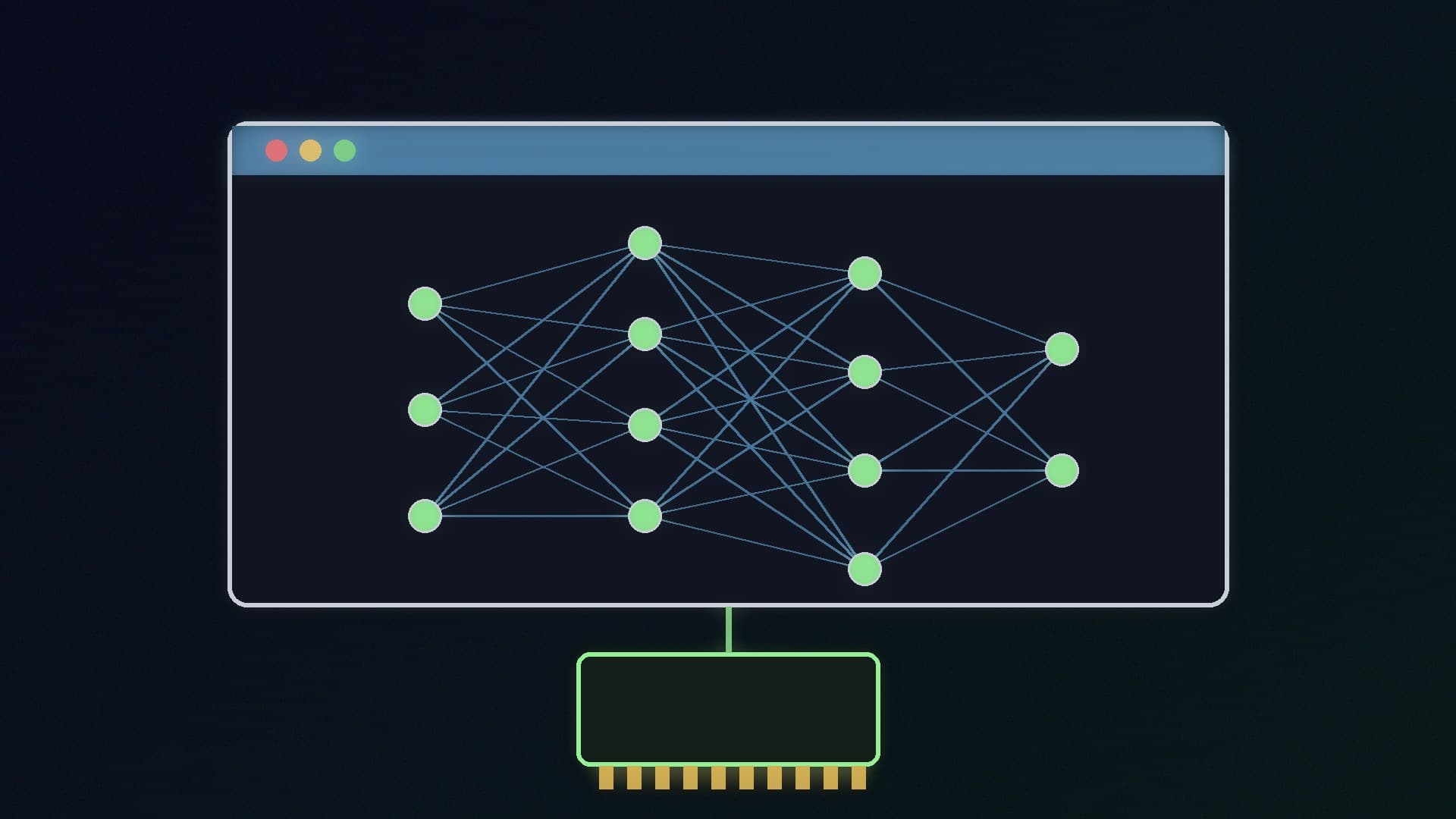
Most local AI guides start with installing an app such as Ollama or LM Studio. WebLLM takes a different approach: it runs the language model inside a browser tab. Its developers describe it as an in-browser inference engine where "everything runs inside the browser with no server support", accelerated by WebGPU, the modern web API that gives web pages access to your graphics card.
That makes it a handy way to try local AI on a PC you can't install software on, to check whether your graphics card or integrated GPU is up to the job, or simply to have a private chatbot one bookmark away. The WebLLM Chat interface says your conversations never leave your computer, and that it can run offline after the first download.
What you need
A browser with WebGPU. Google shipped WebGPU by default in Chrome 113 on Windows devices with Direct3D 12 support, as well as ChromeOS and macOS. Mozilla enabled WebGPU on Windows in Firefox 141. Mozilla's July 2025 post said Mac, Linux and Android would follow later, so Windows is the safest bet with Firefox. MDN notes that WebGPU only works on secure (HTTPS) pages and isn't yet available in every major browser.
A graphics card or integrated GPU with enough memory. WebLLM's model list gives an estimated VRAM requirement for every model, from under 400MB for the smallest to around 5GB for 7B and 8B models and more than 30GB for the largest 70B models (see the table below).
Disk space and a decent connection for the first download, as the model files are cached by your browser.
If you're unsure how much video memory you have, our guide to checking VRAM usage in Windows shows where to look.
Step 1: Update your browser and graphics driver
Make sure you're running a current version of Chrome or Firefox, and install the latest driver for your graphics card or integrated graphics from NVIDIA, AMD or Intel. WebGPU relies on your GPU driver, so it's worth being up to date before you start.
Step 2: Open WebLLM Chat
Go to chat.webllm.ai, the official WebLLM Chat site from the MLC AI team. It combines the WebLLM engine with a chat interface based on NextChat, with markdown support, dark mode and support for vision models that can answer questions about images you upload.
The site downloads the model to your browser and runs it on your own GPU rather than sending your messages to a server.
Step 3: Choose a model that fits your GPU
Pick a model from the model list. Start small: the first download can take a while, and a model that's too big for your GPU's memory may fail to load.
These estimates come from the vram_required_MB values in WebLLM's own model configuration:
Model (WebLLM name) | Estimated VRAM (WebLLM figure) |
|---|
SmolLM2-360M-Instruct-q4f16_1-MLC | About 376MB |
Llama-3.2-1B-Instruct-q4f16_1-MLC | About 879MB |
gemma-2-2b-it-q4f16_1-MLC | About 1.9GB |
Llama-3.2-3B-Instruct-q4f16_1-MLC | About 2.3GB |
Phi-3.5-mini-instruct-q4f16_1-MLC | About 3.7GB |
Llama-3.1-8B-Instruct-q4f16_1-MLC | About 5.0GB |
Qwen2.5-7B-Instruct-q4f16_1-MLC | About 5.1GB |
A few things to know about the names:
q4 means the model's weights are compressed to roughly 4 bits, which is how a 7B or 8B model squeezes into about 5GB. Our GGUF quantisation explainer covers the idea in more detail, although WebLLM uses its own MLC format rather than GGUF.
f16 vs f32. Many models come in both q4f16 and q4f32 versions. WebLLM's configuration marks some f16 models as requiring the GPU's shader-f16 feature, so if an f16 model won't load on your hardware, try the f32 version of the same model, which typically needs a little more memory.
"-1k" versions have a smaller context window, which cuts memory use. For example, WebLLM lists Llama-3.1-8B-Instruct at about 5.0GB normally and about 4.6GB in its 1k version.
As a rough guide, a 4GB card or a laptop with integrated graphics is best suited to the 1B to 3B models, while an 8GB card has room for the 7B and 8B options. If you're working with integrated graphics, our guide to running a local LLM on integrated graphics has more advice.
Step 4: Wait for the first download, then chat
The first time you load a model, WebLLM downloads its weights and the compiled WebGPU code. WebLLM's documentation warns that this "can take a significant amount of time for the very first run". After that, the files are stored in your browser's cache, so the model loads much faster next time, and WebLLM Chat says it can run entirely offline after the initial setup.
Once the model has loaded, type a message as you would in any chatbot. Expect smaller, simpler models than the big cloud services, but with the advantage that nothing you type leaves your PC.
Step 5: Free up space when you're done
Because models are stored in your browser's cache by default, they count against your browser's storage rather than a folder you can browse. If you want the space back, clear the site data for chat.webllm.ai in your browser's privacy or site settings. You'll need to download the model again next time.
If it won't start
WebGPU isn't available or nothing loads: update the browser and GPU driver, and make sure you're using Chrome or Firefox on Windows. WebGPU also needs an HTTPS page, which chat.webllm.ai is.
The model fails while loading: pick a smaller model, a "-1k" version or the q4f32 version if you chose an f16 model.
Not sure which GPU is doing the work? Our VRAM usage guide shows how to check GPU memory use in Task Manager while the model is loaded.
For developers: build it into your own page
WebLLM is also an npm package (@mlc-ai/web-llm) that you can add to your own web app, or import straight from a CDN. Its developers say it's fully compatible with the OpenAI chat API, with streaming and JSON mode, so code written for OpenAI-style chat completions can run against a model in the user's browser. Models load through a CreateMLCEngine() function, and WebLLM supports web workers and Chrome extensions.
When to use a proper local AI app instead
WebLLM is brilliant for trying local AI with no installation, but the browser adds limits. Every model has to fit in the memory your browser can use on your GPU, and you can't easily load arbitrary models without compiling them into WebLLM's format. If you want larger models, more control over GPU offloading or an API other apps can use, install a dedicated tool. Our list of the best free local AI apps and our Ollama vs LM Studio comparison will help you choose.
Our verdict
WebLLM is the quickest way to try a private, local AI chatbot on your PC: open chat.webllm.ai in an up-to-date Chrome or Firefox on Windows, pick a small model that fits your GPU's memory, and wait for the one-off download. It works with integrated graphics as well as dedicated cards, and it can run offline once the model is cached. For bigger models and more control, a dedicated app such as Ollama or LM Studio is still the better long-term choice.