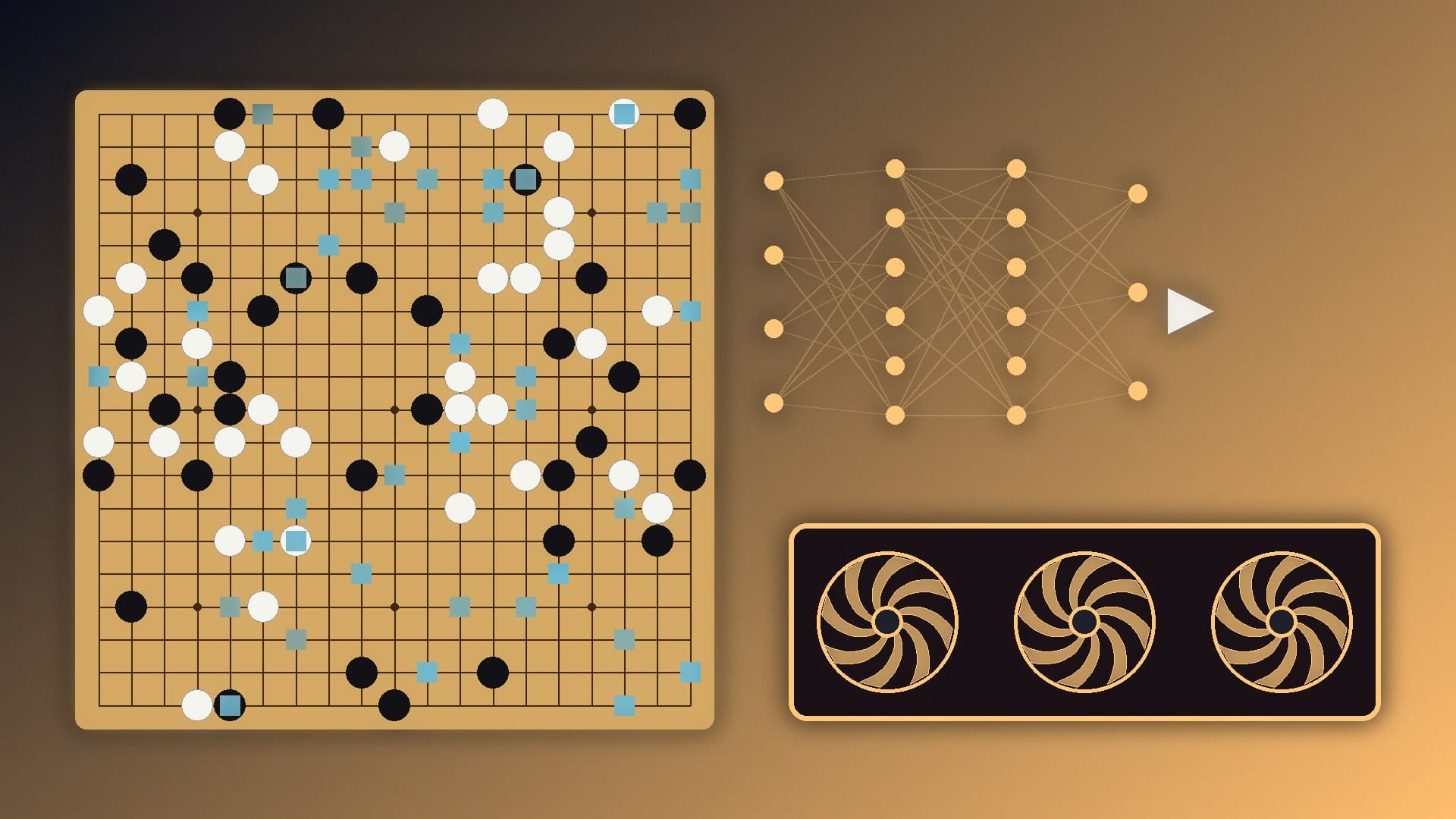
KataGo is one of the strongest open-source Go (baduk, weiqi) programs you can run at home, and like the AI chess engine Leela Chess Zero it leans heavily on your graphics card. It learned the game through AlphaZero-style self-play and it estimates the score and territory rather than only a win rate, which its developer says helps when analysing kyu and amateur dan games. This guide covers picking the right KataGo build for an NVIDIA, AMD or Intel GPU, choosing a network, tuning it with the built-in benchmark and connecting it to a GUI, all based on the KataGo project's own documentation.
What you need
KataGo comes in three pieces:
The engine (katago.exe on Windows). It speaks GTP, the text protocol Go software uses, and has no graphical interface of its own.
A neural network file (a .bin.gz file), downloaded separately from the project's training site, katagotraining.org.
A config file, such as KataGo's example gtp_example.cfg, or one you generate with KataGo's genconfig command.
You'll also want a GUI to see the board. If you'd rather skip the manual setup entirely, KataGo's own README suggests KaTrain, which bundles KataGo and a network in one download.
KataGo officially supports Windows and Linux, with precompiled executables on its GitHub releases page. On macOS the project points to the community Homebrew package and its Metal backend.
Step 1: Pick the right backend for your graphics card
KataGo has six backends: OpenCL, CUDA, TensorRT, ROCm, ONNX Runtime and Eigen (CPU). The choice matters more than it used to, because since v1.17 KataGo supports transformer networks. The README says these are generally much stronger for the same compute cost and are what the main training run is switching to, but they're more demanding on the backend, and OpenCL is noticeably slower on them.
At the time of writing (28 November 2026), v1.18.2 (30 August 2026) is the newest release, but it only contains CUDA builds. For every other backend, the release notes say v1.18.1 is the latest. Here's what the v1.18.1 and v1.18.2 release notes recommend:
Your hardware | KataGo build | What the release notes say |
|---|
NVIDIA GPU | CUDA (cuDNN) or TensorRT | Install CUDA plus cuDNN or TensorRT from NVIDIA. CUDA has faster startup and, since v1.18.x, is typically a bit faster on transformers on good GPUs. Use cuDNN 9.8.0 or newer. TensorRT older than 10 isn't supported |
AMD Radeon GPU | ROCm | New in v1.18.x and "should be much faster than OpenCL". Windows packages bundle what they need from ROCm 7.13 (you need a recent Adrenalin driver): gfx103X for RX 6000, gfx110X for RX 7000 and RDNA3 APUs, gfx1151 for Ryzen AI Max, gfx120X for RX 9000 |
Intel GPU or NPU | ONNX (OpenVINO) | Set onnxProvider = openvino in the config; self-contained package, needs only Intel's normal driver |
Any DirectX 12 GPU on Windows | ONNX (DirectML) | Set onnxProvider = directml; mostly worth trying if the native backends and OpenCL don't work |
Other or older GPUs | OpenCL | Often works where others don't, but much slower, particularly for transformers |
No usable GPU | Eigen AVX2 (plain Eigen for very old CPUs) | Quite slow compared with a GPU |
The release notes mark the Windows ROCm builds as a bit experimental, because they were cross-compiled on a machine without an AMD GPU. They also warn that the first run with a given network can take 45 seconds or more while AMD's MIOpen tunes kernels for your card. KataGo isn't hung, and the result is cached so later starts are fast. The DLLs and the rocblas and hipblaslt folders must stay next to katago.exe.
If you're on an NVIDIA card and don't know which CUDA version you have, our guide on how to check your CUDA version on Windows helps. Our suggestion for most NVIDIA owners is to start with a CUDA build with cuDNN 9.8.0 or newer. The README notes that TensorRT has much longer startup times on every launch, and the latest release notes say CUDA is now typically a bit faster on transformer networks on good GPUs.
Avoid the "+bs50" downloads unless you specifically want boards up to 50x50. The release notes say they may be slightly slower and use much more memory, even on 19x19.
Step 2: Download a network
Networks live on the katagotraining.org networks page, where casual users want the "Network File" link. On 28 November 2026 the page listed kata1-tf3-b11c768-s12502M-d6619M (uploaded 19 November 2026) as the latest network and kata1-tf3-b11c768-s12382M-d6533M as the strongest confidently rated one. The site notes that its Elo ratings are approximate and not comparable with other bots.
Don't rely on the network advice in older guides. The README's FAQ still recommends the older b18c384nbt size, while the training site says the first transformer networks were uploaded to the main run on 25 August 2026, with self-play switching to them shortly afterwards.
Step 3: Test it and tune the threads
Unzip KataGo somewhere you can write to. The README warns that Program Files is often restricted on Windows and can cause a "Could not create file" error during tuning. It also recommends avoiding spaces in folder and file names, because some GUIs handle them badly.
Then open a terminal in that folder and run the benchmark:
katago.exe benchmark -model <NEURALNET>.bin.gz -config gtp_example.cfg
The benchmark tells you a good number of search threads; set numSearchThreads in the .cfg to that value. The README says thread count is the most important performance setting and can easily make a two- to threefold difference. The example config explains that on powerful GPUs the best value can be far higher than your CPU core count, because many threads are needed to feed large batches to the GPU.
Alternatively, let KataGo write a config for you:
katago.exe genconfig -model <NEURALNET>.bin.gz -output gtp_custom.cfg
Since v1.18.1, both benchmark and genconfig also test a smaller maximum batch size and, on CUDA and ROCm, two neural-net server threads per GPU, and genconfig writes in any faster settings automatically. genconfig also asks which rules you want, such as Japanese or Chinese. The example config defaults to Tromp-Taylor rules.
On OpenCL, the first run also tunes for your GPU. The README says that usually takes 5-30 seconds, but can take many minutes on older or slower systems.
Step 4: Connect it to a GUI
Most GUIs need the command that starts KataGo in GTP mode, with full paths:
C:\KataGo\katago.exe gtp -model C:\KataGo\<NEURALNET>.bin.gz -config C:\KataGo\gtp_custom.cfg
The README offers a shortcut: name your config default_gtp.cfg and your network default_model.bin.gz, put both next to katago.exe, and you don't need the -model or -config arguments at all. Sabaki's engine guide uses the same arguments (gtp -model ... -config ...). In Ogatak, you use Setup > Locate KataGo and then Setup > Choose network. KaTrain needs none of this, because it ships with KataGo already set up. Note that KaTrain uses KataGo's analysis engine rather than GTP.
How much GPU do you need?
KataGo doesn't publish a minimum GPU or VRAM requirement. The README says the CPU-only Eigen backend is "quite significantly slower" than OpenCL or CUDA. The v1.18.0 notes say the CUDA optimisations made transformer models 1.2x to 2x faster in search speed depending on the GPU, with the largest gains on the newest GPUs such as RTX 50 series, and that GPU memory use for transformers on CUDA was greatly reduced.
Our suggestion, not a measured figure: for analysis, GPU speed and backend support matter more than a big VRAM pool. Network files are hundreds of megabytes rather than gigabytes (LizzieYzy Next lists its bundled flagship B11 network at about 202 MiB). A current mid-range card such as the MSI RTX 5060 Ti 16GB Ventus 2X OC Plus gets the CUDA backend. On AMD, an RX 9000 card such as the ASUS RX 9060 XT 16GB Dual has its own ROCm package for Windows (gfx120X). The Intel Arc B580 Limited Edition 12GB can use the OpenVINO build. If you're choosing a card mainly for AI work in general, our VRAM guide covers the wider picture.
Fixing common problems
It hangs or "loads" forever in the GUI. The README says many GUIs swallow KataGo's error messages. Run the benchmark or gtp command directly in a terminal to see the real error.
It runs out of GPU memory. Since v1.18.1, KataGo logs and prints the error before exiting rather than aborting silently. Our suggestion: lower numSearchThreads or try a smaller network. Our guide to checking VRAM usage on Windows shows what else is using the card.
GTX 16 series is slow. The v1.18.2 notes say FP16 is often slower than FP32 on these cards, so try useFP16 = false in the config.
Older AMD or integrated graphics crashes. The README notes that OpenCL drivers for the RX 5700, Mesa OpenCL and some Intel integrated graphics have known bugs. Update the driver or switch backend.
It's slow to respond in an analysis GUI. Ogatak's developer suggests turning off per-move ownership display or lowering the engine report rate if you see lag.